1. Kupu Whakataki
This manual provides essential instructions for the proper installation, operation, and maintenance of your Interphone Cellularline U-Com 6R Motorcycle Bluetooth Intercom. Please read this manual thoroughly before using the device to ensure optimal performance and safety.
The U-Com 6R is designed to enhance your riding experience with reliable Bluetooth 5.2 communication, allowing connection with up to two riders over a distance of 1 kilometer. It offers compatibility with various OEM and GPS systems and features a long-lasting, replaceable battery.
2. Nga korero haumaru
Always prioritize safety while riding. Operating the intercom should not distract you from road conditions or traffic. Ensure the device is securely mounted and all cables are properly routed to avoid interference with helmet functionality or rider movement.
- Kaua e ngana ki te wetewete, ki te whakarereke ranei i te taputapu.
- Purihia te taputapu mai i nga wera nui me te ra tika.
- Me whakarite kia kati pai te taupoki o te tauranga utu ina kore e utu ana kia mau tonu te ātete ki te wai.
- Adjust volume to a safe level that allows you to hear ambient traffic sounds.
3. Ihirangi mokete
Manatokohia ko nga mea katoa kei raro nei kei roto i to kete:
- U-Com 6R Main Unit
- Helmet Mounting Bracket (Clip and Adhesive options)
- Panui Tukuoro
- Pukuoroorooro
- Hopuoro waea
- USB-C Uira Whakatau
- Ngā Papa Velcro mō ngā Kaikōrero me ngā Hopuoro
- Haahi hopuoro
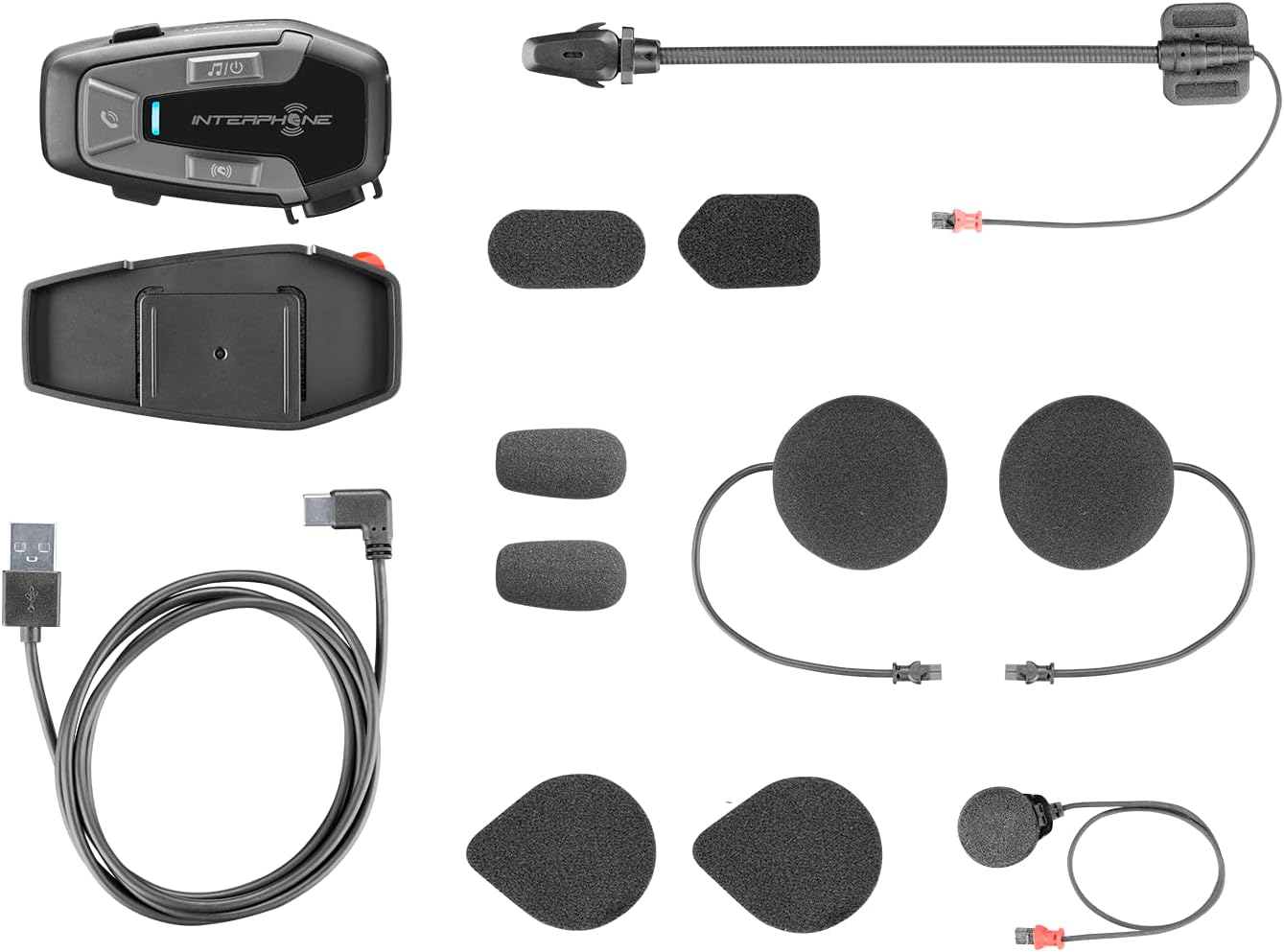
Whakaahua 3.1: All components included in the Interphone U-Com 6R package. This image displays the main intercom unit, mounting accessories, speakers, two types of microphones (boom and wired), and the USB-C charging cable.
4. Pūrere Neke Atuview
4.1. Main Unit Controls

Whakaahua 4.1: Mua view of the Interphone U-Com 6R main unit. This image highlights the primary control buttons for music, call management, and intercom functions, along with the LED indicator.
- Pātene Waiata: Controls music playback (play/pause, skip tracks).
- Patene Waea: Manages phone calls (answer/end, voice assistant).
- Pātene Waeawhiti: Initiates and manages intercom conversations.
- Tohu LED: Displays device status (pairing, charging, power).
4.2. Ngā Tauranga me ngā Hononga

Whakaahua 4.2: Te taha view of the Interphone U-Com 6R unit. This image clearly shows the USB-C charging port and the speaker/microphone connector.
- Tauranga USB-C: Ka whakamahia mo te utu i te taputapu.
- Speaker/Microphone Connector: Connects the speaker and microphone assembly to the main unit.
5. Tāutanga
5.1. Te Whakamau i te Wāhanga Matua
The U-Com 6R can be mounted to your helmet using either the clip mount or the adhesive mount.
- Topenga Maunga: Slide the clip between the helmet shell and the inner padding on the left side. Ensure it is securely fastened.
- Maunga Piripiri: Clean the desired mounting area on the left side of your helmet. Peel off the protective film from the 3M adhesive on the bracket and firmly press it onto the helmet for at least 30 seconds. Allow 24 hours for the adhesive to fully cure before use.
Whakaahua 5.1: Adhesive mounting bracket for the Interphone U-Com 6R. This image shows the bracket with the 3M adhesive backing, ready for attachment to a helmet.
5.2. Te Tāuta i ngā Kaikōrero me te Hopuoro
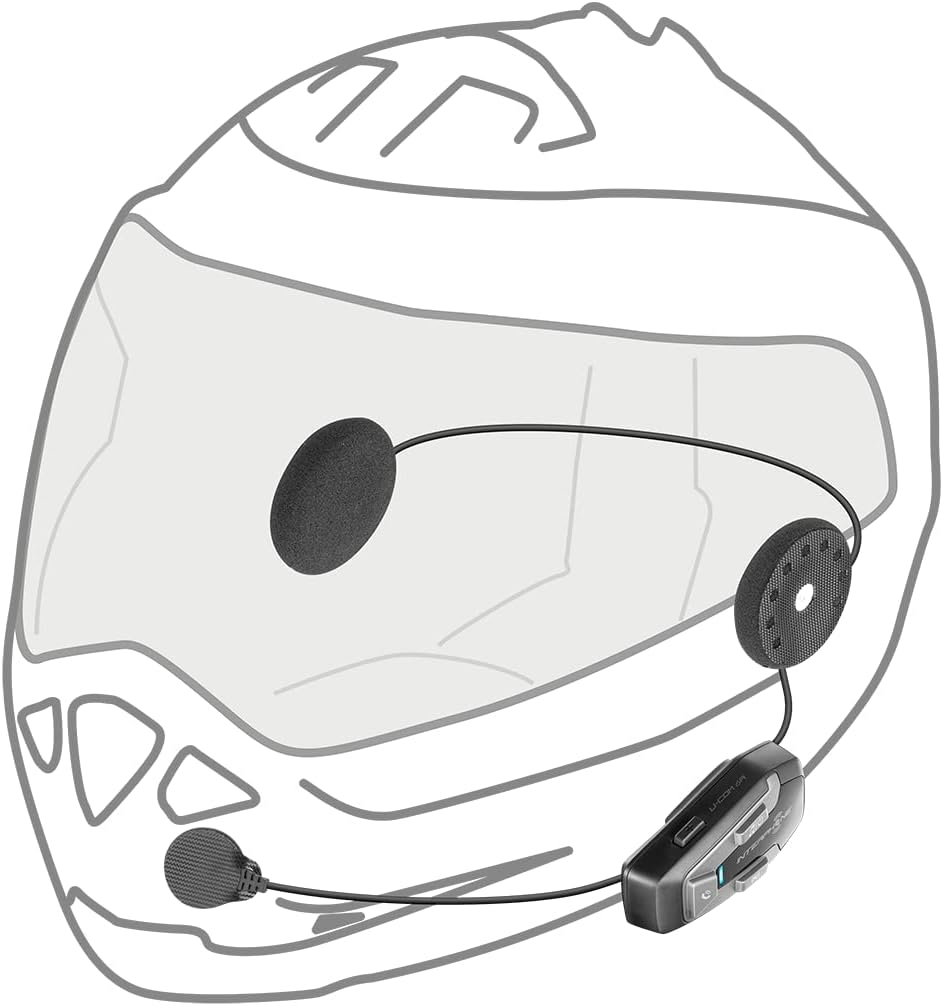
Position the speakers inside the helmet's ear pockets. The microphone should be placed in front of your mouth, ensuring clear voice pickup.
- Attach the speakers to the helmet's interior using the provided Velcro pads. Ensure the speaker with the shorter wire is for the left ear and the longer wire for the right.
- Choose the appropriate microphone for your helmet type:
- Pūorooro Boom: Ideal for open-face or modular helmets. Attach it to the inside of the helmet near your mouth.
- Puoro Waea: Suitable for full-face helmets. Attach it to the inside of the chin bar, close to your mouth.
- Connect the speaker and microphone assembly to the main U-Com 6R unit.
- Tuck all wires neatly under the helmet padding to prevent discomfort or entanglement.

Whakaahua 5.2: Installation of speakers and wired microphone inside a full-face helmet. This diagram illustrates the placement of the flat speakers in the ear recesses and the wired microphone near the chin bar.

Whakaahua 5.3: Installation of speakers and boom microphone inside an open-face helmet. This diagram shows the placement of speakers and the flexible boom microphone extending towards the rider's mouth.
6. Tatūnga me te Mahi Taketake
6.1. Ka tohatohahia te Pūrere
Before first use, fully charge the U-Com 6R. Connect the supplied USB-C cable to the charging port on the unit and to a USB power source. The LED indicator will show charging status and turn off when fully charged. A full charge provides approximately 15 hours of talk time.
6.2. Te Hiko / Whakaweto
- Whakahiko: Press and hold the Music button for 3 seconds. The LED will flash blue.
- Weto Whakakore: Press and hold the Music button for 5 seconds. The LED will turn red and then off.
6.3. Te Hononga Nihokikorangi ki te Waea Pūkoro
- With the U-Com 6R powered off, press and hold the Call button for 5 seconds until the LED flashes red and blue alternately, indicating pairing mode.
- I tō waea pūkoro, whakahohea te Nihokikorangi ka rapu i ngā pūrere hou.
- Select "Interphone U-Com 6R" from the list of available devices.
- Once paired, the LED on the U-Com 6R will flash blue periodically.
6.4. Intercom Pairing (Up to 2 Riders)
The U-Com 6R supports communication with one other rider. For Mesh 2.0 technology with multiple riders, refer to the advanced features section or the full online manual.
- Ensure both U-Com 6R units are powered on and not connected to other devices.
- On both units, press and hold the Intercom button for 5 seconds until the LED flashes red and blue alternately.
- The units will automatically search and pair with each other. Once connected, the LEDs will flash blue.
- To initiate an intercom conversation, briefly press the Intercom button on either unit.
7. Mahi
7.1. Waea Waea
- Whakautu Waea: Patohia poto te paatene Waea.
- Whakamutu Waea: Patohia poto te paatene Waea.
- Whakakore Waea: Patohia me te pupuri i te paatene Waea mo te 2 hēkona.
- Kaiawhina Reo: Briefly press the Call button twice to activate your phone's voice assistant (Siri, Google Assistant).
7.2. Purei Waiata
- Purei/Tatari: Briefly press the Music button.
- Riu Panuku: Press the Music button twice.
- Riu o mua: Press the Music button three times.
7.3. Whakaritenga Rōrahi
The U-Com 6R features dedicated buttons for volume control, typically integrated with the main control panel. Refer to the device overview (Figure 4.1) for button locations.
- Whakanuia te Volume: Press the 'Volume Up' button.
- Whakaheke Rahi: Press the 'Volume Down' button.
7.4. GPS and OEM System Compatibility
The U-Com 6R is designed with Bluetooth 5.2 to ensure broad compatibility with various GPS navigation devices and original equipment manufacturer (OEM) systems found on motorcycles. Pair these devices as you would a mobile phone, following their respective pairing instructions.
8. Tiaki
- Te horoi: Whakamahia he ngohengohe, damp cloth to clean the unit. Do not use abrasive cleaners or solvents.
- Ātete wai: The U-Com 6R is waterproof. However, ensure the USB-C port cover is fully sealed to maintain its water-resistant properties.
- Tiaki Pūhiko: For optimal battery life, avoid fully discharging the battery frequently. Charge the device regularly, especially if it will be stored for extended periods. The integrated battery is replaceable, extending the product's lifespan.
- Rokiroki: Whakaorangia te taputapu ki te waahi makariri, maroke ina kore e whakamahia.
9. Te Raru
| Raruraru | Take pea | Rongoā |
|---|---|---|
| Kaore te taputapu i te hiko. | He iti te pākahiko. | Me utu katoa te taputapu. |
| Kāore e taea te hono atu ki te waea/waea whakawhitiwhiti. | Device not in pairing mode; distance too far; interference. | Ensure device is in pairing mode (flashing red/blue). Move closer to the other device. Turn off other Bluetooth devices. |
| Kaore he ororongo, he ngoikore ranei te kounga ororongo. | Volume too low; speakers incorrectly positioned; loose connection. | Increase volume. Check speaker placement and connections. Ensure microphone is correctly positioned. |
| Ka momotu pinepine te hononga intercom. | Out of range; environmental interference. | Stay within 1 km range. Avoid areas with strong radio interference. |
9.1. Tautuhi Tautuhi
If issues persist, a factory reset may resolve them. Consult the full online manual or contact customer support for specific instructions on performing a factory reset for the U-Com 6R.
10. Whakatakotoranga
| Āhuahira | Taipitopito |
|---|---|
| Tau tauira | INTERPHOUCOM6R |
| Putanga Nihokikorangi | 5.2 |
| Awhe Intercom | Up to 1 Kilometer (between 2 riders) |
| Te Wa Korero | Tata ki te 15 haora |
| Momo Pūhiko | Lithium Polymer (included, replaceable) |
| Hononga | Bluetooth, Mesh 2.0 (compatible with Sena) |
| Ātete wai | Ae |
| Taumaha | 0.36 Kirokaramu (12.7 hekere) |
| Ahu | 9.09 x 5.83 x 2.64 inihi (Pake) |
| Hototahi | GPS and OEM systems, most other brands on the market |
11. Pūtāhui me te Tautoko
Interphone products are manufactured to high-quality standards. For warranty information, please refer to the warranty card included with your product or visit the official Interphone website. For technical support or further assistance, please contact Interphone customer service through their official channels.
Ka kitea e koe etahi atu korero me nga rauemi tautoko ma te toro ki te Toa Waea Ataata i runga i a Amazon.


