1. Kupu Whakataki
Thank you for choosing the COUGAR MX360 RGB Mid Tower Case. This manual provides essential information for the proper installation, operation, and maintenance of your new PC case. The MX360 RGB combines a sleek design with ARGB LED strips on the front panel, offering excellent cooling performance and support for a wide range of components, including up to a 360mm radiator, 315mm graphics cards, and 170mm CPU coolers. Its compact layout and full-length PSU shroud contribute to a clean and organized build.
2. Nga korero haumaru
- Momotuhia i nga wa katoa te hiko mai i te putanga o te pakitara i mua i te whakauru, te tango ranei i etahi waahanga.
- Handle components with care to avoid damage from static electricity. Consider using an anti-static wrist strap.
- Puritia ngā wāhanga iti me ngā tīwiri kia matara atu i ngā tamariki.
- Me whakarite kia tika te hau huri noa i te pouaka hei ārai i te wera nui.
- Do not attempt to modify the case or its components, as this may void your warranty and pose safety risks.
3. Ihirangi mokete
Tena koa tirohia kei roto katoa nga mea e whai ake nei ki to kete:
- COUGAR MX360 RGB Mid Tower Case
- Accessory Box (containing screws, standoffs, cable ties, etc.)
- Pukapuka Kaiwhakamahi (tenei tuhinga)
4. Hua Neke Atuview
The COUGAR MX360 RGB case features a minimalist design with integrated ARGB lighting and a tempered glass side panel for showcasing your build.

Whakaahua 4.1: Taha-mua view of the COUGAR MX360 RGB case, showing the interior and active RGB lighting.
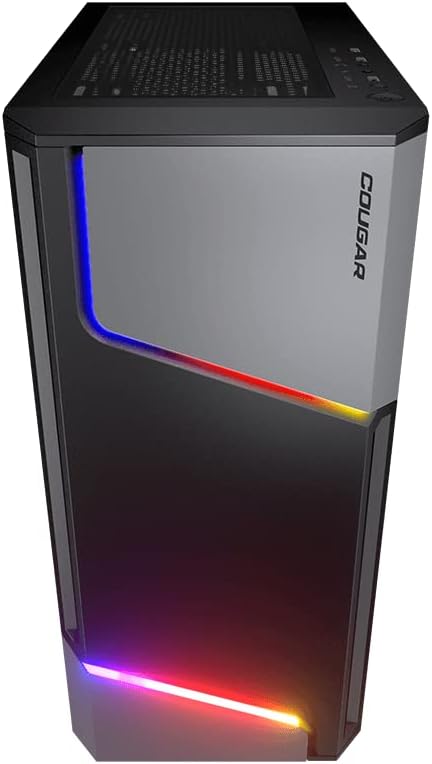
Whakaahua 4.2: Mua view of the COUGAR MX360 RGB case, highlighting the integrated ARGB LED strips.
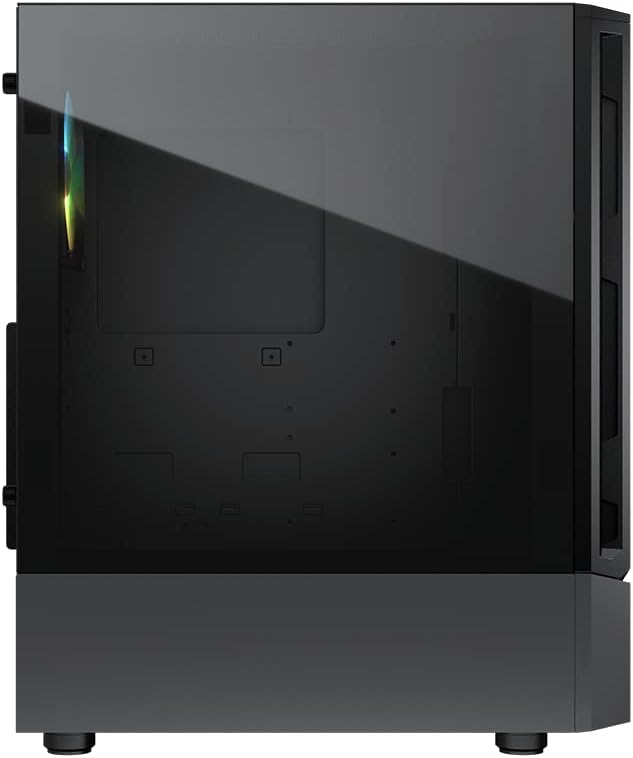
Whakaahua 4.3: Taha view of the COUGAR MX360 RGB case, featuring the tempered glass panel.

Whakaahua 4.4: Koki mua view of the COUGAR MX360 RGB case, showcasing its design and ARGB elements.
5. Tatūnga me te Tāuta
Follow these steps to install your components into the COUGAR MX360 RGB case.
5.1 Te Whakarite i te Take
- Whakanohoia te keehi ki runga i te mata papatahi, pumau.
- Remove the tempered glass side panel by unscrewing the thumb screws at the rear of the case and carefully sliding the panel off.
- Remove the opposite metal side panel by unscrewing the thumb screws and sliding it off.
5.2 Whakaaturanga Papa Pouaka
- Install the I/O shield (if not pre-installed on your motherboard) into the rear opening of the case.
- Ensure the correct standoffs are installed for your motherboard form factor (ATX, Micro-ATX, Mini-ITX). Adjust or add standoffs as needed.
- Āta whakanohoia tō papahoahoa ki runga i ngā tūāpapa, me te whakarite i ngā kōhao tīwiri.
- Whakaorangia te papahoahoa me nga wiri kua whakaratohia.
5.3 Whakaaturanga Whakaaturanga Hiko (PSU) Whakauru
- Locate the PSU shroud at the bottom of the case.
- Slide your PSU into the designated compartment from the rear of the case.
- Whakaorangia te PSU me nga wiri mai i muri o te keehi.
- Route necessary cables through the cutouts in the PSU shroud for cable management.
5.4 Te Whakanoho Puku Rokiroki
The MX360 RGB supports various storage configurations.
- Ngā HDD 3.5": Install into the drive cage located under the PSU shroud.
- Ngā SSD/HDD 2.5": Mount onto the dedicated trays or mounting points behind the motherboard tray.
5.5 Tāutanga Kāri Whakairoiro (GPU)
- Tangohia nga uhi mokamoka PCIe e tika ana mai i muri o te keehi.
- Whakauruhia tō kāri whakairoiro ki te mokamoka PCIe e tika ana i runga i te papahoahoa.
- Secure the graphics card with screws. The case supports graphics cards up to 315mm in length.
5.6 Cooling System Installation (Fans/Radiators)
The case supports up to six fans and a 360mm water cooling radiator.
- Mua: Supports up to 3 x 120mm or 2 x 140mm fans, or a 240/280/360mm radiator.
- Runga: Supports up to 2 x 120mm or 2 x 140mm fans, or a 240/280mm radiator.
- muri: Supports 1 x 120mm fan.
Install fans or radiators using the provided screws, ensuring proper airflow direction.
5.7 Hononga Paewhiri Mua
Connect the front panel cables (USB, Audio, Power, Reset, LED) to their corresponding headers on your motherboard. Refer to your motherboard manual for exact header locations.
5.8 ARGB Lighting Connection
The integrated ARGB LED strips on the front panel connect via a 5V/3Pin ARGB connector. Connect this cable to a compatible 5V/3Pin ARGB header on your motherboard to synchronize lighting effects with your system.
6. Te Whakahaere i te Take
Once all components are installed and connected, replace the side panels. Power on your system using the power button on the top I/O panel. The ARGB lighting will illuminate, controlled by your motherboard's software or a dedicated ARGB controller if you have one installed.
7. Tiaki
Ko te tiaki i nga wa katoa ka awhina i te mahi tino pai me te roa o nga waahanga PC.
- Tātari Puehu: The MX360 RGB includes removable dust filters (e.g., top, bottom). Periodically remove and clean these filters with compressed air or water (ensure they are completely dry before reinstallation).
- Horoi o Roto: Use compressed air to remove dust from internal components like fans, heatsinks, and the motherboard.
- Horoi o waho: Horoia nga mata o waho ki te ngohengohe, damp kakahu. A ape i nga kai horoi abrasive.
8. Te Raru
Mena ka raru koe, tirohia nga mahi rapurongoā noa e whai ake nei:
- Kore Mana: Ensure all power cables (24-pin ATX, 8-pin CPU, GPU power) are securely connected. Check the PSU switch is in the 'ON' position. Verify front panel power button connection to the motherboard.
- Ko te Rarama ARGB Kare e Mahi: Confirm the 5V/3Pin ARGB connector is correctly plugged into a compatible motherboard header. Check your motherboard's RGB software for control settings.
- Te wera nui: Ensure all case fans are spinning and oriented correctly for optimal airflow. Check for dust buildup on filters and components. Verify CPU cooler and GPU cooler are properly installed.
- Hononga Wewete: Re-seat all components (RAM, GPU, storage drives) and check all power and data cables.
9. Whakatakotoranga
| Āhuahira | Whakatakotoranga |
|---|---|
| Waitohu | KAUPAPA |
| Ingoa Tauira | MX360 RGB |
| Tauira Tuemi | CGR-5CC6G-RGB |
| Momo Take | Huarahi Maaka |
| Ahu (LxWxH) | 14.88 x 8.27 x 18.11 inihi (378 x 210 x 460 mm) |
| Taumaha Tūemi | 10.56 pauna (4.8 Kirokaramu) |
| Rauemi | Tempered Glass, Fine Metal |
| Tae | Pango |
| Tautoko Papamatua | Mini ITX / Micro ATX / ATX |
| Max. Te Roa o te Kaari Whakairoiro | 315 mm |
| Max. Teitei Matao CPU | 170 mm |
| Tautoko PSU | Paerewa ATX PS2 |
| Tikanga whakamatao | Hau / Wai |
| Tautoko Radiator | Front: 360mm / 280mm / 240mm / 140mm / 120mm Top: 280mm / 240mm / 140mm / 120mm Muri: 120mm |
| Tautoko Kaiwhaiwhai | Mua: 3 x 120mm / 2 x 140mm Runga: 2 x 120mm / 2 x 140mm Muri: 1 x 120mm |
| Peia Bays | 3.5" HDD: 2 2.5" SSD: 2+2 (converted from 3.5" drive bays) |
| Paepae I/O | USB 3.0 x 2, USB 2.0 x 1, Mic x 1, Audio x 1, RGB Button |
| Āhuahira Motuhake | ARGB LED Strips, Full-length PSU Cover for Cable Hiding and Improved Airflow |
10. Pūtāhui me te Tautoko
COUGAR products are designed and manufactured to the highest quality standards. For warranty information, please refer to the warranty card included with your product or visit the official COUGAR webpae. Puritia to tohu hoko mo nga kereme whakamana.
For technical support or further assistance, please visit the official COUGAR website or contact their customer service department. You can find more information and resources on the COUGAR Store on Amazon.


