Kupu Whakataki
This manual provides essential information for setting up, operating, and maintaining your Microsoft Surface Studio 2+ All-In-One Desktop Computer. The Surface Studio 2+ is designed for productivity and creativity, featuring a versatile 28-inch PixelSense™ touchscreen display.
Pānuihia tēnei pukapuka kia tika ai te whakamahinga, kia roa ai hoki te ora o tō pūrere.
He aha kei roto i te Pouaka
Manatokona kei roto katoa nga taonga kei roto i te kete:
- Surface Studio 2+ All-in-One Computer
- Pene Mata
- Papamahi Mata
- Kiore
- Power Cord with Grip-Release Cable
- Aratohu Timata Tere
- He Aratohu Haumaru me te Whakaputanga
Tatūnga
- Wewete ana: Carefully remove the Surface Studio 2+ and its accessories from the packaging. Place the computer on a stable, flat surface.

Image: The Microsoft Surface Studio 2+ All-in-One computer displaying the Windows 11 desktop interface.
- Hononga Hiko: Connect the power cord to the power port on the back of the Surface Studio 2+ base, then plug the other end into a wall outlet.

Whakaahua: Rear view of the Surface Studio 2+ base, highlighting the various ports including the power input.
- Tūhono Pikitia: Connect the Surface Keyboard and Mouse. These devices typically connect wirelessly via Bluetooth. Follow the on-screen instructions during initial setup for pairing.
- Whakaara Tuatahi: Press the power button, usually located on the back or side of the display. The computer will guide you through the Windows 11 Pro setup process, including language selection, network connection, and user account creation.
Nga Tohutohu Whakahaere
Te whakatikatika i te Whakaatu
The Surface Studio 2+ features a unique Zero Gravity Hinge, allowing the display to be adjusted from an upright desktop mode to a flat studio mode for drawing and writing.

Image: A sequence showing the Surface Studio 2+ display being adjusted from an upright position to a nearly flat angle.
- Aratau Papamahi: Gently push the top of the screen backward to tilt it into an upright position for traditional desktop use.
- Aratau Studio: Gently pull the top of the screen forward and down towards the base to transition it into a low-angle, flat position ideal for creative tasks with the Surface Pen.
Using the Surface Pen and Touchscreen
The 28-inch PixelSense™ touchscreen supports multi-touch gestures and is optimized for use with the included Surface Pen.
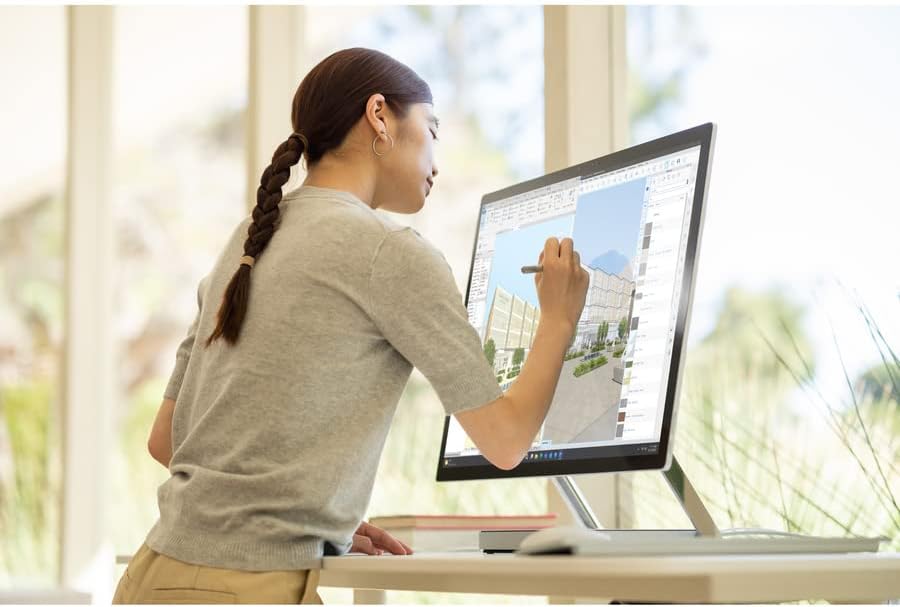
Image: A person using the Surface Pen to interact with the touchscreen of the Microsoft Surface Studio 2+ in studio mode.
- Nga Tohu Pa: Utilize standard Windows touch gestures for navigation, zooming, and scrolling.
- Pene Mata: The Surface Pen allows for precise drawing, writing, and annotation directly on the screen. It can be magnetically attached to the side of the display for storage.
Windows 11 Pro
Your Surface Studio 2+ comes pre-installed with Windows 11 Pro. Familiarize yourself with the operating system's interface and features for optimal productivity.
- Tahua Tīmata: Access applications, settings, and power options from the Start Menu.
- Paemahi: Pirihia ngā taupānga e whakamahia pinepinetia ana ki te paetaumahi hei uru tere.
- Tautuhinga: Customize your device, manage accounts, and configure privacy settings through the Settings app.
Ngā āhuatanga
The Microsoft Surface Studio 2+ is equipped with advanced components for high performance:
- Tukatuka: Intel Core i7 3 GHz processor for demanding tasks.
- Pūmahara: 32 GB DDR4 RAM for smooth multitasking.
- Rokiroki: 1 TB Solid State Drive (SSD) for fast boot times and application loading.
- Whakairoiro: NVIDIA GeForce RTX 3060 with 6GB dedicated memory for graphics-intensive applications and gaming.
- Whakaatu: 28-inch PixelSense™ touchscreen with 4500 x 3000 resolution.
- Pūnaha Mahi: Matapihi 11 Pro.
- Hononga: Integrated 802.11ax Wi-Fi and Bluetooth for wireless connections.
Te tiaki
Te horoi i te Pūrere
- Mata: Whakamahia he kakahu ngohengohe, karekau he ngongo paku damphoroia ki te wai, ki tētahi kaihoroi mata rānei i hangaia mō ngā taputapu hiko. Āta karohia ngā matū kino.
- Tinana: Horoia nga mata o waho ki te kakahu ngohengohe, maroke.
- Whakahau: Ensure the ventilation openings on the base are clear of dust and obstructions to prevent overheating.
Whakahōu Pūmanawa
Tirohia me te tāuta i ngā whakahōutanga Windows i ia wā, kia mōhio ai kei tō pūnaha ngā papaki haumarutanga me ngā whakapainga mahi hou rawa atu.
- Haere ki Tautuhinga > Windows Update.
- Pāwhiri Tirohia mo nga whakahou ka tāuta i ngā whakahōu e wātea ana.
Raparongoā
| Putanga | Rongoa pea |
|---|---|
| Kāore te rorohiko e whakakā. | Ensure the power cord is securely connected to both the computer and a working electrical outlet. Try a different outlet. |
| He waatea te whakaaturanga. | Check power connection. Ensure the computer is powered on. If connected to an external display, verify display input settings. |
| Surface Pen or Mouse not responding. | Check battery levels. Re-pair the devices via Bluetooth settings in Windows. |
| Te mahi puhoi. | Katia ngā taupānga kāore e hiahiatia. Tirohia me te tāuta i ngā whakahōutanga Windows. Whakahaerehia he horoi kōpae. |
| Nga take hononga Wi-Fi. | Restart your router and the Surface Studio 2+. Check Wi-Fi settings in Windows to ensure it's enabled and connected to the correct network. |
Whakatakotoranga
| Āhuahira | Taipitopito |
|---|---|
| Tau tauira | SBG-00001 |
| Rahi Whakaatu | 28 Inihi |
| Whakatau Mata | 4500 x 3000 |
| Tukatuka | Intel Core i7 (3 GHz) |
| RAM | 32 GB DDR4 |
| Puku Maama | 1 TB SSD |
| Kaitukatuka Whakairoiro | NVIDIA GeForce RTX 3060 |
| Rahi RAM Kāri Whakairoiro | 6 GB |
| Pūnaha Mahi | Windows 11 Pro |
| Momo Ahokore | 802.11ax, Nihokikorangi |
| Taumaha Tūemi | 21.1 pauna |
| Rahi Hua (LxWxH) | 25.1 x 0.5 x 17.3 inihi |
| Tae | Hiriwa |
Pūtāhui me te Tautoko
Your Microsoft Surface Studio 2+ is covered by a manufacturer's warranty. Please refer to the included "Safety and Warranty Guide" for detailed information regarding warranty terms, conditions, and registration.
For technical support, driver downloads, or further assistance, please visit the official Microsoft Support website or contact Microsoft customer service.
Tautoko Aipurangi: support.microsoft.com/surface


