1. Kupu Whakataki
This manual provides instructions for the proper use and care of your Docooler Portable USB Cassette Player. This device allows you to play audio cassettes and convert their content into digital MP3 files via a USB connection to a computer. Please read this manual thoroughly before operating the device to ensure optimal performance and longevity.
2. Hua Neke Atuview
The Docooler Portable USB Cassette Player is a compact, handheld device designed for playing and digitizing audio cassettes. It features a transparent casing, allowing visibility of the internal mechanism.
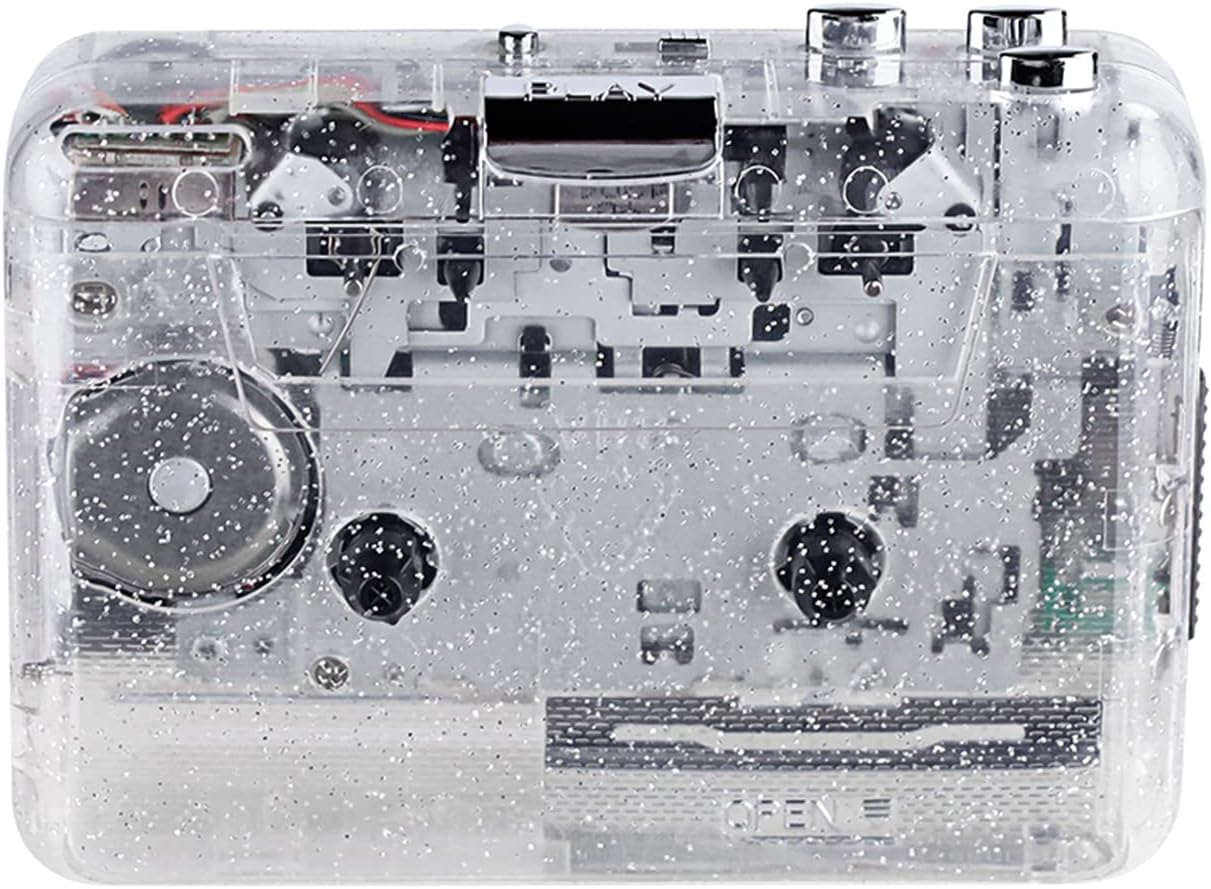
Whakaahua 1: Mua view of the Docooler Portable USB Cassette Player, showcasintōna hoahoa mārama.

Figure 2: Various angles of the cassette player, including top, side, and open views.
Ihirangi mōkī:
- Docooler Portable USB Cassette Player
- Tauira USB
- Pukapuka Kaiwhakamahi (tenei tuhinga)
- Headphones (may vary by package)
3. Tatūnga
3.1 Tuku Hiko
The cassette player can be powered by either batteries or a USB connection.
Tāuta Pūhiko:
- Kimihia te wahanga pākahiko i runga i te taputapu.
- Whakatuwheratia te uhi o te wahanga pākahiko.
- Whakauruhia nga pākahiko 2 x AA (kaore i whakauruhia), kia tika te polarity (+/-).
- Katia kia mau te uhi o te wahanga pākahiko.
Kaha Power:
Connect the provided USB cable to the player's USB port and the other end to a powered USB port on your computer or a USB wall adapter. The device will draw power from the USB connection.
4. Nga Tohutohu Whakahaere
4.1 Te Whakatangi Ripene Ripene
- Whakatuwheratia te taupoki o te wāhanga rīpene.
- Insert an audio cassette tape with the open edge facing upwards.
- Katia te taupoki o te wāhanga rīpene kia mau.
- Connect headphones or external speakers to the 3.5mm audio output jack.
- Pehia te TAKARO pātene ki te tīmata te purei anō.
- Whakamahia te KATI pātene hei whakamutu i te purei anō.
- Whakamahia te FF (Te Whakamua) a REW (Whakahoki) nga paatene hei whakatere i roto i te riipene.
- Whakaritehia te rōrahi ma te whakamahi i te waea whakahaere rōrahi.
- The "DIR" button allows you to quickly flip the tape direction. The "play mode" button can be used to reverse playback once or an unlimited number of times.

Figure 3: The cassette player in use, demonstrating tape insertion and playback setup.

Figure 4: Users listening to audio through headphones connected to the cassette player.
4.2 Converting Tapes to MP3 Files
The Docooler Portable USB Cassette Player can convert your analog cassette audio into digital MP3 files. This process requires a computer and compatible audio recording software (not included).
- Ensure the cassette player is powered (via batteries or USB).
- Connect the cassette player to your computer using the provided USB cable.
- Install and open your preferred audio recording software on your computer. Software such as Audacity (free and open-source) is commonly used for this purpose.
- Configure your recording software to recognize the cassette player as an audio input device.
- Insert the cassette tape you wish to convert into the player.
- Start recording in your software, then press the TAKARO button on the cassette player.
- Monitor the recording process. Once the tape has finished playing, stop the recording in your software.
- Save the recorded audio as an MP3 file i runga i to rorohiko.

Figure 5: Illustration of the process to convert cassette audio to MP3 files using the player and a computer.
5. Tiaki
5.1 Te horoi i te taputapu
- Horoia te waho o te kaitakaro ki te kakahu ngohengohe, maroke.
- Do not use liquid cleaners or abrasive materials, as they may damage the surface.
- Periodically clean the tape heads and pinch rollers using a cotton swab lightly dampi whakakaohia ki te waipiro isopropyl hei whakarite i te kounga oro pai me te aukati i te kino o te riipene.
5.2 Rokiroki
- Ki te kore e whakamahia mō te wā roa, tangohia ngā pākahiko hei ārai i te turuturu.
- Whakaorangia te kaitakaro ki tetahi waahi makariri, maroke atu i te ra tika me te wera nui.
6. Te Raru
| Raruraru | Take pea | Rongoā |
|---|---|---|
| Karekau he kaha | Dead batteries; USB cable not connected properly. | Replace batteries; ensure USB cable is securely connected. |
| Karekau he tangi | Headphones/speakers not connected; volume too low; dirty tape heads. | Connect audio output device; increase volume; clean tape heads. |
| Poor sound quality (hissing, muffled) | Dirty tape heads; worn-out tape; low battery. | Clean tape heads; try a different tape; replace batteries. |
| Karekau te riipene e purei ana, e neke ana ranei | Tape jammed; mechanism issue; low battery. | Check tape for damage; replace batteries. |
| Cannot convert to MP3 | USB connection issue; software not configured correctly; no recording software. | Ensure USB is connected; check software settings; install compatible recording software. |
7. Whakatakotoranga
- Tauira: B0C69FDZF6
- Tuku Hiko: 2 x AA Batteries or USB 5V DC
- Atanga: USB 2.0
- Putanga Ororongo: 3.5mm tīwharawhara Jack
- Ahu: 7.2 x 5.91 x 1.54 inihi (hua)
- Taumaha: 9.6 hekere (hua)
- Kaihanga: Kaituku
8. Nga korero haumaru
- Kaua e tukuna te taputapu ki te wai, ki te makuku nui ranei.
- A ape i te tuku, te tuku ranei i te taputapu ki nga paanga kaha.
- Kaua e ngana ki te wetewete, ki te whakatika ranei i te taputapu. Tirohia nga kaimahi ratonga whai tohu.
- Kaua e taea e nga tamariki.
- Whakakorehia nga pākahiko kia rite ki nga ture o te rohe.
9. Raihana me te Tautoko
For warranty information or technical support, please refer to the documentation included with your purchase or contact Docooler customer service through their official website or the retailer where the product was purchased. Please have your model number (B0C69FDZF6) and purchase date available when contacting support.


