1. Kupu Whakataki
Thank you for choosing the Maxcom FW36 Aurum SE Smartwatch. This manual provides detailed instructions to help you set up, operate, and maintain your device, ensuring optimal performance and longevity. Please read this manual carefully before using your smartwatch.

Whakaahua 1: Mua view of the Maxcom FW36 Aurum SE Smartwatch, displaying time and health metrics.
2. Tatūnga
2.1 Te Whakakore me te Tirotiro Tuatahi
Upon opening the package, verify that all components are present: Maxcom FW36 Aurum SE Smartwatch, charging cable, and this user manual. Inspect the device for any visible damage.
2.2 Te Whakataki i te Maataki Ataata
Before first use, fully charge your smartwatch. Connect the charging cable to the charging port on the back of the watch and to a standard USB power adapter (not included). The battery icon on the screen will indicate charging status. A full charge typically takes approximately 2 hours.
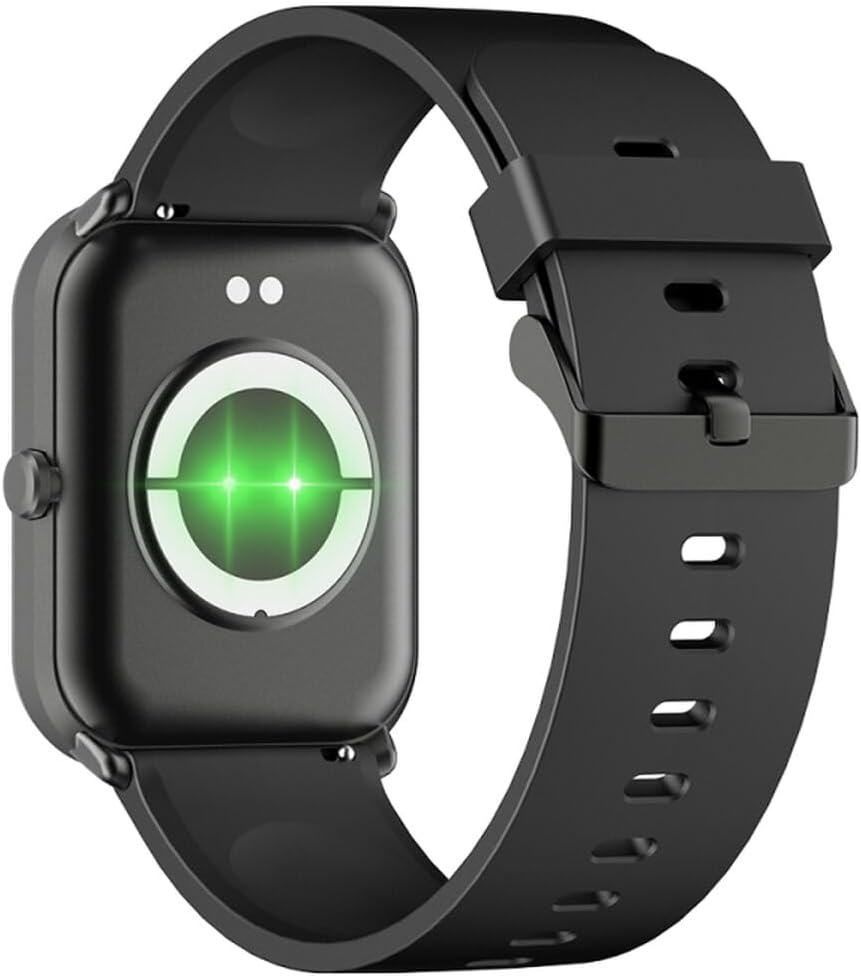
Whakaahua 2: Whakamuri view of the smartwatch, highlighting the charging contacts and health sensors.
2.3 Hiko / Whakaweto
- Whakahiko: Patohia me te pupuri i te paatene taha mo etahi hēkona kia whiti te mata.
- Weto Whakakore: From the watch face, swipe down to access quick settings, then tap the power icon, or navigate to "Settings" > "System" > "Power Off". Confirm your selection.
2.4 Taupānga Tāuta me te Tauhoa
- Tikiake i te Taupānga: Scan the QR code in the manual (if provided) or search for "GLORY FIT" in your smartphone's app store (Google Play Store for Android, Apple App Store for iOS).
- Rēhita/Takiuru: Open the GLORY FIT app and follow the on-screen instructions to create an account or log in.
- Takirua:
- Me mohio kei te whakahohea te Nihokikorangi i runga i to waea atamai.
- Open the GLORY FIT app, go to "Device" or "My Device", and tap "Add Device".
- The app will search for nearby devices. Select "FW36 Aurum SE" from the list.
- Whakaūhia te tono takirua i runga i to waea atamai me te maataki atamai.
Once paired, the smartwatch will synchronize data with your phone, including time and date settings.
3. Nga Tohutohu Whakahaere
3.1 Whakaterenga Taketake
- Mata pa: Swipe left/right to navigate between main functions (e.g., activity, heart rate). Swipe up to view whakamohiotanga. Swipe ki raro ki te uru ki nga tautuhinga tere.
- Pātene taha: Press once to return to the watch face or wake the screen. Press and hold for power options.

Whakaahua 3: Taha view of the smartwatch, illustrating the physical button and strap design.
3.2 Te Aroturuki Hauora
The Maxcom FW36 Aurum SE Smartwatch features several health monitoring functions:
- Aroturuki Reiti Manawa: Swipe to the heart rate interface and wait for the measurement to complete. Ensure the watch is snug on your wrist.
- Pūoko Hauora Toto: Similar to heart rate, navigate to the SpO2 interface for measurement.
- Kaupane Toto Toto: Access this function from the main menu or by swiping to its dedicated screen.
- Aroturuki Kounga Moe: Ka aroturuki aunoa te mataaratanga i ō tauira moe ina mau ana koe i a koe e moe ana. View detailed reports in the GLORY FIT app.
- Patohanga: Tracks your daily steps, distance, and calories burned automatically.
Hiranga: Hei tohutoro anake ngā raraunga hauora e whakaratohia ana e tēnei taputapu, kaua hoki e whakamahia mō te tautuhi mate, mō te maimoatanga rānei.
3.3 Aratau Hakinakina-Maha
Access the multi-sport mode from the main menu to select various activities such as running, walking, cycling, etc. The watch will track specific metrics relevant to your chosen activity.
3.4 Panuitanga
Once paired with your smartphone and notification permissions are granted in the GLORY FIT app, your smartwatch will display incoming calls, messages, and app notifications. Swipe up from the watch face to view tou hītori whakamōhiotanga.
4. Tiaki
4.1 Te horoi
Regularly clean your smartwatch and strap with a soft, dry cloth. For stubborn dirt, use a slightly damp kātahi ka whakamaroke kia tino maroke. Kaua e whakamahi i ngā matū kaha, i ngā rauemi whakakoi rānei.
4.2 Te Wai me te Atete Puehu
The Maxcom FW36 Aurum SE Smartwatch is designed to be dust resistant and water resistant. This means it can withstand splashes, rain, and brief immersion in shallow water. However, it is not suitable for hot showers, saunas, diving, or high-speed water sports. Avoid pressing buttons underwater.
4.3 Tiaki Pūhiko
Hei whakaroa i te ora o te pākahiko, kaua e tukua kia pau katoa te pākahiko i ngā wā katoa. Whakakīia te taputapu i ngā wā katoa, ahakoa kāore e whakamahia ana mō te wā roa. Penapenahia te taputapu ki te wāhi hauhautanga, maroke.
5. Te Raru
- Karekau te maataki atamai e huri ana: Ensure the device is fully charged. Press and hold the side button for an extended period (10-15 seconds).
- Kaore e taea te hono ki te waea atamai:
- Ensure Bluetooth is enabled on your phone and the smartwatch is within range.
- Me whakaara ano to waea atamai me te maataki atamai.
- Check if the GLORY FIT app has necessary permissions.
- Mena kua honoa kētia te pūrere i mua, ngana ki te wete i te hononga ka hono anō.
- Ko nga panui hauora kore tika: Ensure the watch is worn snugly on your wrist, not too tight or too loose. Clean the sensors on the back of the watch. Avoid excessive movement during measurement.
- Ko nga whakamohiotanga kaore i tae: Verify that notification permissions are enabled for the GLORY FIT app in your phone's settings. Ensure the app is running in the background.
6. Whakatakotoranga
| Tauira | FW36 Aurum SE |
| Waitohu | Maxcom |
| Pūnaha Mahi | Android |
| Whakaatu | 1.69" (4.29 cm) Color Touchscreen, 240 x 280 pixels, Digital, Rounded Corners |
| Pūhiko Raukaha | 220 mAh Lithium-ion |
| Hononga | Nihokikorangi |
| Pūoko | Heart Rate Monitor, Blood Oxygen Sensor, Blood Pressure Monitor, Pedometer |
| Parenga | Dust Resistant, Water Resistant |
| App Hototahi | GLORY FIT |
| Dimensions (W x T x D) | 44.6 mm x 1.04 cm x 35 mm |
| Mahi GPS | Kāore i te wātea |
7. Pūtāhui me te Tautoko
The Maxcom FW36 Aurum SE Smartwatch comes with a e rua tau te whakamana against factory defects. Please retain your proof of purchase for warranty claims.
For technical support, troubleshooting assistance, or warranty inquiries, please contact Maxcom customer service through their official webte waahi, nga korero whakapā ranei e whakaratohia ana me to tuhinga hoko.


