1. Hua Neke Atuview
The Poly Voyager 4320 UC is a wireless stereo headset designed for professionals requiring seamless connectivity and productivity in various work environments. It features a noise-canceling boom microphone with Acoustic Fence technology, ensuring clear audio transmission by blocking background noise. The headset connects to PC/Mac via a BT700 USB-C Bluetooth adapter (with an included USB-C to USB-A adapter) and to mobile devices via Bluetooth 5.2. It offers up to 24 hours of talk time and includes a desktop charging stand for convenient power management. This model is Microsoft Teams certified and integrates with other communication platforms like Zoom.

Image 1.1: The Poly Voyager 4320 UC Wireless Headset shown on its included desktop charging stand. The headset features over-the-head stereo design with a flexible boom microphone.
2. Nga waahanga matua
- Ūkui Kounga Ororongo: Features a noise-canceling dual microphone with Acoustic Fence technology to minimize background noise, ensuring your voice is heard clearly.
- Hononga Hangawari: Connects wirelessly to computers (PC/Mac) via the included BT700 USB-C Bluetooth adapter (with USB-C to USB-A adapter) and to mobile phones via Bluetooth 5.2.
- Extended Mobility: Offers a wireless range of up to 164 feet (50 meters) from your computer, allowing freedom of movement during calls.
- Roa te Ora o te Pūhiko: Provides up to 24 hours of talk time on a single charge. Can also be used as a wired headset via audio-over-USB mode.
- Hoahoa whakamarie: Equipped with an adjustable padded headband and memory foam ear cushions for comfortable extended wear.
- Dedicated Microsoft Teams Button: Instant access to the Microsoft Teams app for seamless collaboration. Also compatible with Zoom and other platforms.
- Desktop Charging Stand: Simplifies charging and provides a convenient storage solution.
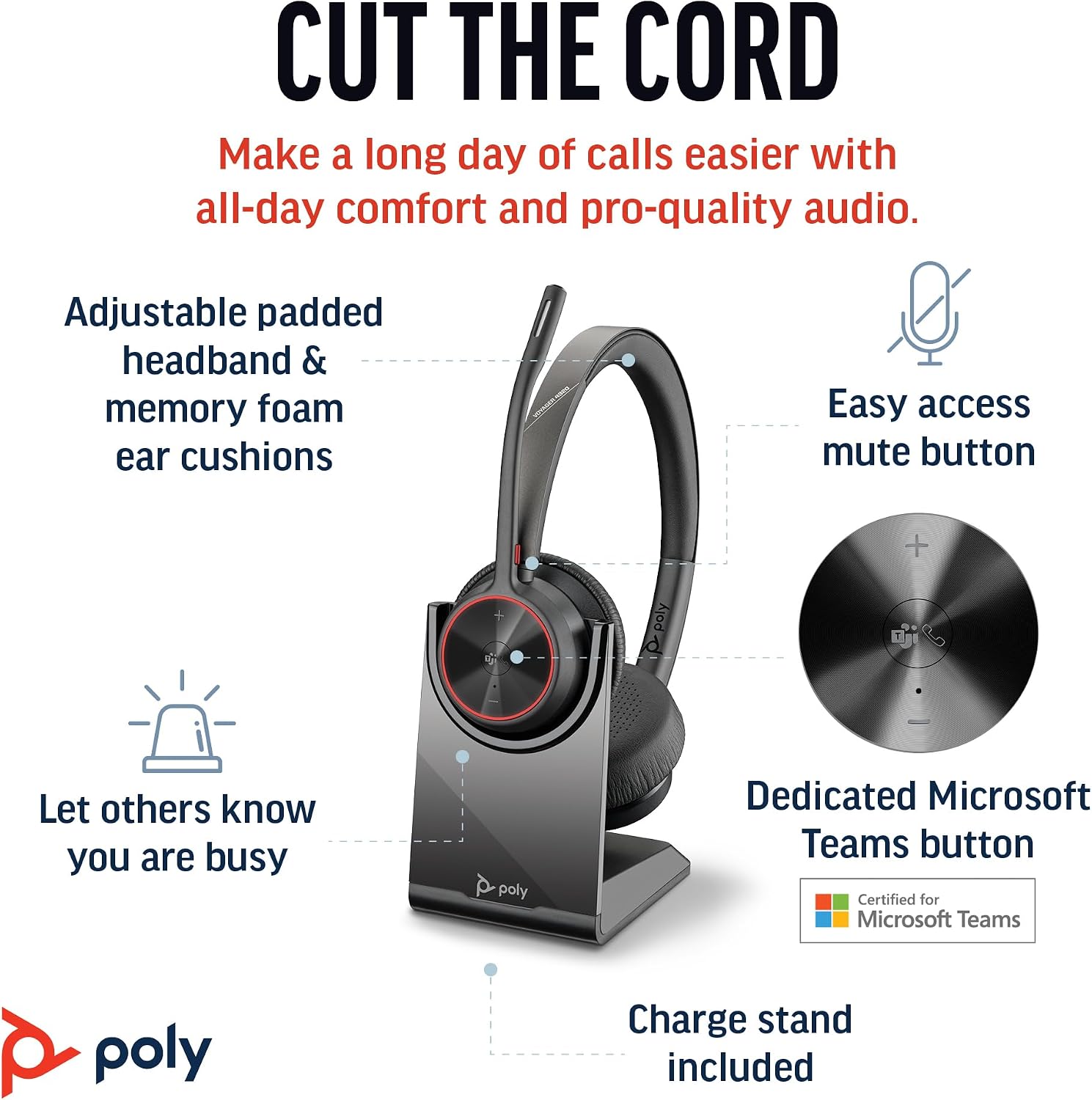
Image 2.1: The Poly Voyager 4320 UC Headset highlighting its adjustable padded headband, memory foam ear cushions, easy access mute button, dedicated Microsoft Teams button, and included charge stand.

Image 2.2: Illustration demonstrating the noise-canceling dual microphone with Acoustic Fence technology, which filters out background noise for clear communication.
3. Aratohu Tatūnga
3.1 Ihirangi mokete
Manatokona kei roto katoa nga mea kei roto i to kete:
- Poly Voyager 4320 UC Headphone Ahokore
- Papamahi Papamahi Tu
- BT700 USB-C Bluetooth Adapter
- USB-C ki USB-A Pūurutau
- Tauira Whakatau USB
- Travel Pouch (may be included with some versions)
3.2 Te Whakataki i te Paneoro
Before first use, fully charge your headset. The headset can be charged using the included desktop charging stand or directly via the USB charging cable.
- Ma te whakamahi i te turanga utu: Connect the USB charging cable to the charging stand and then to a powered USB port (e.g., computer, wall adapter). Place the headset onto the charging stand. The headset's LED indicator will show charging status.
- Te Utu Tika a te USB: Connect the USB charging cable directly to the headset's USB-C port and then to a powered USB port.
A full charge takes approximately 1.5 hours. The headset provides up to 24 hours of talk time and 47 hours of listening time.
3.3 Te hono ki nga taputapu
The Voyager 4320 UC headset offers multiple connection options:
3.3.1 Connecting to PC/Mac (via USB Adapter)
- Insert the BT700 USB-C Bluetooth adapter into an available USB-C port on your computer. If your computer only has USB-A ports, use the included USB-C to USB-A adapter.
- The adapter's LED will flash blue, indicating it is searching for the headset.
- Power on your headset. The headset and adapter are pre-paired and should connect automatically. The adapter's LED will turn solid blue when connected.
- Select the Poly Voyager 4320 UC as your audio input and output device in your computer's sound settings and communication applications (e.g., Microsoft Teams, Zoom).
3.3.2 Connecting to Mobile Phone (via Bluetooth)
- With the headset powered on, press and hold the Bluetooth pairing button on the headset until the headset's LED flashes red and blue, indicating pairing mode.
- On your mobile phone, go to Bluetooth settings and enable Bluetooth.
- Select "Poly Voyager 4320 UC" from the list of available devices.
- Once paired, the headset's LED will stop flashing and remain solid blue.

Image 3.1: Diagram illustrating the multiple connection options for the Poly Voyager 4320 UC headset, including connection to a PC/Mac via the USB-C BT700 Bluetooth adapter (with USB-A adapter option) and direct Bluetooth connection to a mobile device.
4. Nga Tohutohu Whakahaere
4.1 Te mau i te Paneoro
The headset can be worn with the microphone boom on either the right or left side. Rotate the boom up and over to align with the desired side. For optimal microphone performance, position the boom approximately two finger-widths from the corner of your mouth.
4.2 Mana Headset
- Rōrahi Whakarunga/Whakararo (+/-): Adjusts listening volume.
- Patene Waea: Patohia hei whakautu ka mutu ranei tetahi piiraa.
- Patene Whakakore: Located on the microphone boom. Press to mute/unmute your microphone. A dynamic mute alert will notify you if you speak while muted.
- Microsoft Teams Button: Dedicated button for instant access to the Microsoft Teams application.
- Pātene Hiko: Slide to power on/off.
4.3 Tohu LED
The headset and USB adapter feature LED indicators to provide status information:
- Arataki pane:
- Solid Blue: Connected/In call
- Flashing Red/Blue: Pairing mode
- Mārō Whero: Wahangu
- Amipere totoka: Kei te utu
- Whero Whero: He iti te pākahiko
- USB Adapter LED (BT700):
- Solid Blue: Connected/In call
- Flashing Blue: Searching for headset
- Mārō Whero: Wahangu
5. Tiaki
5.1 Te horoi
To maintain the headset's performance and hygiene:
- Wipe the ear cushions and headband with a soft, damp kakahu. A ape i te whakamahi i nga matū kino, i nga taonga abrasive ranei.
- Do not immerse the headset in water or any liquids.
- Keep the charging contacts on the headset and stand clean and free of debris.
5.2 Rokiroki
When not in use, store the headset on its charging stand or in the included travel pouch to protect it from dust and damage. Avoid storing in extreme temperatures.
6. Te Raru
6.1 Kāore he Ororongo, he Kounga Ororongo Kino rānei
- Taki Hononga: Ensure the headset is properly connected to your device (solid blue LED on headset and adapter).
- Taumata Rōrahi: Verify that headset, computer, and application volume levels are not muted or set too low.
- Pūrere Taunoa: Confirm that the Poly Voyager 4320 UC is selected as the default playback and recording device in your computer's sound settings and communication software.
- Awhe: Ensure you are within the wireless range (up to 50 meters) of your connected device.
- pokanoa: Neke atu i etahi atu taputapu ahokore ka raru pea.
6.2 Kaore i te Mahi te hopuoro
- Takina Wahangu: Ensure the microphone is not muted (headset LED should not be solid red).
- Turanga hopuoro: Adjust the microphone boom to be two finger-widths from your mouth.
- Pūrere Taunoa: Confirm the headset is selected as the default recording device in your computer's sound settings and communication software.
- Tautuhinga Pūmanawa: Tirohia nga tautuhinga tūmataitinga hopuoro i roto i to punaha whakahaere.
6.3 Headset Not Pairing/Connecting
- Hurihanga Hiko: Turn the headset off and on again.
- Takirua ano: Follow the pairing instructions in Section 3.3 to re-pair the headset with your device or USB adapter.
- Adapter Reset: If using the USB adapter, try unplugging and re-inserting it.
- Clear Device List: On your mobile device, forget the headset from the Bluetooth device list and attempt to pair again.
7. Whakatakotoranga
| Āhuahira | Whakatakotoranga |
|---|---|
| Ingoa Tauira | Voyager 4320 Teams Version with Charge Stand, USB-C BT700 with USB-C to USB-A Adapter |
| Hangarau Hononga | Ahokore (Nihokikorangi 5.2) |
| Mokowoko Korekore | Tae atu ki te 50 mita (164 putu) |
| Te Wa Korero | Tae atu ki te 24 haora |
| Te Wa Whakarongo | Tae atu ki te 47 haora |
| Waa Whakatau | Approx. 1.5 haora mo te utu katoa |
| hopuoro | Noise-canceling dual mic with Acoustic Fence technology |
| Pūrere Hototahi | Cellphones, Desktops, Laptops, Tablets |
| Momo Mana | Mana Media, Pa |
| Taumaha Tūemi | 162 Karamu (5.7 hekere) |
| Hunga Hua | 3.94 x 0.79 x 1.06 inihi |
| Momo Pūhiko | 1 pākahiko Lithium Ion (kei roto) |
| UPC | 017229196667, 196548548736 |
8. Pūtāhui me te Tautoko
Mō ngā mōhiohio pūtāhui me te tautoko hangarau, tirohia te paetukutuku mana o Poly webpaetukutuku, whakapā atu ranei ki ta raatau ratonga kaihoko. Puritia to tohu hoko mo nga kereme whakamana.


