1. Kupu Whakataki
This manual provides essential instructions for setting up, operating, maintaining, and troubleshooting your Google Pixel 7 Pro GE2AE smartphone. Please read this guide thoroughly to ensure proper use and to maximize your device's capabilities.

Image: Google Pixel 7 Pro smartphone.
2. He aha kei roto i te Pouaka
Upon unboxing your Google Pixel 7 Pro, verify that the following items are included:
- Google Pixel 7 Pro Waea atamai
- Pūurutau Hiko
- Utauta Whakaputa Parai SIM
- Tauira USB (USB-C ki USB-C)
Note: As a renewed product, accessories may be generic but are fully functional.
3. Tatūnga
3.1. Kōkuhu Kāri Sim
- Kimihia te paepae kaari SIM i te taha o to Pixel 7 Pro.
- Kōkuhuhia te taputapu ejector paepae SIM ki roto i te kohao iti i te taha o te paepae ka pehia kia puta ra ano te paepae ki waho.
- Whakanohoia to kaari-simo nano ki roto i te paepae ka anga whakararo nga hononga koura.
- Me ata whakauru ano te paepae SIM ki te waea.
3.2. Te Hia me te Tatūnga Tuatahi
- Patohia me te pupuri i te paatene Mana (kei te taha matau) kia puta ra ano te tohu tohu a Google.
- Whaia nga tohu i runga mata ki te kowhiri i to reo, hono atu ki te whatunga Wi-Fi, ka whakaae ki nga tikanga me nga tikanga.
- Sign in with your Google Account or create a new one. This is essential for accessing Google services and the Play Store.
- Transfer data from an old device (optional) or set up as a new device.
- Set up security features such as fingerprint unlock or face unlock.
4. Whakahaere i to Pūrere
4.1. Whakaterenga Taketake
- Mata Kāinga: Swipe whakarunga mai i raro ki te uru atu ki te pouaka taupānga. Swipe ki maui, matau ranei ki te whakatere i waenga i nga mata o te kaainga.
- Whakamōhiotanga & Tautuhinga Tere: Swipe whakararo mai i runga o te mata ki te view whakamohiotanga me te uru ki nga huringa tere.
- Mahi Maha: Swipe whakarunga mai i raro ka mau ki view recent apps. Swipe left or right to switch between them, or swipe up on an app to close it.
- Back Gesture: Swipe inward from the left or right edge of the screen to go back.
4.2. Āhuatanga Kāmera
The Pixel 7 Pro features an advanced camera system with a telephoto lens and various modes:
- Arotahi Tonotono: Automatically engages when you get close to a subject, allowing for detailed close-up shots.
- Te Pōuri Kiriata: Adds a shallow depth of field effect to videos, blurring the background for a professional look.
- Tirohanga Pō: Whakarei ake i nga whakaahua ka mau ki nga ahuatanga marama iti.
- Te Whakakore i te Whakaahua: Improves blurry photos using Google Tensor G2 processing.
4.3. Whakahaere Pūhiko
The Pixel 7 Pro is equipped with a 5000 mAh battery. To optimize battery life:
- Enable Adaptive Battery in Settings > Battery.
- Whakaitihia te kanapa o te mata, whakahohea rānei te Kanapa Urutau.
- Limit background app activity for less frequently used applications.
- Use Battery Saver mode when battery is low.
5. Tiaki
5.1. Te horoi i to Pūrere
- Whakamahia he kakahu ngohengohe, kore-raro hei horoi i te mata me te tinana.
- A ape i nga mea abrasive me nga matū kino.
- Mo nga kohukohu pakeke, paku dampen te kakahu ki te wai.
5.2. Whakahōu Pūmanawa
Takitaki me te whakauru i nga whakahōu rorohiko i ia wa kia mohio kei to taputapu nga ahuatanga hou, nga papaa haumaru, me nga whakapainga mahi. Haere ki Tautuhinga> Pūnaha> Whakahou Pūnaha.
5.3. Tiaki Pūhiko
Hei whakaroa i te ora o te pākahiko, karohia te wera nui, kaua hoki e waiho te taputapu kia whakakiia katoatia, kia tukuna katoatia ranei mo nga wa roa.
6. Te Raru
6.1. Nga take noa
- Kaore te Pūrere i te whakautu: Pēhia me te pupuri i te paatene Hiko mo te 30 hēkona kia kaha ki te whakaara ano.
- Ngā raruraru hononga (Wi-Fi/5G): Try toggling Wi-Fi or cellular data off and on. Restart your device. For Wi-Fi, forget the network and reconnect.
- Taupānga Takataka: Ūkuia te keteroki me te raraunga o te taupānga i roto i te Tautuhinga> Taupānga. Mena kei te haere tonu te take, tango me te whakauru ano i te taupānga.
- Tere Whakaheke Pūhiko: Review battery usage in Settings > Battery to identify apps consuming excessive power. Adjust settings as needed.
6.2. Tautuhi Tautuhi
Mena ka pa ki a koe nga raru e mau tonu ana, ka taea e te tautuhi wheketere te whakatau. Whakatupato: This will erase all data on your device. Back up important information before proceeding. Go to Settings > System > Reset options > Erase all data (factory reset).
7. Whakatakotoranga
| Āhuahira | Taipitopito |
|---|---|
| Ingoa Tauira | Google Pixel 7 Pro |
| Pūnaha Mahi | Android |
| Rahi Mata | 6.7 Inihi |
| Whakatau | 3120 x 1440 |
| Rere tāmata | 120 Hz |
| RAM | 8 GB |
| Rokiroki Roto | 128 GB |
| Hangarau Pūkoro | 5G |
| Kawe Ahokore | T-Mobile (Kua Maukati) |
| Whakatauranga Hiko Pahiko | 5000 Miliamp Nga haora |
| Waea Korero Waea | 31 haora |
| Hangarau Hononga | Wi-Fi, GPS |
| Ētahi atu āhuatanga kāmera | Front, Rear (with Telephoto lens, Macro Focus, Cinematic Blur) |
| Jack Ororongo | Karekau he waea waea |
| Tauwehe Puka | Waea atamai |
| Tae | Obsidian |
8. Product Condition (Renewed)
This Google Pixel 7 Pro is an Amazon Renewed product. All Amazon Renewed products are fully functional and come with generic or original accessories and packaging. The condition of renewed products is categorized as follows:
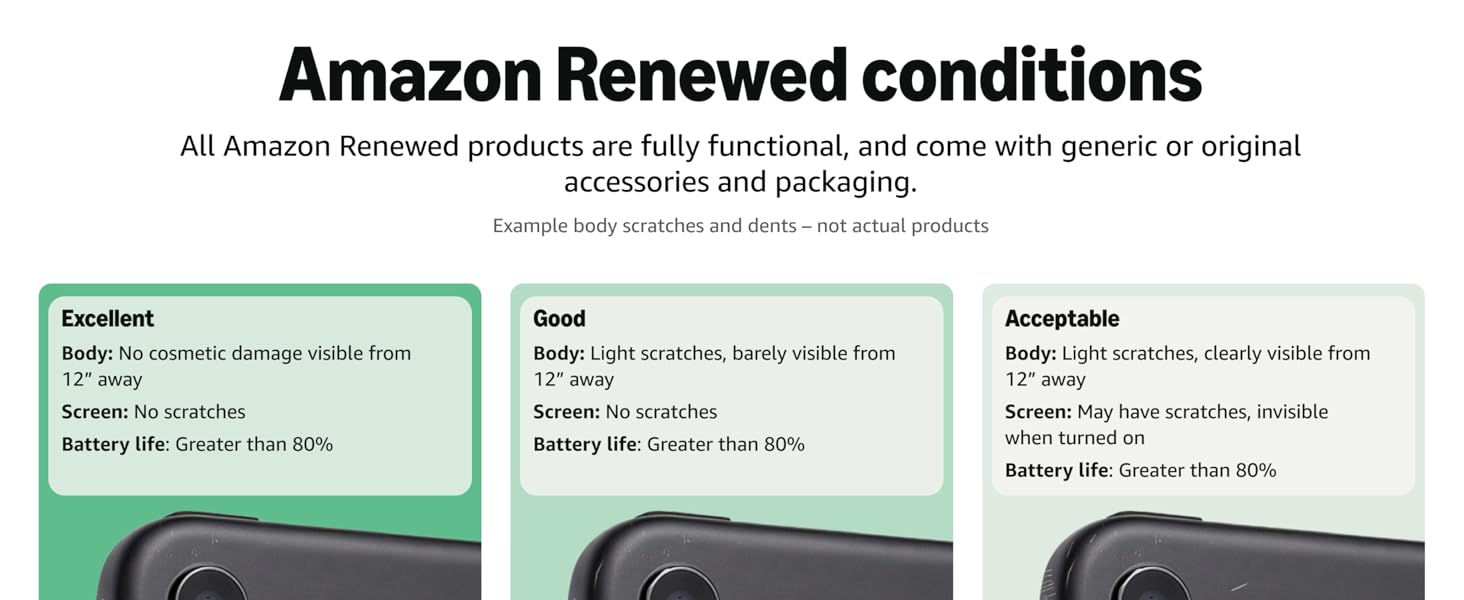
Image: Amazon Renewed conditions for electronic devices.
- Tino pai: No cosmetic damage visible from 12 inches away. Screen has no scratches. Battery life is greater than 80%.
- Pai: Light scratches, barely visible from 12 inches away. Screen has no scratches. Battery life is greater than 80%.
- Ka whakaaetia: Light scratches, clearly visible from 12 inches away. Screen may have scratches, invisible when turned on. Battery life is greater than 80%.
9. Pūtāhui me te Tautoko
For information regarding warranty coverage for your renewed Google Pixel 7 Pro, please refer to the documentation provided at the time of purchase or contact the seller directly. For technical support and further assistance with your Google Pixel device, visit the official Google Support webpae.


