1. Kupu Whakataki
Welcome to the user manual for your Hoppstar Expert Digital Camera. This manual provides essential information on how to set up, operate, and maintain your camera, ensuring a fun and creative experience for young photographers. Please read this manual carefully before using the camera and keep it for future reference.
The Hoppstar Expert is designed specifically for children, offering a user-friendly interface, durable construction with interchangeable silicone covers, and a range of exciting features including a selfie camera, video recording, picture frames, photo filters, and face detection.
2. Nga korero haumaru
- This product is intended for children aged 3 years and older. Adult supervision is recommended during use.
- Kaua e tukuna te kamera ki te wai, ki te makuku nui ranei.
- Avoid dropping the camera or subjecting it to strong impacts, even with the protective silicone cover.
- Keep small parts, such as memory cards, out of reach of very young children to prevent choking hazards.
- Use only the charging cable provided or a compatible USB charger.
- Do not attempt to disassemble or repair the camera yourself. Contact customer support if issues arise.
3. Ihirangi mokete
Tena koa tirohia te pouaka mo nga mea e whai ake nei:
- Hoppstar Expert Digital Camera
- Pukapuka Tohutohu
- Tauira Whakatau USB
- Taura/Whiri
- USB-C ki USB-A Pūurutau
- USB-C to Micro-USB Adapter
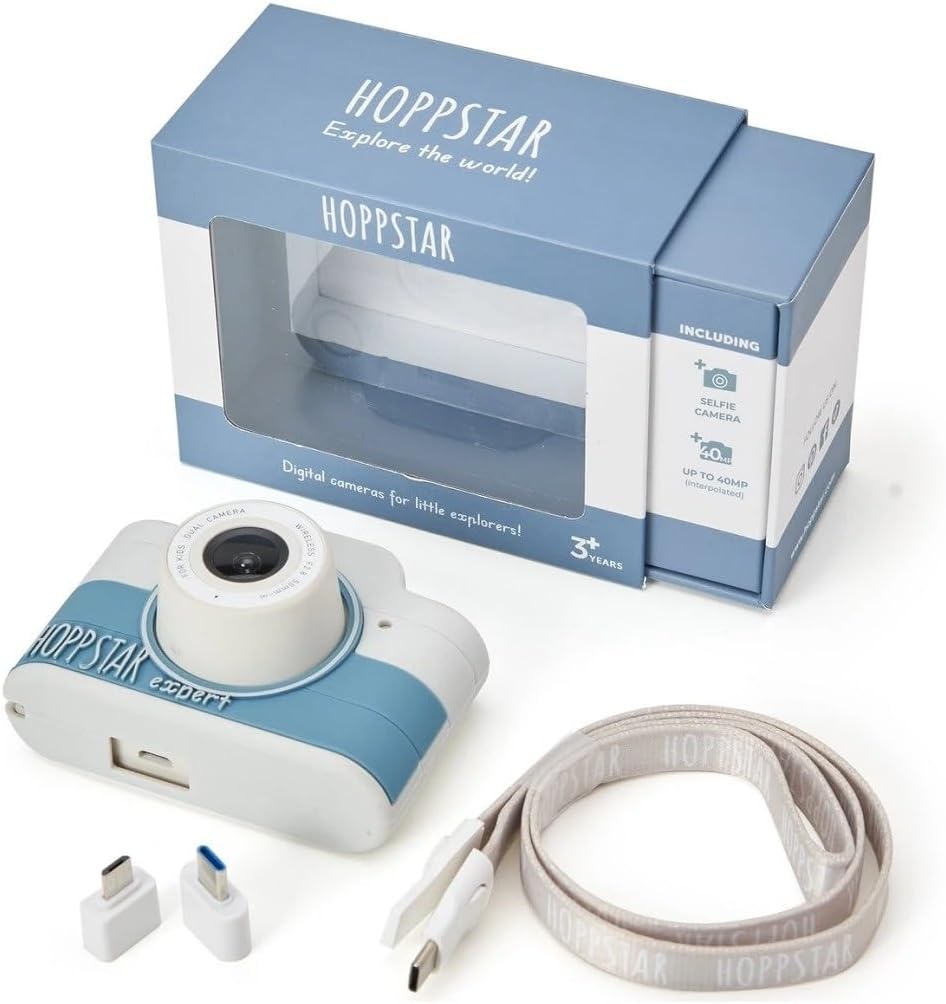
Image: Hoppstar Expert camera shown with its retail packaging, USB charging cable, lanyard, and two USB adapters.
4. Hua Neke Atuview
Mua View

Image: The front of the Hoppstar Expert camera, featuring the main lens, flash, and the 'Hoppstar Expert' branding on the blue and white body.
- Arotahi Matua: For taking standard photos and videos.
- Flash/Light: E whakarato ana i te māramatanga i ngā āhuatanga mārama iti.
- hopuoro: Ka hopu ororongo i te wa e hopu ana i te ataata.
Whakamuri View

Image: The back of the Hoppstar Expert camera, displaying the LCD screen and the control buttons on either side.
- Mata LCD: Displays menus, live view, and playback.
- Kaamera Selfie: Located above the screen for self-portraits.
- Patene Mana: Navigation, OK, Menu, and other function buttons.
5. Tatūnga
5.1 Te Whakataki i te Kaamera
Before first use, fully charge the camera's internal battery. Connect the provided USB charging cable to the camera's USB port and to a USB power source (e.g., computer, wall adapter). The charging indicator light will show the charging status and turn off when fully charged.
5.2 Te whakauru i te kaari mahara
The Hoppstar Expert comes with 16 GB of internal storage. If you wish to expand storage, locate the memory card slot (usually on the side or bottom) and insert a compatible microSD card (not included) until it clicks into place. Ensure the camera is powered off before inserting or removing the card.
5.3 Kei te Hiko / Weto
Pēhia, pupuritia hoki te pātene Mana (kei runga, kei taha rānei te nuinga o te wā) mō ētahi hēkona hei whakakā, hei whakaweto rānei i te kāmera.
6. Nga Tohutohu Whakahaere
6.1 Mana Taketake
- Pene OK: Confirms selections in menus, takes photos, or starts/stops video recording.
- Patene Whakaterenga: Used to move through menu options (Up, Down, Left, Right).
- Patene Tahua: Accesses the camera's settings and feature options.
- Patene Aratau: Whakawhiti i waenga i ngā aratau whakaahua, ataata, me te purei anō.
6.2 Tango Whakaahua
In photo mode, frame your shot using the LCD screen. Press the OK button to capture a photo. The camera supports both front and selfie cameras. To switch between cameras, navigate to the camera settings in the menu or use a dedicated button if available.
6.3 Hopu Ataata
Switch to video mode. Press the OK button once to start recording and press it again to stop. Videos are saved to the internal memory or inserted memory card.
6.4 Using Creative Features
The Hoppstar Expert includes several creative features:
- Picture Frames: Apply fun borders to your photos. Access this feature through the camera's menu.
- Photo Filters: Change the look and feel of your photos with various color and effect filters.
- Tirohanga Mata: The camera can automatically detect faces in the frame, assisting with focus.
Explore these options within the camera's menu settings to enhance your photos and videos.
7. Tiaki
- Te horoi: Use a soft, dry cloth to clean the camera body and screen. For the lens, use a specialized lens cleaning cloth. Do not use liquid cleaners.
- Hipoki Silicone: The interchangeable silicone cover can be removed and cleaned with mild soap and water if necessary. Ensure it is completely dry before reattaching.
- Tiaki Pūhiko: Hei whakaroa i te ora o te pākahiko, karohia te tuku katoa i te pākahiko. Me utu te kaamera i nga wa katoa, ahakoa kaore i te whakamahia mo nga wa roa.
- Rokiroki: Whakaorangia te kaamera ki te waahi makariri, maroke atu i te ra tika me te wera nui.
8. Te Raru
Kāre i Whakakā te Kāmera
- Ensure the battery is charged. Connect the camera to a power source and try again.
- Pēhia, ka pupuri i te pātene Mana mō te wā roa (5-10 hēkona).
Kounga Whakaahua/Ataata Kino
- Me mohio kei te ma te arotahi me te kore o te kohukohu, te puehu ranei.
- Check lighting conditions. Optimal results are achieved in well-lit environments.
- Ensure the camera is held steady during capture.
Camera Freezes/Unresponsive
- Try resetting the camera by pressing the reset button (if available, often a small pinhole) or by holding the Power button until it turns off and then restarting.
Cannot Save Photos/Videos
- Check if the internal memory or inserted memory card is full. Delete unnecessary filetāpirihia rānei he kāri hou.
- Ensure the memory card is properly inserted and not corrupted.
If you encounter issues not listed here or if troubleshooting steps do not resolve the problem, please contact Hoppstar customer support.
9. Whakatakotoranga
| Āhuahira | Whakatakotoranga |
|---|---|
| Ingoa Waitohu | Hoppstar |
| Ingoa Tauira | Hoppstar Expert Yale |
| Tau tauira | 76893 |
| Tae | Yale |
| Ahu mōkihi | 14.3 x 8.7 x 5.1 cm |
| Tere Pupuri Tonu | 30 fps |
| Nga Waahanga Hanga-i roto | Camera + Instruction Manual |
| Tau tauira | 2023 |
| Tae Kiriata | Tae |
| Momo Mana Whakaaturanga | Aunoa |
| Momo Marumaru | Hikohiko |
10. Pūtāhui me te Tautoko
The Hoppstar Expert Digital Camera comes with a standard manufacturer's warranty. Please refer to the warranty information provided with your purchase or visit the official Hoppstar webpae mo nga korero mo nga tikanga me nga tikanga whakamana.
For technical support, product inquiries, or warranty claims, please contact Hoppstar customer service through their official webpae, nga korero whakapā ranei e whakaratohia ana i roto i to tuhinga hoko.


