1. Kupu Whakataki
Thank you for choosing the iFFALCON 43-inch 4K Ultra HD Smart QLED Google TV, model iFF43Q73. This manual provides essential information for the safe and efficient use of your television. Please read it thoroughly before operating the device and retain it for future reference.
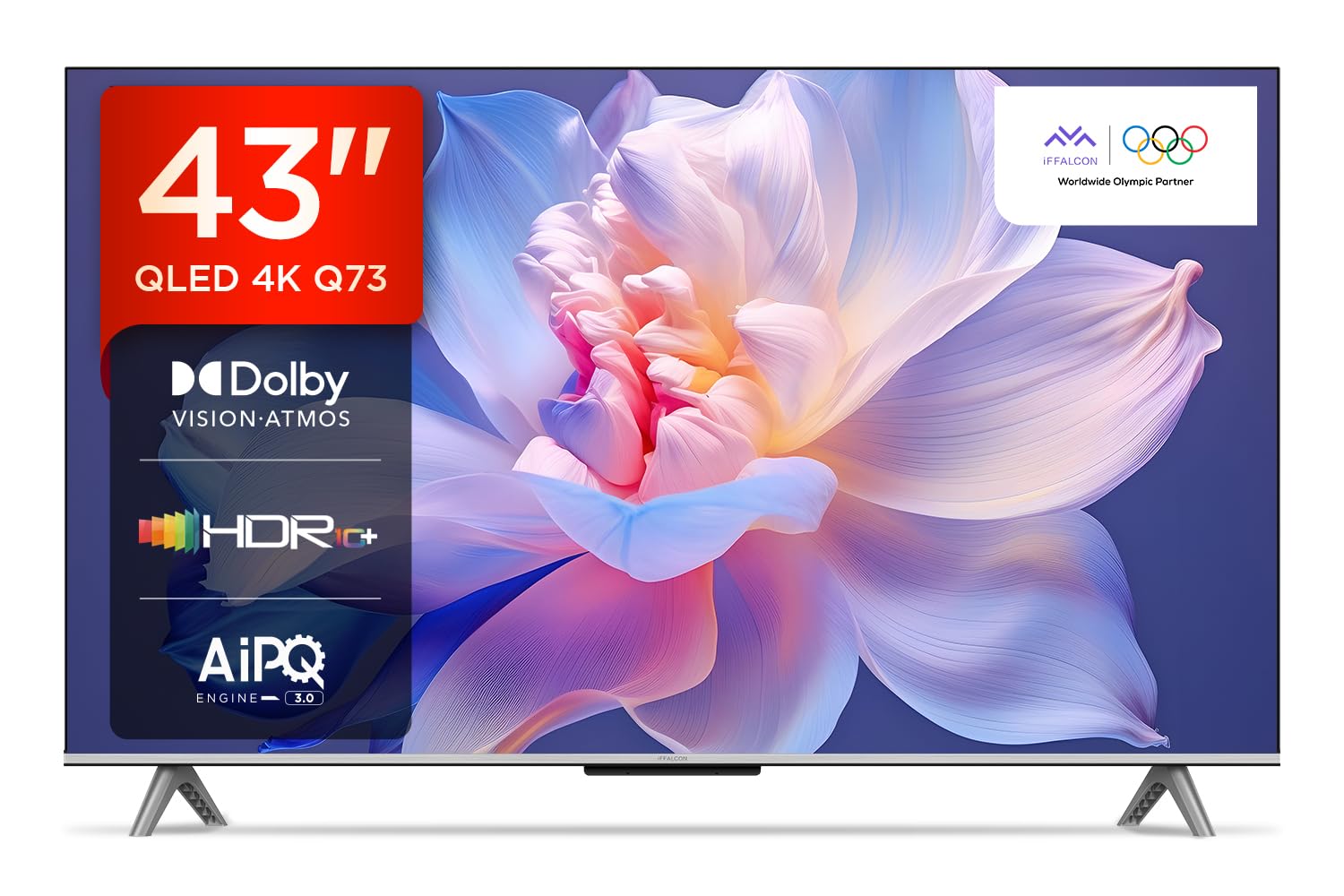
Whakaahua: Mua view of the iFFALCON 43-inch 4K Ultra HD Smart QLED Google TV.
2. Nga korero haumaru
Always adhere to the following safety guidelines to prevent electric shock, fire, or damage to the television:
- Kaua e tukuna te pouaka whakaata ki te ua, ki te makuku ranei.
- Me whakarite kia tika te hau; kaua e aukati i nga whakatuwheratanga hau.
- Whakamahia anake nga taapiri / taputapu kua tohua e te kaihanga.
- Wewetehia te pouaka whakaata i te wa e uira ana te tupuhi, i te kore e whakamahia mo te wa roa.
- Tukuna nga ratonga katoa ki nga kaimahi ratonga whai tohu.
3. He aha kei roto i te Pouaka
Ina wetewetehia te kete, me tirotiro kei te wātea ngā taonga katoa:
- 1N TV LED
- 1N Waea Ororongo
- Tūnga 1N (mō te whakairinga tēpu)
- 1N Pukapuka Kaiwhakamahi
- 1N Mana Mamao
- 1N Kaari Rarangi
- 2N AAA Battery (mo te mana mamao)
4. Tatūnga
4.1 Tāutanga Tinana
Your iFFALCON TV can be installed on a table stand or wall-mounted. Ensure the installation surface is stable and can support the TV's weight.

Image: The iFFALCON TV placed on a media console, illustrating a typical table-top setup.
Whakapuru Ripanga:
- Āta whakatakotoria te pouaka whakaata ki raro ki runga i tētahi mata ngohengohe, papatahi.
- Attach the provided stand legs to the designated slots on the bottom of the TV using the screws included.
- Me whakarite kia mau te turanga i mua i te ata hiki i te pouaka whakaata ki tona turanga.
Whakapiki taiepa:
For wall mounting, a compatible VESA wall mount kit (not included) is required. Follow the instructions provided with your wall mount kit. Professional installation is recommended.

Image: The iFFALCON TV displayed as wall-mounted in a modern living room setting.
4.2 Te Hiko-Tuatahi me te Whirihoranga
- Honoa te taura hiko ki te pouaka whakaata, katahi ki te putanga hiko.
- Whakauruhia nga pākahiko AAA kua whakaratohia ki te mana mamao.
- Pēhia te pātene hiko i runga i te mana mamao, i te pouaka whakaata ranei hei whakakā.
- Whaia nga tohutohu i runga-mata hei whakaoti i te tatūnga tuatahi, tae atu ki te kowhiringa reo, te hononga whatunga (Wi-Fi, Ethernet ranei), me te takiuru pūkete Google.
5. Whakahaerehia Tou TV
5.1 Mana Mamao
Mā te mana mamao atamai ka tere te uru atu ki ngā mahi me ngā ratonga roma ataata.

Image: The iFFALCON smart remote control, highlighting dedicated buttons for Netflix, Prime Video, YouTube, and TCL Channel, along with Google Assistant functionality.
5.2 Google TV Atanga
Your TV runs on Google TV, offering a personalized experience with content recommendations and easy access to apps.

Image: The Google TV home screen displaying various streaming apps and content recommendations.

Image: A visual representation of the Google TV platform, emphasizing its user-friendly interface.
Āhuatanga matua:
- Mana Reo-Kore-ringa: Use "Ok Google" to search for content, control smart home devices, and get information.
- Google Watchlist: Add movies and TV shows to a unified watchlist from various services.
- Ngā Tamariki a Google: Access curated content suitable for children.
- Google Hui: Conduct video calls directly from your TV (requires compatible camera, not included).

Image: A user interacting with the TV using the "Ok Google" voice command to check the weather.

Image: The Google Watchlist feature shown across both a mobile device and the TV screen.

Image: The Google Kids interface, displaying child-friendly content and shows.

Image: A video call in progress using Google Meet on the iFFALCON TV.
6. Hononga
The iFFALCON iFF43Q73 offers multiple connectivity options for external devices and networks.

Whakaahua: He taipitopito view of the TV's side panel, illustrating the various input and output ports.
- Tauranga HDMI (3): Connect set-top boxes, Blu-ray players, and gaming consoles. HDMI 3 supports eARC/ARC for enhanced audio return.
- Tauranga USB (1): Mo te hono i nga taputapu rokiroki USB ki te purei pāpāho.
- LAN (Ethernet): Mo te hononga ipurangi waea.
- Putanga Puoro: Mo te hono i nga taringa, i nga kaikorero o waho ranei.
- Mamati Ororongo Out (Arurangi): Mo te hono atu ki nga papa oro, ki nga punaha whare tapere kaainga ranei.
- Antenna/Cable ki roto: Mo te hono i tetahi antenna, tohu pouaka whakaata ranei.
- AV In Adapter: Mo te hono i nga taputapu tawhito ma te whakamahi i te ataata hiato me te ororongo hiko.
- Wi-Fi: Built-in for wireless internet access.
- Nihokikorangi: Mo te hono i nga taputapu ahokore penei i nga taringa, i nga kaiwhakahaere keemu ranei.

Image: An illustration of an HDMI 2.1 cable connecting to the TV, highlighting its advanced capabilities.

Image: A laptop screen being cast to the iFFALCON TV, demonstrating low latency casting functionality.
7. Whakaatuhia nga waahanga
Ka wheako i nga tirohanga whakamiharo me nga hangarau whakaatu matatau.

Whakaahua: Kua mutuview of the iFFALCON TV's key display and audio features, including QLED, Dolby Vision Atmos, HDR10+, MEMC, High Brightness, DTS:X, Gaming in Dolby Vision, Game Master, and Edgeless Design.
- Whakaaturanga QLED: Quantum Dot technology delivers vibrant colors and improved brightness.
- 4K Ultra HD (3840 x 2160): Provides four times the resolution of Full HD for incredible detail.
- Dolby Vision & HDR10+: Advanced HDR formats for enhanced contrast, brightness, and color accuracy.
- 4K HDR Pro: Optimizes HDR content for a superior viewte wheako.
- AIPQ 3.0 Engine: AI-powered picture quality engine for intelligent optimization of color, contrast, and clarity.
- MEMC (Motion Estimation, Motion Compensation): Reduces motion blur and makes fast-moving scenes smoother.
- High Brightness (300 nits): Ensures clear visibility even in well-lit rooms.
- 178 Paetahi Whanui Viewing Koki: Consistent picture quality from various viewi nga tuunga.

Image: An illustration demonstrating the layers and technology behind a QLED display.

Image: The Dolby Vision logo displayed over a vibrant, colorful abstract image, representing enhanced visual quality.

Image: The HDR10+ logo positioned next to an image of a colorful, explosive visual effect, symbolizing dynamic range.

Image: A split image demonstrating the difference between standard and high brightness, showing a more vivid landscape on the right.

Image: A comparison showing a skier with motion blur (Without MEMC) versus a clear image (With MEMC), illustrating the motion compensation technology.
8. Āhuatanga Ororongo
Immersive sound experience with integrated speaker boxes.
- 30 Watts Putanga: Powerful audio for clear sound.
- MS12Z with Dolby Atmos: Ka tuku oro ahu-maha e neke haere ana i a koe.
- DTS Mariko:X: Creates an immersive audio experience without the need for additional speakers.
- Integrated Speaker Boxes (Bottom Side): Optimized speaker placement for enhanced sound delivery.

Image: An illustration of the Dolby Atmos sound experience, showing sound waves emanating from the TV and surrounding the viewē.

Image: A visual representation of Dolby Atmos audio filling a living room, with sound waves surrounding the TV.

Image: The DTS:X logo with an illustration of dolphins jumping out of water, depicting immersive sound.

Image: A visual representation of DTS:X audio, showing sound waves emanating from the TV and surrounding a viewer on a couch.
9. Ngā āhuatanga petipeti
Whakapai ake i tō wheako petipeti me ngā āhuatanga motuhake.
- Kaiwhakaako Kēmu: A suite of features designed for gamers.
- Gaming in Dolby Vision: Experience games with enhanced visuals and dynamic range.
- ALLM (Aratau Rorohiko Haka Aunoa): Ka huri aunoa i te pouaka whakaata ki te aratau iti-roa ka kitea he papatohu keemu, ka whakaiti i te takamuri whakauru.
- Pae Kēmu: Quick access to game-related settings and information during gameplay.

Image: The Game Master feature displayed on the TV screen, showing icons for Game Bar, ALLM, and Aiming Aid.

Image: A gaming scene displayed on the TV with the 'Gaming in Dolby Vision' logo, indicating enhanced visual quality for games.

Image: The Game Master logo with icons for Game Bar, ALLM, and Aiming Aid, illustrating the gaming optimization features.

Image: The Game Bar interface displayed at the bottom of the TV screen during gameplay, showing options like HGIG, StatsBar, Boost, and Toolbox.

Image: A split screen comparison of a racing game with ALLM Mode OFF (left) and ALLM Mode ON (right), demonstrating reduced input lag.
10. Tiaki
Mā te tiaki tika ka roa te ora me te mahi a tō pouaka whakaata.
- Te horoi i te Mata: Whakamahia he kakahu ngohengohe, kore-miro i hangaia mō ngā taputapu hiko. Kaua e whakamahi i ngā kaihoroi whakakoi, i ngā whakarewa rānei.
- Te horoi i te Tapare: Wipe with a soft, dry cloth. For stubborn marks, a slightly damp Ka taea te whakamahi i te kakahu, ka whai i te kakahu maroke.
- Whakahau: Ensure the TV's ventilation openings are clear of dust and obstructions.
- Waea Hiko: Tirohia te taura hiko mo nga pakaru.
11. Te Raru
Tirohia tenei waahanga mo nga take noa me o raatau otinga.
| Raruraru | Take pea | Rongoā |
|---|---|---|
| Karekau he kaha | Power cord disconnected, no power from outlet. | Tirohia te hononga taura hiko. Whakamatau te putanga me tetahi atu taputapu. |
| Karekau he pikitia, engari he oro | Incorrect input source, faulty cable. | Manatokohia te puna whakauru tika. Tirohia nga hononga taura HDMI/AV. |
| Karekau he oro, engari he pikitia kei reira | Volume muted, external audio device issue. | Unmute volume. Check audio settings. Ensure external audio devices are connected correctly. |
| Ko te mana mamao kaore e mahi | Kua mate ngā pākahiko, kua āraia, kāore te mana mamao i honoa. | Whakakapia ngā pākahiko. Tangohia ngā mea e ārai ana. Tāruatia anō te mana mamao Nihokikorangi mēnā e tika ana. |
| Nga take hononga Wi-Fi | Incorrect password, router issue, signal interference. | Re-enter Wi-Fi password. Restart router. Move TV closer to router or reduce interference. |
12. Whakatakotoranga
Detailed technical specifications for the iFFALCON 43-inch 4K Ultra HD Smart QLED Google TV.

Image: A diagram illustrating the dimensions and weight of the iFFALCON 43-inch TV, both with and without the stand.
| Āhuahira | Taipitopito |
|---|---|
| Tauira | iFF43Q73 |
| Rahi Mata | 43 Inihi (108 cm) |
| Hangarau Whakaatu | QLED |
| Whakatau | 4K Ultra HD (3840 x 2160) |
| Rere tāmata | 60 Hz |
| Pūnaha Mahi | Google TV |
| Tukatuka | 64-bit Pūtukatuka Quad Core |
| RAM | 2 GB |
| Rokiroki | 16 GB |
| Putanga Ororongo | 30 Watts |
| Hangarau Hangarau | Dolby Atmos, DTS Virtual:X |
| Hononga | 3 HDMI Ports, 1 USB Port, Wi-Fi, Bluetooth, Ethernet |
| Whakamahi Hiko (A-aratau) | 130 Watts |
| Ahu Hua (me te turanga) | 8 x 95.7 x 60.3 cm |
| Taumaha Tuemi (me te turanga) | 6.7 kg |
13. Pūtāhui me te Tautoko
Your iFFALCON TV comes with a 2-tau pūtāhui provided by the manufacturer from the date of purchase. For warranty claims, please use your Amazon e-invoice as proof of purchase.
For technical support or service inquiries, please refer to the contact information provided on the warranty card or visit the official iFFALCON support webpae.


