1. Kupu Whakataki me Nekeview
The WOLFBOX D07 Pro Dash Cam is a comprehensive road safety device featuring a 4K front camera and a 1080P rear camera. This system is designed to capture intricate details, including license plates and street signs, with an expansive 170° wide-angle lens to reduce blind spots. It includes a 2.45-inch LCD screen for clear viewing and is built for durability.
Key features include built-in GPS for precise location and route tracking, integrated WiFi for seamless control and video sharing via the WOLFBOX app, and advanced Ultra Night Vision technology with a Starvis Sensor and f/1.5 aperture for clear images in low-light conditions. The dash cam also offers 24-hour parking security with a G-sensor for collision detection and a time-lapse parking monitor (requires dedicated hardware kit). A 32GB card is included for immediate use, and the device supports up to 256GB cards for extended recording.
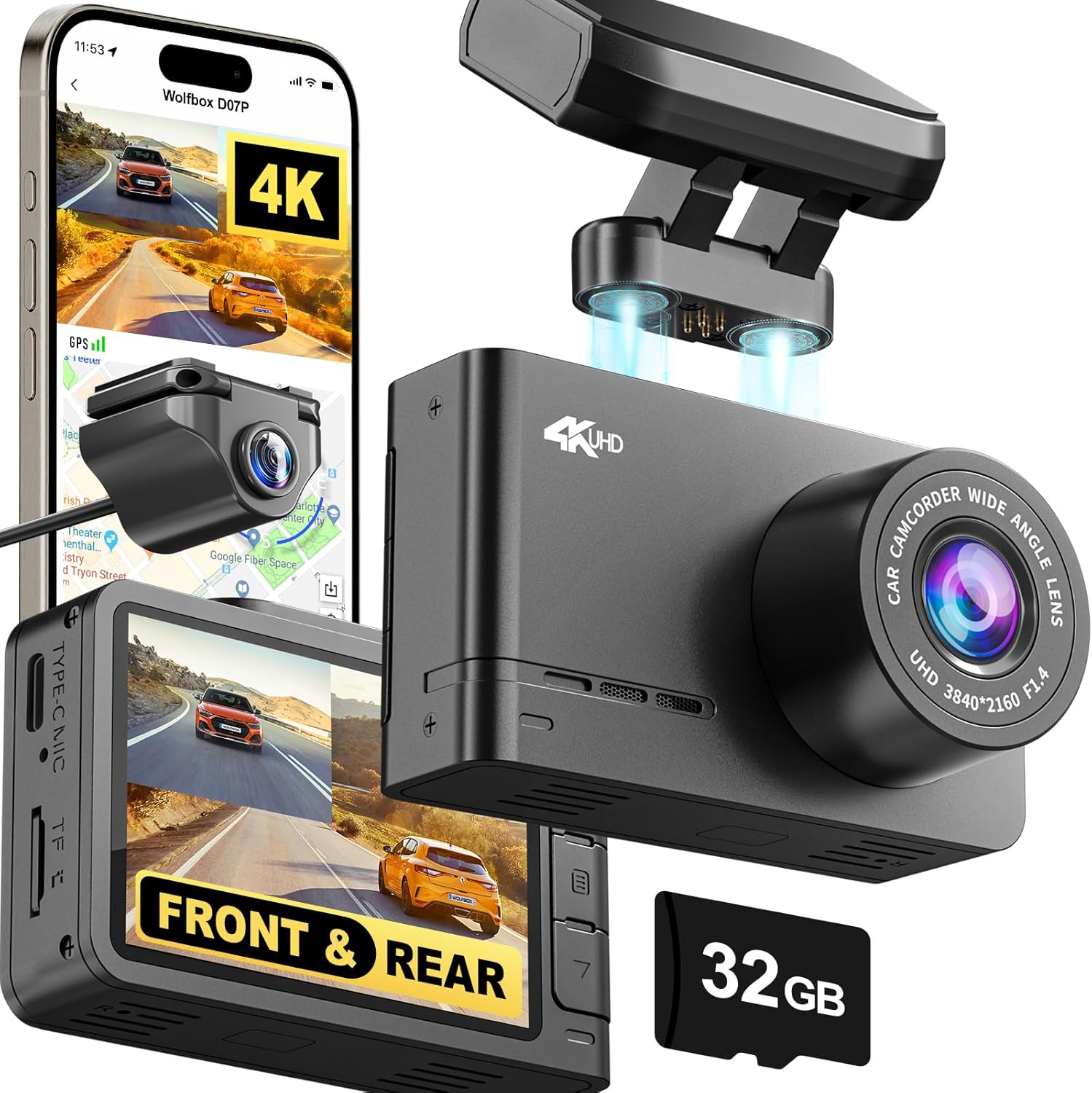
Figure 1: WOLFBOX D07 Pro Dash Cam and its components.
2. Ihirangi mokete
Manatokohia ko nga mea katoa kei raro nei kei roto i to kete:
- 1 x D07 Pro 4K Dash Cam
- 1 x 1080P IP68 Proofwater Rear Camera
- 1 x Suction cup built-in GPS mount
- 1 x 32GB Card
- 1 x 21.3ft Rear Camera Cable
- 1 x 11.5ft Taura Whakarato Hiko me te Kaitohu Motoka
- 2 x Whakapiri Hiko
- 1 x Pukapuka Kaiwhakamahi
- 1 x Utauta Whakapai Waea Motuka
3. Tatūnga me te Tāuta
Proper installation ensures optimal performance and safety. The D07 Pro offers flexible mounting options for both front and rear cameras.
3.1 Tāutanga o te Kāmera Papaaho o Mua
- Clean the windshield area where the dash cam will be mounted. Ensure it does not obstruct your view.
- Attach an electrostatic sticker to the chosen area on the windshield. This helps in easy removal and prevents residue.
- Mount the suction cup with the built-in GPS to the electrostatic sticker. Ensure it is securely fastened.
- Attach the D07 Pro Dash Cam to the magnetic mounting bracket on the suction cup.
- Connect the 11.5ft Power Supply Cable to the dash cam and route it along the windshield edge, down the A-pillar, and to your car's cigarette lighter socket. Use the included car wire trim tool to tuck the cable neatly.
3.2 Whakamutunga Kaamera Whakamuri
The rear camera can be installed either inside the vehicle (on the rear window) or outside (above the license plate, if waterproof). The included 21.3ft Rear Camera Cable provides ample length for routing.
- Choose a suitable location for the rear camera that provides a clear view o te tuara.
- Horoia rawatia te mata whakapuru.
- Attach the rear camera using the provided 3M adhesive.
- Connect the rear camera cable to the rear camera and route it from the rear of the vehicle to the front dash cam. Carefully tuck the cable under the vehicle's interior trim panels for a clean installation.

Figure 2: Visual guide for dash cam installation.
Video 1: Official WOLFBOX D07 Pro 4K Dash Cam overview, demonstrating features and installation process.
4. Operating Your Dash Cam
4.1 Power On/Off and Basic Recording
The dash cam will automatically power on and begin recording when connected to your vehicle's power supply and the ignition is turned on. It will power off automatically when the vehicle is turned off.
4.2 Dual Dash Cam (4K Front + 1080P Rear)
The D07 Pro records simultaneously from both the front (4K UHD) and rear (1080P FHD) cameras, providing comprehensive coverage of your driving environment. The 170° wide-angle front lens and 140° rear lens minimize blind spots.

Figure 3: Dual camera recording capabilities and wide field of view.
4.3 WiFi Control & GPS Tracking
Utilize the built-in WiFi to connect your smartphone to the dash cam via the official WOLFBOX app. This allows for:
- Ora view of recordings.
- Adjusting camera settings.
- Downloading recorded videos directly to your phone.
- Effortless sharing of footage.
The integrated GPS module accurately tracks your vehicle's location, speed, and route, which can be viewed and analyzed within the WOLFBOX app.

Figure 4: WOLFBOX app interface for WiFi control and GPS tracking.
4.4 Ultra Night Vision
Equipped with an advanced Starvis Sensor, a wide f/1.5 aperture, a 6-glass lens, and WDR (Wide Dynamic Range) & HDR (High Dynamic Range) technology, the D07 Pro delivers superior clarity and detail in low-light and nighttime conditions. This ensures critical details are captured even in challenging lighting.

Figure 5: Night vision capabilities with WDR and HDR technology.
4.5 24-Hour Parking Security
The built-in G-sensor detects sudden impacts or collisions while parked, automatically triggering a 15-second video recording and locking the footage to prevent overwriting. For continuous 24-hour parking monitoring, the dash cam can operate in time-lapse mode, actively observing surroundings. This feature requires a dedicated hardwire kit (sold separately) for constant power supply.

Figure 6: Parking security features including G-Sensor and 24-hour monitoring.
4.6 Loop Recording and Storage
The D07 Pro supports loop recording, which automatically overwrites the oldest unlocked video files when the memory card is full. This ensures continuous recording without manual intervention. A 32GB card is included, and the system supports up to 256GB cards for extended storage capacity.

Figure 7: Loop recording and firmware update capabilities.
5. Tiaki
Regular maintenance helps ensure the longevity and optimal performance of your WOLFBOX D07 Pro Dash Cam.
5.1 Te horoi
- Arotahi: Gently wipe the camera lenses with a soft, lint-free cloth. For stubborn smudges, use a lens cleaning solution designed for optics. Avoid abrasive materials that could scratch the lens.
- Mata: Clean the 2.45-inch LCD screen with a soft, dry cloth. Do not use liquid cleaners directly on the screen.
- Tinana: Wipe the dash cam body with a slightly damp cloth. Ensure no moisture enters the ports.
5.2 Te Tiaki Kāri Mahara
- Use a high-endurance microSD card (Class 10 or U3 recommended) specifically designed for dash cams to withstand continuous write cycles.
- Format the memory card regularly (e.g., once a month) within the dash cam's settings to prevent data corruption and ensure smooth operation. Back up any important footage i mua i te whakahōputu.
- Avoid removing or inserting the memory card while the dash cam is powered on to prevent damage to the card or the device.
6. Te Raru
If you encounter issues with your WOLFBOX D07 Pro Dash Cam, refer to the following common troubleshooting steps:
| Raruraru | Te Take Taea / Rongoa |
|---|---|
| Karekau te kamera i te hiko. | Check the power cable connection to the dash cam and the car's power outlet. Ensure the car's ignition is on. Test with a different power source if possible. |
| Ngā mutu tuhi, ngā foo rāneitagkua pirau a e. | The memory card may be full or corrupted. Format the memory card (back up data first). Ensure you are using a high-endurance Class 10 or U3 microSD card. |
| He ngoikore te tohu GPS, kāore rānei i kitea. | Ensure the GPS mount is correctly installed and has a clear view o te rangi. Kaua e tāuta tata ki ngā mea whakarewa, ki ngā wāhi pōuri rānei ka ārai i te tohu. |
| Nga take hononga WiFi. | Ensure the WOLFBOX app is updated to the latest version. Restart both the dash cam and your smartphone. Try reconnecting the WiFi. |
| Te kounga o te tirohanga pō kino. | Ensure the windshield and camera lens are clean. Check if WDR/HDR settings are enabled in the camera menu. |
| Kāore te aratau waka e mahi. | Verify that the parking mode feature is enabled in the settings. For 24-hour monitoring, a dedicated hardwire kit is required for continuous power. |
If these steps do not resolve the issue, please contact WOLFBOX customer support for further assistance.
7. Whakatakotoranga Hua
| Āhuahira | Taipitopito |
|---|---|
| Ingoa Tauira | D07 Pro 4K Dash Cam |
| Whakataunga Hopu Ataata | 4K (Mua), 1080P (Muri) |
| Tuhinga o mua View | 170 Ngā nekehanga (Mua) |
| Whakaatu Mata | 2.45-inihi LCD |
| Hangarau Hononga | Wi-Fi, USB |
| Nga waahanga motuhake | WDR, G-Sensor, Loop Recording, Built-In GPS, Night Vision, Parking Monitor, 4K HDR, App Control, Compact Design, Built-in WiFi, Built-in Display, Built-In Supercapacitor |
| Rokiroki kei roto | Kaari 32GB |
| Tautoko Rokiroki Max | Tae atu ki te 256GB |
| Hunga Hua | 0.7 x 2.5 x 2.75 inihi |
| Taumaha Tūemi | 1.1 pauna |
| Momo Whakaeke | Maunga Papaaho, Maunga Matapihi rānei |
| Momo Ratonga Taikaha | Minivan, Car, Truck |
8. Pūtāhui me te Tautoko
WOLFBOX is committed to providing high-quality products and excellent customer service.
- Pūtāhui: The WOLFBOX D07 Pro Dash Cam comes with a 12-month warranty from the date of purchase.
- Kaupapa Whakahoki: A 7-day return policy is available for eligible products. Returns on defects are also covered.
For any inquiries, technical support, or warranty claims, please contact WOLFBOX customer service:
- Īmēra: service@wolfbox.com
- Waea: +1 888 296 8399


