1. Kupu Whakataki
This manual provides essential information for the safe and efficient use of your LG 86UQ7590PUD 86 Inch HDR 4K UHD Smart TV. Please read it thoroughly before operating the device and retain it for future reference.
2. Nga korero haumaru
Observe the following safety precautions to prevent electric shock, fire, or damage to the product:
- Kaua e aukati i nga tomokanga hau.
- Do not place the TV near heat sources.
- Tiakina te taura hiko kei hikoi, ka kowhakina mai ranei.
- Me whakamahi noa i nga taapiri / taputapu kua tohua e te kaiwhakanao.
- Wewetehia te pouaka whakaata i te wa e uira ana te tupuhi, i te kore e whakamahia mo te wa roa.
- Tukuna nga ratonga katoa ki nga kaimahi ratonga whai tohu.
3. He aha kei roto i te Pouaka
Manatokona kei te noho nga waahanga katoa:
- LG 86UQ7590PUD 86 Inch HDR 4K UHD Smart TV
- Mana Mamao
- Tu (2 nga wahi)
- 2 pākahiko AA (mo te mamao)
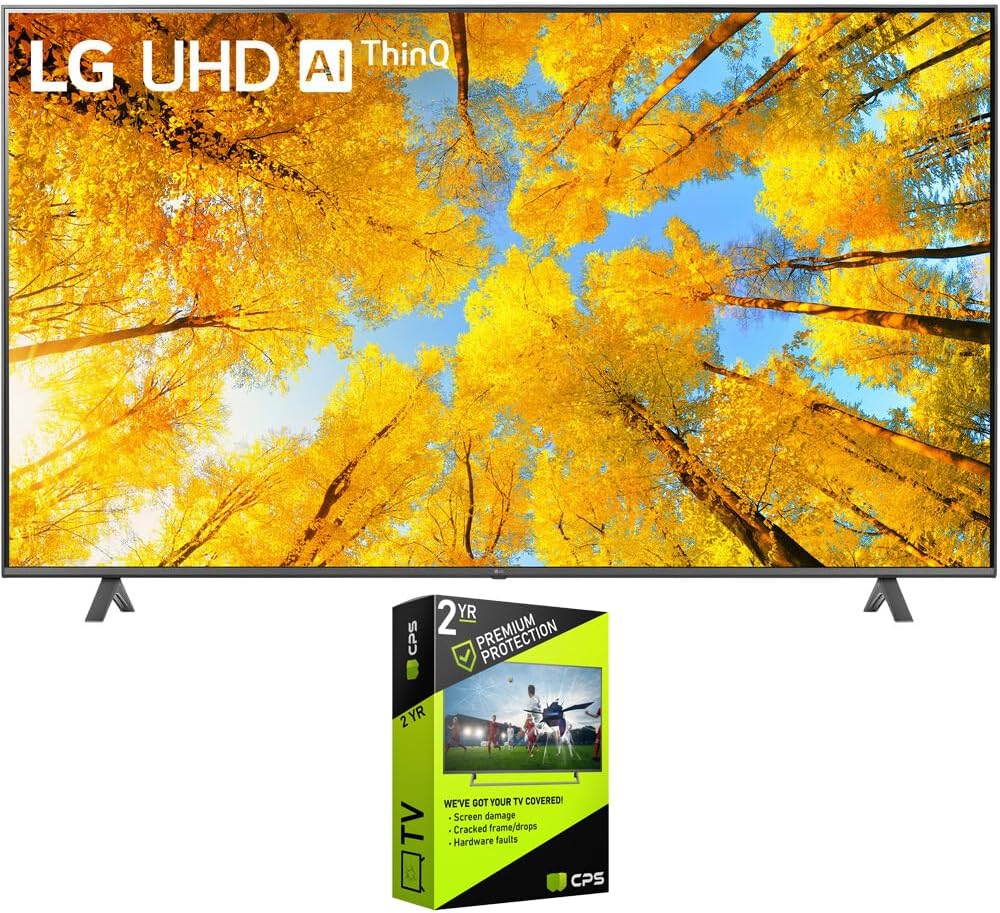
Figure 3.1: LG 86UQ7590PUD Smart TV with included stand and optional protection pack.
4. Tatūnga
4.1 Whakaturanga Tu
Carefully attach the two stand pieces to the bottom of the TV using the provided screws. Ensure the stand is securely fastened before placing the TV on a stable, flat surface.
4.2 Whakapuru Taiepa
If wall-mounting, use a VESA-compatible wall mount (sold separately) appropriate for the TV's size and weight. Follow the wall mount manufacturer's instructions for installation. Ensure proper wall reinforcement.
Whakaahua 4.1: Te taha profile of the LG 86UQ7590PUD Smart TV, illustrating its slim design for stand or wall mounting.
4.3 Hononga Pūrere
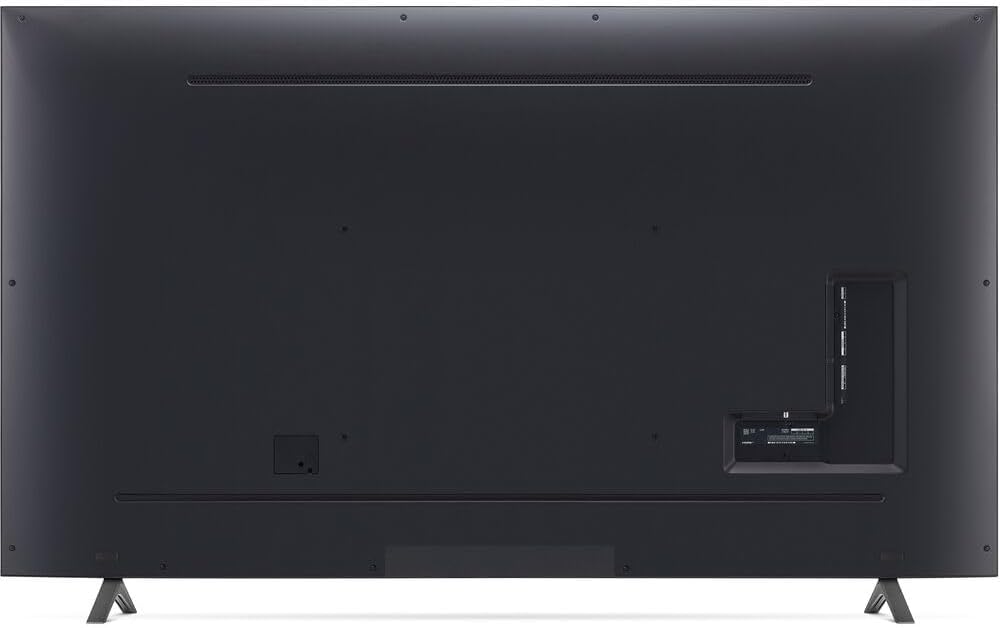
Connect external devices such as cable boxes, gaming consoles, or Blu-ray players to the HDMI ports located on the rear of the TV. For internet connectivity, connect an Ethernet cable to the LAN port or connect wirelessly via Wi-Fi during the initial setup.

Whakaahua 4.2: Whakamuri view of the LG 86UQ7590PUD Smart TV, highlighting the various input ports for external device connections.
4.4 Tatūnga Tuatahi
After connecting the power cord and turning on the TV, follow the on-screen instructions to complete the initial setup. This includes selecting your language, connecting to a Wi-Fi network, and configuring basic settings.
5. Nga Tohutohu Whakahaere
5.1 Mana Mamao
The included remote control allows navigation through the TV's interface and functions. Insert the two AA batteries as indicated in the battery compartment.
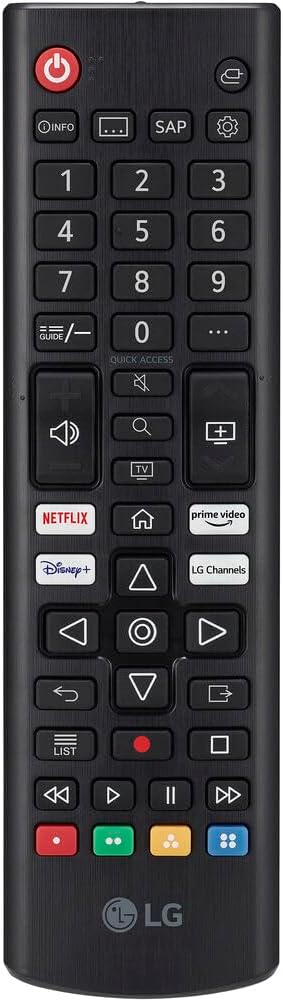
Figure 5.1: The LG Smart TV remote control, featuring dedicated buttons for popular streaming services and navigation.
5.2 Whakaterenga Taketake
Use the directional pad and 'OK' button on the remote to navigate menus. Dedicated buttons for volume, channel, and smart features are also available.
5.3 Kōwhiringa Tāuru
Press the 'Input' button on the remote to switch between connected devices (e.g., HDMI 1, HDMI 2, Live TV).
6. Ahuatanga TV Smart
Your LG Smart TV runs on the webOS platform, offering a user-friendly interface and access to a wide range of applications.
6.1 WebOS and Applications
Access popular streaming services like Netflix, Prime Video, Disney+, Hulu, and YouTube directly from the TV's home screen. The TV also provides access to over 300 free LG Channels.
Video 6.1: Demonstration of LG's free app ecosystem and smart features.
Ataata 6.2: Ka mutuview of the LG 86-inch Smart TV's features and user experience.
6.2 AI ThinQ and Voice Control
Utilize LG's AI ThinQ technology for intelligent control and personalized recommendations. The TV supports built-in Google Assistant and Alexa, allowing voice commands for various functions.

Figure 6.1: LG AI ThinQ integration with Google Assistant and Alexa for voice control.
6.3 Tiri Mata
The TV supports Apple AirPlay and Miracast for wirelessly sharing content from compatible devices.
7. Tautuhinga Pikitia me te Oro
Experience enhanced visuals and audio with the TV's advanced processing capabilities.
7.1 4K UHD and HDR
The 86-inch display offers 4K Ultra HD resolution and supports HDR (High Dynamic Range) for vibrant colors and improved contrast.

Figure 7.1: Visual comparison illustrating the enhanced detail and color of HDR 10 Pro versus conventional display.
7.2 AI Processor and Upscaling
The TV's AI Processor enhances picture and sound quality. It can upscale lower-resolution content to near 4K quality.

Figure 7.2: Diagram showing how 4K upscaling improves image clarity from lower resolutions.
7.3 AI Sound
The AI Sound feature optimizes audio based on content, providing a more immersive listening experience.

Figure 7.3: Visual representation of AI Sound adapting audio output for an enhanced experience.
7.4 Aratau Kaihanga Kiriata
Filmmaker Mode preserves the original aspect ratios, colors, and frame rates, delivering content as intended by the creators.

Figure 7.4: Filmmaker Mode icon, indicating a viewing setting that preserves original cinematic intent.
8. Ngā āhuatanga petipeti
The LG 86UQ7590PUD is equipped with features to enhance your gaming experience.
8.1 Game Optimizer and FreeSync
Game Optimizer provides settings to fine-tune your gaming experience. AMD FreeSync Premium ensures smooth gameplay by reducing screen tearing and stuttering, especially with the 120Hz refresh rate.

Figure 8.1: AMD FreeSync Premium logo, highlighting its role in providing smoother gaming visuals.

Figure 8.2: Game Optimizer interface, displaying options for optimizing game performance such as FPS and low latency.
9. Tiaki
9.1 Te horoi
Gently wipe the screen and exterior with a soft, dry cloth. Do not use abrasive cleaners or solvents.
9.2 Whakahōu Pūmanawa
Ensure your TV's software is up to date for optimal performance and security. Updates can typically be found in the TV's settings menu under 'Support' or 'About This TV'.
10. Te Raru
If you encounter issues, try the following basic troubleshooting steps:
- Kore Mana: Tirohia mēnā kua mau te mono o te taura hiko ki te pouaka whakaata me te putanga hiko ki te pakitara.
- Kore Pikitia/Oro: Verify that the correct input source is selected. Check all cable connections.
- Mamao Kaore i te Mahi: Whakakapihia nga pākahiko. Me whakarite karekau he arai i waenga i te mamao me te pouaka whakaata.
- Nga Take Hononga Whatunga: Restart your router and modem. Reconnect the TV to the Wi-Fi network.
Video 10.1: A user's experience with the LG 86-inch TV, highlighting its large display and smart features.
11. Whakatakotoranga
| Āhuahira | Whakatakotoranga |
|---|---|
| Ingoa Waitohu | LG |
| Taumaha Tūemi | 124.7 pauna |
| Hunga Hua | 89 x 26 x 14 inihi |
| Tauira Tuemi | FBAAMZE99LG86UQ7590PUD |
| Pūhiko | 2 nga pākahiko AA e hiahiatia ana. (kei roto) |
| Nga waahanga motuhake | Browser, Built-In Speaker, Closed Captioning, Game Mode, Miracast, Parental Controls, Sleep Timer, Spatial Scaling Engine, Wide Viewing Koki |
| Rahi Whakaatu Mata Tu | 86 Inihi |
| Aspect Ratio | 1.77:1 |
| Hangarau Whakaatu | LED |
| Whakatau | 4K |
| Rere tāmata | 120 |
| Hangarau Hononga | Wi-Fi |
| Whakamahinga Manakohia mo te Hua | Kainga Viewing |
12. Pūtāhui me te Tautoko
Your LG 86UQ7590PUD Smart TV comes with a manufacturer's warranty. For detailed warranty information, product registration, or technical support, please refer to the official LG webpaetukutuku, whakapā atu rānei ki te ratonga kiritaki a LG. Puritia tō rīhiti hoko mō ngā kereme pūtāhui.