1. Kupu Whakataki
Thank you for choosing the Cherry KW 7100 Mini Multi-Device Compact Keyboard. This manual provides essential information for setting up, operating, and maintaining your new keyboard. Designed for versatility and portability, this keyboard offers seamless connectivity across multiple devices.
2. He aha kei roto i te Pouaka
- Cherry KW 7100 Mini Multi-Device Compact Keyboard
- USB-C to USB-A Charging/Connection Cable
- 2x AAA Pūhiko
- 2.4 GHz Wireless Nano Receiver (stored magnetically in the keyboard)
- Te Kawe i te Keehi
- Pukapuka Tohutohu

Whakaahua 1: Runga-raro view of the Cherry KW 7100 Mini Keyboard.
3. Tatūnga
3.1. Tāuta Pūhiko
- Kimihia te wahanga pākahiko kei raro o te papapātuhi.
- Kiriata whakatuwherahia te taupoki wehenga puhiko.
- Whakauruhia nga pākahiko AAA e rua, kia tika te polarity (+/-).
- Katia kia mau te uhi o te wahanga pākahiko.
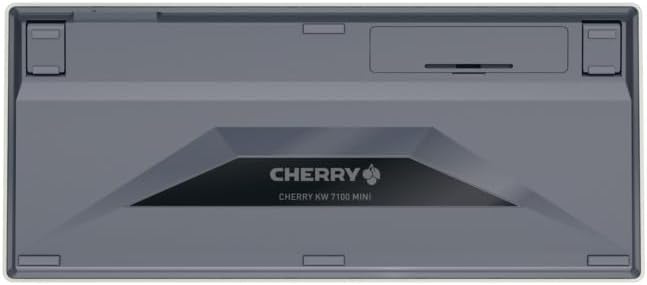
Whakaahua 2: Kei raro o te papapātuhi me te wahanga pākahiko.
3.2. Te hono i te Papapātuhi
The Cherry KW 7100 Mini supports three connection methods: Bluetooth, 2.4 GHz Wireless, and Wired USB-C.
3.2.1. Hononga Nihokikorangi (Tae atu ki te 3 Ngā Pūrere)
- Tahurihia te papapātuhi ma te whakamahi i te pana hiko kei te taha.
- Press and hold one of the Bluetooth channel keys (F1, F2, or F3) for 3-5 seconds until the corresponding LED indicator blinks rapidly. This indicates pairing mode.
- On your device (laptop, smartphone, tablet), navigate to Bluetooth settings and search for available devices.
- Select "Cherry KW 7100" from the list to pair. The LED will stop blinking and remain solid for a few seconds upon successful connection.
- Repeat for up to two additional devices using the other Bluetooth channel keys (F1, F2, or F3).
3.2.2. Hononga Ahokore 2.4 GHz
- Locate the 2.4 GHz wireless nano receiver, typically stored magnetically in a slot on the underside of the keyboard.
- Insert the nano receiver into an available USB-A port on your computer.
- Whakakāhia te papapātuhi mā te whakamahi i te pana hiko. Me hono aunoa te papapātuhi ki te kaiwhiwhi.
3.2.3. Hononga Waea USB-C
- Honoa tetahi pito o te taura USB-C kua whakaratohia ki te tauranga USB-C i te papapātuhi.
- Connect the other end of the USB-C cable to an available USB-A port on your computer.
- The keyboard will function as a wired keyboard.
Video 1: Demonstrating the setup and typing experience of the Cherry KW 7100 Mini Keyboard.
4. Te whakahaere i te Papapātuhi
4.1. Te Whakawhiti i waenga i ngā Pūrere Honohono
To switch between paired Bluetooth devices, simply press the corresponding Bluetooth channel key (F1, F2, or F3) that your device is paired to. The keyboard will automatically connect to the selected device.
4.2. Function Keys (FN)
The keyboard features a dedicated FN key, typically located near the right Shift key. This key, in combination with other keys, activates secondary functions such as media controls, screen brightness, and other system commands. Refer to the keycap legends for specific FN key combinations.
4.3. Tohu LED
LED indicators on the keyboard provide information about its status:
- Bluetooth Channel LEDs (F1, F2, F3): Indicate the currently active Bluetooth connection or pairing mode.
- Pūmatua LED: Ka whakamārama ina whakahohea te Caps Lock.
- LED Tūnga Pūhiko: E tohu ana i te taumata pākahiko iti.
4.4. Waewae Whakarereke
The keyboard is equipped with stable, fold-out feet on the underside. These allow you to adjust the typing angle for improved ergonomics and comfort.
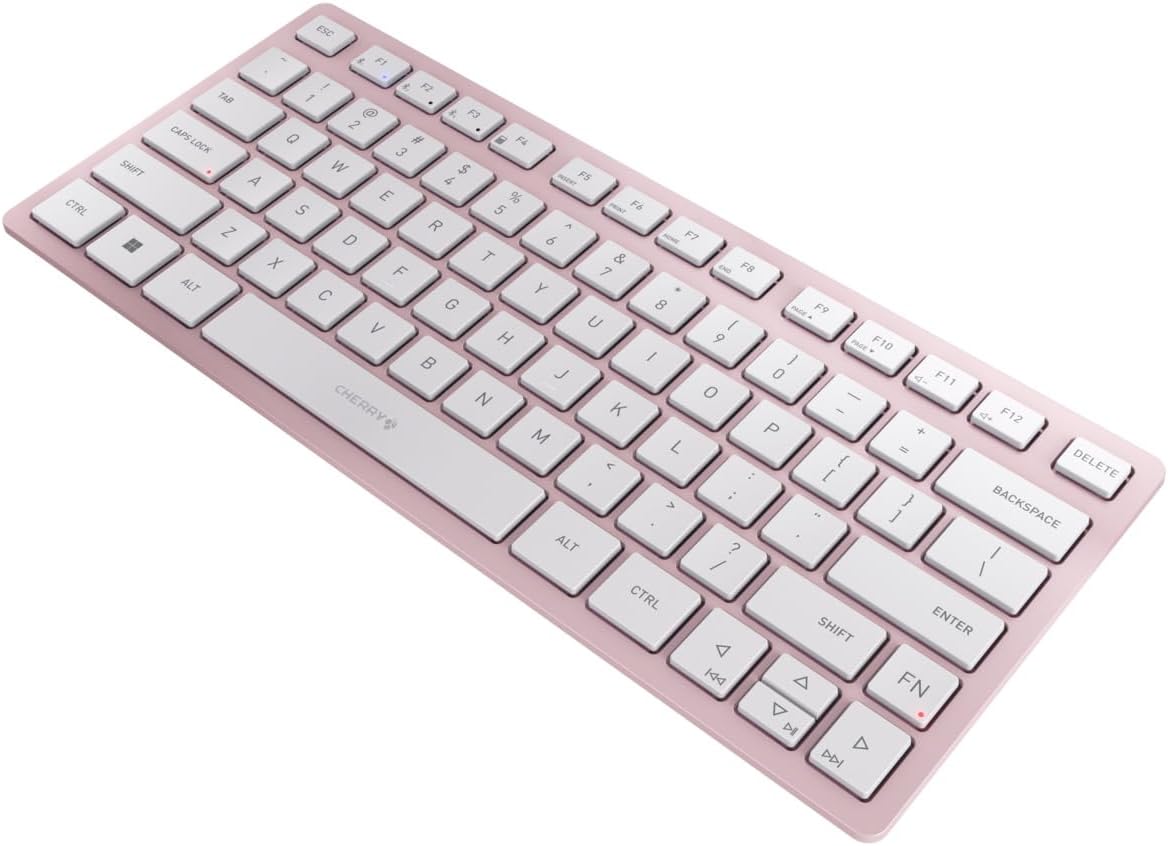
Whakaahua 3: Koki view of the keyboard, highlighting its slim profile.

Whakaahua 4: Taha view showing the adjustable feet extended for an ergonomic typing angle.
5. Tiaki
5.1. Te horoi
To clean your keyboard, gently wipe the keycaps and surface with a soft, lint-free cloth. For stubborn dirt, slightly dampHoroia te kakahu ki te wai, ki tētahi wai horoi ngawari rānei, kāore e whakakoi. Āta karohia te makuku nui, ā, kaua hoki e rehu tika ngā kaihoroi ki runga i te papapātuhi.
5.2. Rokiroki
When not in use, especially during travel, store the keyboard in its included carrying case to protect it from dust, scratches, and minor impacts.

Figure 5: The keyboard stored in its protective carrying case.
6. Te Raru
6.1. Kaore i te hono te papapātuhi
- Me mohio kei te kaha te papapātuhi.
- Tirohia nga pākahiko ka whakakapi ina tika.
- For Bluetooth, ensure the correct channel (F1, F2, or F3) is selected and the keyboard is in pairing mode (blinking LED).
- For 2.4 GHz wireless, ensure the nano receiver is securely plugged into a USB-A port.
- Try connecting via the USB-C cable to rule out wireless issues.
- Tīmataria anō tō pūrere ka ngana ki te hono anō.
6.2. Nga Kī Kaore i te Whakautu
- Check the connection as described above.
- Me whakarite kia kore he parapara e mau ki raro i nga ki.
- Ki te whakamahi koe i tētahi hononga waea, whakamātauria tētahi atu tauranga USB, taura rānei.
6.3. Poto Pūhiko Ora
- Me mohio kei te whakamahi koe i nga pākahiko AAA hou, kounga teitei.
- Turn off the keyboard when not in use to conserve battery power.
7. Whakatakotoranga
| Āhuahira | Whakatakotoranga |
|---|---|
| Ingoa Tauira | KW7100 |
| Tauira Tuemi | JK-7100US-19 |
| Waitohu | Cherry |
| Hangarau Hononga | Bluetooth 5.1 (3 channels), 2.4 GHz Wireless, USB-C Wired |
| Pūrere Hototahi | Pona, Waea atamai, Papa |
| Whakaahuatanga Papapātuhi | Compact, Multi-Device |
| Tikanga Matua | CHERRY SX Scissor Mechanism |
| Puna Mana | 2x AAA Pūhiko |
| Whakamunatanga | AES-128 |
| Hunga Hua | 11.6 x 5.1 x 0.6 inihi |
| Taumaha Tūemi | 1.4 pauna |
| Rauemi | Te whakarewa, te Kirihou |
| Tae | Cherry Blossom |
8. Pūtāhui me te Tautoko
This product is covered by Cherry's standard manufacturer warranty. For detailed warranty information, technical support, or service inquiries, please visit the official Cherry webpaetukutuku, whakapā atu ranei ki ta raatau tautoko kaihoko.
Kaihanga: Cherry
Webpae: www.cherry.de


