1. Kupu Whakataki
The OWON Wi-Fi Bi-directional Home Energy Monitor (Model: 80A-1clamp) is designed to provide real-time monitoring of your home's electricity consumption and generation. This device supports single-phase electricity systems and includes one 80A current clamp for measurement. It is compatible with the Tuya Smart Life application, allowing for remote monitoring and integration with other smart home devices.
Ko nga ahuatanga matua ko:
- Bi-directional Measurement: Monitors both energy consumption (from grid) and energy production (to grid), supporting daily, weekly, and monthly trend tracking.
- Aroturuki Wā-tūturu: Whakaatu voltage, current, power factor, active power, and frequency with an accuracy of ±2%.
- Mana Taupānga: Connects via 2.4 GHz Wi-Fi for monitoring and automation through the Tuya Smart Life app.
- Tāutatanga ngawari: Lightweight design with a current clamp (PC311-TY) for straightforward connection to power cables.

Image 1.1: OWON Wi-Fi Bi-directional Home Energy Monitor (80A-1clamp) and its mobile application interface.
2. Nga korero haumaru
WHAKATŪPATO: Electrical installation and maintenance should only be performed by a qualified professional. Failure to follow these instructions may result in electric shock, fire, or other serious injury.
- Always turn off all power supplies at the main circuit breaker before attempting any installation or wiring to ensure safety.
- Do not touch terminals or live wires during testing or operation.
- Ensure the device is installed in a dry environment, away from moisture and extreme temperatures.
- Manatokohia ko te voltage and current ratings of your electrical system are within the device's specifications (90-250VAC, 80A).
3. Waenga Hua
The OWON Energy Monitor package typically includes:
- OWON Wi-Fi Bi-directional Home Energy Monitor unit (PC311-TY)
- One 80A Current Clamp Transformer (CT)
- Pukapuka Kaiwhakamahi (tenei tuhinga)

Image 3.1: Detail of the 80A Current Clamp Transformer (CT) with P1-P2 direction marking.
4. Tatūnga me te Tāuta
Follow these steps for safe and correct installation of your energy monitor.
4.1 Rarangi Arowhai i mua i te whakaurunga
- Ensure you have basic electrical knowledge or consult a qualified electrician.
- Confirm your electrical system is single-phase.
- Have necessary tools: screwdriver, wire strippers, multimeter (optional).
- Ensure a stable 2.4 GHz Wi-Fi network is available at the installation location.
4.2 Tāutanga Tinana
- Weto Whakakore: Locate your main circuit breaker and turn off the power to the circuit where you intend to install the monitor. Verify power is off using a voltage Kaiwhakamatautau.
- Maunga te Aroturuki: The OWON Energy Monitor is designed to fit on standard 35mm DIN rails. Securely attach the monitor unit to the DIN rail within your electrical panel.
- Waeahia te Kaihiko hiko: Connect the Live (L) and Neutral (N) wires from your circuit breaker to the corresponding L and N terminals on the energy monitor. Input voltagKo te awhe ko 90-250VAC.
- Install the Current Clamp (CT):
- The CT must only be clamped around the Taea ora of the circuit you wish to monitor. Do not clamp it around both live and neutral wires, or only the neutral wire.
- Connect the CT's output wires to the 'Circuit 1' terminals (1- and 1+) on the energy monitor.
- Direction of Current Flow: The arrow on the CT clamp indicates the direction of current flow. For measuring energy consumption, the arrow should point in the direction of the current flow (e.g., from grid to load). For measuring energy generation, the arrow should point opposite to the current flow (e.g., from inverter to grid).

Image 4.2: Correct CT clamp placement on the live wire only.
- Whakahoahoa Waea: Refer to the following diagrams for specific wiring scenarios. Ensure the circuit measured by the CT is in the same phase as the circuit powering the PC311 monitor.

Image 4.1: The energy monitor unit designed for 35mm DIN rail mounting.
Wiring for Energy Consumption Measurement
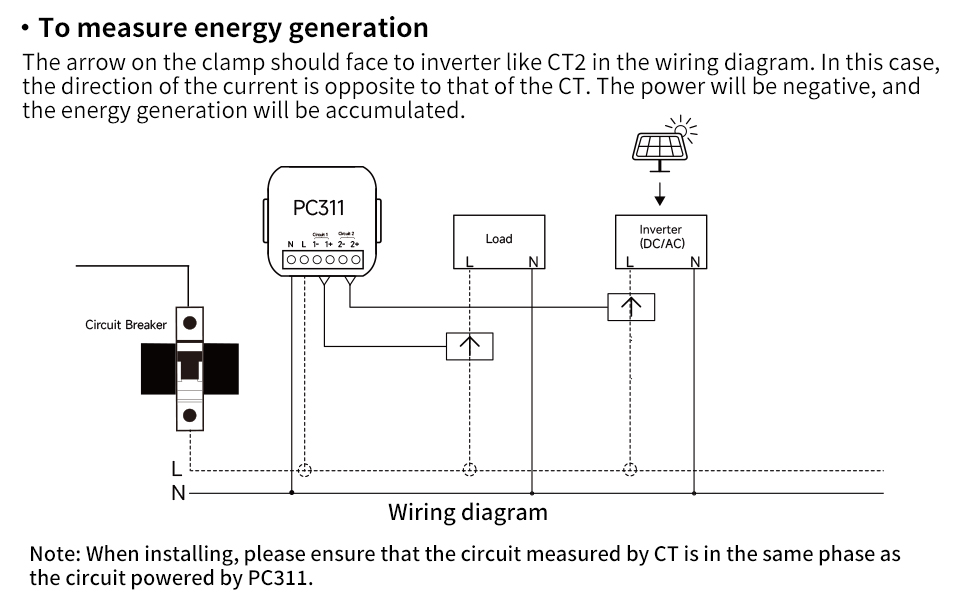
Image 4.3: Wiring diagram for monitoring energy consumption. The CT arrow should follow the current direction (P1→P2).
Wiring for Energy Generation Measurement
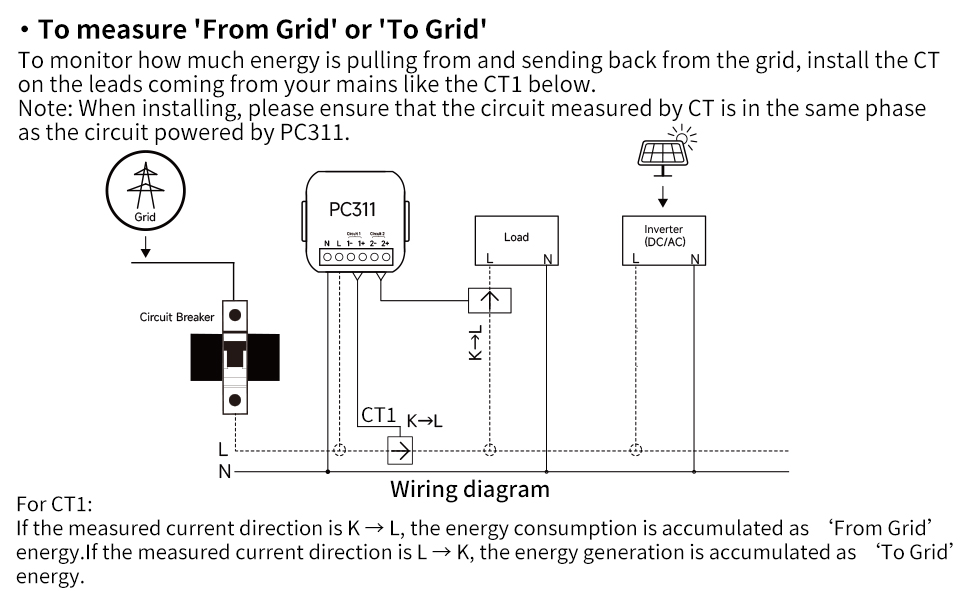
Image 4.4: Wiring diagram for monitoring energy generation. The CT arrow should face the inverter (P2→P1).
Wiring for 'From Grid' or 'To Grid' Measurement (Bi-directional)
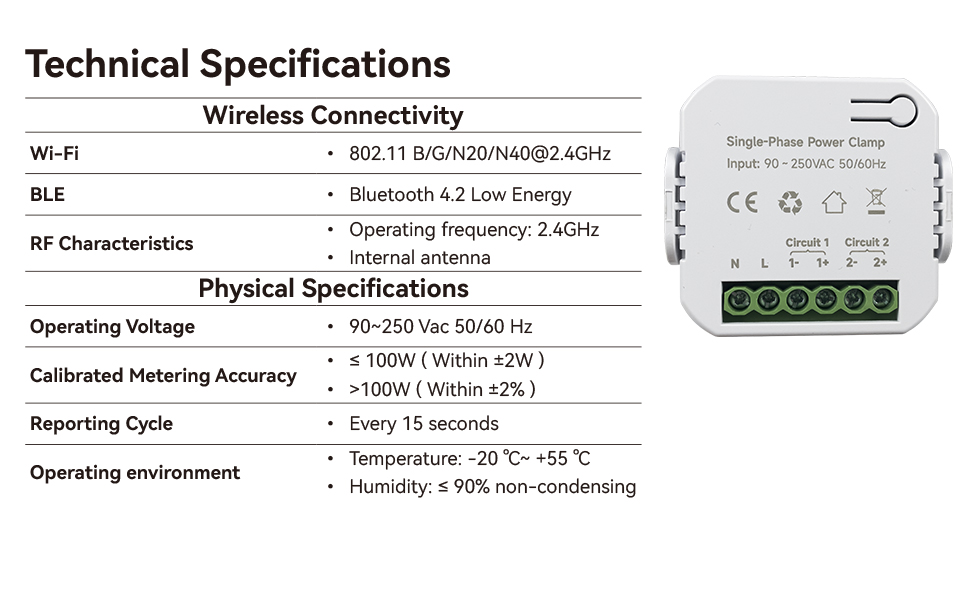
Image 4.5: Wiring diagram for bi-directional energy monitoring (from/to grid). The CT is installed on the main incoming leads.
4.3 App Setup (Tuya Smart Life)
- Tikiake App: Download the 'Tuya Smart' or 'Smart Life' app from your mobile device's app store.
- Rēhita/Takiuru: Waihangahia he kaute, takiuru ranei ki to putea o naianei.
- Tāpiri Pūrere: Restore power to the circuit. The monitor should enter pairing mode (usually indicated by a blinking LED). In the app, tap '+' to add a new device. Select 'Electrical' > 'Power Clamp' or 'Energy Monitor'.
- Tūhono ki Wi-Fi: Follow the in-app instructions to connect the monitor to your 2.4 GHz Wi-Fi network. You will need to enter your Wi-Fi password.
- Whirihoranga: Once connected, you can name the device and assign it to a room. The app will then display real-time energy data.
5. Nga Tohutohu Whakahaere
Once installed and configured with the Tuya Smart Life app, your OWON Energy Monitor will begin collecting data.
5.1 Aroturuki Wā-tūturu
Open the Tuya Smart Life app and select your OWON Energy Monitor device. You will see a dashboard displaying:
- Total Forward Energy (consumption)
- Total Generation (production)
- Wā-tūturu Voltage
- Wā-tūturu o nāianei
- Mana Hohe
- Tauira Mana
- Auautanga

Image 5.1: App interface displaying real-time electrical parameters.
5.2 Historical Data and Trends
The app provides historical data views, allowing you to analyze energy consumption and production trends over different periods (day, week, month, year). This helps in identifying usage patterns and optimizing energy efficiency.

Image 5.2: App graphs illustrating energy consumption and production trends over time.
5.3 Automation and Smart Scenes
Leverage the Tuya Smart Life app's automation features to create smart scenes based on your energy data. For example, you can set up notifications for unusual power consumption or integrate with other Tuya-compatible devices.
6. Tiaki
The OWON Energy Monitor is designed for minimal maintenance. However, periodic checks are recommended:
- Tirotiro Ataata: Periodically inspect the device and wiring for any signs of damage, loose connections, or overheating.
- Whakahōu Firmware: Check the Tuya Smart Life app for any available firmware updates for the device. Install updates to ensure optimal performance and security.
- Te horoi: Mena e tika ana, me ata horoia te waho o te taputapu ki te kakahu maroke, ngawari. Kaua e whakamahia nga kai horoi wai, nga whakarewa ranei.
- Taki Ngaio: For any concerns regarding electrical connections or device functionality, consult a qualified electrician.
7. Te Raru
If you encounter issues with your OWON Energy Monitor, refer to the following common problems and solutions:
| Raruraru | Take pea | Rongoā |
|---|---|---|
| Kaore te taputapu i te hiko | No power to L/N terminals; incorrect wiring. | Check circuit breaker. Verify L/N wiring connections. Ensure power is restored. |
| Kāore e taea te hono atu ki te Wi-Fi / Taupānga | Incorrect Wi-Fi password; 5GHz Wi-Fi network; weak Wi-Fi signal; device not in pairing mode. | Ensure correct 2.4 GHz Wi-Fi password. Move device closer to router. Reset device to enter pairing mode (refer to app instructions for reset method). |
| No energy data displayed | CT clamp not installed correctly; CT wires loose; no current flowing through monitored wire. | Verify CT clamp is securely attached to the live wire only. Check CT wire connections to the monitor. Ensure there is active power consumption/generation in the monitored circuit. |
| Nga korero tika | CT clamp direction incorrect; CT clamp not fully closed; interference. | Check the CT arrow direction relative to current flow. Ensure the CT clamp is fully closed. Relocate if possible to avoid strong electromagnetic interference. |
If the problem persists after attempting these solutions, please contact OWON customer support.
8. Whakatakotoranga
| Āhuahira | Taipitopito |
|---|---|
| Tau tauira | 80A-1clamp |
| Kaihanga | OWON |
| Hunga Hua | 6 x 9 x 12 cm; 200 karamu |
| Hononga Ahokore | Wi-Fi 802.11 B/G/N/N40@2.4GHz, Bluetooth 4.2 Low Energy |
| Nga ahuatanga RF | Operating frequency: 2.4GHz, Internal antenna |
| Mahinga Mahi Voltage | 90-250 Vac 50/60 Hz |
| Max Current (with clamp) | 80A |
| Tikanga Inenga Whakatau | ≤ 100W (Within ±2W), >100W (Within ±2%) |
| Hurihanga Pūrongo | Ia 15 hēkona |
| Taiao Mahi | Temperature: -20°C ~ +55°C, Humidity: ≤ 90% non-condensing |
| Whenua Taketake | Haina |
9. Pūtāhui me te Tautoko
OWON products are manufactured to high-quality standards. For warranty information, please refer to the documentation included with your purchase or visit the official OWON website. Typically, warranty covers defects in materials and workmanship under normal use.
For technical support, troubleshooting assistance, or warranty claims, please contact OWON customer service through their official website or the contact information provided in your product packaging. When contacting support, please have your product model number (80A-1clamp) and purchase details ready.
OWON Official Webpae: www.owon.com


