1. Kupu Whakataki
This manual provides detailed instructions for the Varmilo VA Series V2 Aurora Bluetooth White LED Mechanical Keyboard. It covers setup, operation, maintenance, and troubleshooting to ensure optimal performance and user experience. The VA Series V2 features an upgraded design with a standard USB-C cable, a double-section kickstand for enhanced adjustability, North-facing LEDs, and sound-proof silicone pads for a quieter typing experience. Indicator lights are positioned on the top right to minimize distractions.
2. Ihirangi mokete
Tirohia ngā mea kei roto i te kete i te wā e wetewetehia ai. Mena kua ngaro, kua pakaru rānei ētahi taonga, whakapā atu ki te ratonga kiritaki.
- Varmilo VA Series V2 Aurora Mechanical Keyboard
- USB-C taura
- Pukapuka Kaiwhakamahi (tenei tuhinga)
3. Tatūnga
3.1 Tatūnga Tinana
- Wewetehia te Papapātuhi: Tangohia marietia te papapātuhi me ngā taputapu katoa i roto i te takai.
- Whakatikatika i ngā Tūnga Whack: The keyboard features two-stage height adjustable feet. Flip out the desired kickstands on the underside of the keyboard to achieve your preferred typing angle.

Image: The underside of the keyboard, highlighting the two-stage adjustable kickstand for ergonomic positioning.
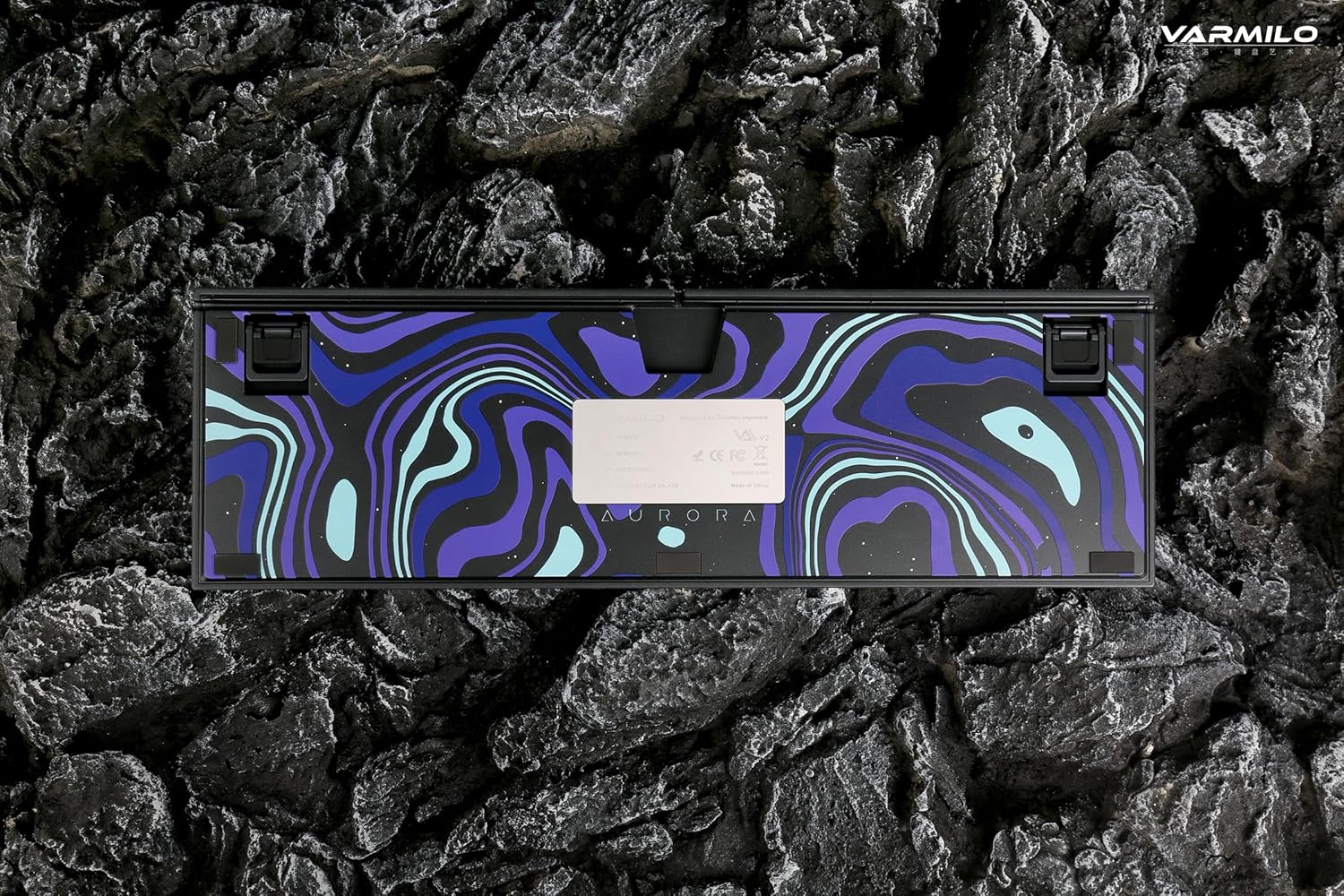
Image: The bottom of the keyboard, illustrating the cable grooves that allow the USB-C cable to exit from the left, right, or middle.
3.2 Tikanga Hononga
3.2.1 Hononga Waea (USB-C)
- Kimihia te tauranga USB-C kei muri o te papapātuhi.
- Connect the provided USB-C cable to the keyboard and the other end to an available USB port on your computer or device.
- The keyboard will be automatically recognized by your operating system. The indicator light will show charging status if the battery is low.
3.2.2 Bluetooth Wireless Connection
The Varmilo VA Series V2 Aurora keyboard supports connecting up to 3 devices wirelessly via Bluetooth.
- Huri ki te Aratau Nihokikorangi: Locate the mode switch on the keyboard (usually on the back or side) and set it to Bluetooth mode.
- Whakauruhia te Aratau takirua: Pēhi me te pupuri Fn + Whakauruhia (for Bluetooth device 1), Fn + Kaainga (for Bluetooth device 2), or Fn + Wharangi Whakarunga (for Bluetooth device 3) for 3-5 seconds until the indicator light flashes rapidly, indicating pairing mode.
- Whakahohehia te Nihokikorangi i runga i to Pūrere: On your computer, smartphone, or tablet, go to Bluetooth settings and turn on Bluetooth.
- Tīpako Papapātuhi: Look for "Varmilo VA2" or a similar name in the list of available devices and select it to pair.
- Whakaū Tauhoa: Once paired, the indicator light on the keyboard will stop flashing and remain solid for a few seconds, then turn off or show battery status.
- Tāruatia ngā Pūrere Tāpiri: Repeat steps 2-5 using a different Fn key combination (Fn + Home or Fn + Page Up) to pair up to two more devices.
4. Nga Tohutohu Whakahaere
4.1 Whakawhiti i waenga i nga Pūrere
- To switch to Bluetooth device 1: Press Fn + Whakauruhia.
- To switch to Bluetooth device 2: Press Fn + Kaainga.
- To switch to Bluetooth device 3: Press Fn + Wharangi Whakarunga.
- To switch to Wired mode: Set the mode switch on the keyboard to Wired mode.
4.2 Mana Whakamuri LED
The keyboard features a White LED backlight. Use the following key combinations to control the backlight:
- Fn + < (Left Arrow): Whakaitihia te kanapa o te papamuri.
- Fn + > (Right Arrow): Whakanuia te kanapa o te papamuri.
- Fn + Up Arrow: Change backlight mode/effect.
- Fn + Down Arrow: Change backlight mode/effect (reverse direction).
- Fn + Z: Turn backlight on/off.
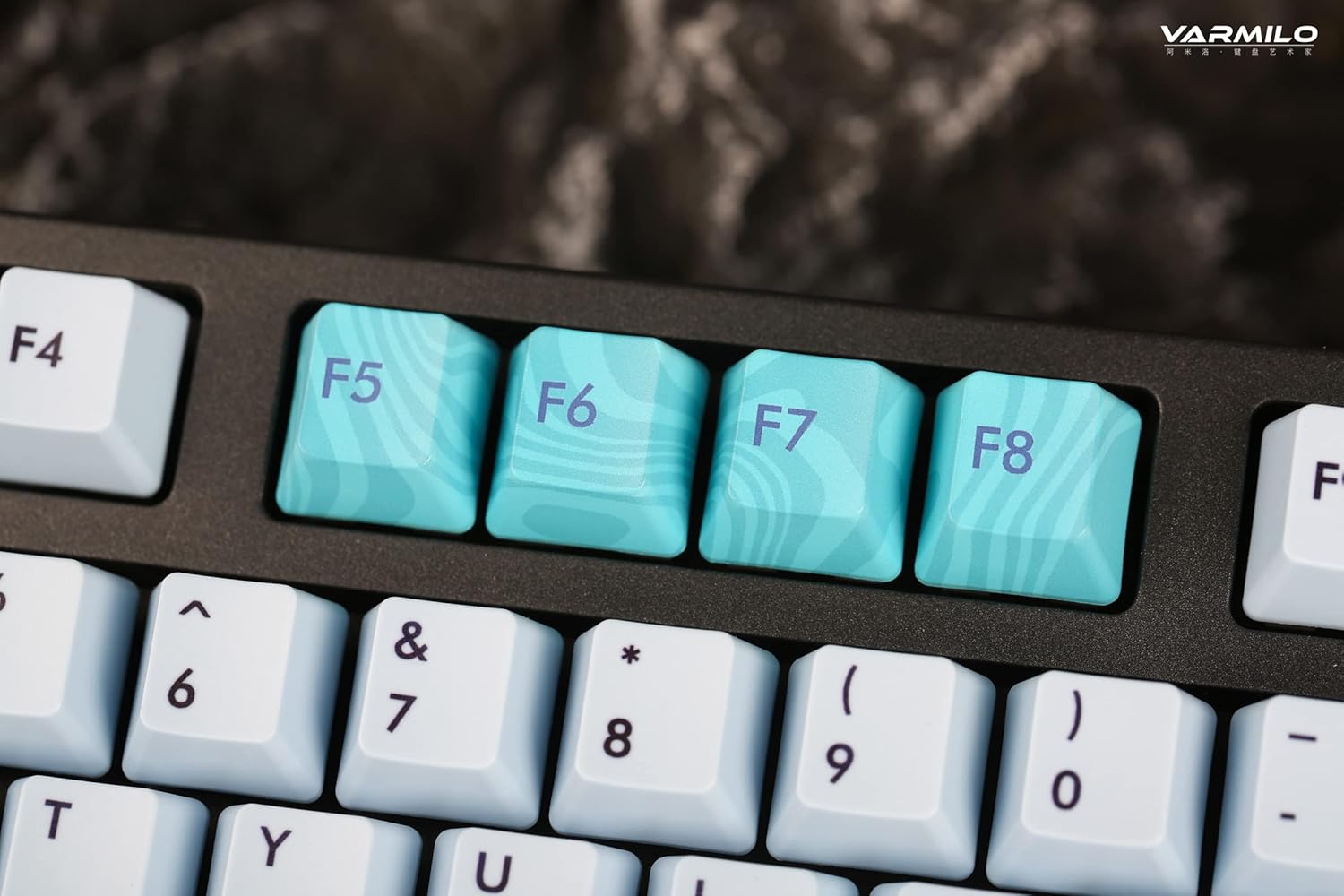
Image: Close-up of the arrow keys, which are used in combination with the Fn key to control backlight brightness and modes.
4.3 Function Keys and Multimedia Controls
The keyboard features a full-size (104 + 4) layout with dedicated function keys and multimedia controls accessible via the Fn kī.
- Fn + F1-F12: Access various system functions (e.g., media playback, volume control, screen brightness). Refer to your operating system's settings for specific mappings or common keyboard shortcuts.
- Fn + Windows Key: Maukati/wetehia te kī Windows hei ārai i te pēhi tūpono i te wā e petipeti ana.
- Fn + Right Ctrl: Switch between Mac/Windows layout (if applicable, check specific model features).

Whakaahua: He tata view of the F5-F8 keys, showcasing their unique design and potential secondary functions.
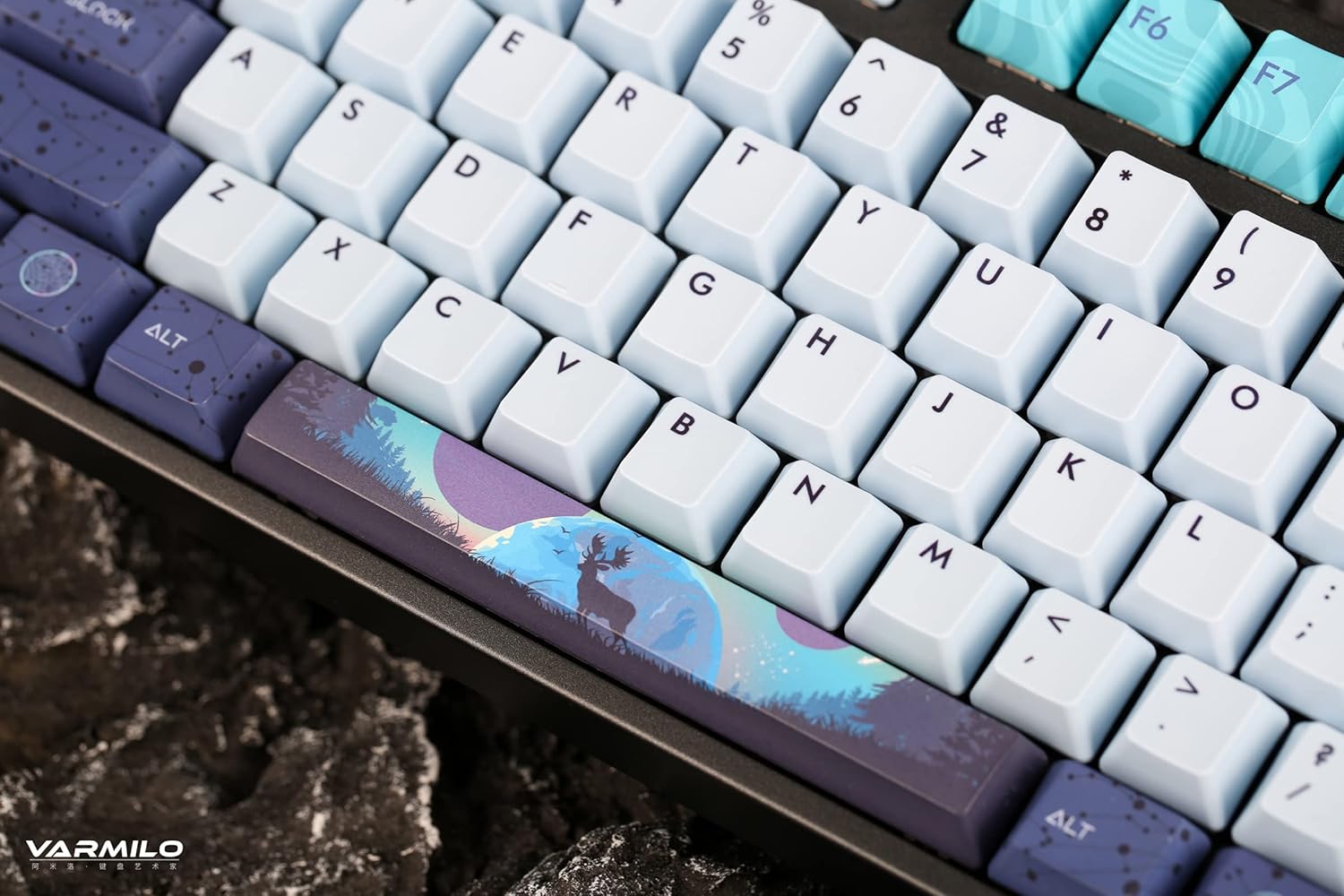
Whakaahua: He taipitopito view of the keyboard's keycaps, including a custom-designed spacebar, highlighting the thick Dye Sub PBT keycaps.
5. Tiaki
Proper maintenance ensures the longevity and performance of your Varmilo keyboard.
- Te horoi: Use a soft brush or compressed air to remove dust and debris from between the keycaps. For stubborn dirt, gently wipe the keycaps with a damp cloth and mild soap solution, ensuring no liquid enters the keyboard.
- Tango Kuputuhi: If you need to clean under the keycaps or replace them, use a keycap puller. Gently pull the keycap straight up to avoid damaging the switch. The keyboard features durable Dye Sub PBT keycaps.
- Rokiroki: Ki te kore e whakamahia mō te wā roa, rongoatia te papapātuhi ki te wāhi maroke, kore puehu.
- A ape i te Wai: Kaua e tukuna te papapātuhi ki te wai. Ka pakaru tonu te pakaru.
6. Te Raru
| Raruraru | Take pea | Rongoā |
|---|---|---|
| Karekau te papapātuhi whakautu (Waea) | Loose USB-C cable connection; faulty USB port; incorrect mode. |
|
| Karekau te papapātuhi whakautu (Nihokikorangi) | Not paired; out of range; low battery; incorrect Bluetooth channel selected. |
|
| Ko te rama tuara kaore e mahi | Backlight turned off; brightness set to minimum; low battery. |
|
| Kī kore e rehita, pato-rua ranei | Dust/debris under keycap; switch malfunction; software issue. |
|
7. Whakatakotoranga
| Āhuahira | Taipitopito |
|---|---|
| Waitohu | Varmilo |
| Tauira | VA Series V2 Aurora |
| Momo Papapātuhi | Hangaia |
| Momo Whakawhiti | Kailh Prestige Red |
| Hononga | USB-C (Wired), Bluetooth (Wireless) |
| Pūrere Ahokore | Connects up to 3 devices wirelessly |
| Hipanga papanga | Thick Dye Sub PBT |
| Whakamuri | White LED, North-facing |
| Tahora | Full-size (104 + 4 keys) |
| Pūrere Hototahi | Pona, PC, Waea atamai, Papa |
| Nga waahanga motuhake | Rua-stage height adjustable feet, Sound-proof silicone pads, Cable grooves |
| Rauemi | Silicone (internal sound dampening) |
8. Pūtāhui me te Tautoko
Varmilo products are designed for quality and durability. For warranty information, technical support, or service inquiries, please refer to the official Varmilo webpae, whakapā atu ranei ki to kaihoko.
You can visit the official Varmilo Store for more information: Varmilo Store on Amazon.


