LAUNCH CR3008 Plus Professional OBD2 Scanner Diagnostic Tool Instruction Manual
Model: CR3008 Plus
Waitohu: LAUNCH
Kupu Whakataki
The LAUNCH CR3008 Plus is a professional OBD2 scanner and diagnostic tool designed to help vehicle owners and technicians quickly and accurately diagnose car problems. This manual provides detailed instructions for setting up, operating, maintaining, and troubleshooting your device, ensuring you can effectively utilize its full range of features.
Tatūnga
1. Wewete pouaka me nga Waahanga
I te whakatuwheratanga o te kete, me mohio kei te noho nga waahanga katoa:
1x LAUNCH Creader 3008 Plus Unit
1x Manual Kaiwhakamahi
Image: The LAUNCH CR3008 Plus unit with its included components.
2. Pūrere Neke Atuview
Familiarize yourself with the physical features of the CR3008 Plus:
Whakaatu: 2.8-inch TFT true color LCD screen for clear readability.
Papapātuhi: Silicone buttons for easy navigation and operation.
OBD2 Cable: Integrated 32-inch data cable for vehicle connection.
Tauranga USB-C: Located at the bottom for software updates and data printing.
Whakaahua: Mua view of the LAUNCH CR3008 Plus, highlighting its display and silicone keypad.
Image: The LAUNCH CR3008 Plus showing its integrated OBD2 cable for vehicle connection.
Image: The USB-C port located at the bottom of the LAUNCH CR3008 Plus, used for updates and data transfer.
Ataata: He korero taipitopitoview of the LAUNCH CR3008 Plus, demonstrating its physical features and user interface.
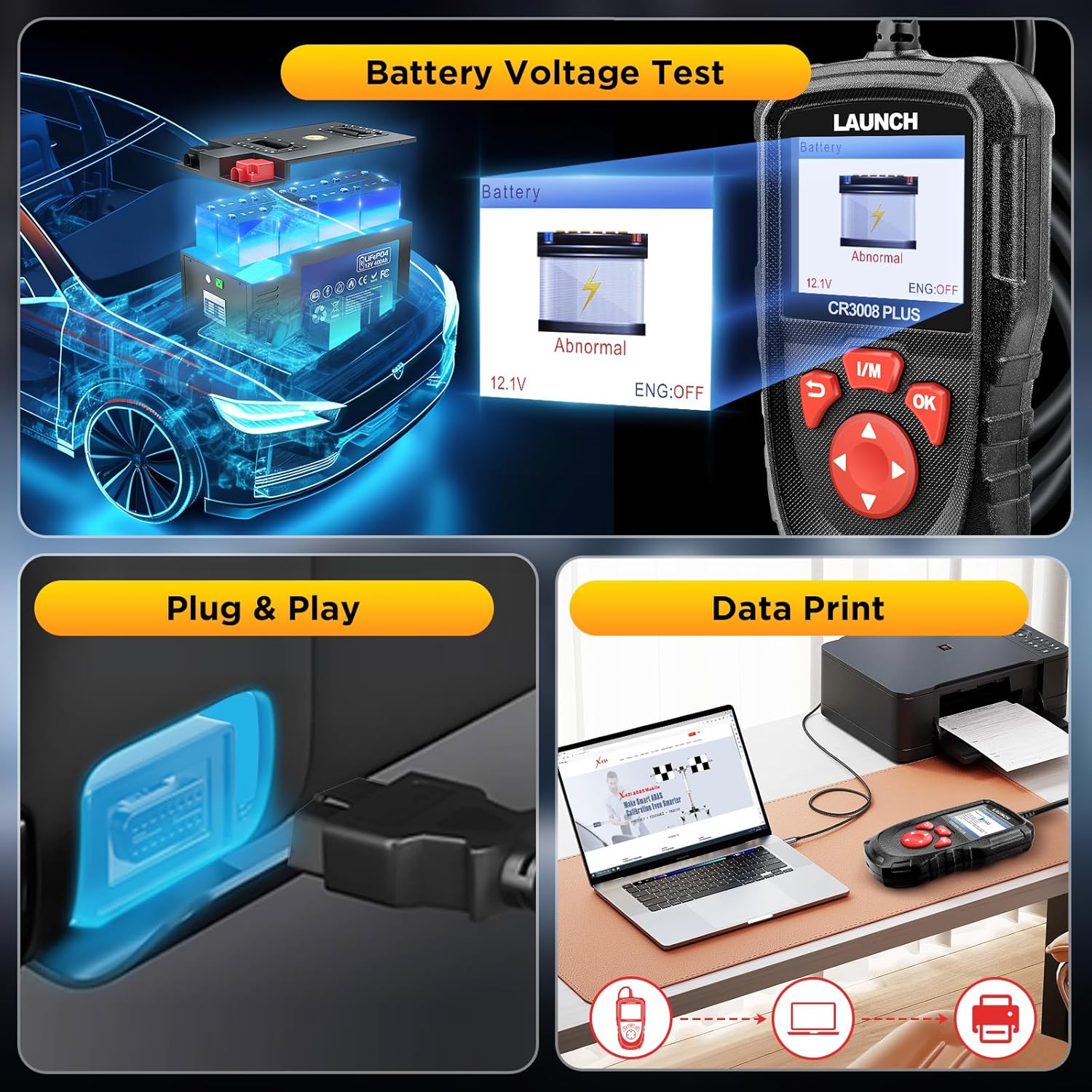
3. Initial Setup (Plug & Play)
The LAUNCH CR3008 Plus is designed for immediate use without the need for batteries or chargers, as it is powered directly from your vehicle's OBD2 port.
Locate your vehicle's 16-pin OBD2 Data Link Connector (DLC). This is typically found under the dashboard on the driver's side.
Plug the CR3008 Plus's integrated OBD2 cable into the vehicle's DLC.
Turn the vehicle's ignition to the 'ON' position (engine can be off or running, depending on the function). The device will power on automatically.
Video: Demonstration of the simple plug-and-play setup for the LAUNCH CR3008 Plus, showing how to connect it to a vehicle's OBD2 port.
Te whakahaere i te Pūrere
1. Whakaterenga Tahua Matua
The main menu provides access to all diagnostic and utility functions. Use the directional buttons (up, down, left, right) to navigate and the 'OK' button to select an option.
Image: The main menu of the LAUNCH CR3008 Plus, displaying icons for Diagnose, Battery, Review, Lookup, Print, Help, Setup, and Info.
2. Ngā Mahi Tātaritanga
Select 'Diagnose' from the main menu to access the core diagnostic features:
Panui Waehere: Displays detailed descriptions of Diagnostic Trouble Codes (DTCs).
Mukua nga Waehere: Ka whakakore i ngā DTC me te whakaweto i te Tohu Mahi Kino Lamp (MIL) i muri i ngā whakatikatika.
Rere Raraunga Ora: Reads and displays real-time ECU/PCM data, often with graphical plotting.
View Whakatio Raraunga Tāpare: Shows vehicle conditions recorded by the on-board computer at the time an emission-related fault occurred.
O2 Whakamatau Whakamatau: Retrieves and displays O2 sensor monitor test results.
Whakamātautau Aroturuki i runga i te Papa: Tikina me te whakaatu i ngā hua whakamātautau mō ngā wāhanga me ngā pūnaha pūnaha hiko e pā ana ki te tukunga.
Whakamātautau Pūnaha EVAP: Ka tīmata i te whakamātautau turuturu mō te pūnaha EVAP o te waka.
Mōhiohio Waka: Displays information such as VIN, CID, and CVN.
Image: The diagnostic menu of the LAUNCH CR3008 Plus, listing various test modes and functions.
Image: The scanner displaying the status of the Check Engine Light (MIL) and its ability to clear fault codes.
Video: A demonstration of how to use the LAUNCH CR3008 Plus to diagnose car issues, including reading and clearing codes.
3. One-Click I/M Readiness
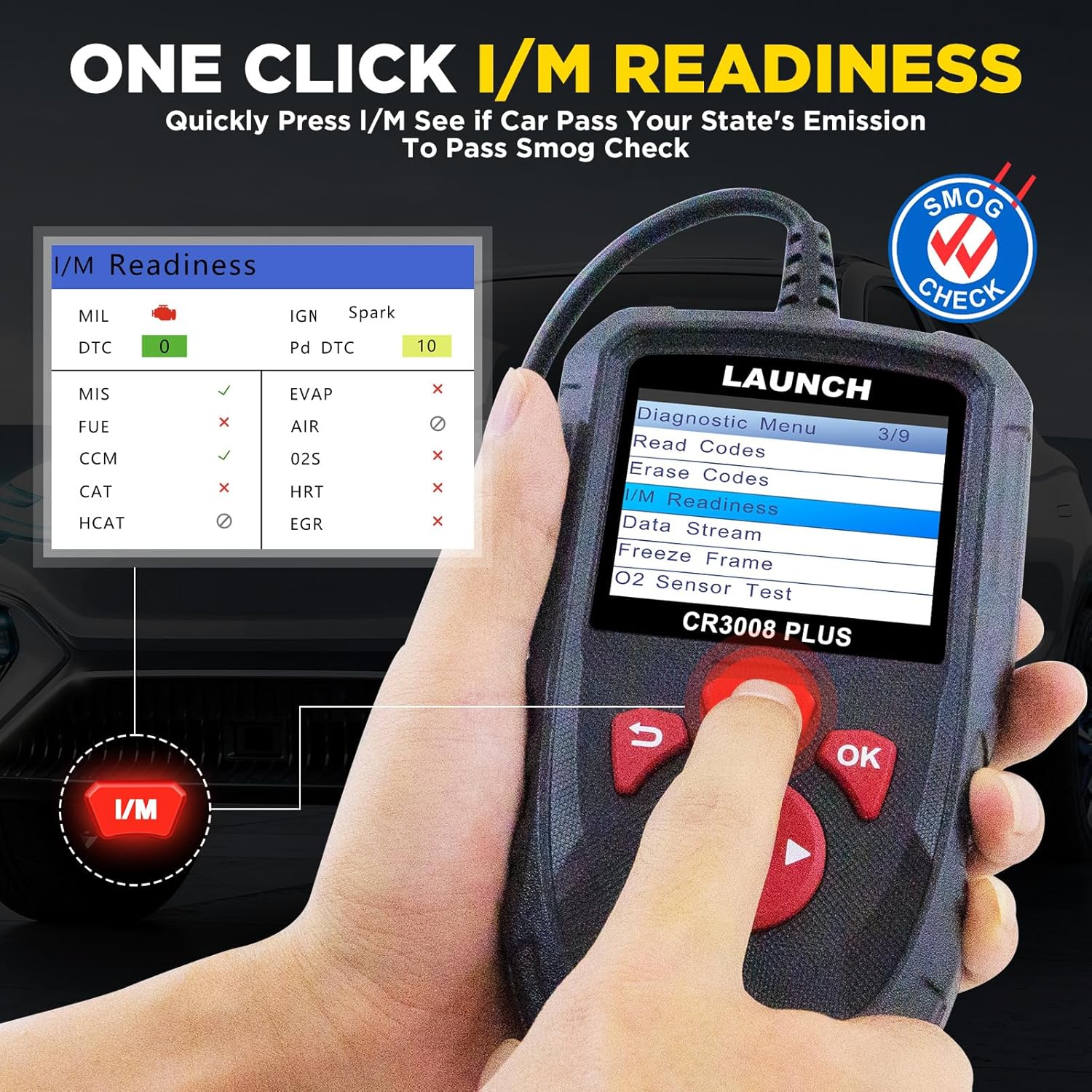
This convenient feature allows for a quick check of your vehicle's emission readiness status, which is crucial for smog tests.
From the main menu, press the dedicated 'I/M' button.
The scanner will quickly process and display the readiness status of various emission-related systems.
Image: The One-Click I/M Readiness screen, showing the status of various emission monitors for a quick smog check.
4. Pūhiko Voltage Whakamatautau
Quickly check your car's battery voltage and health:
Select 'Battery' from the main menu.
The device will display the current battery voltage and indicate its status (Normal/Abnormal).
Image: The Battery Voltage Test screen, showing the current voltage and battery health status.
5. Tirohanga DTC
The built-in DTC library allows you to quickly find definitions and possible causes of Diagnostic Trouble Codes without needing to search online.
Select 'Lookup' from the main menu.
Input the DTC code using the directional buttons.
The scanner will display the definition and relevant information for the entered code.
Image: The DTC Lookup feature, allowing users to input a code and receive its definition and potential causes.
Te tiaki
1. Whakahōu Pūmanawa
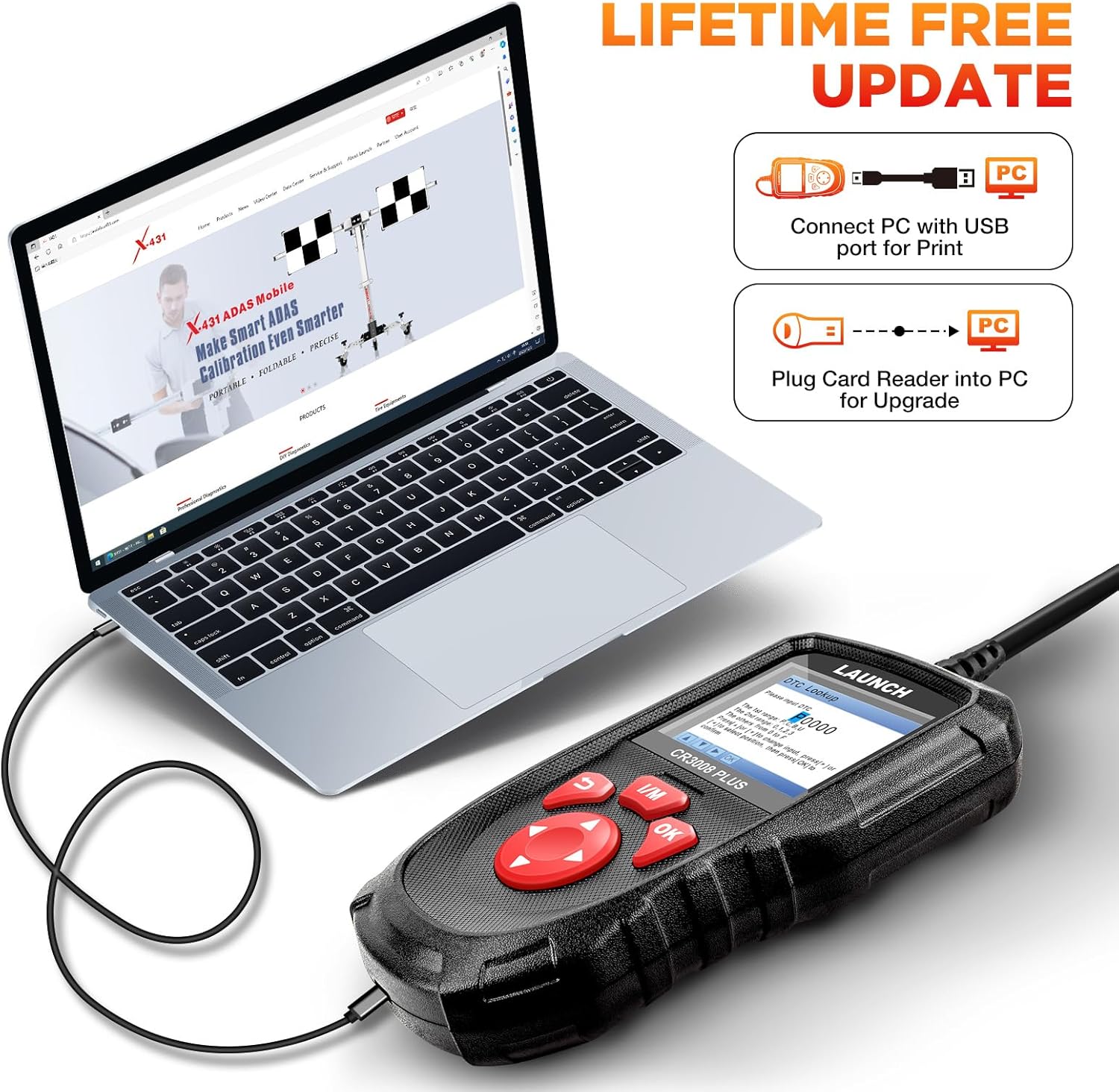
The LAUNCH CR3008 Plus offers free lifetime software updates to ensure compatibility with new vehicle models and diagnostic protocols.
Visit the official LAUNCH website to download the update tool (compatible with Windows XP, 7, 8, & 10).
Connect the CR3008 Plus to your computer via a USB cable using the USB-C port at the bottom of the device.
Register the scanner using its serial number through the update tool.
Follow the on-screen instructions to download and install the latest software updates. Ensure a stable internet connection during the process.
Image: Close-up of the USB-C port on the LAUNCH CR3008 Plus, used for connecting to a computer for software updates.
Image: The LAUNCH CR3008 Plus connected to a laptop, illustrating the process for software updates or printing diagnostic reports.
2. Data Record and Print
The device allows you to record diagnostic data for later review and print reports for your records or to share with a mechanic.
Aratau Tuhia: Enable 'Record Mode' in the 'Setup' menu to save live data streams and DTCs during diagnosis.
Review Raraunga: Access 'Review' from the main menu to view recorded DTCs, data streams, and freeze frame data.
Tāngia Pūrongo: Connect the scanner to a computer via USB. Use the LAUNCH update tool's 'Print Manager' function to print saved diagnostic reports.
Image: The LAUNCH CR3008 Plus connected to a laptop, illustrating the process for software updates or printing diagnostic reports.
Raparongoā
If you encounter issues with your LAUNCH CR3008 Plus, consider the following common troubleshooting steps:
No Power/Communication Error:
Ensure your vehicle supports OBD2 protocols and has a standard 16-pin data connector. Check the compliance label under the hood for OBD certification.
Verify the vehicle's wiring and fuses for any short circuits.
Try connecting the scanner to another OBD2-compliant vehicle to determine if the communication error persists.
Check Engine Light (MIL) Issues:
If the MIL is on, use the 'Read Codes' function to identify the specific DTCs. The scanner will help pinpoint the area to investigate.
If the engine is running erratically (stalling, poor acceleration, decreased fuel efficiency) even without the MIL, use 'Live Data Stream' to monitor parameters and identify values outside the normal range.
Remember, clearing codes only turns off the MIL; the underlying fault must be repaired to prevent the code from reappearing.
Software Update Problems:
Ensure your computer's operating system is compatible (Windows XP, 7, 8, or 10).
Verify your internet connection is strong and stable during the update process.
Double-check that the serial number entered for registration is correct.
Whakatakotoranga
Tauira: LAUNCH Creader 3008 Plus
Whakaatu: 2.8-inch TFT True Color LCD
Pūnaha Mahi: Linux
Hononga: OBD2 (integrated cable), USB-C (for PC connection)
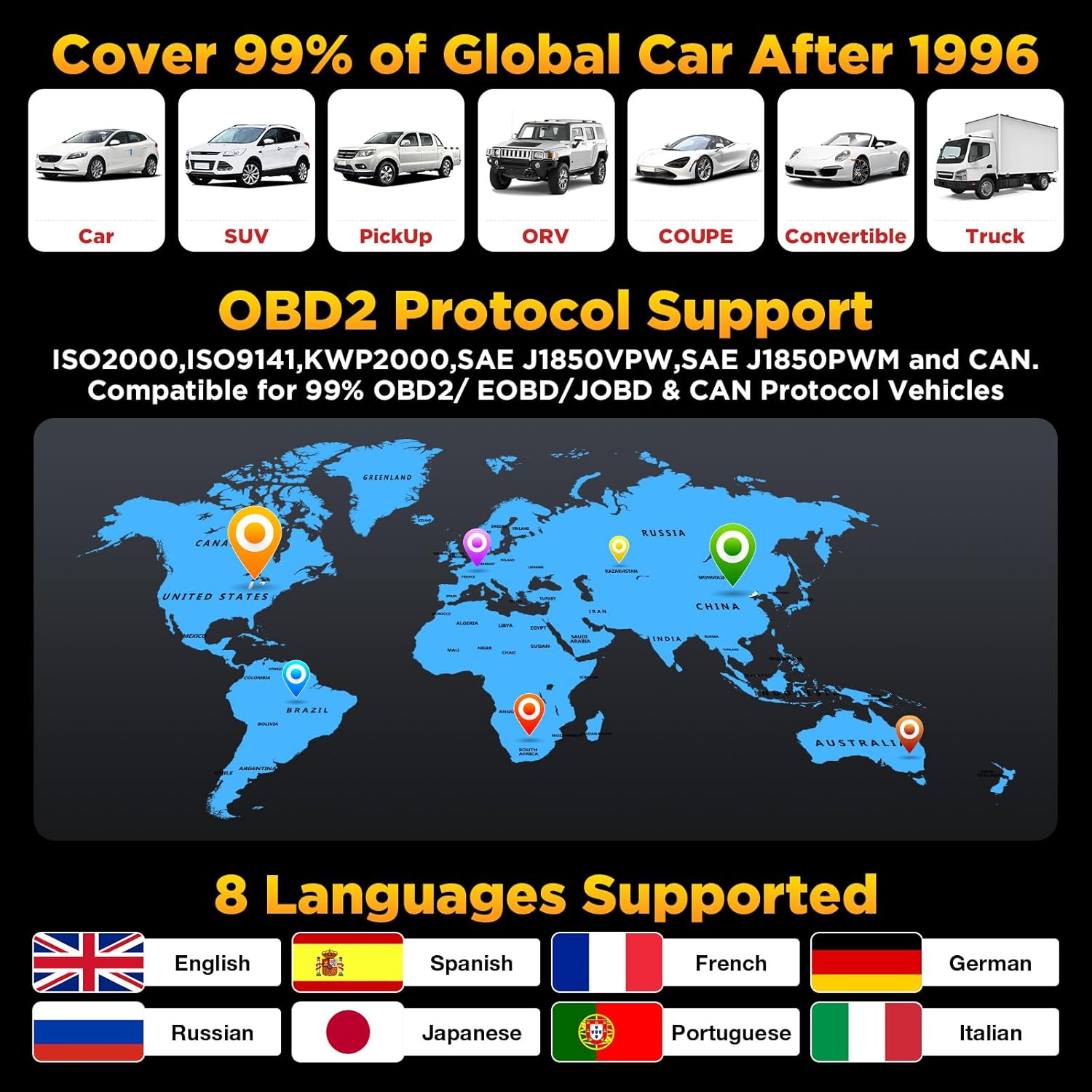
Kawa Tautoko: KWP2000, ISO9141, J1850 VPW, J1850 PWM, CAN (Controller Area Network)
Hototahi Waka: US vehicles (1996 & newer), EU vehicles (2000 & newer), Asian vehicles (2008 & newer)
Reo Tautokona: English, Spanish, French, German, Russian, Japanese, Portuguese, Italian
Taumaha Tūemi: 12.7 hekere
Rahi Hua: 4.65 x 2.68 x 0.88 inihi
Whenua Taketake: Haina
Pūtāhui me te Tautoko
Pūtāhui
The LAUNCH CR3008 Plus comes with a 5-year warranty, ensuring long-term reliability and peace of mind for your investment.
Tautoko
For any technical assistance or inquiries, LAUNCH offers 24/7/365 technical support. Please refer to the contact information provided in your product packaging or on the official LAUNCH webpae mo te awhina tika.
Tuhinga e pa ana - CR3008 Tāpiri
LAUNCH CR3008 Plus Quick Start Guide A quick start guide for the LAUNCH CR3008 Plus OBD2 scanner, detailing components, controls, and basic diagnostic procedures for OBD II compliant vehicles.
LAUNCH CRP123E FAQs: Troubleshooting and Support Frequently Asked Questions for the LAUNCH CRP123E automotive diagnostic tool, covering updates, registration, language support, features, package contents, troubleshooting, and more.
LAUNCH Creader Professional 123i User Manual - Comprehensive Guide Explore the features and operation of the LAUNCH Creader Professional 123i automotive diagnostic tool. This user manual provides detailed instructions on vehicle diagnosis, system checks, updates, and settings.
LAUNCH CRP123X OBD2 Scanner: Key Information Before Purchase Essential guide covering 10 crucial points for LAUNCH CRP123X OBD2 scanner users, including compatibility, updates, warranty, usage tips, and included accessories. Learn about product features, support, and return policies.
LAUNCH CReader VII+ Upgrade Process Guide A step-by-step guide on how to upgrade the LAUNCH CReader VII+ automotive diagnostic scan tool using a TF card or USB cable. Includes software download, installation, and registration instructions.