1. Kupu Whakataki
Thank you for choosing the FIREBAT MN56 Mini PC. This manual provides essential information for setting up, operating, and maintaining your device. Please read it thoroughly before use and keep it for future reference.
The FIREBAT MN56 is a compact and powerful mini desktop computer designed for various applications, including business, education, gaming, multimedia, and photo/video editing. It features an AMD Ryzen 7 8745HS processor, high-speed DDR5 memory, and a PCIe 4.0 SSD for exceptional performance.
2. Ihirangi mokete
Tena koa tirohia kei roto nga taonga katoa kei roto i te kete:
- 1 x FIREBAT MN56 AMD Ryzen 7 8745HS Mini PC
- 1 x US Power Supply (19V 6.32A 120W)
- 1 x Vertical Bracket
- 1 x taura HDMI
- 1 x Manual Kaiwhakamahi (tenei tuhinga)

Image: The FIREBAT MN56 Mini PC shown with its power adapter, HDMI cable, and vertical stand.
3. Hua Neke Atuview me nga ahuatanga
3.1. Whakatakotoranga
| Waehanga | Taipitopito |
|---|---|
| Tauira | MN56 |
| Ahu | 13cm x 13cm x 5.4cm (5 x 5 x 2 inihi) |
| Taumaha | 0.53kg (1 pound) |
| PTM | AMD Ryzen 7 8745HS (8 Matua, 16 Miro, tae atu ki te 4.9GHz) |
| Whakairoiro | AMD Radeon 780M (2600MHz GPU) |
| Maharahara | 32GB DDR5 5600MHz (2x16GB), expandable up to 96GB (48GBx2) |
| Rokiroki | 1TB PCIe 4.0 M.2 SSD, expandable up to 4TB |
| Hononga Ahokore | Wi-Fi 6 (802.11ax), Nihokikorangi 5.2 |
| LAN | 2 x 2.5Gbps RJ45 |
| Putanga Ataata | 1 x HDMI 2.1, 1 x DP 1.4, 1 x USB-C 4.0 (supports DP Alt Mode) |
| Tauranga USB | 2 x USB 2.0 Type-A, 2 x USB 3.2 Type-A, 1 x USB-C 4.0 (PD/DP/DATA), 1 x USB-C IN |
| Ororongo | 1 x 3.5mm Jack Ororongo |
| Ētahi atu | Mana RGB |
3.2. Nga waahanga matua
- Tukatuka Kaha: Equipped with AMD Ryzen 7 8745HS for high performance in demanding tasks.
- Whakairoiro Whakauru: AMD Radeon 780M provides strong graphics performance, suitable for gaming and multimedia.
- High-Speed Memory & Storage: Dual-channel DDR5 5600MHz RAM and PCIe 4.0 SSD ensure fast data access and multitasking.
- Putanga Whakaaturanga Toru: Supports 4K triple display output via HDMI 2.1, DP 1.4, and USB-C 4.0 for enhanced productivity.
- Dual 2.5G RJ45 Ports: Offers high-speed network connectivity, ideal for work, gaming, and web te ngaru.
- Hononga Arā Atu Anō: Features Wi-Fi 6 and Bluetooth 5.2 for robust wireless connections.
- Raukaha Whakarahi: Memory and storage are upgradeable to meet future needs.
- Te whakamahana pai: Dual fans with high-efficiency thermal grease ensure stable performance and heat dissipation.
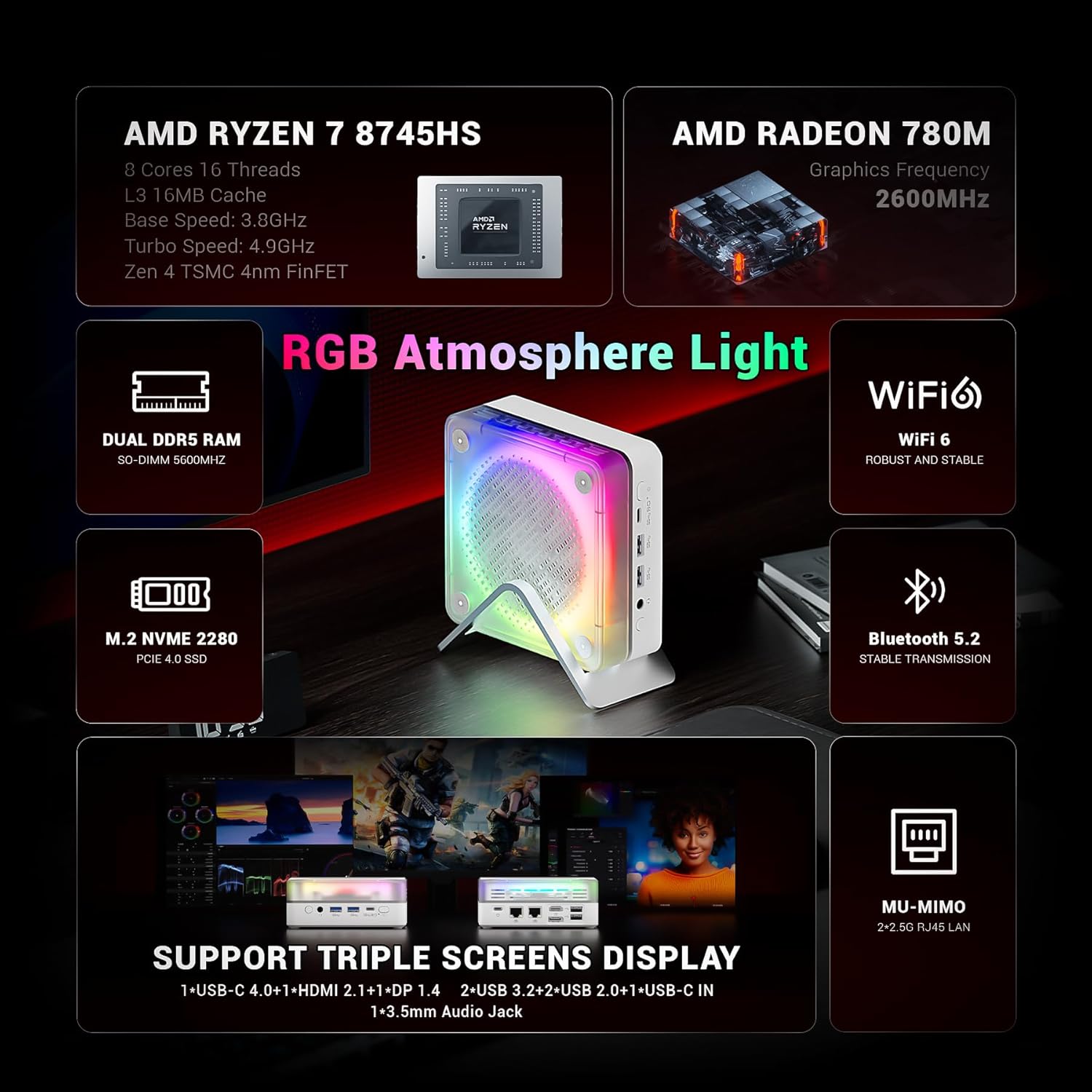
Whakaahua: Kua mutuview of the FIREBAT MN56's key features, highlighting its AMD Ryzen 7 8745HS processor, Radeon 780M graphics, DDR5 RAM, PCIe 4.0 SSD, Wi-Fi 6, Bluetooth 5.2, and various ports.

Image: A graphic illustrating the performance of the Ryzen 7 8745HS CPU compared to other processors.
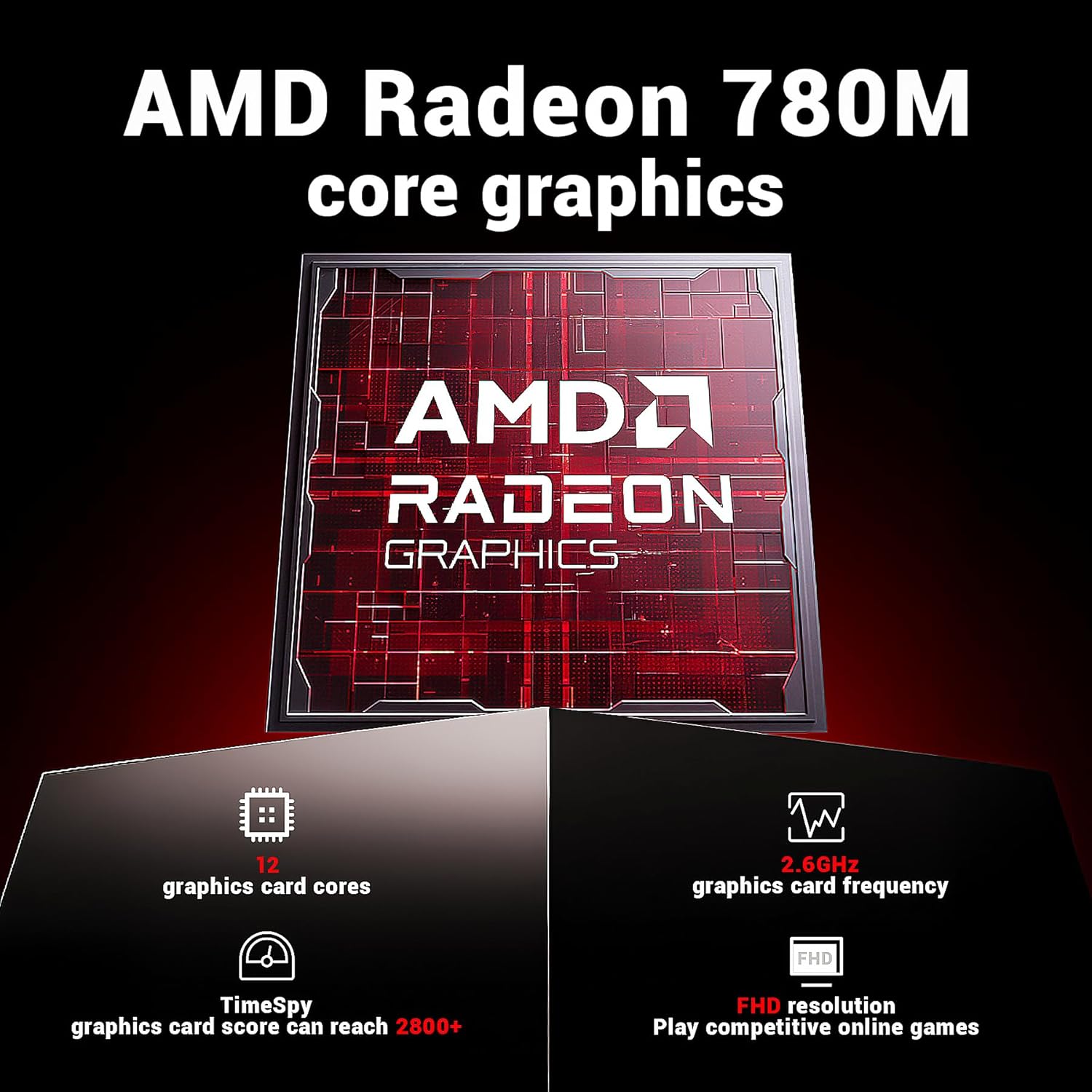
Image: Details on the AMD Radeon 780M integrated graphics, including its 12 graphics card cores and 2.6GHz frequency.

Image: The Mini PC connected to a display, emphasizing its ultra-fast startup and smooth operation.
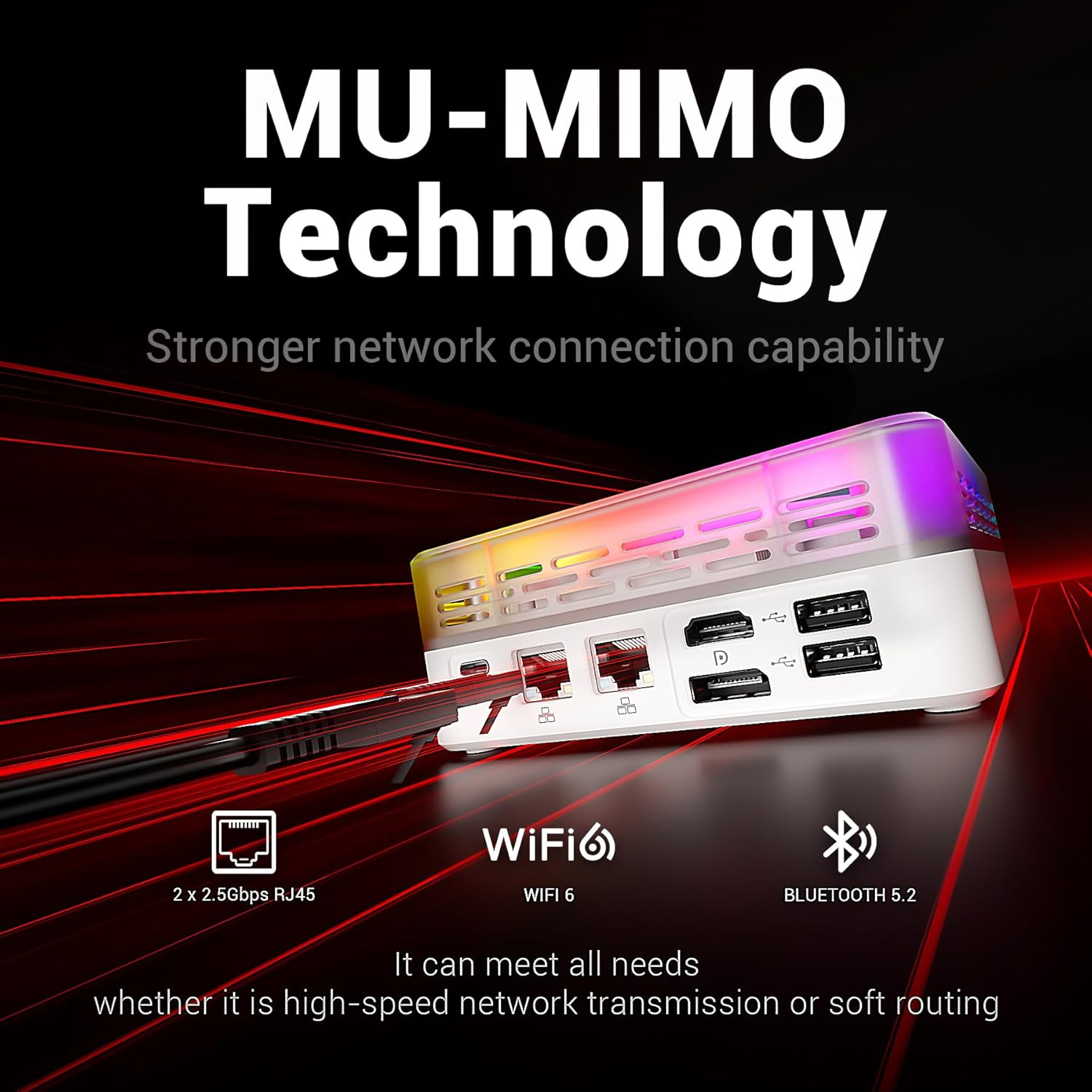
Image: Highlighting the MU-MIMO technology and dual 2.5Gbps RJ45 ports for stronger network connection capability.
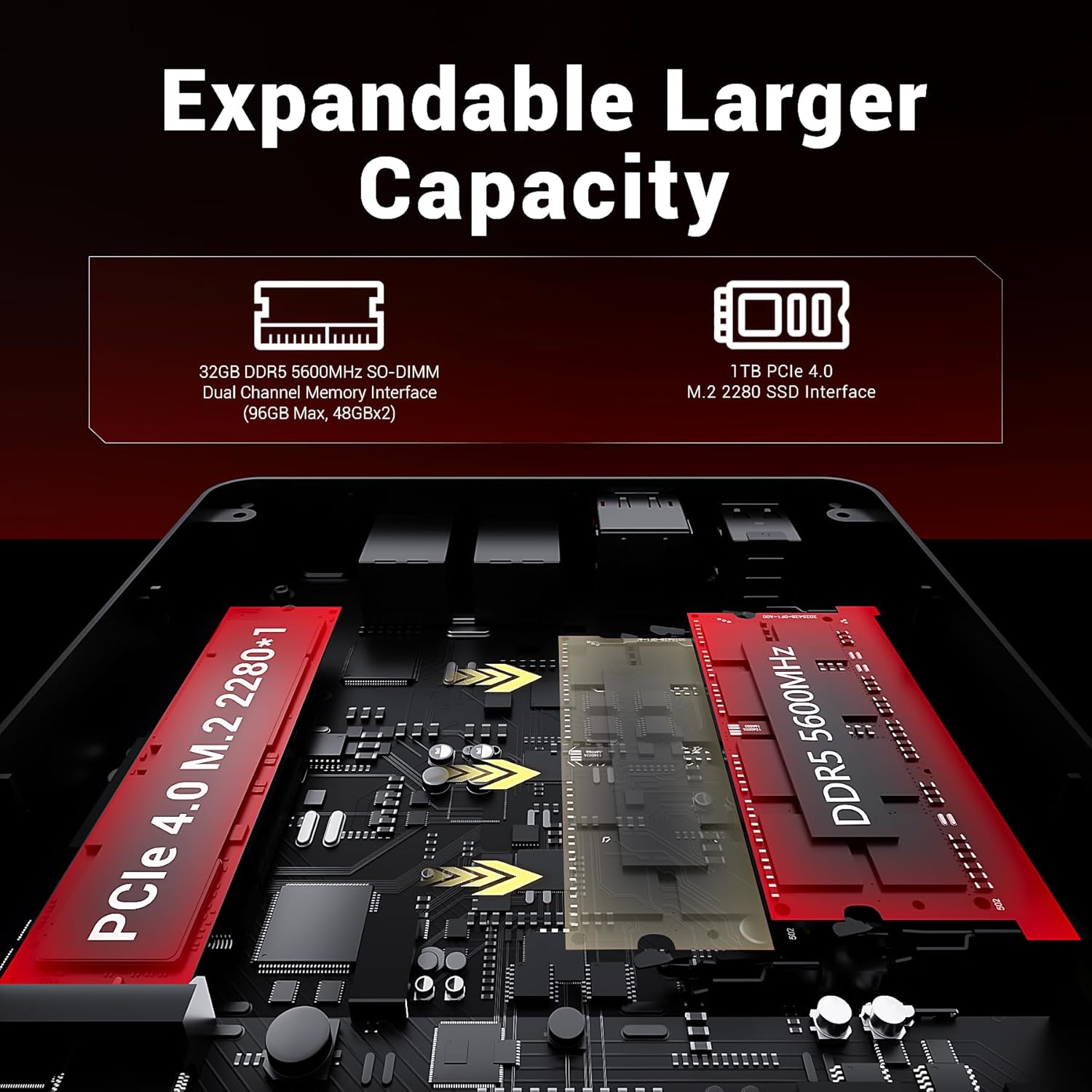
Image: An internal diagram showing the DDR5 SO-DIMM and M.2 2280 SSD slots for expandable capacity.

Image: A diagram illustrating the dual-fan cooling system and high-efficiency thermal grease for optimal heat dissipation.

Whakaahua: He taipitopito view of the Mini PC's front and rear ports, including USB, HDMI, DP, LAN, and audio jacks.
4. Aratohu Tatūnga
4.1. Te hono ki te Mana
- Connect the power adapter to the "USB-C IN" port on the Mini PC.
- Monohia te urutau hiko ki te putanga pakitara.
4.2. Connecting to a Display
The MN56 supports up to three displays simultaneously.
- Connect one end of the HDMI cable (included) to the HDMI 2.1 port on the Mini PC.
- Connect the other end of the HDMI cable to an HDMI input on your monitor or TV.
- For additional displays, use the DP 1.4 port or the USB-C 4.0 port (with a compatible USB-C to DisplayPort/HDMI adapter, not included).
4.3. Tuhono Pikitia
- Papapātuhi me te Kiore: Connect your USB keyboard and mouse to any of the USB 2.0 or USB 3.2 Type-A ports.
- Whatunga: For wired internet, connect an Ethernet cable from your router/modem to either of the 2.5Gbps RJ45 LAN ports. For wireless, the device supports Wi-Fi 6.
- Ororongo: Honoa nga taringa, nga korero korero ranei ki te 3.5mm oro oro.
4.4. Puta Tuatahi
- Me mohio kei te hono nga taura katoa e tika ana.
- Pēhia te pātene mana kei te taha mua o te Mini PC.
- Follow the on-screen instructions to complete the operating system setup.
5. Nga Tohutohu Whakahaere
5.1. Whakahaere Mana
- Whakahiko: Patohia te paatene mana.
- Aratau Moe: Briefly press the power button while the PC is on, or select "Sleep" from the operating system's power options.
- Whakaweto: Select "Shut Down" from the operating system's power options. Do not unplug the power adapter directly without proper shutdown to prevent data loss.
- Tīmata anō: Tīpakohia "Tīmata Anō" mai i ngā kōwhiringa mana o te pūnaha whakahaere.
5.2. Mana Rarama RGB
The Mini PC features customizable RGB atmosphere lighting. Use the dedicated RGB control port or software (if available) to adjust lighting effects and colors.
5.3. Urunga BIOS/UEFI
To access the BIOS/UEFI settings, power on the Mini PC and repeatedly press the Na Del or F2 key (key may vary, refer to on-screen prompts during boot) immediately after pressing the power button.
6. Tiaki
6.1. Te horoi
- Me mohio kua whakawetohia te taputapu me te wetewete i te mono i mua i te horoi.
- Whakamahia he kakahu ngohengohe, maroke hei muru i te taha o waho.
- For dust accumulation in vents, use compressed air. Do not insert any objects into the vents.
- A ape i te whakamahi i nga kai horoi wai, i nga taonga abrasive ranei.
6.2. Rokiroki me te Whakahaere
- Store the Mini PC in a cool, dry place away from direct sunlight and extreme temperatures.
- A ape i te whakatakoto i nga mea taumaha ki runga ake o te taputapu.
- Kaua e tukuna te taputapu ki te wai, ki te makuku nui ranei.
6.3. Upgrading Memory and Storage
The FIREBAT MN56 allows for memory and storage upgrades. For detailed instructions on how to open the chassis and install components, please refer to the official FIREBAT support website or contact customer service. Ensure the device is powered off and unplugged before performing any internal upgrades.
7. Te Raru
| Raruraru | Take pea | Rongoā |
|---|---|---|
| Kāore he hiko/Kāore e tahuri | Kāore i te tika te hono o te urutau hiko; He raruraru putanga hiko; He urutau hiko hapa. | Ensure power adapter is securely connected to both the PC and the wall outlet. Try a different outlet. Test with another compatible power adapter if available. |
| Karekau he whakaaturanga ki te aroturuki | Display cable loose or incorrect; Monitor input not selected; Faulty monitor/cable. | Check HDMI/DP/USB-C cable connections. Ensure the monitor is set to the correct input source. Try a different cable or monitor. |
| Kāore he hononga ipurangi (waea) | Kua wetekina te taura Ethernet; He raruraru ki te pouara/modem; He raruraru ki te taraiwa whatunga. | Ensure Ethernet cable is securely connected. Restart your router/modem. Check network settings in the operating system. Update network drivers. |
| Kaore he hononga Wi-Fi | Wi-Fi disabled; Incorrect password; Router issue; Driver issue. | Ensure Wi-Fi is enabled in the operating system. Verify Wi-Fi password. Restart your router. Update Wi-Fi drivers. |
| Pūhoi te pūnaha, kāore rānei e aro mai | Too many applications running; Low storage space; Overheating; Malware. | Close unnecessary applications. Free up disk space. Ensure proper ventilation. Run antivirus scans. Consider upgrading RAM/SSD if frequently slow. |
If you encounter issues not listed here or if the problem persists, please contact FIREBAT customer support.
8. Pūtāhui me te Tautoko
FIREBAT products come with a standard manufacturer's warranty. Please refer to the warranty card included with your product or visit the official FIREBAT webpae mo nga tikanga me nga tikanga whakamana.
For technical support, product inquiries, or warranty claims, please contact FIREBAT customer service:
- Īmēra: support@firebatpc.com
- Webpae: www.firebatpc.com
Please have your product model (MN56) and purchase information ready when contacting support.


