1. Kupu Whakataki
Thank you for choosing the Baseus AeQur G10 TWS Earphones. This manual provides detailed instructions on how to set up, operate, maintain, and troubleshoot your new earphones. Please read this manual thoroughly before using the product to ensure optimal performance and longevity.
2. Ihirangi mokete
Carefully unpack the box and ensure all items listed below are present and in good condition. If any items are missing or damaged, please contact your retailer.
- Baseus AeQur G10 TWS Earphones (Left and Right)
- Puhi utu
- USB-A/USB-C Wireless Dongle
- USB-C Uira Whakatau
- Nga Rahi Maha o Nga Tohu Taringa
- Pukapuka Kaiwhakamahi (tenei tuhinga)

Image 2.1: Complete package contents of the Baseus AeQur G10 TWS Earphones.
3. Hua Neke Atuview
Familiarize yourself with the components of your Baseus AeQur G10 TWS Earphones.
3.1 Waea taringa
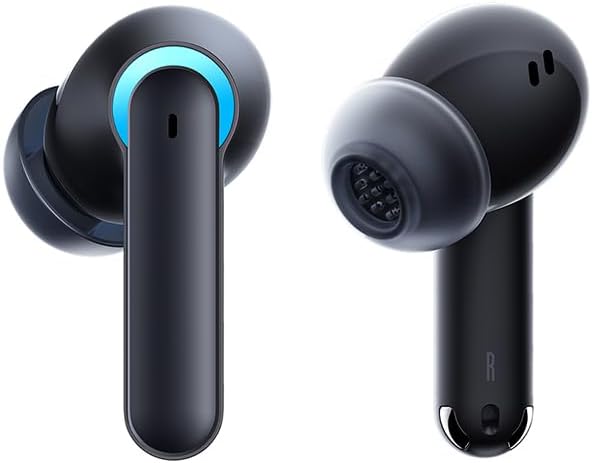
Image 3.1: Left and Right Baseus AeQur G10 Earphones. Each earphone features a touch control area, microphone, and charging contacts.
3.2 Keehi Whakatutuki

Image 3.2: Baseus AeQur G10 Earphones in their charging case with the lid open. The case has charging slots for each earphone and an LED indicator for battery status.
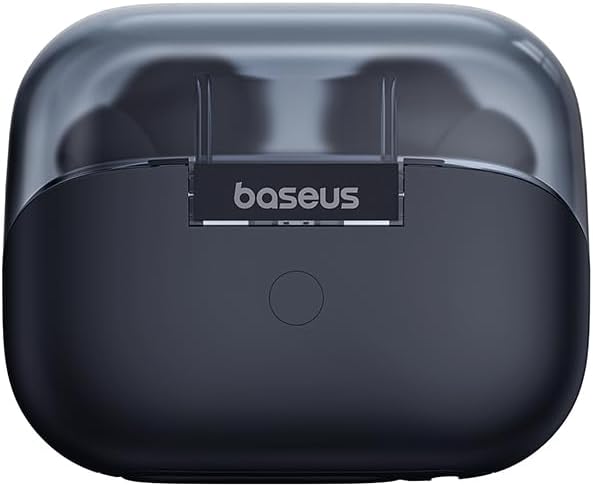
Whakaahua 3.3: Whakamuri view of the Baseus AeQur G10 charging case, displaying the Baseus brand logo and a USB-C charging port (not explicitly visible but implied by common design).
3.3 USB-A/USB-C Wireless Dongle
The included wireless dongle allows for low-latency connection to various devices, including PCs, laptops, gaming consoles, and mobile devices.

Image 3.4: Compatibility diagram for the Baseus AeQur G10, illustrating connections to Type-C Androids & Tablets, Type-C/USB-A PCs & Laptops, PS5/PS4/Switch, Steam Deck, and VR devices.
4. Tatūnga
4.1 Whakataki Tuatahi
- Whakanohoia nga taringa e rua ki roto i te pukoro utu.
- Honoa te taura utu USB-C ki te tauranga utu i runga i te pouaka, me tetahi atu pito ki te pūtake hiko USB (hei tauira, te tauranga USB rorohiko, te urutau pakitara).
- The LED indicator on the case will show charging status. A full charge typically takes approximately 1.5 hours for the earphones and 2 hours for the case.
4.2 Tauhoa ki nga Pūrere Nihokikorangi
- Ensure the earphones are in the charging case and the case has sufficient charge.
- Open the charging case lid. The earphones will automatically enter pairing mode (indicated by a flashing LED on the earphones or case).
- I runga i tō pūrere (waea atamai, papa, pona), whakahohea te Nihokikorangi ka rapu i ngā pūrere hou.
- Select "Baseus AeQur G10" from the list of available devices.
- Kia honoa, ka mutu te uira o te tohu LED, ā, ka rangona he oro whakaū.
4.3 Connecting via USB Wireless Dongle
- Insert the USB-A or USB-C end of the wireless dongle into the corresponding port on your device (PC, laptop, gaming console).
- Ensure the earphones are in the charging case and the lid is open.
- The earphones will automatically attempt to connect to the dongle. The dongle's LED indicator will show connection status.
- Once connected, the LED on the dongle will become solid, and you will hear a confirmation tone from the earphones.
5. Nga Tohutohu Whakahaere
5.1 Hiko / Whakaweto
- Whakahiko: Open the charging case lid, or take the earphones out of the case. They will power on automatically.
- Weto Whakakore: Place the earphones back into the charging case and close the lid. They will power off automatically and begin charging.
5.2 Te mau i nga Waea-taringa
- Identify the 'L' (left) and 'R' (right) markings on each earphone.
- Gently insert the earphones into your ear canals.
- Rotate them slightly to find a comfortable and secure fit. Choose the appropriate ear tip size for optimal sound quality and comfort.
5.3 Mana Pa
The Baseus AeQur G10 earphones feature touch-sensitive controls on each earbud. The specific functions may vary slightly depending on the device and application.
| Mahi | Mahi |
|---|---|
| Pāwhiri Kotahi (Maui/Matua) | Purei / Okioki puoro, Whakautu / Waea mutunga |
| Paoa Taurua (L) | Tuhinga o mua |
| Paoa Taurua (R) | Riro Panuku |
| Pato Toru (Maui/Maui) | Whakahohe Kaiāwhina Reo |
| Pēhi Roa (Mai/Maui, 2 hēkona) | Whakakahoretia te Waea |
| Pēhi Roa (Mai/Maui, 3 hēkona) | Toggle Gaming/Music Mode (if applicable) |
6. Tiaki
6.1 Te horoi
- Use a soft, dry, lint-free cloth to clean the earphones and charging case.
- For earwax or debris in the ear tips, gently remove the ear tips and clean them with a cotton swab lightly dampened with rubbing alcohol. Ensure they are completely dry before reattaching.
- Kaua e whakamahia nga kai horoi, nga whakarewa, nga rehu aerosol ranei.
6.2 Rokiroki
- Always store the earphones in their charging case when not in use to protect them and keep them charged.
- Whakaorangia ki te waahi makariri, maroke, kia matara atu i nga wera nui me te ra tika.
6.3 Tiaki Pūhiko
- Charge the earphones and case regularly, even if not used frequently, to maintain battery health.
- Kaua e tukua kia pau katoa te kaha o ngā pākahiko mō ngā wā roa.
7. Te Raru
If you encounter issues with your Baseus AeQur G10 earphones, refer to the following common solutions:
7.1 Kāore he Oro, he Hononga Wātea rānei
- Ensure earphones are charged and properly connected to your device (Bluetooth or dongle).
- Check the volume level on both the earphones and your connected device.
- Neke atu ki tō pūrere kia kore ai e pokanoa, e puta rānei ngā raruraru tawhiti.
- Try disconnecting and re-connecting the earphones.
- For Bluetooth, forget the device on your phone and re-pair.
- For dongle, unplug and re-plug the dongle.
7.2 Earphones Not Charging
- Me mohio kei te hono pai te taura utu ki te take me te puna hiko.
- Manatokohia kei te hohe te puna hiko.
- Clean the charging contacts on both the earphones and inside the case with a dry cotton swab.
- Whakamātauria he taura utu rereke, he urutau hiko ranei.
7.3 Only One Earphone Working
- Place both earphones back into the charging case, close the lid, wait a few seconds, then open the lid and take them out again.
- Kia tino utua ngā taringaoro e rua.
- Whakamātauria te tautuhi anō i ngā taringaoro (tirohia te aratohu a te kaihanga webpae mo nga tohutohu tautuhi ki te hiahiatia).
8. Whakatakotoranga
Key technical specifications for the Baseus AeQur G10 TWS Earphones:
| Āhuahira | Whakatakotoranga |
|---|---|
| Ingoa Tauira | A00055400111-00 |
| Waitohu | Baseus |
| Tae | Pango |
| Te Whakanoho Taringa | I te Taringa |
| Tauwehe Puka | I te Taringa |
| Hangarau Hononga | Ahokore (Nihokikorangi) |
| Hangarau Whakawhitiwhiti Ahokore | Nihokikorangi |
| Pūhiko | 1 nga pākahiko Lithium Ion e hiahiatia ana (kei roto) |
| Hunga Hua | 10 x 5 x 1.27 cm |
| Taumaha Tūemi | 220 g |
| Kaihanga | Baseus |
| Whakamahinga Tauwhāiti | Haerenga |
9. Pūtāhui me te Tautoko
Baseus products are designed and manufactured to the highest quality standards. For information regarding warranty coverage, technical support, or service, please refer to the warranty card included with your product or visit the official Baseus webpae. Puritia to tohu hoko mo nga kereme whakamana.
For further assistance, you may contact Baseus customer support through their official channels.


