Kupu Whakataki
Thank you for choosing the arVin Wireless Gaming Controller. This manual provides detailed instructions on how to set up, operate, and maintain your controller to ensure an optimal gaming experience across various platforms including iOS, Android, Nintendo Switch, PS4, and PC.
Ihirangi mokete
- 1 x arVin Wireless Gaming Controller (Model D7)
- 1 x USB Utaura Whakatau
- 1 x Pukapuka Kaiwhakamahi
Ka mutu te huaview me nga waahanga matua
The arVin Wireless Gaming Controller is designed for versatile gaming across multiple platforms, offering precise control and an ergonomic design for extended play sessions.
- Hototahitanga Pūrere-maha: Supports iOS 13.0+, Android 6.0+, Win7.0+, Nintendo Switch, Switch OLED, Switch Lite, PS3, PS4. (Note: PS5 compatibility is limited to PS4/PS3 games).
- Wide Game Support: Compatible with most cloud gaming services (Nvidia GeForce Now, Xbox Cloud, Amazon Luna, Google Stadia, Rainway, Moonlight), Apple Arcade, and MFi games. Supports popular titles like Call of Duty Mobile, Genshin Impact, Minecraft, Diablo Immortal, Asphalt 9: Legends.
- Remote Play Functionality: Stream PC games via Steam Link, and console games via PS Remote Play and Xbox Remote Play directly to your phone.
- Dual Vibration & 6-Axis Gyroscope: Built-in dual vibration motors provide haptic feedback (for PS3/4/Switch/PC). Sensitive 6-axis gyroscope enables high-precision directional control (for PS3/4/Switch/PC). (Note: These features are not supported on iOS/Android devices).
- Mahinga Turbo: Adjustable 3-speed Turbo mode for A/B/X/Y/LT/LB/RT/RB/cross keys, enhancing gameplay in shooting and fighting games.
- Green Ambient Lighting: Integrated green lights create an immersive gaming atmosphere. (Note: Green lights are non-adjustable and cannot be turned off).
- Mana Tika: Features Hall Effect joysticks for 360° precise control and extended lifespan (up to 5 million times), and analog triggers for low latency and precise input.
- Ergonomic & Stretchable Design: Accommodates phones from 5-7.1 inches, with a recessed design for phone lenses and a bezel-less design for easy volume adjustment.
- Roa te Ora o te Pūhiko: 600mAh battery provides up to 15 hours of gaming time on a full charge.
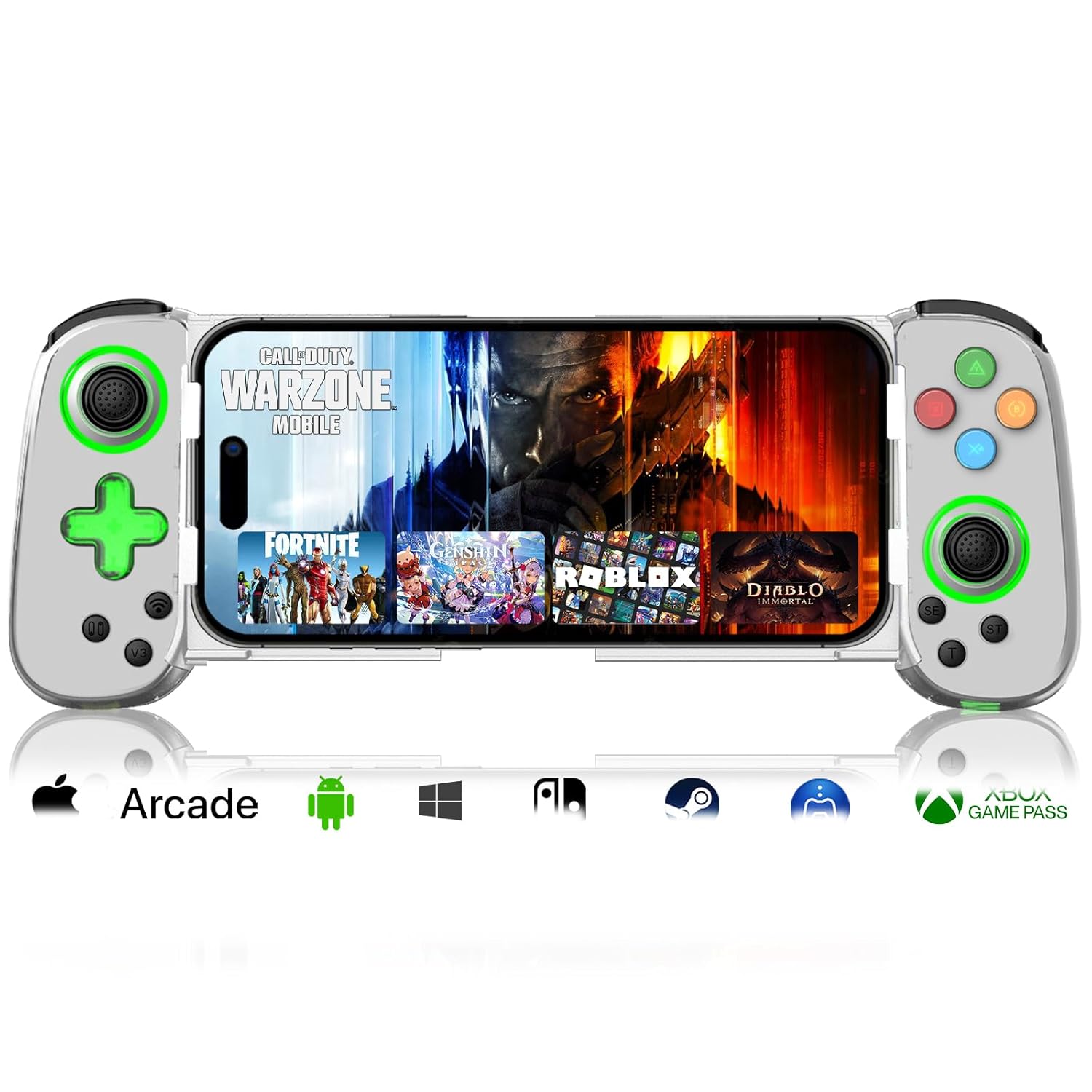
Image: arVin Wireless Gaming Controller with a smartphone inserted, displaying a game.
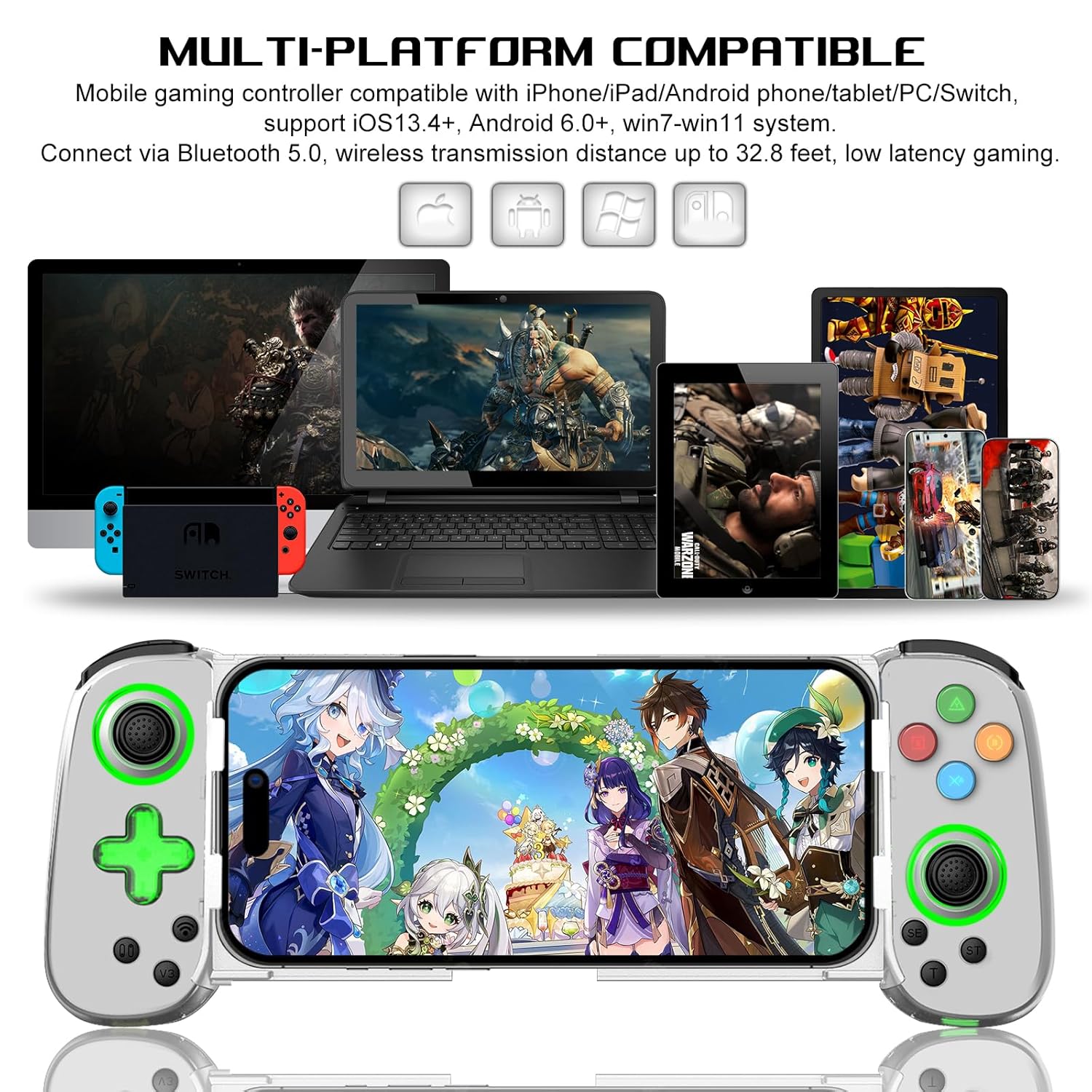
Image: Multi-platform compatibility of the arVin controller, showing it works with iPhone, iPad, Android phones/tablets, PC, Switch, and PS4.

Whakaahua: Taipitopito view of the controller's Hall Effect Joysticks and Analog Triggers, emphasizing their precision and durability.
Aratohu Tatūnga
1. Te Whakataki i te Kaiwhakahaere
Before first use, fully charge the controller. Connect the supplied USB charging cable to the controller's charging port and to a USB power source (e.g., computer, wall adapter). The indicator lights will show charging status and turn off when fully charged.

Image: Close-up of the controller's charging port and battery information.
2. Te Whakapiri i to Waea atamai
The controller features a stretchable design to accommodate smartphones from 5 to 7.1 inches. Gently pull the two sides of the controller apart and carefully insert your phone into the central slot. Ensure your phone is securely seated. The recessed design helps protect phone lenses, and the bezel-less design allows access to volume controls.

Image: A smartphone being inserted into the stretchable arVin gaming controller.
3. Takirua Nihokikorangi
The arVin controller connects via Bluetooth 5.0 for low-latency gaming.
For iOS Devices (iPhone/iPad):
- Press and hold the "Bluetooth" key on the controller for 5 seconds until the indicator lights flash quickly.
- I tō pūrere iOS, haere ki Tautuhinga > Nihokikorangi.
- Rapua and select the Bluetooth name: "Xbox Wireless Controller".
- Once connected, the indicator lights on the controller will remain steadily lit.
Video: Demonstrates the Bluetooth connection process for iOS devices. The video shows pressing the Bluetooth button on the controller until lights flash, then connecting via phone settings to "Xbox Wireless Controller".
Mo nga Pūrere Android:
- Press and hold the "Bluetooth" key on the controller for 5 seconds until the indicator lights flash quickly.
- On your Android device, go to Tautuhinga > Nga taputapu hono > Nihokikorangi.
- Rapua and select the Bluetooth name: "Xbox Wireless Controller" or similar.
- Once connected, the indicator lights on the controller will remain steadily lit.
For Nintendo Switch/PS4/PC:
Refer to the specific connection instructions provided in the quick start guide included with your controller, as pairing methods may vary slightly for these platforms. Generally, you will need to put the controller into its respective pairing mode (e.g., Switch Pro Controller mode) and then search for it on your console/PC's Bluetooth settings.
Nga Tohutohu Whakahaere
1. Tahora Pātene
Familiarize yourself with the controller's button layout for optimal gameplay.
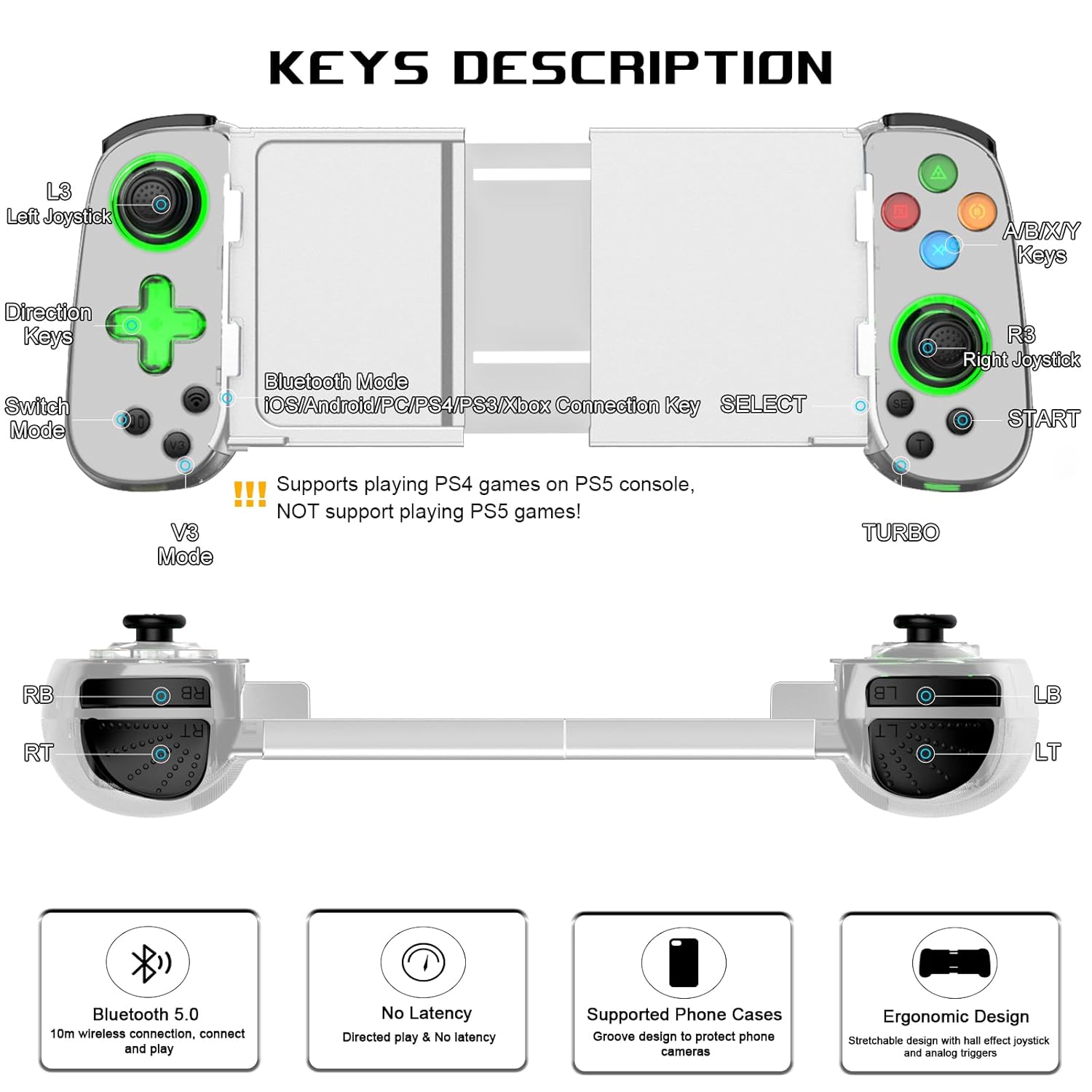
Image: Detailed diagram illustrating the button layout and functions of the arVin Wireless Gaming Controller.
Tuhipoka: The controller supports playing PS4 games on PS5 consoles, but does NOT support playing PS5 games directly.
You can switch between Xbox and Switch button layouts by pressing the X and A keys simultaneously. The controller will vibrate once to confirm the switch.

Image: Instructions on how to switch between Xbox and Switch button layouts.
2. Mahi Turbo
The Turbo function allows for rapid, automatic pressing of a button, useful in shooting and fighting games.
- To set a button to Turbo: Press and hold the "T" (Turbo) button, then press the desired function button (e.g., A button). The setting is now active.
- To activate auto Turbo: Press and hold the function button (e.g., "A" button) to release the A button function automatically.
- To cancel auto Turbo: Press the "T" button again while holding the function button.
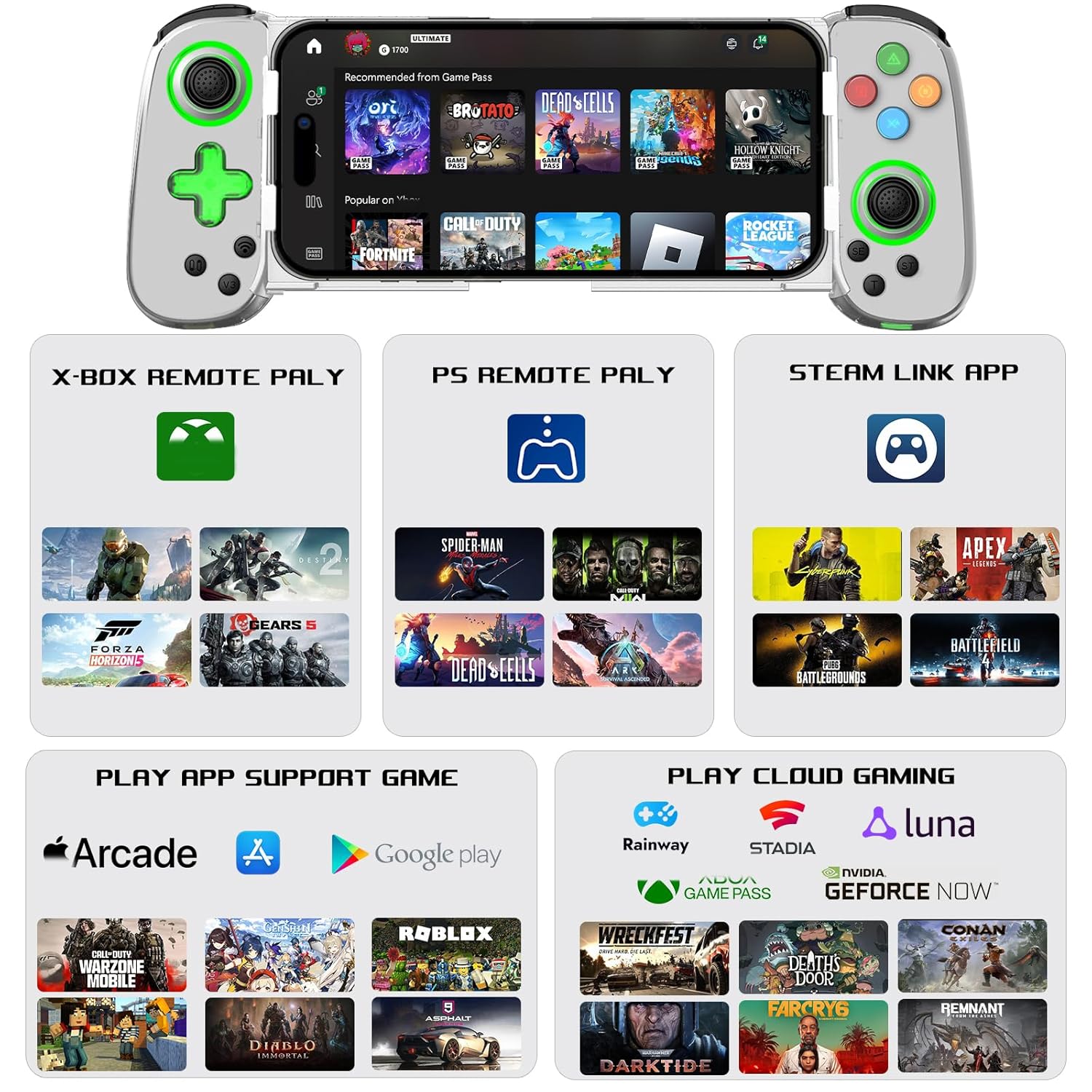
Image: Visual guide on setting up and using the Turbo function.
3. Dual Vibration & 6-Axis Gyroscope
Experience enhanced game immersion with haptic feedback and precise motion control.
- Ruarua Wiri: Provides tactile feedback during gameplay.
- Pūreretā 6-Tuaka: Enables high-precision directional control for quick reactions.
Tuhipoka Nui: These features are supported on PS3, PS4, Nintendo Switch, and PC. They are kaore i tautokona on iOS and Android devices.

Image: Visual representation of the Dual Motor Vibration and 6-Axis Gyro features, highlighting their benefits and platform limitations.
4. Green Ambient Lighting
The controller features integrated green ambient lighting to enhance your gaming atmosphere.
Tuhipoka: The green lights do not support adjustment and cannot be turned off.
To turn the green light on/off: Hold down the 'L3' key (left joystick click), then click the 'TURBO' key.

Image: The controller displaying its green ambient lighting.
5. Supported Games and Platforms
The arVin controller offers broad compatibility with various gaming ecosystems:
- Direct Play: Supports controller-enabled games on iOS (Apple Arcade, MFi games) and Android (Google Play games).
- Kapua petipeti: Compatible with services like Nvidia GeForce Now, Xbox Cloud, Amazon Luna, Google Stadia, Rainway, and Moonlight.
- Purei Mamao: Use Steam Link for PC games, PS Remote Play for PlayStation games, and Xbox Remote Play for Xbox games. Ensure your phone and game console are on the same local area network (LAN) for remote play.

Whakaahua: Ka mutuview of supported gaming platforms and services, including remote play and cloud gaming options.
Te tiaki
- Te horoi: Whakamahia he kakahu ngohengohe, maroke hei horoi i te pūmana. Kaua e whakamahi i ngā matū kaha, i ngā rauemi whakakoi rānei.
- Rokiroki: Whakaorangia te pūmana ki te wahi matao, maroke atu i te ra tika me te wera nui.
- Tiaki Pūhiko: Hei whakaroa i te ora o te pākahiko, kaua e tukua kia pau katoa te pūmana. Utuhia i ia wā, ahakoa kāore e whakamahia ana mō te wā roa.
- Te whakahaere: Handle the controller with care. Avoid dropping it or subjecting it to strong impacts, as this can damage internal components.
Raparongoā
Karekau te Kaiwhakahaere i te Hono/Taarua:
- Me mohio kei te whakakiia te kaiwhakahaere.
- Me mohio kei te whakahohea te Nihokikorangi i runga i to taputapu.
- Verify you are pressing the correct Bluetooth pairing button on the controller for 5 seconds until lights flash quickly.
- Warewarehia te taputapu i roto i nga tautuhinga Nihokikorangi o to waea ka ngana ki te hono ano.
- Restart both your device and the controller.
- Me whakarite karekau etahi atu taputapu Nihokikorangi e pokanoa ki te hononga.
Buttons/Joysticks Not Responding or Experiencing Drift:
- Me mohio kei te hono tika te kaiwhakahaere.
- Calibrate the joysticks if your device or game supports it.
- Some users have reported that pressing down on the joystick can help with stick drift issues.
- Ki te haere tonu te take, whakapā atu ki te tautoko a te kaihoko.
Game Compatibility Issues:
- Kāore ngā kēmu pūkoro katoa e tautoko ana i ngā pūmana whakahaere. Tirohia ngā tautuhinga, ngā whakaahuatanga rānei o te kēmu hei whakaū i te tautoko a te pūmana.
- For remote play (Steam Link, PS Remote Play, Xbox Remote Play), ensure your phone and console/PC are on the same LAN.
- If you are unsure if a specific game is playable, contact arVin customer support.
Green Lights Cannot Be Turned Off:
- As noted in the features, the green ambient lights are designed to be always on and are not adjustable or turn-offable. This is a design characteristic of the D7 Green Light Version.
Whakatakotoranga
| Tauira | D7 (Green Light Version) |
| Hototahi | iOS 13.0+, Android 6.0+, Win7.0+, Switch/Switch OLED/Switch Lite, PS3, PS4 (PS4/PS3 games on PS5) |
| Hononga | Nihokikorangi 5.0 |
| Pūhiko Raukaha | 600mAh Lithium Polymer |
| Wā Whakatangitangi | Tae atu ki te 15 haora |
| Waa Whakatau | 2-3 haora |
| Rahi Waea Tautoko | 5 - 7.1 inihi |
| Taumaha Tūemi | 8.8 hekere (tata ki te 249 karamu) |
| Ahu mōkihi | 8.58 x 3.9 x 2.05 inihi |
Pūtāhui me te Tautoko
arVin products are designed for quality and reliability. For any warranty claims, technical support, or inquiries, please refer to the contact information provided with your purchase or visit the official arVin webpae. Tena koa pupurihia to tohu hoko mo nga kaupapa whakamana.
Ka taea hoki e koe te toro ki te arVin Store on Amazon mo etahi atu korero me te tautoko.


