1. Kupu Whakataki
Mauruuru koe mo te hokoasing the Zenwire A10 Mini Portable Projector. This device is designed to provide a versatile and convenient projection experience, allowing you to display content from various sources, including smartphones, tablets, and computers. Please read this manual carefully before using the projector to ensure proper operation and to maximize its lifespan.
2. Nga Tohutohu Haumaru Nui
- Kaua e titiro tika ki roto i te arotahi pūwhiti ina te lamp kei runga.
- Kia tika te hauhautanga huri noa i te pūwhakaata hei ārai i te wera nui. Kaua e ārai i ngā pūaha hauhautanga.
- Whakamahia te urutau hiko anake me te pūwhiti.
- Keep the projector away from water, moisture, and flammable materials.
- Kaua e ngana ki te wetewete, ki te whakatika ranei i te kaupapa. Whakapa atu ki nga kaimahi ratonga whai tohu mo te awhina.
- Whakatakotoria te pūwhiti ki runga i te mata taumau.
- Momotuhia te pūwhakaata i te wā e uira ana, e kore rānei e whakamahia mō te wā roa.
3. Ihirangi mokete
Tena koa tirohia nga mea kei roto i te kete ina wetewetehia. Mena kei te ngaro, kua pakaru ranei etahi mea, whakapaa atu ki to kaihoko.
- Zenwire A10 Mini Portable Projector
- Mana Mamao
- Pūurutau Hiko
- Pukapuka Kaiwhakamahi
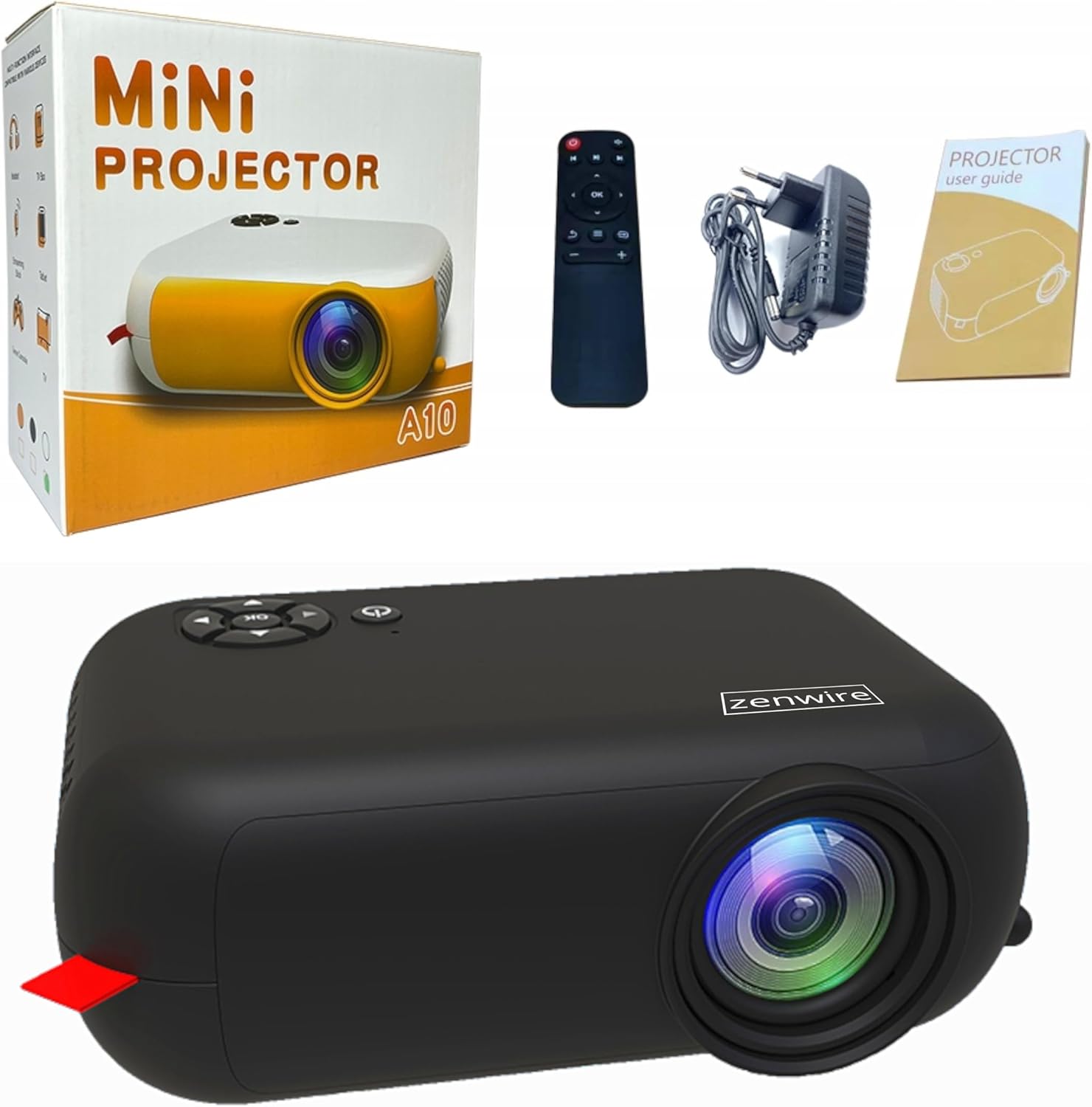
Image: Contents of the Zenwire A10 Mini Projector package, including the projector, remote control, power adapter, and user manual.
4. Hua Neke Atuview
4.1 Projector Dimensions and Design
The Zenwire A10 is designed for portability, featuring a compact and lightweight form factor. Its dimensions are approximately 14cm x 10cm x 5.5cm, making it easy to carry and set up in various locations.

Image: The Zenwire A10 Mini Projector held in a hand, illustrating its compact size and portability.
4.2 Ngā Tauranga me ngā Mana Whakahaere
The projector features a range of input and output ports for versatile connectivity, along with intuitive controls.

Image: Rear panel of the Zenwire A10 Mini Projector, showing the 5V-IN DC power input, IR receiver, USB port, 3.5mm audio jack, HDMI port, and SD card slot.
- 5V-IN DC: Power input for the projector.
- IR: Kaiwhiwhi Infrared mo te mana mamao.
- USB: Honoa nga taputapu rokiroki USB mo te purei pāpāho.
- Jack Puoro (3.5mm): Honoa nga kaikorero o waho, nga taringa ranei.
- HDMI: Connect devices such as laptops, gaming consoles, or streaming sticks.
- SD: Insert Micro SD cards for media playback.
- Wira Arotahi: Adjust image sharpness (located on the side).
- Paewhiri Mana: Buttons on top for navigation and selection.
5. Tatūnga
5.1 Hononga Hiko
- Honoa te urutau hiko kua tukuna ki te 5V-IN DC tauranga i runga i te pūwhiti.
- Monohia te urutau hiko ki te putanga pakitara.
- Pēhia te pātene hiko i te pūwhiti, te mana mamao rānei hei whakakā.
5.2 Placement and Focus Adjustment
- Place the projector on a stable surface or mount it according to your preference. Ensure the projector lens is facing the projection surface (wall or screen).
- Adjust the distance between the projector and the screen to achieve your desired image size. The projector supports screen sizes up to 100 inches.
- Rotate the focus wheel (typically located near the lens) until the projected image appears clear and sharp.

Image: Diagram illustrating the Zenwire A10 Mini Projector's capability to project various screen sizes, from 13 inches up to 100 inches, depending on the projection distance.
6. Whakahaere i te Kaupapa
6.1 Wireless Connection (Miracast & Airplay)
The Zenwire A10 supports wireless screen mirroring via 2.4/5GHz WiFi, compatible with Android (Miracast) and iOS (Airplay) devices.
- Me mohio kei te hono to kaupapa me to taputapu pūkoro ki te whatunga Wi-Fi kotahi.
- On the projector's main menu, select the 'Screen Mirroring' or 'Wireless Display' option.
- Mo te Android: On your Android phone/tablet, enable 'Wireless Display', 'Screen Mirroring', 'Smart View', or similar function (names may vary by device). Select the projector from the list of available devices.
- Mo iOS: On your iPhone/iPad, open Control Center and tap 'Screen Mirroring'. Select the projector from the list of available devices.
- The content from your mobile device should now be mirrored on the projector screen.
6.2 Hononga Waea
The projector offers multiple wired input options for various devices.

Image: The Zenwire A10 Mini Projector connected to various devices such as smartphones, tablets, laptops, desktop computers, gaming consoles, and media players, highlighting its versatile connectivity.
- HDMI: Connect a laptop, PC, gaming console (e.g., Xbox, PlayStation), or streaming device (e.g., Amazon Fire TV Stick, Google Chromecast) using an HDMI cable. Select the HDMI input source on the projector.
- USB: Insert a USB flash drive or external hard drive into the USB port. The projector's media player will allow you to browse and play supported video, audio, and image files.
- Micro SD: Insert a Micro SD card into the SD card slot. Similar to USB, you can access media files through the projector's interface.
- Putanga Oro (Hononga 3.5mm): Connect external speakers or headphones to enhance the audio experience.
6.3 Whakatere Tahua
Use the remote control or the buttons on the projector to navigate through the on-screen menu. Select input sources, adjust picture settings (brightness, contrast, color), sound settings, and other system preferences.
7. Tiaki
- Whakapai Arotahi: Whakamahia he kakahu ngohengohe, kore-miro i hangaia mō ngā karāhe whatu hei muru mārire i te karāhe pūwhakaata. Kaua e whakamahi i ngā kaihoroi whakakoi, i te kaha nui rānei.
- Tango Puehu: Regularly clean the projector's exterior with a soft, dry cloth. Use a small brush or compressed air to clear dust from the ventilation openings to ensure proper airflow.
- Rokiroki: When not in use, store the projector in a cool, dry place, away from direct sunlight and extreme temperatures. Use the original packaging or a protective case to prevent dust accumulation and damage.
8. Te Raru
If you encounter issues with your Zenwire A10 projector, refer to the following common problems and solutions:
| Raruraru | Take pea | Rongoā |
|---|---|---|
| Kaore he ahua o te mata | Power not connected; Incorrect input source; Device not connected properly. | Check power cable; Select correct input source (HDMI, USB, etc.); Reconnect source device. |
| He koretake te whakaahua | Ko te arotahi kaore i te whakatikatika; He tata rawa/matara rawa te kaupapa i te mata. | Adjust the focus wheel; Adjust projection distance. |
| Karekau he tangi | Volume too low; Muted; External audio device not connected/selected. | Increase volume; Unmute; Check external speaker connection or select internal speaker. |
| Nga take hononga ahokore | Not on same Wi-Fi network; Device not compatible; Interference. | Ensure both devices are on the same Wi-Fi; Verify device compatibility; Try moving closer to Wi-Fi router. |
9. Whakatakotoranga
| Āhuahira | Taipitopito |
|---|---|
| Waitohu | Zenwire |
| Tau tauira | A10 |
| Momo Hua | Compact and Portable Projector |
| Whakatau Maori | 480x360p |
| Taumira Whakaaturanga Morahi | 1920 x 1080 (Katoa HD) |
| Tirohanga | 1800lm / 60 ANSI |
| Tauwehenga Purata | 2000:1 |
| Momo Whakaatu | LED |
| Hangarau Hononga | Wi-Fi (2.4/5GHz), HDMI, USB, Micro SD, 3.5mm Audio Jack |
| Āhuatanga Ahokore | Miracast, Airplay |
| Pūrere Hototahi | Smartphones (Android, iOS), Tablets, Laptops, PCs, Gaming Consoles |
| Nga Whakamahinga Manakohia | Kiriata Kainga |
| Ahu (Ahua) | 14cm x 10cm x 5.5cm |
10. Pūtāhui me te Tautoko
The Zenwire A10 Mini Portable Projector comes with a standard manufacturer's warranty. For specific warranty terms and conditions, please refer to the documentation provided at the time of purchase or contact your retailer. For technical support or service inquiries, please reach out to Zenwire customer service through their official webpae, nga korero whakapā ranei e whakaratohia ana me to hua.


