1. Kupu Whakataki
This manual provides comprehensive instructions for the Hyperkin Pixel Art Bluetooth Controller, Tetris™ Edition (Model M01328-TETS). This limited-edition wireless controller is designed for use with various gaming platforms, offering a blend of retro aesthetics and modern functionality. Please read this manual thoroughly before use to ensure proper setup and operation.

Image 1.1: The Hyperkin Pixel Art Bluetooth Controller, Tetris™ Edition, showcasing its unique Tetris-themed design.
2. Ihirangi mokete
Manatokona kei roto katoa nga mea kei roto i to kete:
- Hyperkin Pixel Art Bluetooth Controller (Tetris™ Edition)
- USB-C Uira Whakatau
- Pukapuka Kaiwhakamahi (tenei tuhinga)
3. Tahora Kaiwhakahaere
Familiarize yourself with the buttons and features of your controller:

Whakaahua 3.1: Mua view of the controller, displaying the D-pad, analog sticks, action buttons (A, B, X, Y), SELECT, START, and Tetris™ logo.
- Papa-D: Tāuru aronga.
- Rakau Analogi Mauī/Matau: Nekehanga 360-tohu tika.
- Patene Hohenga (A, B, X, Y): Primary interaction buttons.
- PONO PAIA: Function varies by platform/game.
- Pātene Tīmata: Function varies by platform/game.
- Shoulder Buttons (L1, R1): Ngā pātene e mau ana i runga.
- Trigger Buttons (L2, R2): Bottom-mounted analog triggers.
- Pātene Kāinga: Returns to system menu (functionality varies by platform).
- Pātene Turbo: Activates/deactivates turbo function for selected buttons.
- Tauranga USB-C: Mo te utu me te hononga waea.

Whakaahua 3.2: Hoki view of the controller, showing the ergonomic grip and product label.
4. Tatūnga
4.1. Te Whakataki i te Kaiwhakahaere
Before initial use, fully charge the controller. Connect the included USB-C charging cable to the controller's USB-C port and the other end to a USB power source (e.g., computer, USB wall adapter). The charging indicator light will show charging status and turn off when fully charged.
4.2. Takirua Nihokikorangi
The controller supports wireless connection via Bluetooth up to 30 feet. Follow these general steps for pairing:
- Me mohio kei te utuhia te kaiwhakahaere.
- Turn on the controller (specific method may vary, typically holding the Home button).
- Activate pairing mode on the controller (refer to specific platform instructions below, usually a combination of buttons or a dedicated pairing button). The indicator lights will flash rapidly.
- On your device (Nintendo Switch, PC, Mac, Android, iOS), navigate to the Bluetooth settings.
- Rapua available devices and select "Hyperkin Pixel Art Controller" or similar.
- Ina honoa, ka pakari nga rama tohu i runga i te kaiwhakahaere.
4.2.1. Pairing with Nintendo Switch/OLED Model
- From the HOME Menu, select "Controllers" > "Change Grip/Order."
- While on this screen, press and hold the pairing button on the Hyperkin controller until the indicator lights flash.
- Once paired, the controller will appear on the screen, and the player indicator will light up.
4.2.2. Pairing with PC (Windows 10/11)
- Go to "Settings" > "Devices" > "Bluetooth & other devices."
- Turn on Bluetooth and click "Add Bluetooth or other device."
- Select "Bluetooth" and then choose "Hyperkin Pixel Art Controller" from the list.
4.2.3. Pairing with Mac
- Open "System Settings" (or "System Preferences") > "Bluetooth."
- Ensure Bluetooth is on. The controller should appear in the list of devices.
- Click "Connect" or "Pair" next to "Hyperkin Pixel Art Controller."
4.2.4. Pairing with Android/iOS Devices
- Go to your device's "Settings" > "Bluetooth."
- Turn on Bluetooth. The controller should appear in the list of available devices.
- Tap on "Hyperkin Pixel Art Controller" to pair.

Image 4.1: The controller demonstrating wireless connectivity with a Nintendo Switch console, highlighting its Bluetooth capability.
5. Nga Tohutohu Whakahaere
5.1. Mana Taketake
The controller functions as a standard gamepad. Button mapping may vary depending on the game and platform. Refer to your game's instructions for specific control schemes.
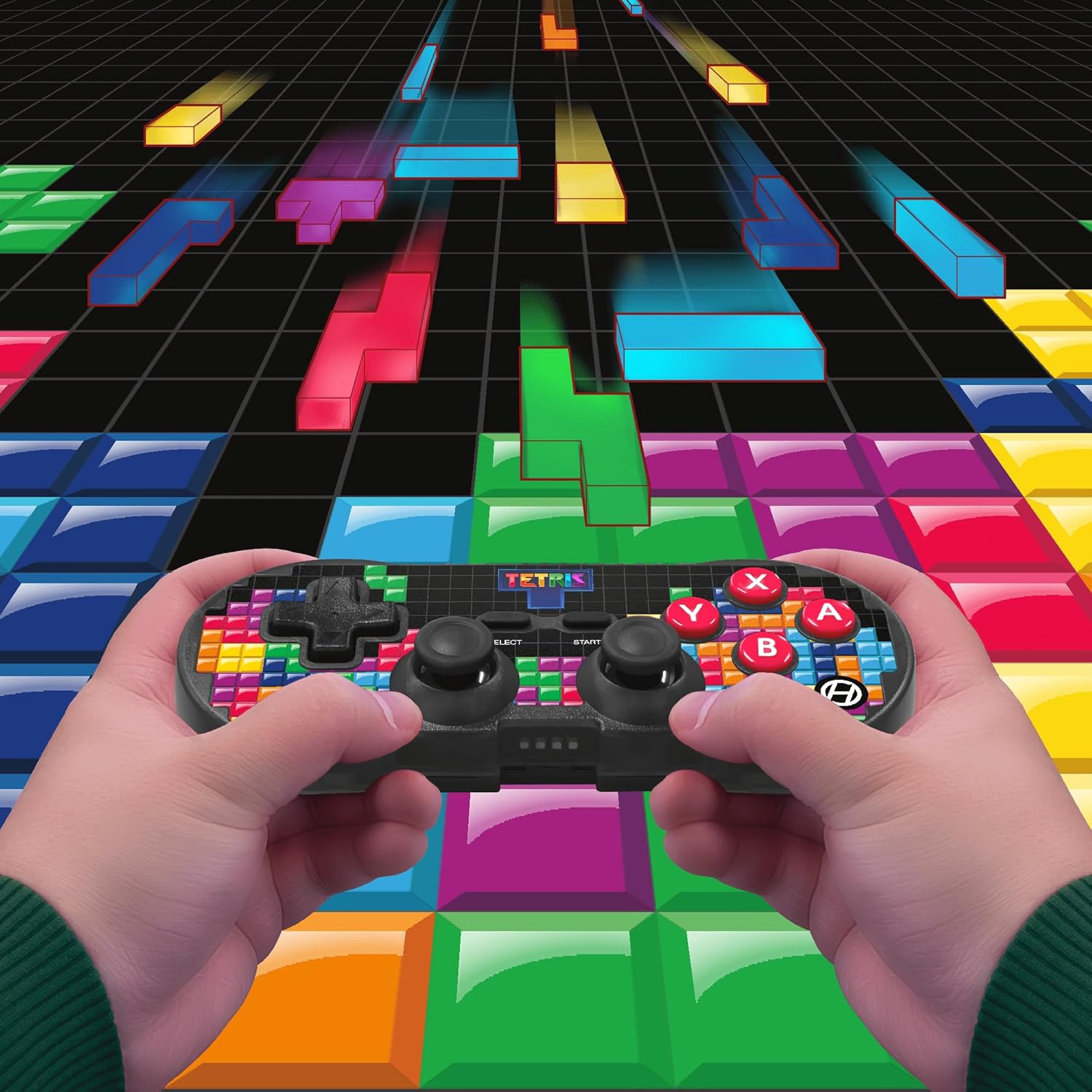
Image 5.1: A user holding the controller, illustrating its use during gameplay.
5.2. Mahi Turbo
The controller features a turbo function for rapid button presses. To activate or deactivate turbo for a specific button:
- Patohia me te pupuri i te Patene Turbo.
- While holding the Turbo button, press the desired pātene mahi (A, B, X, Y, L1, R1, L2, R2) you wish to apply turbo to.
- Release both buttons. The selected action button will now have turbo enabled.
- To disable turbo for that button, repeat the process.
6. Hototahi
The Hyperkin Pixel Art Bluetooth Controller is compatible with a wide range of platforms:
- Nintendo Whakawhiti
- Nintendo Switch OLED Model
- Windows 10/11 PC
- Mac
- Nga taputapu Android
- nga taputapu iOS
- Maamaa
- Rahipere Pi
- Amazon Games
- Amazon Luna
- Tesla

Image 6.1: Visual representation of the controller's broad compatibility across multiple gaming and computing platforms.
7. Tiaki
To ensure the longevity and optimal performance of your controller:
- Te horoi: Whakamahia he kakahu ngohengohe, maroke hei horoi i te kaiwhakahaere. Āta karohia ngā kaihoroi whakakoi, ngā whakarewa rānei.
- Rokiroki: Whakaorangia te pūmana ki te wahi matao, maroke atu i te ra tika me te wera nui.
- Tiaki Pūhiko: Do not attempt to replace the internal Lithium Polymer battery. Avoid fully discharging the battery for extended periods.
- Aukati i nga Whakataka: Āraia te kaiwhakahaere mai i ngā maturuturunga me ngā pānga, ka kino pea ngā wāhanga o roto.
8. Te Raru
If you encounter issues with your Hyperkin Pixel Art Bluetooth Controller, refer to the following common problems and solutions:
| Raruraru | Rongoa pea |
|---|---|
| Karekau te Kaiwhakahaere e ka ana. | Me whakarite kia utua katoatia te pūmana. Honoa ki tētahi pūtake hiko mā te whakamahi i te taura USB-C. |
| Controller does not pair via Bluetooth. |
|
| Te whakaroa o te tāuru, te pakaru rānei o te hononga. |
|
| Kāore ngā pātene e aro mai, e mau ana rānei. | Clean around the buttons with a soft, dry cloth. Avoid liquid cleaners. If the issue persists, contact support. |
9. Whakatakotoranga
| Āhuahira | Taipitopito |
|---|---|
| Tau tauira | M01328-TETS |
| Hononga | Bluetooth (Wireless up to 30 ft.), USB-C (Wired) |
| Hototahi | Nintendo Switch/OLED, Windows 10/11 PC, Mac, Android, iOS, Steam, Raspberry Pi, Amazon Games, Amazon Luna, Tesla |
| Nga waahanga motuhake | Turbo function, Retro design with modern ergonomics, High-quality symmetrical sticks, Responsive action buttons, Reliable triggers |
| Momo Pūhiko | 1 Lithium Polymer battery (internal) |
| Ahu mōkihi | 7.24 x 5 x 2.48 inihi |
| Taumaha Tūemi | 9.9 hekere |
| Kaihanga | Hiperkin |
10. Pūtāhui me te Tautoko
Mō ngā mōhiohio pūtāhui me te tautoko hangarau, tirohia te paetukutuku mana o Hyperkin webpaetukutuku, whakapā atu ranei ki ta raatau tari ratonga kaihoko. Puritia to tohu hoko mo nga kereme whakamana.
Hyperkin Official Webpae: www.hyperkin.com


