1. Kupu Whakataki
Thank you for choosing the ZEBRONICS K4000MW Wireless Keyboard. This manual provides essential information for setting up, operating, maintaining, and troubleshooting your new keyboard. The K4000MW offers versatile connectivity options, including 2.4 GHz wireless and dual Bluetooth, making it compatible with a wide range of devices such as laptops, desktops, tablets, and smartphones. Its compact design and integrated multimedia keys enhance productivity and user convenience.

Whakaahua 1: Runga-raro view of the ZEBRONICS K4000MW Wireless Keyboard, showcasing its compact layout and black finish.
2. Tatūnga
2.1 Ihirangi mokete
- ZEBRONICS K4000MW Wireless Keyboard
- USB Nano Receiver (for 2.4 GHz connection)
- Pukapuka Kaiwhakamahi
2.2 Tāuta Pūhiko
- Kimihia te wahanga pākahiko kei raro o te papapātuhi.
- Whakatuwheratia te uhi o te wahanga pākahiko.
- Insert the required batteries (not specified in JSON, typically AA or AAA) according to the polarity markings.
- Katia kia mau te uhi o te wahanga pākahiko.
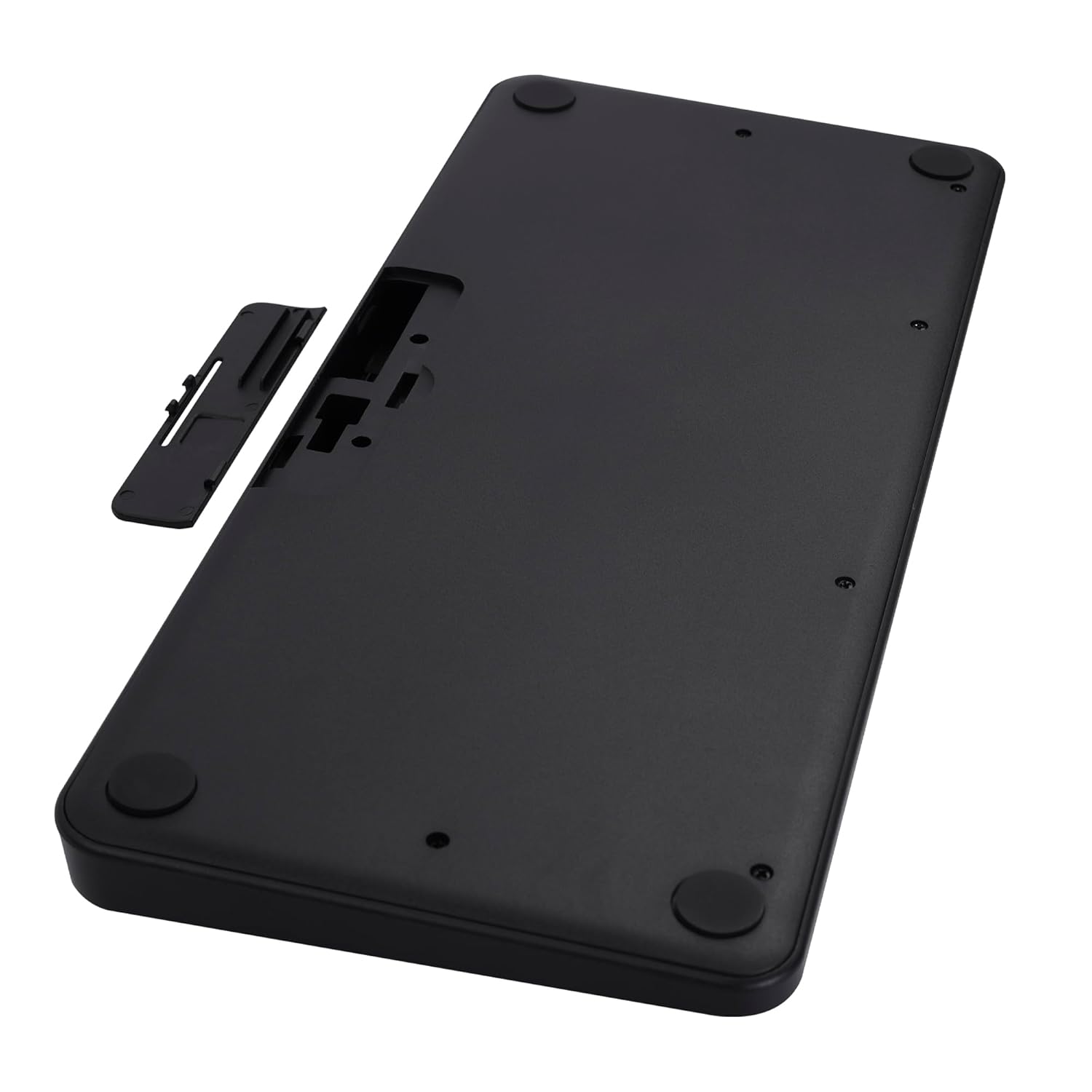
Image 2: The underside of the keyboard, showing the battery compartment and the slot for the USB nano receiver.
2.3 Connecting via 2.4 GHz Wireless
- Remove the USB nano receiver from its storage slot in the battery compartment.
- Plug the nano receiver into an available USB port on your computer or compatible device.
- The keyboard should automatically connect. The 2.4G LED indicator on the keyboard will illuminate briefly to confirm connection.
2.4 Te hono ma te Nihokikorangi
The keyboard supports up to two Bluetooth connections (BT1 and BT2).
- Pairing for BT1:
a. Patohia me te pupuri i te Fn + BT1 keys simultaneously for 3-5 seconds until the BT1 LED indicator starts blinking rapidly.
b. On your device (laptop, tablet, smartphone), enable Bluetooth and search for available devices.
c. Select "ZEB-K4000MW" from the list of devices to pair.
d. Once paired, the BT1 LED indicator will stop blinking and remain solid for a few seconds. - Pairing for BT2:
a. Follow the same steps as for BT1, but press and hold Fn + BT2 mau taviri.
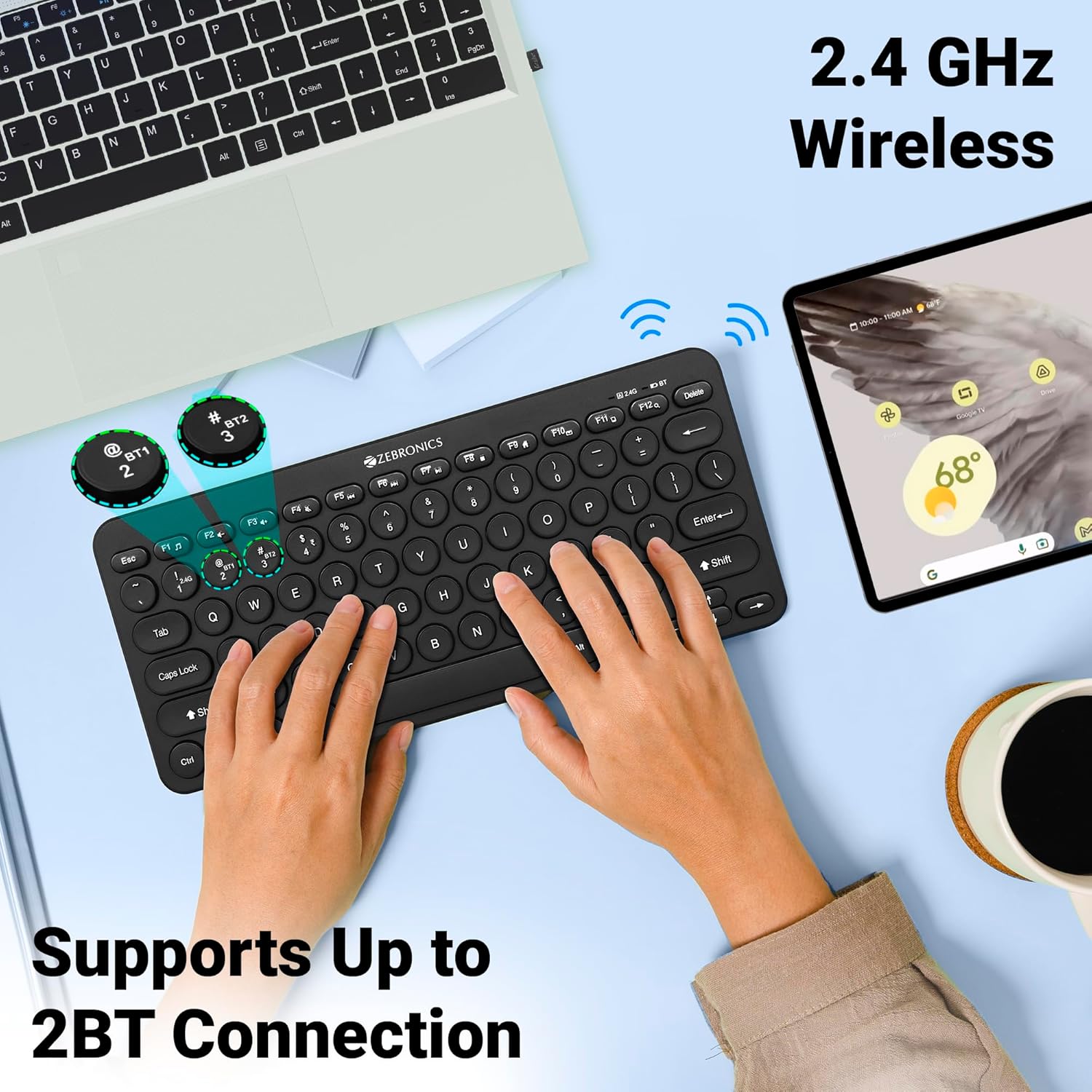
Image 3: The keyboard in use, highlighting the 2.4 GHz wireless and dual Bluetooth connection capabilities with LED indicators.
2.5 Whakawhiti i waenga i nga Pūrere
Hei huri i waenga i nga taputapu hono:
- Perehi Fn + 2.4G to switch to the device connected via the 2.4 GHz nano receiver.
- Perehi Fn + BT1 to switch to the device paired with Bluetooth 1.
- Perehi Fn + BT2 to switch to the device paired with Bluetooth 2.
3. Te whakahaere i te Papapātuhi
3.1 Pato Taketake
The keyboard features 78 UV-coated keys designed for comfortable and efficient typing. The layout includes standard alphanumeric keys, function keys, and navigation keys.
3.2 Pātuhi Rongorau
The keyboard integrates 12 multimedia keys (F1-F12) for quick access to media controls and other functions. To use these functions, press the Fn pēhi i te kī i te wā kotahi me te kī mahi e hiahiatia ana.
- Fn+F1: Kaipāho pāpāho
- Fn+F2: Rōrahi Whakararo
- Fn+F3: Rōrahi Whakarunga
- Fn+F4: Wahangu
- Fn+F5: Tuhinga o mua
- Fn+F6: Purei/Tatari
- Fn+F7: Riro Panuku
- Fn+F8: Kati
- Fn+F9: Web Pūtirotiro
- Fn+F10: Īmēra
- Fn+F11: Taku Rorohiko
- Fn+F12: Te tātaitai
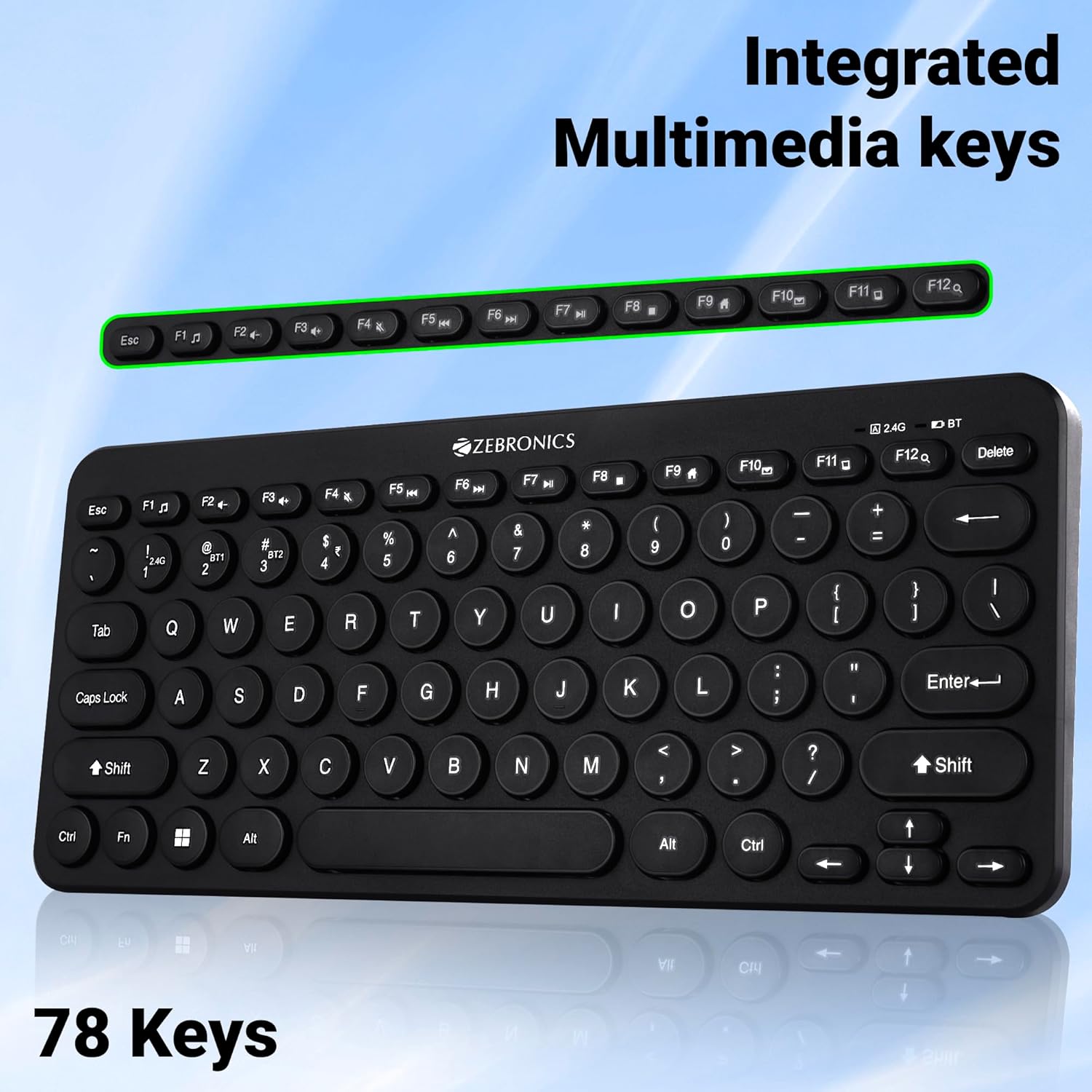
Image 4: The keyboard with the row of function keys (F1-F12) highlighted, indicating their integrated multimedia capabilities.
3.3 Rupee Key
The keyboard includes a dedicated Rupee key, indicating regional inclusivity for users.
3.4 Tohu LED
The keyboard features LED indicators to provide status information:
- 2.4G LED: Indicates 2.4 GHz wireless connection status.
- BT1/BT2 LED: Indicates Bluetooth connection status for BT1 or BT2.
- Pūmatua LED: Ka whakamārama ina whakahohea te Caps Lock.
- LED Pūhiko Iti: Flashes or changes color to indicate low battery power.
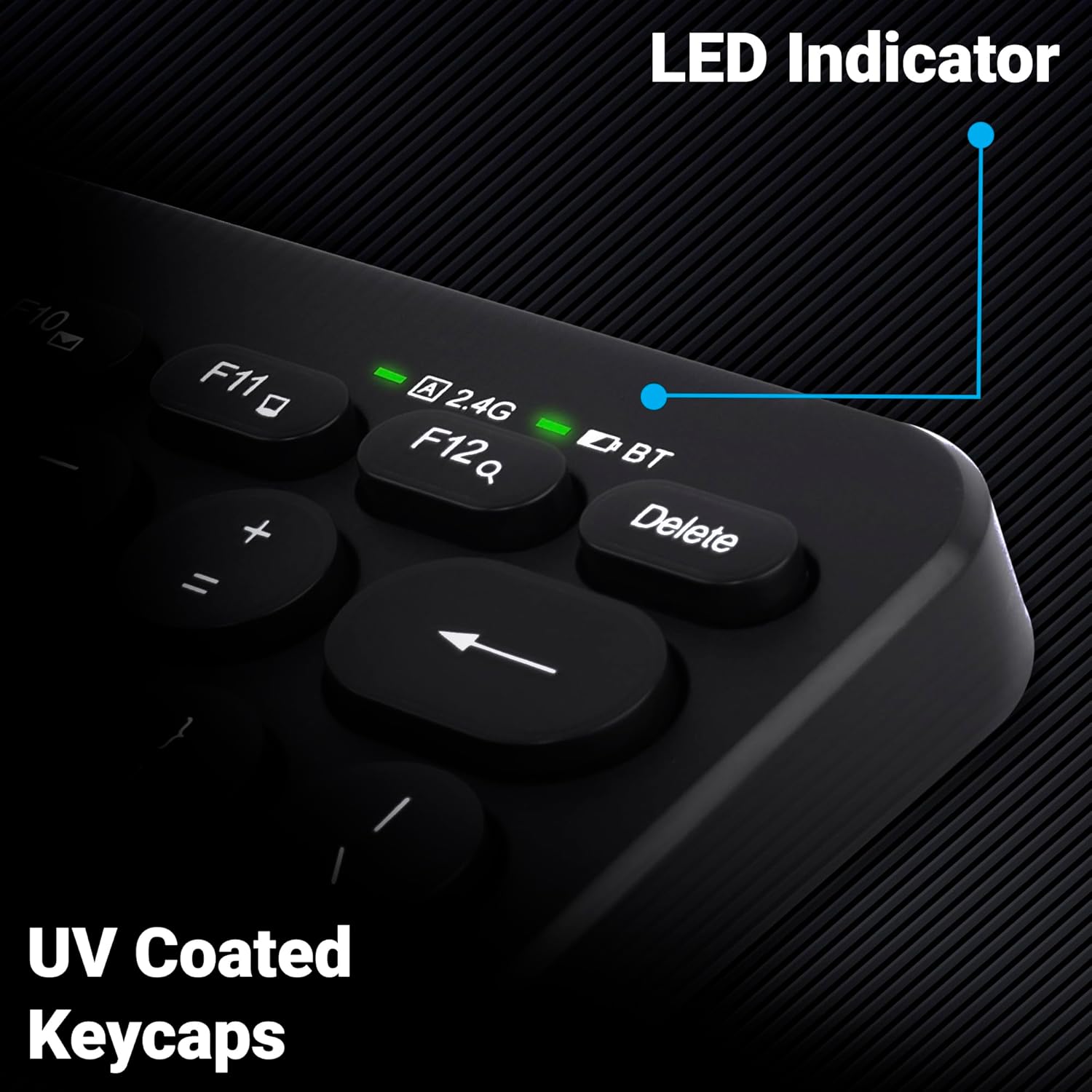
Whakaahua 5: He tata view of the keyboard's top right corner, showing the LED indicators for 2.4G, BT, and Caps Lock, along with the UV-coated keycaps.
3.5 Hototahi Pūrere
The K4000MW keyboard is designed for broad compatibility, integrating seamlessly with:
- Rorohiko
- Papamahi
- Nga papa
- Waea atamai
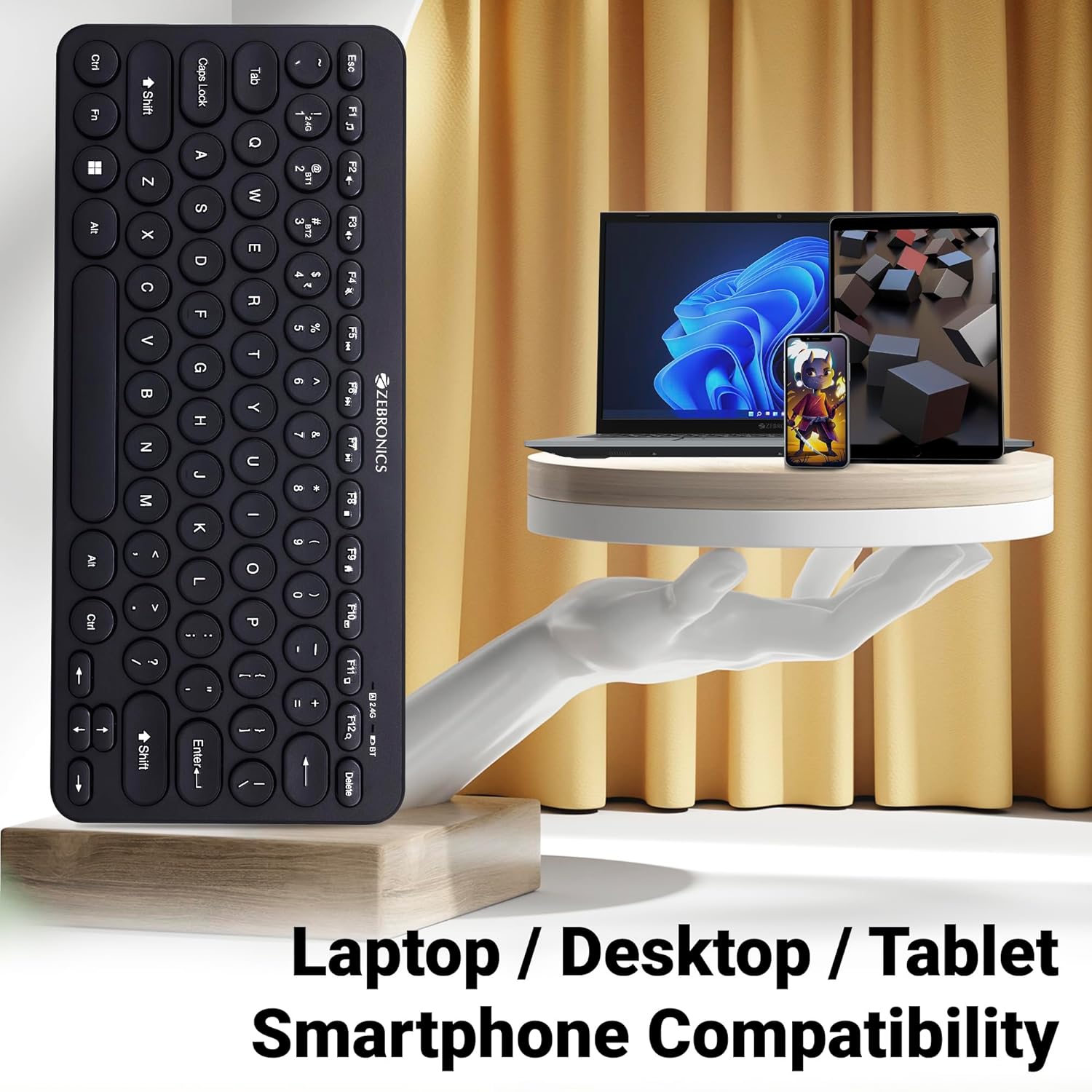
Image 6: The keyboard positioned next to a laptop, tablet, and smartphone, illustrating its multi-device compatibility.
4. Tiaki
4.1 Te horoi
- Whakamahia he kakahu ngohengohe, maroke hei muru i te mata o te papapātuhi.
- Mo te paru maro, paku dampHoroia te kakahu ki te wai, ki tētahi wai horoi ngawari rānei. Āta karohia te makuku nui.
- Do not use harsh chemicals or abrasive cleaners, as these can damage the keycaps and finish.
- Whakamahia te hau kōpeke hei tango i te puehu me te para i waenganui i nga ki.
4.2 Tiaki Pūhiko
- Replace batteries when the low battery indicator illuminates to ensure uninterrupted operation.
- If the keyboard will not be used for an extended period, it is recommended to remove the batteries to prevent leakage.
- Store the keyboard in a cool, dry place.
5. Te Raru
5.1 Papapātuhi Kaore i te Whakautu
- Tirohia nga Pikohiko: Me whakarite kia tika te whakaurunga o nga pākahiko me te nui o te utu. Whakakapihia mehemea e tika ana.
- Taki Hononga: Verify that the 2.4 GHz nano receiver is securely plugged into the USB port, or that the Bluetooth connection is active and paired.
- Whakawhiti Hongere: If using Bluetooth, ensure you are on the correct BT1 or BT2 channel.
- Tauhoahia te Nihokikorangi: If connection issues persist, try unpairing and re-pairing the keyboard with your device.
- pokanoa: Move the keyboard closer to the receiver/device and away from other wireless devices that might cause interference.
5.2 Keys Not Working or Lagging
- Maama Kī: Me whakarite kia kore he parapara e mau ki raro i nga ki.
- Taumata Pūhiko: Low battery can sometimes affect key responsiveness. Replace batteries.
- pokanoa: Wireless interference can cause lag. Try moving closer to the receiver/device.
- Hototahi Pūrere: Ensure your device's operating system is compatible with the keyboard.
5.3 Bluetooth Disconnection Issues
- Tawhiti: Ensure the keyboard is within the effective range of your Bluetooth device.
- pokanoa: Other Bluetooth or wireless devices nearby can cause disconnections.
- Device Bluetooth Driver: Update your device's Bluetooth drivers to the latest version.
- Takirua ano: Remove the keyboard from your device's Bluetooth list and re-pair it.
6. Whakatakotoranga
| Āhuahira | Taipitopito |
|---|---|
| Waitohu | WAIATA |
| Ingoa Tauira | K4000MW |
| Hangarau Hononga | 2.4 GHz Wireless, Bluetooth (Dual BT) |
| Te maha o nga Kī | 78 |
| Kaupapa Motuhake | 12 Integrated Multimedia Keys |
| Momo Kapenematua | UV-Coated |
| Nga waahanga motuhake | Rupee Key, LED Indicator (Battery, Connectivity, Caps Lock) |
| Hoahoa | Slim & Minimalist |
| Pūrere Hototahi | Desktop, Laptop, Tablet, Smartphone |
| Pūnaha Mahi | Windows 10 (and other compatible OS) |
| Puna Mana | Pūhiko Powered |
| Rahi Hua (LxWxH) | 29.4 x 13.4 x 3 cm |
| Taumaha Tūemi | 320 g |
7. Pūtāhui me te Tautoko
7.1 Nga Korero Whakaputanga
For specific warranty terms and conditions, please refer to the warranty card included with your product or visit the official ZEBRONICS webpae. Puritia to riirii hoko hei tohu mo te hoko mo nga kereme whakamana.
7.2 Tautoko Kiritaki
If you encounter any issues or have questions regarding your ZEBRONICS K4000MW Wireless Keyboard, please contact ZEBRONICS customer support through their official webte pae, te korero whakapā ranei kei roto i to kete hua.


