1. Kupu Whakataki
This manual provides comprehensive instructions for the setup, operation, and maintenance of your MUNBYN P072 Thermal Receipt Printer. Designed for efficiency and ease of use, this printer is ideal for various business environments requiring fast and reliable receipt printing.

Image: The MUNBYN P072 Receipt Printer, a compact black thermal printer with a receipt emerging from the top, next to a roll of thermal paper.
2. He aha kei roto i te Pouaka
Ina wetewetehia te pouaka, kia tino mohio kei roto i te kete ngā wāhanga katoa e whai ake nei:
- 1 x Receipt Printer
- 1 x Pukapuka Kaiwhakamahi
- 1 x Tauira USB
- 1 x Pūurutau Hiko
- 1 x Te Raimana Tini
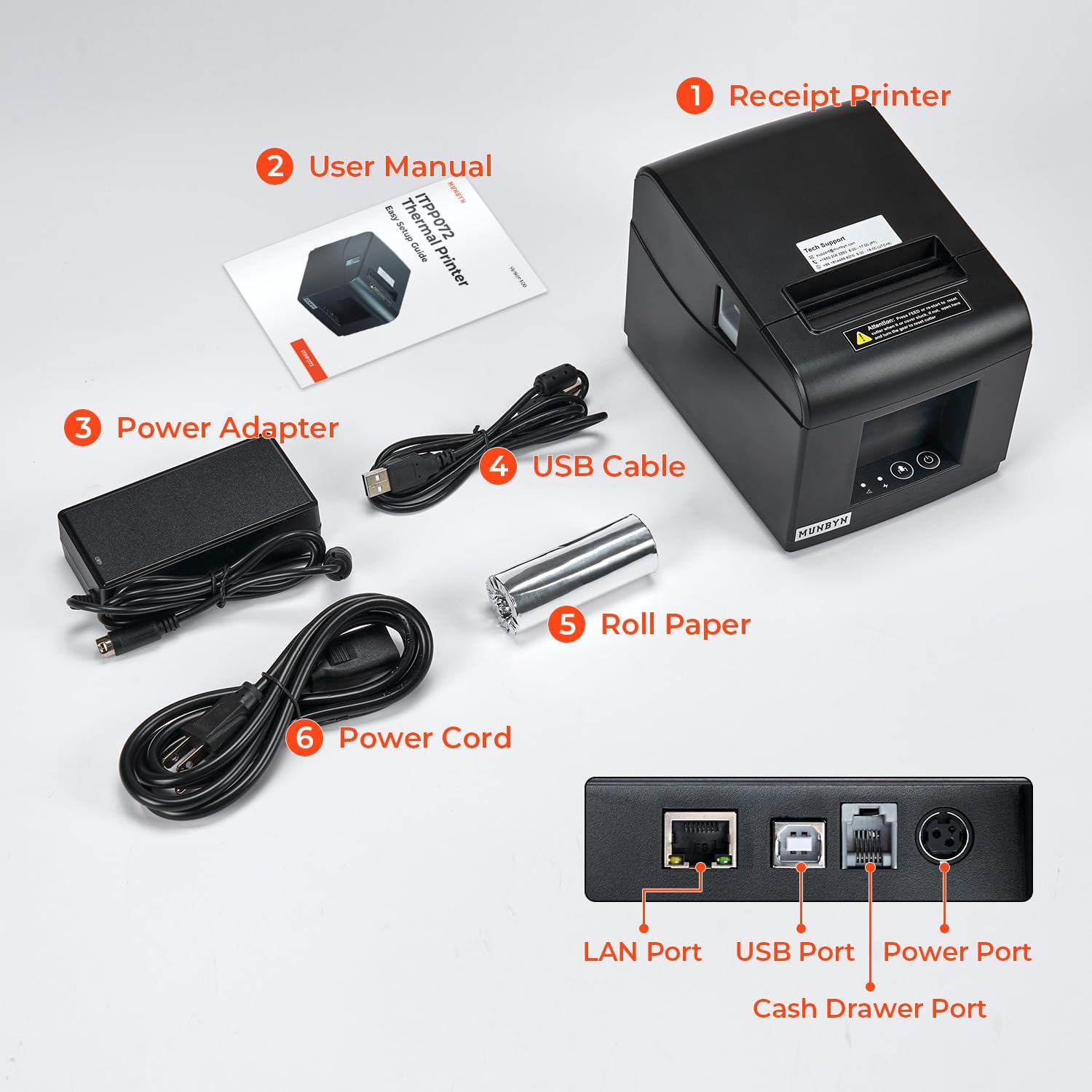
Image: A layout of all included components: the receipt printer, user manual, USB cable, power adapter, and power cord, with labels for each item.
3. Tatūnga
3.1 Hononga Tinana
Connect the power cord to the power adapter, then plug the adapter into the printer's power port and a wall outlet. Connect the USB cable from the printer to your computer or use an Ethernet cable for network connection. The printer supports USB, Ethernet, and cash drawer connections.

Whakaahua: He tata view of the printer's rear ports, clearly showing the LAN Port, USB Port, Cash Drawer Port, and Power Port.
3.2 Tāuta Atekōkiri
The printer requires driver installation for proper functionality with your operating system. Refer to the included User Manual for detailed driver installation guides for Windows, Mac, Linux, Android, and ChromeOS.
For MacOS users, the following video demonstrates the driver installation process:
Video: Instructions on how to install the MUNBYN P072 printer via USB connection on MacOS, covering driver download and installation steps.
The printer is compatible with a wide range of operating systems including Windows x86, Windows ARM, MacOS, Android, ChromeOS, and Linux. However, please note that it is kore hototahi with Ubereats, Shopify, Grubhub, Doordash, Gloriafoods, Lightspeed, Postmates, Square, or Clover POS systems.

Image: The MUNBYN P072 printer on a desk, with icons indicating incompatibility with Bluetooth, iOS, Shopify, Grubhub, Doordash, and Gloriafoods.
4. Nga Tohutohu Whakahaere
4.1 Loading Receipt Paper
The printer uses 80mm thermal receipt paper. To load, open the paper cover, insert the paper roll with the printing side facing up, and close the cover, leaving a small amount of paper protruding.

Whakaahua: He runga view of the MUNBYN P072 printer with its top cover open, showing how to properly insert an 80mm thermal receipt paper roll.
4.2 Printing Receipts
The MUNBYN P072 offers fast and smooth thermal printing, capable of printing over 40 receipts per minute (230mm/sec). It features an automatic paper cutter for efficient and orderly receipt output.

Image: The MUNBYN P072 printer rapidly printing a long receipt, illustrating its high-speed thermal printing capability.

Image: A hand removing a cleanly cut receipt from the MUNBYN P072 printer, highlighting its automatic paper cutter feature.
4.3 Printing a Self-Test Page
To print a self-test page, ensure the printer is off. Press and hold the feed button, then turn on the printer. Release the feed button after the red light flashes twice. This will print a test page with printer information.
Video: A demonstration of how to print a self-test page on the MUNBYN ITPP072 printer, showing the button sequence and the resulting printout.
5. Tiaki
The MUNBYN P072 is a thermal printer, meaning it does not require ink or cartridges. This simplifies maintenance significantly. The 80mm receipt printer head is designed with over-temperature protection to ensure a longer lifespan.

Image: A woman holding a baby next to the MUNBYN P072 printer, with text indicating "No Need for Ink or Cartridges" and "BPA Free", emphasizing its thermal printing technology.
6. Te Raru
If you encounter any installation, connection, or compatibility issues, please refer to the detailed user manual or contact MUNBYN customer support. Common issues often relate to driver installation or compatibility with specific POS software. Always ensure your POS device is compatible before purchasing.
7. Whakatakotoranga
| Āhuahira | Taipitopito |
|---|---|
| Waitohu | MUNBYN |
| Ingoa Tauira | ITPP072UE |
| Hangarau Tā | Ngawha |
| Hangarau Hononga | USB, Itarangi |
| Tere Tā (Kōhiko) | 40 ppm (230mm/sec) |
| Whakataunga Tā Max | 203 x 203 dpi |
| Whanui Pepa | 80mm (3 1/8") |
| Nga waahanga motuhake | LAN connection, Fast Printing, Automatic Paper Cutter, Easy to use, USB connection |
| Hunga Hua | 8.46"D x 7.68"W x 5.79"H |
| Taumaha Tūemi | 3.41 pauna |
8. Raihana me te Tautoko
The MUNBYN P072 Receipt Printer comes with a limited warranty. For specific warranty details, please refer to the official user manual or contact MUNBYN customer service.
MUNBYN is committed to providing comprehensive support, including remote setup assistance, how-to videos, and local tech support. As part of their "One-Stop Service," they aim to be a competent business assistant for retail business development.


