1. Kupu Whakataki
This manual provides detailed instructions for setting up, operating, and maintaining your AVerMedia Live Gamer Ultra 2.1 (GC553G2) capture card. Please read this manual thoroughly before using the device to ensure optimal performance and longevity.

Figure 1: AVerMedia Live Gamer Ultra 2.1 (GC553G2) Capture Card
Āhuatanga matua:
- True 4K HDR10 Capture: Record and stream gameplay in 4K60 HDR10.
- HDMI 2.1 Pass-through: Supports 4K144 HDR10 for PC and 4K120 HDR10 for consoles, ensuring zero-lag performance.
- VRR Support: Variable Refresh Rate compatibility for smooth gameplay.
- Type-C Connectivity: Powered by USB 3.2 Gen 2 Type-C for fast setup and data transfer.
- Low Latency Performance: Designed for real-time streaming and competitive gaming.
- OBS Studio and Streamlabs Ready: Optimized for popular streaming software.
- Rarama RGB Whakaritea: Personalize your setup via AVerMedia software or Windows Dynamic Lighting.
- 5.1 Audio Support: Capture immersive multi-channel audio.
2. He aha kei roto i te Pouaka
Manatokona kei roto katoa nga mea kei roto i te kete:
- LIVE GAMER ULTRA 2.1 (GC553G2) Capture Card
- HDMI 2.1 Taura
- Taura Momo-C USB 3.2 Whakatipuranga 2
- 4-Pole 3.5mm Ororongo Cable
- Aratohu Timata Tere

Whakaaturanga 2: Nga Ihirangi mokete
3. Whakatakotoranga
| Āhuahira | Taipitopito |
|---|---|
| Atanga | USB 3.2 Gen 2 (10Gbps) Momo-C |
| Whakauru me te Putanga (Whakauru) | HDMI 2.1 |
| Max Pass-through Resolution | 2160p144 HDR/VRR, 1440p144 HDR/VRR, 1080p240 HDR/VRR |
| Te Whakataunga Hoputanga Max | 2160p60 HDR |
| Nga Whakatau Tautoko | 2160p, 1440p, 1080p, 1080i, 720p, 576p, 576i, 480p, 480i |
| Hōputu Tuhituhi | MPEG 4 (H.264+AAC) or (H.265+AAC) |
| Ororongo Whakauru & Putanga | 4-Pole 3.5mm Jack (Controller), 4-Pole 3.5mm Jack (Headset) |
| Ahu (W x D x H) | 120 x 75 x 27.6 mm (4.72 x 2.95 x 1.09 in) |
| Taumaha | 115 g (4.06 oz) |
4. Whakaritenga Pūnaha
To ensure optimal performance, your system must meet the following requirements:
Pūnaha Whakahaere:
- Windows 10 x64 / 11 x64
- macOS 13 / 14 i muri mai ranei
- iPadOS 17 i muri mai ranei
Recommended PC Specifications (for 4K60 Capture / 4K144 HDR Pass-through):
- PTM: Intel Core i5-6XXX ki runga ake ranei
- GPU: NVIDIA GeForce GTX 1060 ki runga ake ranei
- RAM: 8 GB Dual-channel or above
- Atanga USB: USB 3.2 Gen 2 Momo-C (10Gbps)
Recommended Notebook Specifications (for 4K60 Capture / 4K144 HDR Pass-through):
- PTM: Intel Core i7-7700HQ neke atu ranei
- GPU: NVIDIA GeForce GTX 1050 Ti ki runga ake ranei
- RAM: 8 GB Dual-channel or above
- Atanga USB: USB 3.2 Gen 2 Momo-C (10Gbps)
Video 1: AVerMedia Live Gamer Ultra 2.1 - What you should know
5. Tatūnga
5.1. Hononga Tinana
Follow these steps to connect your Live Gamer Ultra 2.1:
- Hono ki PC: Use the provided USB 3.2 Gen 2 Type-C cable to connect the capture card to your PC's Type-C port.
- Connect Console (HDMI In): Use the provided HDMI 2.1 cable to connect your gaming console (e.g., PS5, Xbox Series X/S, Nintendo Switch 2) to the HDMI IN port on the capture card.
- Connect Monitor (HDMI Out): Use an additional HDMI 2.1 cable (not included, unless specified in package) to connect the HDMI OUT port on the capture card to your monitor. This enables pass-through for zero-latency gameplay.
- Tūhono Ororongo (Kōwhiringa): If using a headset or controller for audio, connect the 4-Pole 3.5mm Audio Cable as needed.

Figure 3: Device Ports

Whakaatu 4: Hoahoa Hononga
5.2. Tāuta Pūmanawa
Download and install the AVerMedia Gaming Utility and any necessary drivers from the official AVerMedia website. For OBS Studio or Streamlabs, ensure you have the latest version installed.
6. Nga Tohutohu Whakahaere
6.1. Basic Capture and Streaming
Once connected and software installed, open your preferred streaming software (e.g., OBS Studio, Streamlabs). Add the Live Gamer Ultra 2.1 as a Video Capture Device source. Configure resolution, frame rate, and audio settings as desired.
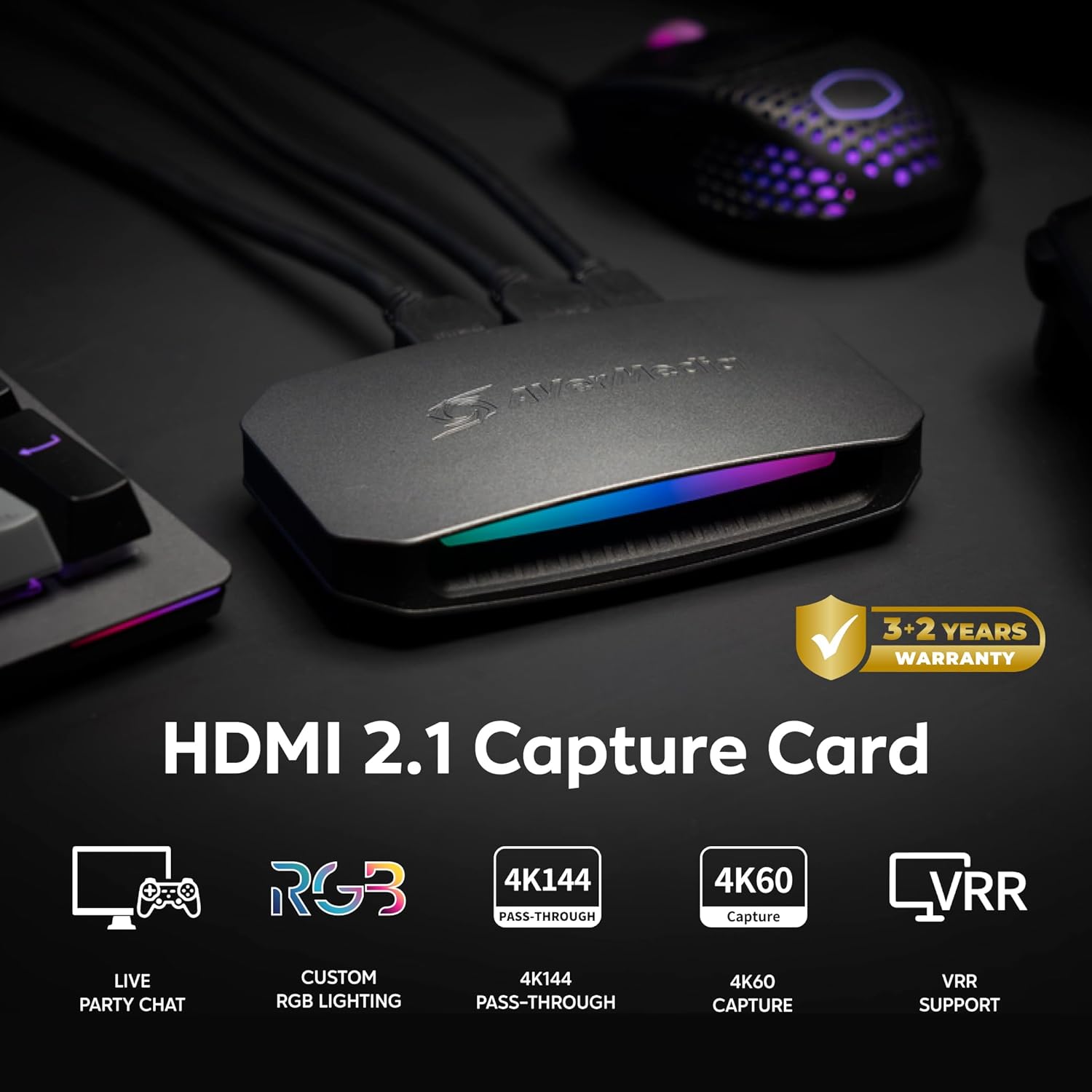
Figure 5: Typical Gaming and Streaming Setup
6.2. Setting up Party Chat
To capture party chat audio from your PS5 or Xbox, you may need a 4-pole 3.5mm audio cable. Connect one end to your controller's audio jack and the other to the capture card's controller port. For capture cards without a dedicated audio input, you might need to route the audio through your PC's line-in port.
Video 2: Set up Party Chat on PS5 and Xbox with AVerMedia GC553G2
6.3. RGB Control
The Live Gamer Ultra 2.1 features customizable RGB lighting. Use the AVerMedia Gaming Utility or compatible third-party lighting software (e.g., MSI Mystic Light, ASRock Polychrome Sync) to personalize the lighting effects and colors.
Video 3: Set up RGB Control in Gaming Utility with AVerMedia GC553G2
6.4. Multi-Channel Surround Sound Audio
To capture 5.1 multi-channel surround sound, ensure your console's audio output is set to a compatible format (e.g., Dolby Audio on PS5). In OBS Studio, install the AVerMedia Multichannel Audio plugin and configure the audio settings to 5.1 channels.
Video 4: How to setup 5.1 multi-channel surround sound audio (incl. OBS plugin)
6.5. HDR Recording and Multiple Scenes
For HDR recording, ensure your system meets the requirements and configure your streaming software (e.g., OBS) with the correct color format and color space settings (e.g., P010, Rec. 2100). You can also set up multiple scenes in OBS to switch between different layouts or content during your stream.
Video 5: Record HDR and Setup Multiple Scene with AVerMedia GC553G2
7. Tiaki
- Puritia te taputapu ki tētahi wāhi ma, maroke, kia matara atu i te rā tika me ngā pāmahana tino kino.
- Horoia te taputapu ki te kakahu ngohengohe, maroke. A ape i te whakamahi i nga matū kino, i nga taonga abrasive ranei.
- Me whakarite kia tika te hau huri noa i te taputapu kia kore ai e wera rawa.
- Regularly check for and install software and firmware updates for optimal performance and compatibility.
8. Te Raru
Mena ka pā mai he raruraru ki a koe, whakaarohia ēnei e whai ake nei:
- Kore he Tohu: Verify all HDMI and USB connections are secure. Check your console's video output settings and ensure HDCP is disabled if necessary (refer to Gaming Utility settings).
- Nga Take Ororongo: Confirm audio settings in both your console and streaming software. Ensure correct audio cables are used for party chat.
- Ngā Raru Mahi: Check your PC/Mac system requirements against the recommended specifications. Ensure your USB 3.2 Gen 2 Type-C port is functioning correctly.
- Papā Pūmanawa: If using third-party RGB software, ensure it is properly configured or disabled if conflicts arise with the AVerMedia Gaming Utility.
For further assistance, the AVerMedia Gaming Utility includes a feedback function to record system logs and submit bug reports directly to customer service.
9. Pūtāhui me te Tautoko
9.1. Nga Korero Whakaputanga
The AVerMedia Live Gamer Ultra 2.1 (GC553G2) typically comes with a 3-year standard warranty, which can often be extended by an additional 2 years upon product registration, totaling a 5-year warranty period. Please refer to the warranty card included in your package or the official AVerMedia webpae mo nga tikanga me nga tikanga motuhake.
9.2. Tautoko Kiritaki
For technical support, driver downloads, firmware updates, and FAQs, please visit the official AVerMedia support website. You can also utilize the feedback feature within the AVerMedia Gaming Utility to report issues.


