Kupu Whakataki
This user manual provides comprehensive instructions for the installation, operation, and maintenance of your Kolink Unity Arena Mid-Tower PC Case. Please read this manual carefully before beginning assembly to ensure proper setup and to maximize the performance and longevity of your system. Keep this manual for future reference.
Ka mutu te huaview
The Kolink Unity Arena is a mid-tower PC case designed for high-performance gaming systems. It features a borderless glass side panel for an unobstructed view of internal components and comes with four pre-installed Kolink Umbra X ARGB/PWM fans for efficient cooling and customizable lighting. The spacious interior supports E-ATX motherboards and large graphics cards up to 420mm, including NVIDIA RTX 40 series. It also accommodates up to three radiators for advanced liquid cooling solutions and includes a dedicated half PSU shroud for clean cable management.

Atahanga: Mua-maui view of the Kolink Unity Arena PC case, showcasing the borderless glass side panel and three pre-installed RGB fans on the front.
- Mid-Tower Design: Optimized for a balance of size and component compatibility.
- Borderless Glass Panels: Provides an uninterrupted view of your internal hardware.
- Extensive Hardware Support: Compatible with E-ATX motherboards and GPUs up to 420mm, including NVIDIA RTX 40 series.
- Whakamaeke Ake: Supports up to three radiators and includes four pre-installed Kolink Umbra X ARGB/PWM fans.
- Dedicated PSU Shroud: A half power supply shroud helps maintain a clean and organized interior.
Whakatakotoranga
| Waitohu | Kolink |
| Ingoa Tauira | Unity Arena |
| Tau tauira | UNITYARENABLK |
| Tae | Pango |
| Momo Take | Huarahi Maaka |
| Rauemi | Korotahi Steel |
| Papamatua Hototahi | ATX roa |
| Nga waahanga motuhake | RGB Lighting, Pre-installed Fans |
| Pūrere Hototahi | High-performance gaming components |
| Nga Whakamahinga Manakohia | Te petipeti |
| Momo Whakaeke Hiko Hiko | Maunga Raro |
| Tikanga whakamatao | Te hau |
| Rahi Kaiwhaiwhai | 120 Mirimita |
Tatūnga me te Tāuta
Follow these steps to properly set up and install your components into the Kolink Unity Arena PC case.
1. Te Wetewete me te Whakarite
- Tangohia marietia te pouaka rorohiko mai i tōna takai.
- Whakatakotoria te pouaka ki runga i tētahi mata pūmau, papatahi.
- Identify the accessory box, which contains screws, zip ties, and other small parts.
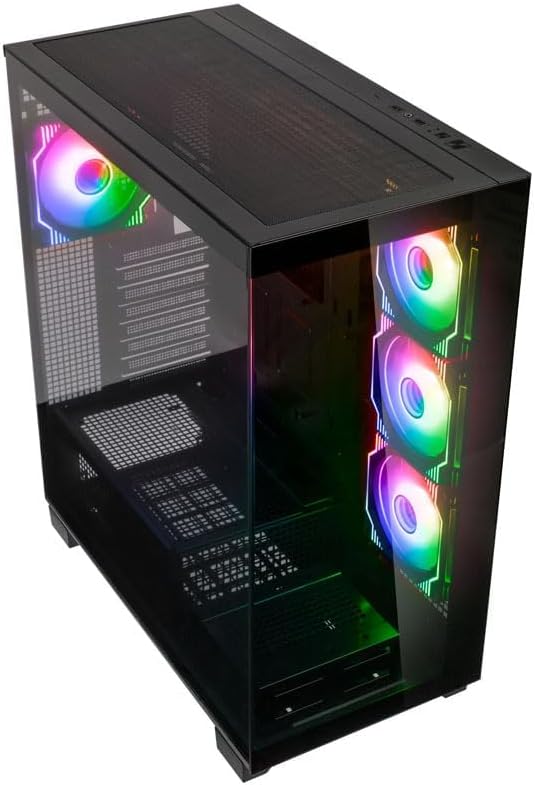
Atahanga: Te taha whakarunga koki view of the Kolink Unity Arena PC case, highlighting the top ventilation and the illuminated RGB fans visible through the front glass panel.
2. Removing Panels
- Glass Side Panel: The borderless glass side panel is typically secured with thumbscrews at the rear. Unscrew these and carefully slide or lift the panel off. Place it on a soft, non-abrasive surface to prevent scratches.
- Solid Side Panel: The solid right-side panel (behind the motherboard tray) is also usually secured with thumbscrews. Remove these to access the cable management area.
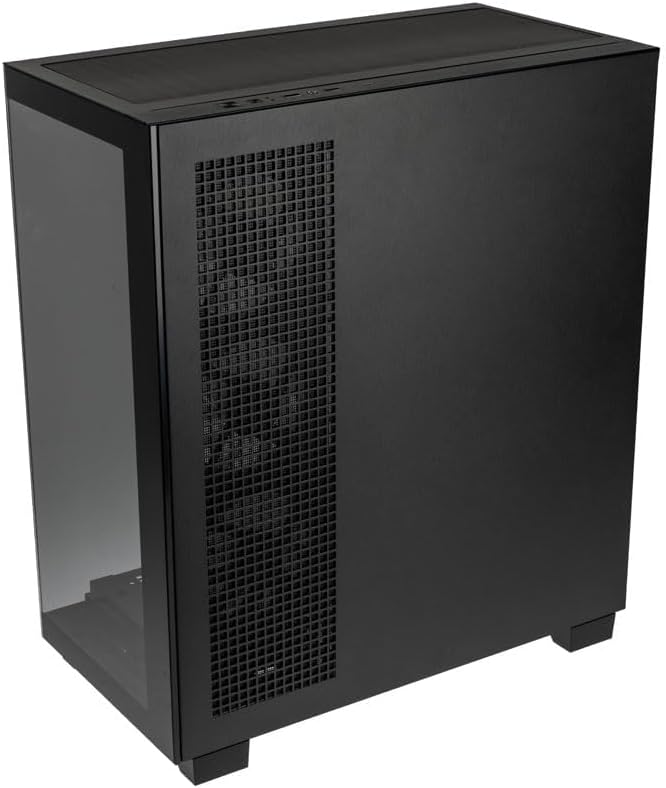
Atahanga: Muri-matau view of the Kolink Unity Arena PC case, showing the solid right side panel and the rear exhaust fan area.
3. Whakauranga Papa Matua
- Install the I/O shield (if not pre-attached to your motherboard).
- Align your E-ATX or smaller motherboard with the standoffs inside the case.
- Whakauhia te papahoahoa ki ngā tīwiri e tika ana mai i te kete taputapu.

Atahanga: o roto view of the Kolink Unity Arena PC case from the front, displaying the motherboard tray, the three front-mounted fans, and the PSU shroud at the bottom.
4. Tāutatanga Kāri Whakairoiro (GPU).
- Tangohia ngā taupoki mokamoka PCIe e tika ana kei muri o te pouaka.
- Whakauruhia tō kāri whakairoiro ki te mokamoka PCIe matua i runga i te papahoahoa.
- Whakamaua te GPU ki ngā tīwiri. Ka tautokona e te pouaka ngā GPU tae atu ki te 420mm te roa.
5. Te Tāutanga o ngā Pūrere Rokiroki (HDD/SSD)
Refer to the case's internal layout for specific drive bay locations and mounting mechanisms. Typically, 2.5" SSDs mount on the back of the motherboard tray, and 3.5" HDDs are installed in a drive cage near the PSU shroud.
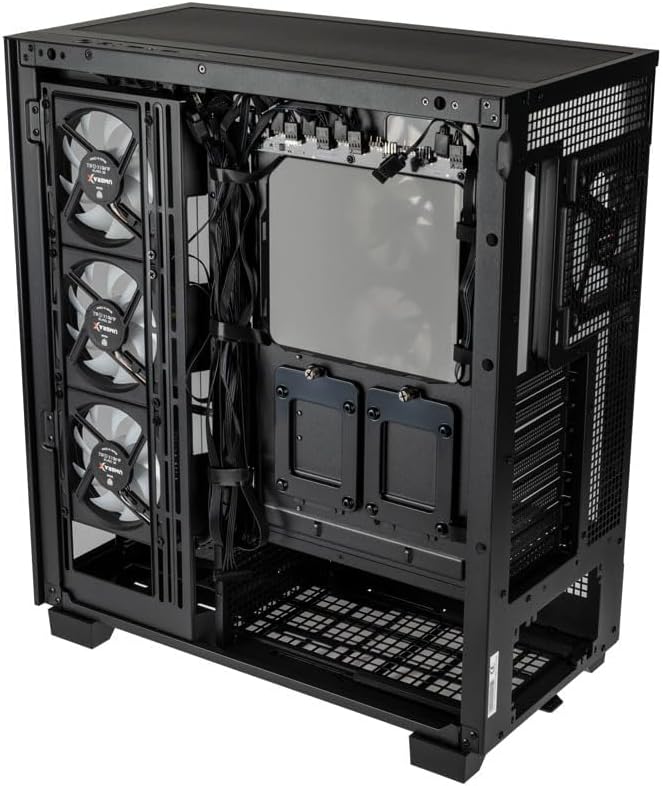
Atahanga: o roto o muri view of the Kolink Unity Arena PC case, focusing on the cable management area behind the motherboard tray and drive mounts.
6. Te Waenga Whakawhiwhi Hiko (PSU).
- Mount your ATX power supply into the dedicated half PSU shroud at the bottom rear of the case.
- Secure it with screws from the rear of the case.
7. Te Tāutanga o te Pā me te Pāreti
- The case comes with four pre-installed Kolink Umbra X ARGB/PWM fans.
- Additional fans or radiators can be installed at the top, front, or rear depending on your cooling needs. The case supports up to three radiators.

Atahanga: Close-up of the three pre-installed Kolink Umbra X fans mounted at the front of the Kolink Unity Arena PC case, highlighting their design.
8. Connecting Front I/O
Honoa ngā taura o mua o te papaaho (USB, ororongo, pana hiko, pana tautuhi anō, tohu LED) ki ngā pane e rite ana i runga i tō papahoahoa. Tirohia te pukapuka tohutohu mō tō papahoahoa mō ngā taunga pane tika.

Atahanga: Close-up of the top I/O panel of the Kolink Unity Arena PC case, featuring USB ports, audio jacks, and power/reset buttons.
9. Whakahaerenga Taura
Whakamahia nga tapahi ararere taura me nga tohu here ki muri i te paepae papahoahoa hei whakarite taura. Ma tenei ka pai ake te rere o te hau me te rerehua.
Nga Tohutohu Whakahaere
Whakakaha ana
Once all components are installed and connected, ensure the power supply switch is in the 'ON' position. Press the power button on the front I/O panel to start your system.
Mana Rama RGB
The pre-installed Kolink Umbra X fans feature ARGB lighting. The case includes a built-in controller with a SATA power input. Connect this controller to your power supply. If your motherboard does not support ARGB control, you can typically manage the lighting effects using the reset button on the front I/O panel, which often doubles as an RGB mode switch when connected to the case's controller.
Te tiaki
Regular maintenance helps ensure optimal performance and extends the lifespan of your PC components.
- Tātari Puehu: The Kolink Unity Arena case is equipped with dust filters. Periodically remove and clean these filters (e.g., top, front, bottom) to prevent dust buildup inside the case. Use compressed air or wash them gently with water and allow them to dry completely before reinstallation.
- Horoi o Roto: With the system powered off and unplugged, carefully open the side panels and use compressed air to remove dust from internal components, especially heatsinks and fan blades.
- Whakapaipai Hiko: Gently clean the blades of the pre-installed fans with a soft brush or compressed air to maintain efficient airflow.
Raparongoā
Mena ka tūpono koe ki ngā raruraru i te wā o te huihuinga, i muri rānei i te huihuinga, whakaarohia ēnei mahi rapurongoā noa:
- Kāore te Pūnaha i te Hiko:
- Me whakarite kei te hono tika te taura hiko ki te PSU me te putanga hiko i te pakitara.
- Me manatoko kei te tūranga 'ON' te pana PSU.
- Check all power connections to the motherboard (24-pin ATX, 8-pin CPU) and GPU.
- Confirm the front panel power switch cable is correctly connected to the motherboard header.
- Kāore ngā Pā e Hurihuri ana / Kāore te RGB e Mahi:
- Tirohia ngā hononga mana o te pā hau ki te papahoahoa, ki te kaiwhakahaere pā hau rānei.
- Ensure ARGB cables are properly connected to the motherboard's ARGB header or the case's integrated controller.
- If using the case's controller, verify it is receiving SATA power.
- Kore Putanga Whakaatu:
- Ensure your monitor cable is connected to the graphics card, not the motherboard's integrated graphics port (unless you are using integrated graphics).
- Whakanohoia ano te kaari whakairoiro ki tana mokamoka PCIe.
- Check GPU power connections.
Pūtāhui me te Tautoko
For warranty information, please refer to the documentation provided with your purchase or contact your retailer. Kolink's official website may also provide details regarding product support and warranty terms.
- Wāhanga Wāhanga Wātea: Kāore e wātea ana ngā mōhiohio.
- Whakahōunga Pūmanawa Kua Whakamanahia Tae noa ki: Kāore e wātea ana ngā mōhiohio.
For technical assistance or further inquiries, please visit the official Kolink support webpaetukutuku, whakapā atu ranei ki ta raatau tari ratonga kaihoko.


