Kupu Whakataki
Welcome to the user manual for your new Amazon Fire TV Stick HD. This guide provides detailed instructions on how to set up, operate, maintain, and troubleshoot your device, ensuring you get the most out of its streaming and smart home capabilities.

Image: The Amazon Fire TV Stick HD and its accompanying Alexa Voice Remote. The stick is compact and plugs directly into an HDMI port, while the remote features dedicated buttons for navigation, voice control, and popular streaming services.
He aha kei roto i te Pouaka
Upon unboxing your Fire TV Stick HD, you should find the following components:
- Pūrere Fire TV Stick HD
- Hono Paparama Alexa
- Taura hiko me te urutau hiko
- Whakawhanui HDMI
- 2 AAA batteries (for the remote)
- Aratohu Timata Tere

Image: The retail packaging for the Amazon Fire TV Stick HD, showing the device, remote, and box. This illustrates all the items included in the product package.
Aratohu Tatūnga
Follow these steps to set up your Fire TV Stick HD:
- Honoa te Rākau Fire TV: Plug the Fire TV Stick HD directly into an available HDMI port on your high-definition television. If space is limited or for better Wi-Fi reception, use the included HDMI extender.
- Whakahiko: Connect the power cable to the Fire TV Stick and then plug the power adapter into a wall outlet.
- Kōkuhu Pūhiko ki Mamao: Open the battery compartment on the back of the Alexa Voice Remote and insert the two AAA batteries, ensuring correct polarity.
- Tīpakohia te Whakauru HDMI: Turn on your TV and select the correct HDMI input source where the Fire TV Stick is connected.
- Whaia nga Tohutohu I-Mata: The Fire TV Stick will guide you through the initial setup process, including connecting to your Wi-Fi network and logging into your Amazon account.
- Pair Remote (if necessary): If your remote does not automatically pair, press and hold the Home button on the remote for 10 seconds until it pairs with your Fire TV Stick.
Operating Your Fire TV Stick HD
Mana Reo me Alexa
The Alexa Voice Remote allows you to control your Fire TV Stick using voice commands. Press and hold the microphone button on the remote, then speak your command. You can search for content, launch apps, control playback, and more.

Image: The Alexa Voice Remote, highlighting its voice control button and dedicated app buttons for services like Prime Video and Netflix. This remote simplifies content discovery and access.
Ihirangi Rererangi
Access a vast library of movies, TV shows, and live TV from various streaming services. The Fire TV Stick HD supports Full HD (1080p) resolution for a clear viewte wheako.
- Kiriata me nga Whakaaturanga pouaka whakaata: Stream from popular services like Netflix, Prime Video, Disney+, Vix, and many more. Subscription fees may apply for certain services.
- Ihirangi Koreutu: Enjoy over 50,000 free movies and TV episodes from ad-supported streaming apps such as Vix, Tubi, and Pluto TV.
- Waiata: Listen to millions of songs from Amazon Music, Spotify, Pandora, and other music streaming platforms.
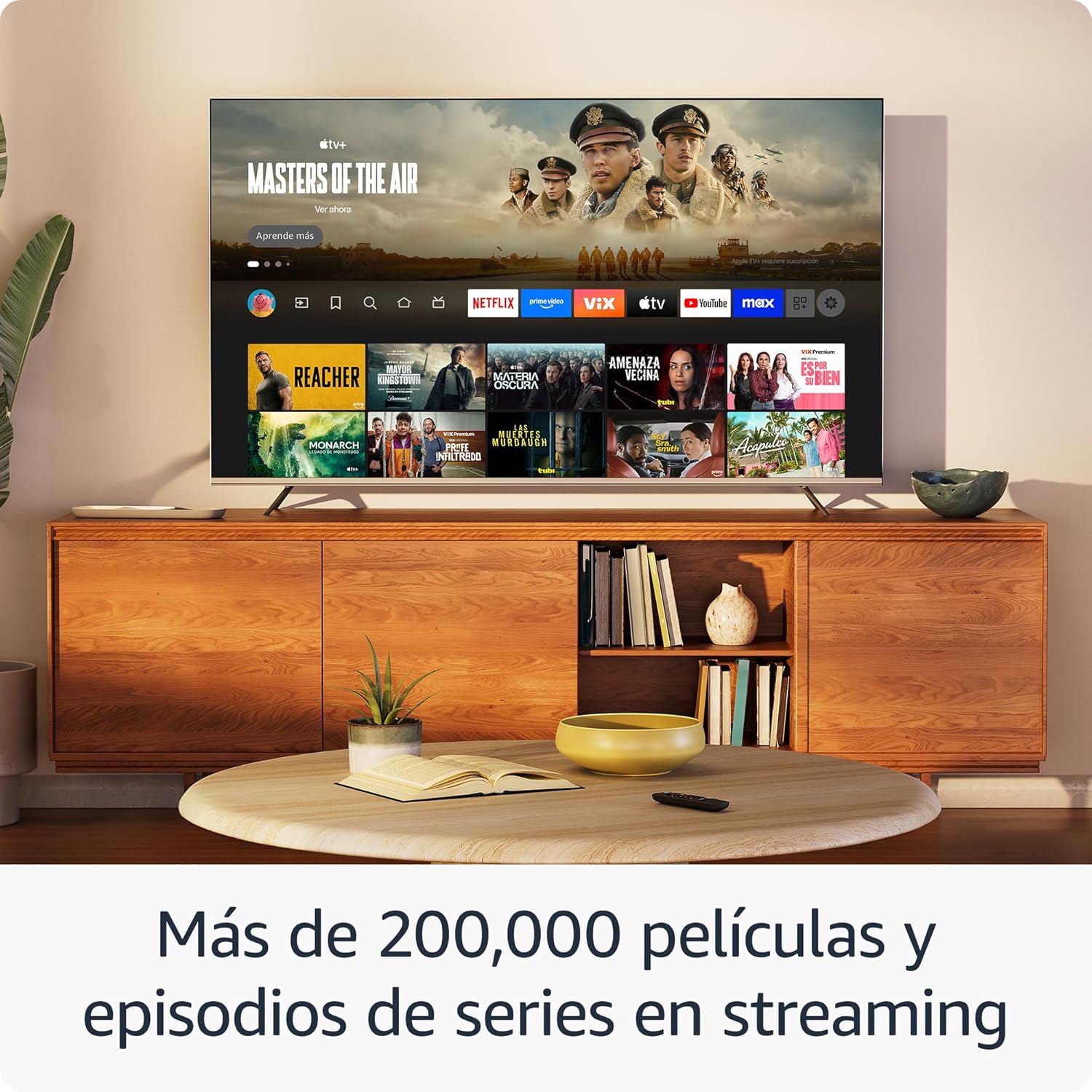
Whakaahua: He whakaaturanga pouaka whakaataasing the Fire TV interface with various streaming applications like Netflix, Prime Video, and Disney+. This demonstrates the wide range of entertainment options available.

Image: A visual comparison illustrating the difference in picture quality between Standard Definition (SD), High Definition (HD), and 4K resolution. The Fire TV Stick HD delivers content in crisp HD.
Mana Mana Kainga
Use your Fire TV Stick HD and Alexa Voice Remote to control compatible smart home devices. You can ask Alexa to check the weather, dim lights, view live camera feeds, and more.

Image: A television screen displaying the smart home control dashboard, showing icons for thermostat, smart camera, and light. This illustrates how the Fire TV Stick can integrate with and manage smart home devices.
Te tiaki
To ensure the longevity and optimal performance of your Fire TV Stick HD:
- Te horoi: Gently wipe the device and remote with a soft, dry, lint-free cloth. Avoid using liquid cleaners or aerosols.
- Taiao: Keep the device in a well-ventilated area, away from direct sunlight, heat sources, and moisture.
- Whakahōu Pūmanawa: The device automatically receives software security updates. Ensure your device is connected to the internet to receive these updates.
Raparongoā
If you encounter issues with your Fire TV Stick HD, try the following solutions:
- Kore Hiko/Kore Whakaatu:
- Ensure the power cable is securely connected to both the Fire TV Stick and the power adapter, and the adapter is plugged into a working wall outlet.
- Verify your TV is on the correct HDMI input channel.
- Whakamātauria tētahi atu tauranga HDMI i runga i tō pouaka whakaata.
- Mamao Kaore i te Whakautu:
- Whakakapihia nga pākahiko AAA i te mamao.
- Tauhoatia ano te mamao ma te pehi me te pupuri i te paatene Kainga mo te 10 hēkona.
- Kia tino mohio kāore he arai i waenganui i te mana mamao me te Fire TV Stick.
- Nga Take Hononga Wi-Fi:
- Tīmataria anō tō pouara Wi-Fi me tō pouwhanga.
- Go to Settings > Network on your Fire TV Stick and try reconnecting to your Wi-Fi network.
- Ensure your Fire TV Stick is within range of your Wi-Fi router.
- Partial Incompatibility with Roku TVs (as reported by some users):
- Some Roku TV models may not automatically switch to the Fire TV Stick's HDMI input upon power-on. You may need to manually select the HDMI input using your Roku TV's remote.
Whakatakotoranga
| Āhuahira | Whakatakotoranga |
|---|---|
| Dimensions (Stick) | 86 x 30 x 13 mm (3.4” x 1.2” x 0.5”) |
| Weight (Stick) | 32.0 g (1.1 oz) |
| Tukatuka | Matawhāwhā 1.7 GHz |
| Rokiroki Roto | 8 GB |
| Hononga Wi-Fi | Dual-band, dual-antenna Wi-Fi (MIMO) compatible with 802.11a/b/g/n/ac |
| Nihokikorangi | Nihokikorangi 5.0 me te Nihokikorangi Pūngao Iti |
| Voice Compatibility | Alexa Voice Remote (included) or free Fire TV app |
| Mana Whakahaere Pūrere IR | Controls TV, soundbar, AV receiver (power, volume) via included Alexa Voice Remote |
| Kapua Rokiroki | Rokiroki kapua kore utu mō ngā ihirangi matihiko i hokona mai i Amazon |
| Tauranga | HDMI output; Micro USB for power only |
| Tautoko Ororongo | Dolby encoded audio (AC-3, E-AC-3) HDMI pass-through |
| Ngā Hōputu Ataata | HDR10, HDR10+, HLG, H.265, H.264, Vp9 |
| Whakatau Putanga | 1080p me te 720p tae atu ki te 60 fps |
| Nga Whakaritenga Pūnaha | HD TV with HDMI input, Wi-Fi internet connection, power outlet |
| Compatible TVs | HD TVs with HDMI and 1080p or 720p at 60/50 Hz capability |
| Ngā Āhuatanga Āheitanga | ReoView screen reader, Closed Captions (not for all content) |
| Ahu Mamao | 38.68 x 141.3 x 17.6 mm |
| Taumaha Mamao | 45 g (kare he pākahiko) |
| Pohiko Mamao | 2 pākahiko AAA (kei roto) |
| Hototahi Mamao | Fire TV Stick HD, Fire TV Stick 4K (1st Gen and later) |
Pūtāhui me te Tautoko
Kei roto i tō Amazon Fire TV Stick HD tētahi 1-tau iti pūtāhui and included service. For detailed terms and conditions regarding the use of your Fire TV Stick, please refer to the official Amazon webpae.
Whakahōu Pūmanawa Haumarutanga: This device is guaranteed to receive software security updates for at least four years after it is no longer available for purchase as a new unit on Amazon websites. For more information on your specific device's updates, you can check your Amazon account's "Manage Your Content and Devices" section.
For further assistance or support, please visit the official Amazon support pages or contact Amazon customer service.


