1. Kupu Whakataki
This manual provides detailed instructions for the installation, operation, and maintenance of your Kolink Unity Solar ARGB Mesh Midi Tower Case. Please read this manual thoroughly before beginning installation to ensure proper setup and safe usage. This case is designed to house standard PC components, offering efficient cooling and customizable ARGB lighting.
2. Nga korero haumaru
- Momotuhia i nga wa katoa te hiko mai i te putanga o te pakitara i mua i te whakauru, te tango ranei i etahi waahanga.
- Handle all components with care to prevent damage from electrostatic discharge (ESD). Consider using an anti-static wrist strap.
- Avoid placing the case in direct sunlight, near heat sources, or in environments with excessive dust or humidity.
- Kaua e ngana ki te whakarerekē i te pouaka, i ōna wāhanga rānei. Mā ngā whakarerekētanga kāore i whakamanahia ka whakakorea pea tō pūtāhui, ā, ka tūpono pea he mōrearea ki te haumaru.
- Keep small parts, such as screws, away from children.
3. Ihirangi mokete
Manatokona kei roto katoa nga mea kei roto i te kete:
- Kolink Unity Solar ARGB Mesh Midi Tower Case
- Accessory Box (containing screws, cable ties, and standoffs)
- Pukapuka Kaiwhakamahi (tenei tuhinga)
4. Hua Neke Atuview
The Kolink Unity Solar ARGB Mesh Midi Tower Case features a mesh front panel for optimal airflow, pre-installed ARGB fans, and a tempered glass side panel to showcase your build.
4.1 Waho Views

Whakaahua 4.1.1: Taha-mua view of the Kolink Unity Solar ARGB Mesh Midi Tower Case, highlighting the mesh front panel and three illuminated ARGB fans.
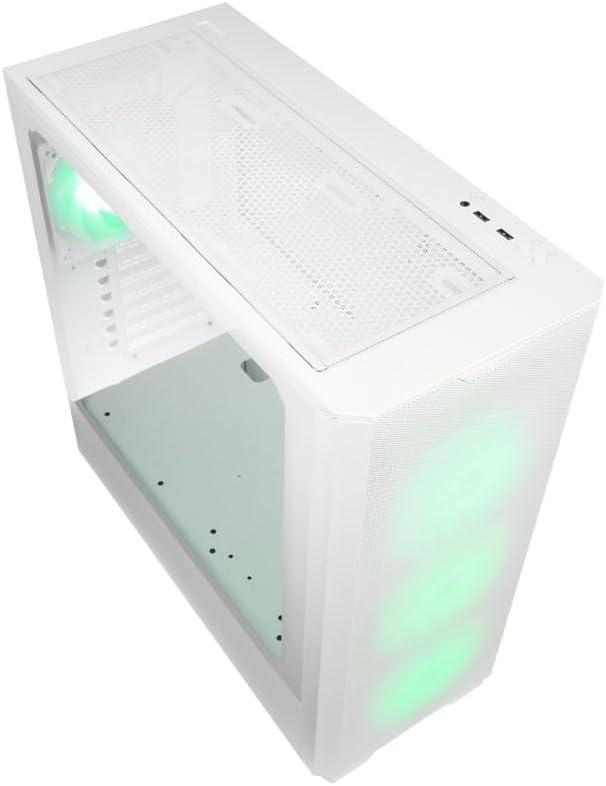
Whakaahua 4.1.2: Runga view of the case, showing the top mesh panel and front I/O ports.
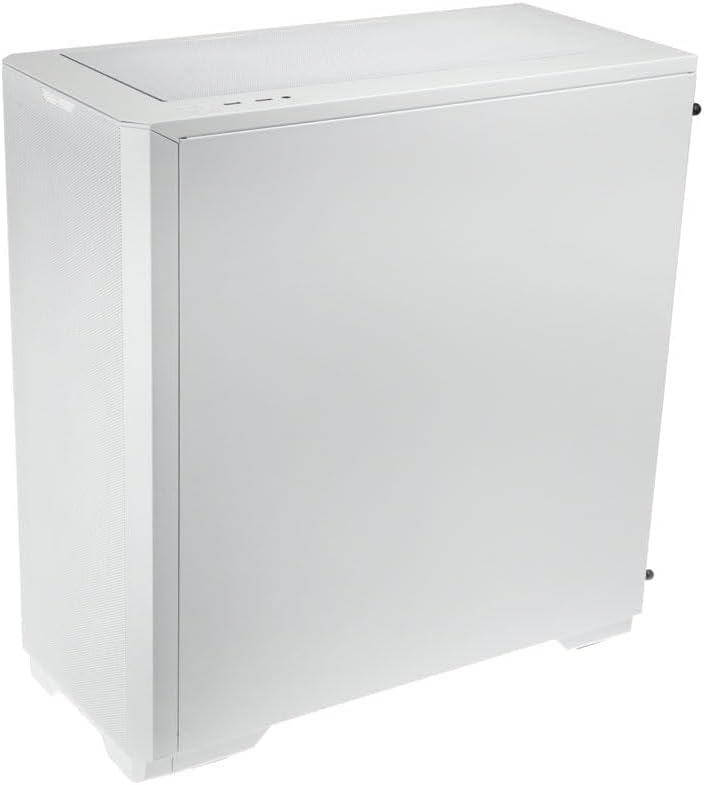
Whakaahua 4.1.3: Taha-muri view of the case, illustrating the solid right side panel.

Whakaahua 4.1.4: Composite image showing the front, rear, and tempered glass side panel of the case.
4.2 Ngā Tauranga I/O o Mua

Whakaahua 4.2.1: Close-up of the top-mounted front I/O panel, featuring audio jacks, USB ports, and control buttons.
The front I/O panel typically includes:
- Pātene Hiko
- Patene Tautuhi
- Tauranga USB 3.0 (x1)
- Tauranga USB 2.0 (x2)
- HD Audio Jacks (Headphone/Microphone)
- ARGB Control Button (for pre-installed fans)
4.3 Tahora ā-roto

Whakaahua 4.3.1: o roto view of the case, showing the motherboard tray, front fan mounts, and PSU shroud.

Whakaahua 4.3.2: Ko tetahi atu roto view, highlighting the rear fan mount and the spacious main chamber.

Whakaahua 4.3.3: Close-up of the pre-installed ARGB fans at the front of the case.

Whakaahua 4.3.4: View behind the motherboard tray, showing space for cable management and drive mounts.
5. Aratohu Tatūnga me te Tāutanga
Follow these steps to install your PC components into the Kolink Unity Solar case.
5.1 Te Whakarite i te Take
- Whakanohoia te keehi ki runga i te mata papatahi, pumau.
- Remove the tempered glass side panel by unscrewing the thumbscrews at the rear and carefully pulling it away. Set it aside on a soft, non-abrasive surface.
- Remove the solid right side panel by unscrewing its thumbscrews and sliding it off.
5.2 Whakaaturanga Papa Pouaka
- Tāutahia te whakangungu I/O (mēnā e tika ana) ki roto i te pūaha o muri o te pouaka.
- Ensure the correct standoffs are installed for your motherboard form factor (ATX, Micro-ATX, Mini-ITX). Adjust or add standoffs as needed using the provided tools.
- Carefully align your motherboard with the standoffs and I/O shield.
- Whakamaua te papahoahoa ki ngā tīwiri kua whakaratohia. Kaua e whakakī rawa.
5.3 Whakaaturanga Whakaaturanga Hiko (PSU) Whakauru
- Kimihia te wāhi whakairi PSU i te raro o muri o te pouaka.
- Slide your PSU into the designated bay from the rear of the case.
- Align the PSU with the screw holes and secure it with the provided screws.
5.4 Storage Drive Installation (HDDs/SSDs)
The case supports multiple storage drives. Refer to the accessory box for specific mounting hardware.
- Ngā SSD 2.5": Mount directly onto the SSD trays located behind the motherboard tray or on the PSU shroud. Secure with screws.
- Ngā HDD 3.5": Install into the drive cage located under the PSU shroud. Slide the drive into the tray and secure it.
5.5 Kaari Whakairoiro (GPU) me te Whakanuinga Kaari Kaari
- Tangohia nga uhi mokamoka PCIe e tika ana mai i muri o te keehi.
- Insert your graphics card or other expansion cards into the appropriate PCIe slots on your motherboard.
- Whakauhia ngā kāri ki ngā tīwiri, ki ngā topenga pupuri rānei kua whakaratohia.
5.6 Te Whakahaere Taura me ngā Hononga
- Connect all necessary power cables from the PSU to your motherboard, CPU, GPU, and storage drives.
- Connect the front I/O cables (USB, Audio, Power/Reset switches, ARGB control) to their respective headers on the motherboard. Refer to your motherboard manual for header locations.
- Route cables through the cutouts and tie-down points behind the motherboard tray to maintain a clean interior and optimize airflow. Use the included cable ties.
- Ensure the pre-installed ARGB fans are connected to the integrated ARGB controller or directly to an ARGB header on your motherboard (if supported).
6. Operating the ARGB Lighting
The Kolink Unity Solar case comes with pre-installed ARGB fans. You can control their lighting effects in two ways:
- Pātene ARGB mō te Pūkoro: Use the dedicated ARGB control button on the front I/O panel to cycle through various lighting modes and colors.
- Pūmanawa Papa Matua: If your motherboard has a 3-pin 5V ARGB header and compatible software (e.g., ASUS Aura Sync, MSI Mystic Light, Gigabyte RGB Fusion), you can connect the case's ARGB controller to the motherboard and synchronize lighting effects with other components. Refer to your motherboard manual for instructions on ARGB header connection and software usage.
7. Tiaki
Ko te tiaki i nga wa katoa ka awhina i te mahi tino pai me te roa o nga waahanga PC.
- Tātari Puehu: The case features removable dust filters on the front, top, and bottom. Periodically remove and clean these filters with compressed air or by rinsing them with water (ensure they are completely dry before reinstallation).
- Horoi o Roto: Use compressed air to remove dust from inside the case, especially from fan blades, heatsinks, and other components. Perform this cleaning in a well-ventilated area.
- Horoi o waho: Horoia nga mata o waho ki te ngohengohe, damp kakahu. A ape i nga matū kino me nga kai horoi.
8. Te Raru
Mena ka raru koe, tirohia nga mahi rapurongoā noa e whai ake nei:
- PC not powering on: Double-check all power connections from the PSU to the motherboard, CPU, and GPU. Ensure the front panel power switch cable is correctly connected to the motherboard header. Verify the PSU switch is in the 'ON' position.
- Fans not spinning/ARGB not lighting up: Check fan power connections and ARGB connections. Ensure ARGB cables are connected to the correct 3-pin 5V ARGB headers (not 4-pin 12V RGB headers). If using the case controller, ensure it is powered.
- Karekau he putanga whakaatu: Ensure your graphics card is properly seated in its PCIe slot and all necessary power cables are connected. Verify your monitor cable is connected to the graphics card, not the motherboard's integrated graphics port (unless you are using integrated graphics).
9. Whakatakotoranga
Key specifications for the Kolink Unity Solar ARGB Mesh Midi Tower Case:
| Āhuahira | Whakatakotoranga |
|---|---|
| Waitohu | E KARANGA ana ahau |
| Ingoa Tauira | Unity Solar |
| Tauira Tuemi | UNITYSOLARWHT |
| Momo Take | Huarahi Maaka |
| Tae | Mā |
| Papamatua Hototahi | ATX, Micro ATX, Mini ITX |
| Tikanga whakamatao | Te hau |
| Momo Whakaeke Hiko Hiko | Maunga Raro |
| Te maha o nga Tauranga USB 2.0 | 2 |
| Tauranga USB katoa | 2 (Note: Product description indicates 1x USB 3.0, 2x USB 2.0. Please verify with product packaging.) |
| Total Internal Bays | 4 (Mixed 2.5"/3.5" support) |
| Taumaha Tūemi | 2.2 pauna |
10. Pūtāhui me te Tautoko
For warranty information and technical support, please refer to the official KOLINK webpae, whakapā atu ranei ki to kaihoko. Puritia to tohu hoko mo nga kereme whakamana.