1. Kupu Whakataki
This manual provides essential instructions for the safe and efficient operation of your GROVIEW Pūwhakaata Iti Nihokikorangi, Tauira Groview-B2D-US. Please read this manual thoroughly before using the projector and retain it for future reference.
Ko te Groview-B2D-US is a compact and portable projector featuring electric focus, Bluetooth 5.1 connectivity, and a fully sealed optical engine designed for reduced noise and extended lifespan. It supports Full HD 1080P input with a native 720P resolution and offers a digital zoom function.
2. Nga korero haumaru
- Kaua e titiro tika ki roto i te arotahi pūwhiti ina te lamp kei runga.
- Kia tika te hauhautanga huri noa i te pūwhakaata hei ārai i te wera nui. Kaua e ārai i ngā pūaha hauhautanga.
- Whakamahia te urutau hiko anake me te pūwhiti.
- Kaua e whakaaturia te pūwhakaata ki te ua, ki te makuku, ki ngā pāmahana tino kino rānei.
- A ape i te whakatakoto i te puwhitiwhiti ki runga i nga mata korekore.
- Kaua e ngana ki te wetewete, ki te whakatika ranei i te kaupapa. Whakapa atu ki nga kaimahi ratonga whai tohu mo te awhina.
- Kia matara atu te pūwhiti i ngā tamariki me ngā mōkai.
3. He aha kei roto i te Pouaka
Manatokona kei roto katoa nga taonga kei roto i te kete:
- 1 x Groview Electric Focus Projector
- 1 x taura HDMI
- 1 x Te Raimana Tini
- 1 x Mana Mamao
- 1 x Manual Kaiwhakamahi (tenei tuhinga)
4. Hua Neke Atuview
4.1 Waehanga Kaupapa
The following image illustrates the main components of the Groview Mini Projector.

4.2 Tauranga Whakauru/Putanga
The rear panel of the projector features various ports for connecting external devices.
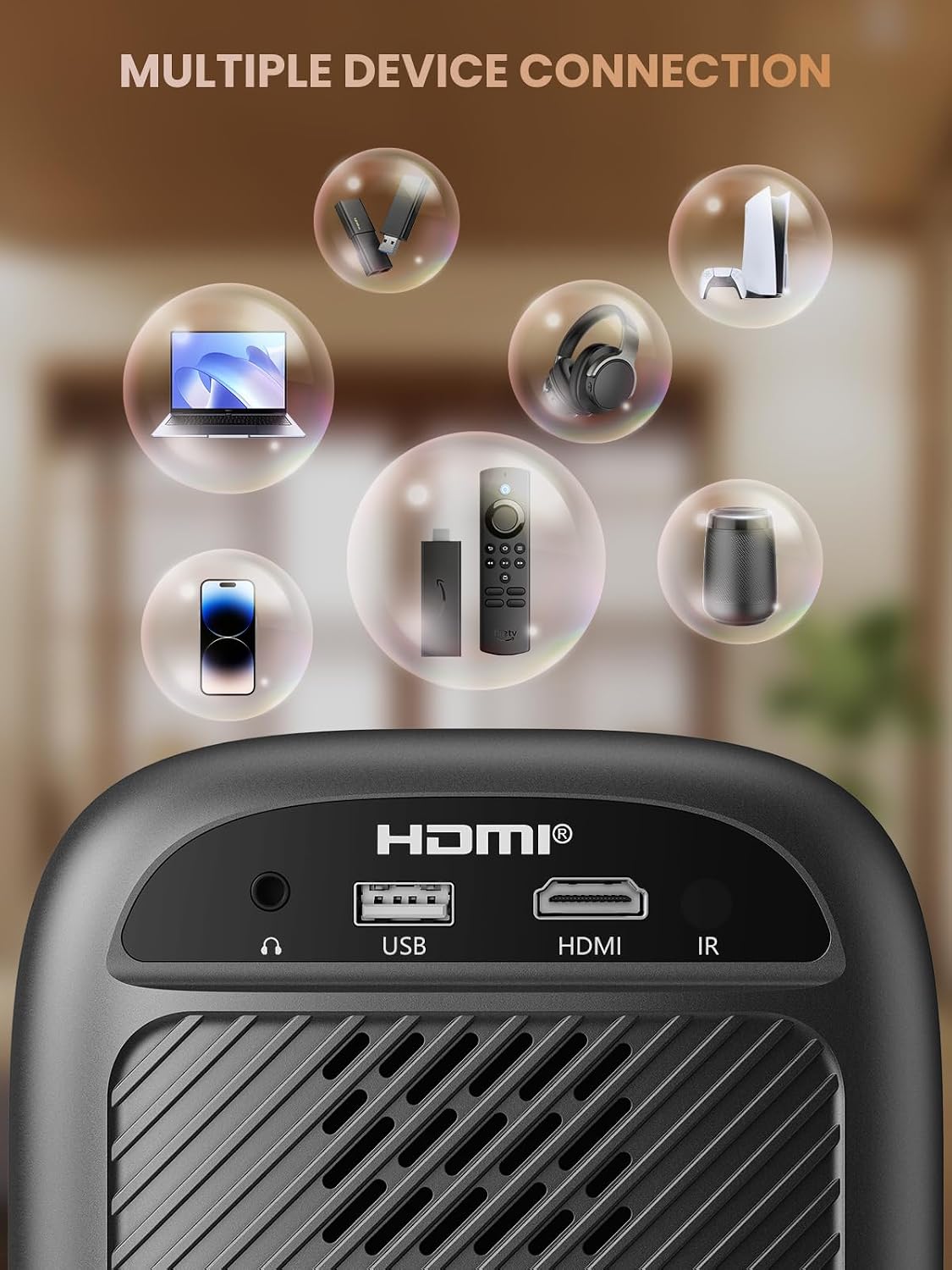
- Paerewa HDMI: Connects to devices such as TV sticks, laptops, game consoles, and Blu-ray players.
- Tauranga USB: Ka hono atu ki ngā puku kohiko USB mō te purei pāpāho.
- Audio Port (3.5mm Jack): Ka hono ki nga kaikorero o waho, ki nga taringa ranei.
- Kaihoko IR: Mō ngā tohu mana mamao.
5. Tatūnga
5.1 Hononga Hiko
- Tūhonohia te taura hiko ki te whakauru hiko o te pūwhiti.
- Monohia tetahi pito o te taura hiko ki te putanga hiko.
5.2 Whakatakoto Kaupapa
Place the projector on a stable, flat surface. For optimal image quality, position the projector perpendicular to the projection surface (wall or screen). The projector can create a large image from a relatively short distance.
5.3 Whakatikatika Arotahi
Ko te Groview-B2D-US features electric focus, allowing for precise image clarity adjustment using the remote control.

- Whakakāhia te pūwhiti.
- Point the remote control at the projector.
- Press the dedicated focus buttons (usually marked with 'F+' and 'F-' or similar icons) on the remote until the projected image is sharp and clear.
5.4 Kohatu Whakatikatika
The projector includes a keystone adjustment slider on the rear panel. This allows you to correct trapezoidal distortion if the projector is not perfectly aligned with the screen. Adjust the slider until the image appears rectangular.
5.5 Hiko Tuatahi
Press the power button on the projector or the remote control to turn on the device. The projector will boot up and display the main interface.
6. Nga Tohutohu Whakahaere
6.1 Hononga Pūrere
He maha nga whiringa honohono a te kaupapa:
- HDMI: Connect an HDMI cable from your source device (e.g., TV Stick, laptop, game console) to the projector's HDMI port. Select the HDMI input source from the projector's menu.
- USB: Insert a USB flash drive into the USB port. The projector's media player will typically detect the drive automatically, allowing you to browse and play supported media files.
- Nihokikorangi 5.1: Connect to external Bluetooth speakers or headphones for enhanced audio.

- Whakahohehia te Nihokikorangi i runga i tō pūrere oro o waho, ka whakatakoto ki te aratau takirua.
- I runga i te pūwhakaata, whakatere ki te tahua tautuhinga Nihokikorangi.
- Tīpakohia tō pūrere mai i te rārangi o ngā pūrere e wātea ana hei takirua.
Note: Bluetooth does not support smartphone mirroring.
6.2 Smartphone Connection Methods
To connect a smartphone, an adapter is required:

- Pūrere iOS: Use a Lightning to HDMI adapter cable.
- Pūrere Android: Use a Micro USB/Type C to HDMI adapter cable or a Google Chromecast.
6.3 Whakatere me te Tahua
Use the arrow buttons on the remote control to navigate through the projector's on-screen menu. The 'OK' or 'Enter' button confirms selections, and the 'Back' or 'Return' button goes back to the previous menu.
6.4 Mahi Whakanui Mamati
The projector features a digital zoom function, allowing you to adjust the image size from 75% to 100% without moving the projector.

Access the zoom settings through the projector's menu and use the remote control to adjust the desired size.
6.5 Whakamahi Mana Mamao
The included remote control operates the projector's functions. Ensure batteries are correctly installed. Note: A coin may be needed to open the battery compartment.
7. Tiaki
7.1 Te horoi
- Arotahi: Gently wipe the lens with a soft, lint-free cloth specifically designed for optical surfaces. Do not use abrasive cleaners.
- Waho: Horoia te taha waho o te pūwhakaata ki te kakahu ngohengohe, maroke. Mō ngā tohu uaua, he paku paku te taeamp Ka taea te whakamahi i te kakahu, ka whai i te kakahu maroke.
7.2 Dust-proof Design
Ko te Groview-B2D-US features a fully sealed optical engine, which helps prevent dust and debris from entering the projector and affecting image quality or lifespan.

7.3 Rokiroki
Mena kāore e whakamahia ana, rongoatia te pūwhakaata ki te wāhi hauhautanga, maroke, kia matara atu i te rā tika me ngā pāmahana tino kino. Whakamahia te taupoki arotahi hei tiaki i te arotahi mai i te puehu me ngā karawarawa.
8. Te Raru
- Kore he Atahanga: Check power connection, input source selection, and ensure the lens cap is removed. Verify the connected device is powered on and outputting a signal.
- Atahanga Pouriuri: Adjust the electric focus using the remote control. Ensure the projector is placed at an appropriate distance from the screen.
- Kore Oro: Check the volume settings on both the projector and the connected source device. If using Bluetooth, ensure the external audio device is properly paired and its volume is up.
- Mana Mamao Kaore i te Mahi: Tirohia nga pākahiko i roto i te mana mamao me te whakarite karekau he arai i waenga i te mamao me te kaikawe IR o te kaupapa.
- Whakatupato Whakawerawera: Ensure ventilation openings are not blocked. Turn off the projector and allow it to cool down before restarting.
For further assistance, please contact Groview tautoko kiritaki.
9. Whakatakotoranga
| Āhuahira | Whakatakotoranga |
|---|---|
| Waitohu | Groview |
| Tau tauira | Groview-B2D-US |
| Whakatau Maori | 1280 x 720 pika |
| Whakatau Tautoko | 1080P Ki tonu HD |
| Hangarau Hononga | 3.5mm Jack, Bluetooth 5.1, HDMI, USB |
| Nga waahanga motuhake | Electric Focus, Fully Sealed Optical Engine, Mini size & Lightweight, 150" Display, Digital Zoom (75%-100%) |
| Nga Whakamahinga Manakohia | Roto/Wawaho |
| Taumaha Tūemi | 2.99 pauna |
| Hunga Hua | 4.8 x 5.7 x 6.9 inihi |
| Tae | Kerei |
10. Pūtāhui me te Tautoko
Groview products are designed for reliability and performance. For information regarding warranty coverage and customer support, please refer to the warranty card included with your purchase or visit the official Groview website. Our service team is available to assist with any product-related inquiries.


