Kupu Whakataki
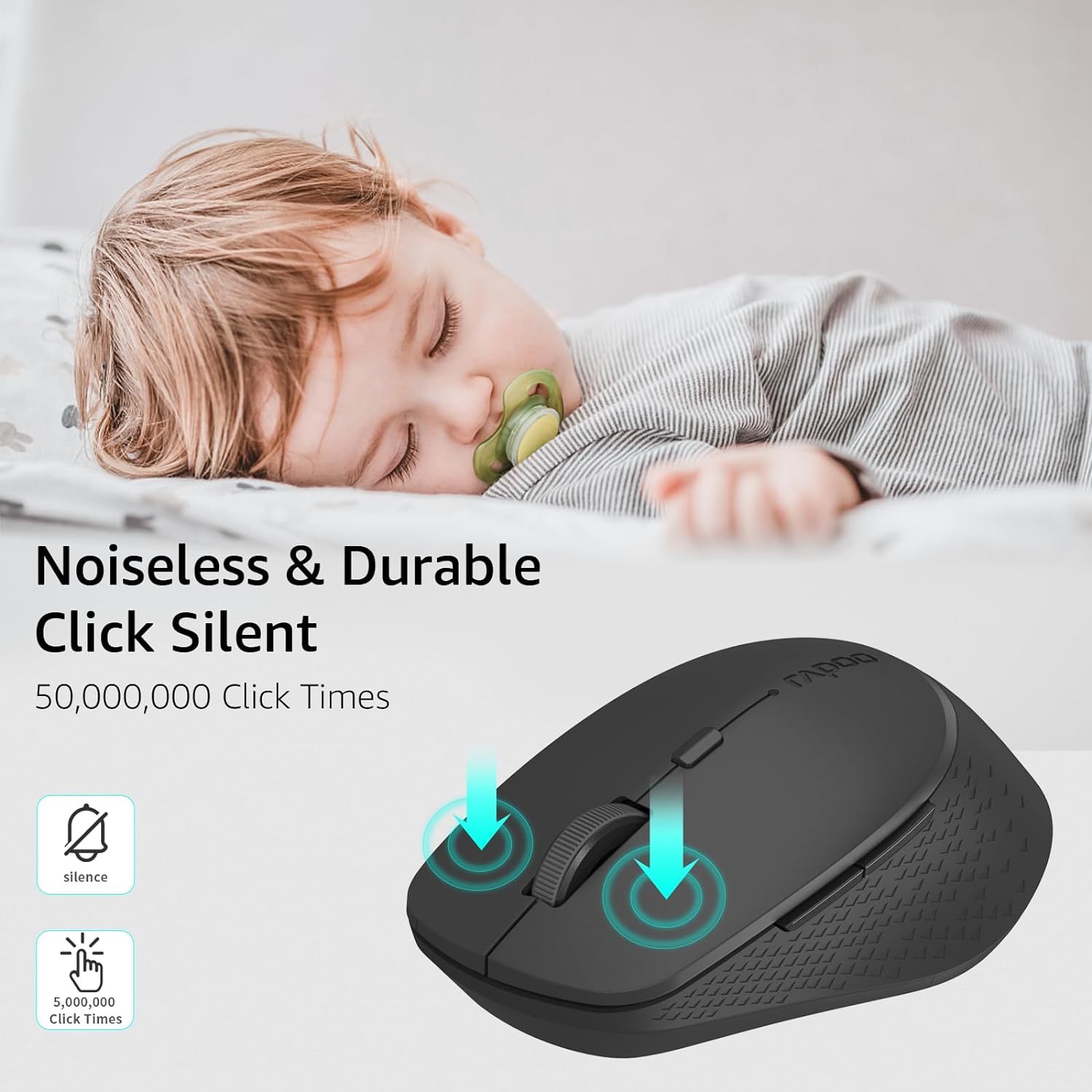
This manual provides detailed instructions for the setup, operation, and maintenance of your Rapoo M300G Silent Wireless Mouse. Please read this guide thoroughly to ensure proper use and to maximize the performance of your device. The Rapoo M300G offers versatile connectivity options, silent clicking, and adjustable DPI settings for an optimized user experience.
Ihirangi mokete
Manatokona kei roto katoa nga mea kei roto i te kete:
- Rapoo M300G Wireless Mouse x 1
- Pūhiko AA x 1
- USB Receiver x 1 (typically stored inside the mouse)
- Pukapuka Hua x 1
Ka mutu te huaview
Familiarize yourself with the components of your Rapoo M300G mouse:

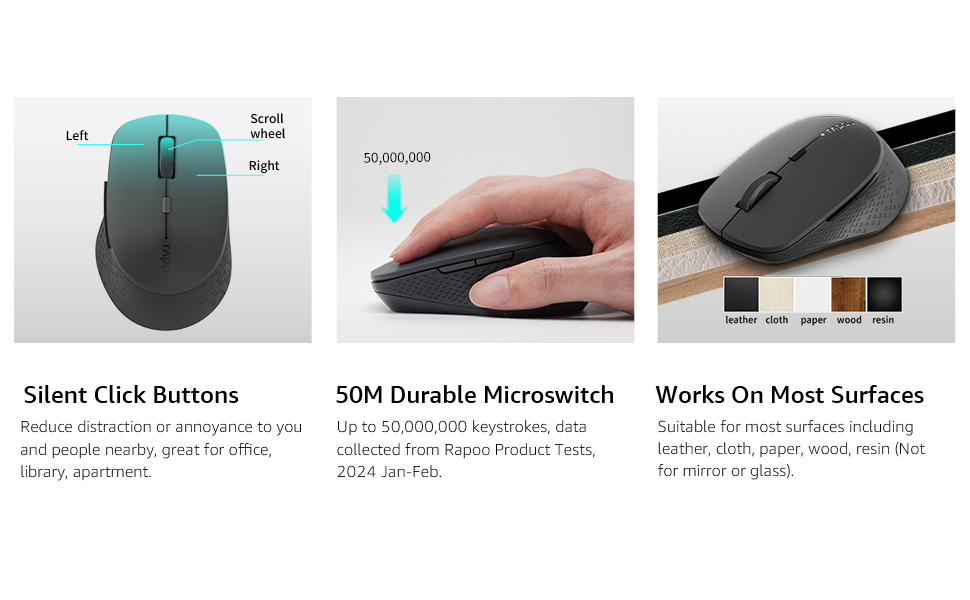
- Pātene Mauī: Taumahi pawhiri paerewa.
- Pātene Matau: Mahi pāwhiri-matau paerewa.
- Panuku Wira: For scrolling through documents and web wharangi. Ka taea hoki te pehi mo te mahinga-waenganui.
- Patene Whakawhiti DPI: Ka whakarerekē i te aro o te kiore (DPI).
- Pātene Whakamua: Ka whakatere whakamua ki roto web kaitirotiro ranei file kaihōpara.
- Pātene Whakamuri: Ka whakatere whakamuri ki roto web kaitirotiro ranei file kaihōpara.
- Multi-function Button Switch (Underside): Used to switch between 2.4GHz and Bluetooth modes, and for Bluetooth pairing.
Tatūnga
1. Tāuta Pūhiko
The Rapoo M300G mouse requires one AA battery (included).
- Rapua te uhi o te wahanga pākahiko kei raro o te kiore.
- Kiriata te uhi kia tuwhera.
- Insert the AA battery, ensuring the positive (+) and negative (-) terminals align correctly with the markings inside the compartment.
- Katia kia mau te uhi o te wahanga pākahiko.

2. 2.4GHz Hononga Ahokore
To connect via the 2.4GHz USB receiver:
- Remove the USB receiver from its storage slot inside the mouse's battery compartment.
- Monohia te kaiwhiwhi USB ki tetahi tauranga USB e waatea ana ki to rorohiko.
- Whakakāhia te kiore ma te whakamahi i te pana hiko i te taha o raro.
- Set the multi-function button switch on the underside of the mouse to the 2.4G mode (indicated by a small icon).
- Me kimi aunoa tō rorohiko i ngā taraiwa e tika ana, ā, ka tāutahia e ia. Kua rite te kiore mō te whakamahi.
3. Hononga Nihokikorangi
The Rapoo M300G supports Bluetooth 5.0 and 4.0. To connect via Bluetooth:
- Whakakāhia te kiore ma te whakamahi i te pana hiko i te taha o raro.
- Set the multi-function button switch on the underside of the mouse to the Bluetooth mode (indicated by a Bluetooth icon).
- Press and hold the multi-function button switch for 3-5 seconds until the indicator light on the mouse starts blinking, indicating it is in pairing mode.
- I runga i to rorohiko, i to taputapu ranei, whakatuwhera i nga tautuhinga Nihokikorangi ka rapu mo nga taputapu hou.
- Select "Rapoo M300G" from the list of available devices to pair.
- Once paired, the indicator light on the mouse will stop blinking and remain solid for a few seconds, then turn off. The mouse is now connected.

Mahi
1. Whakatikatika DPI
The Rapoo M300G features 5 adjustable DPI levels: 800, 1000, 1200, 1600, and 2400. To change the DPI:
- Pehia te Patene Whakawhiti DPI located behind the scroll wheel.
- Each press cycles through the available DPI settings. The mouse cursor speed will change accordingly.

2. Whakawhiti Pūrere-maha
The M300G supports connection to two devices simultaneously (one via 2.4GHz, one via Bluetooth). To switch between connected devices:
- Patohia poto te Multi-function Button Switch on the underside of the mouse.
- The mouse will switch between the 2.4GHz connection and the Bluetooth connection.
3. Surface Compatibility
The advanced optical tracking technology allows the Rapoo M300G to operate effectively on various surfaces without a mouse pad, including leather, cloth, paper, wood, and resin. Performance may vary on glass or mirrored surfaces.

Te tiaki
- Te horoi: Whakamahia he kakahu ngohengohe, maroke hei horoi i te kiore. A ape i te whakamahi i nga matū kino, i nga taonga abrasive ranei.
- Whakakapinga Pūhiko: Replace the AA battery when the mouse performance degrades or the indicator light signals low power.
- Rokiroki: When not in use for extended periods, turn off the mouse to conserve battery life. Store the USB receiver in its dedicated slot to prevent loss.

Raparongoā
| Raruraru | Take pea | Rongoā |
|---|---|---|
| Kaore te kiore e whakautu | Low battery; Mouse turned off; Incorrect connection mode; USB receiver not connected (2.4GHz); Bluetooth not paired (Bluetooth). | Replace battery; Turn on mouse; Switch to correct mode (2.4G or BT); Plug in USB receiver; Re-pair Bluetooth. |
| He pohehe te neke o te pehu | Puoko whatu paru; Mata kore e pai; He iti te pākahiko. | Clean optical sensor; Use on a suitable surface or mouse pad; Replace battery. |
| Kaore e taea te huri i waenga i nga taputapu | Incorrect button press; Device not properly paired. | Ensure a brief press of the multi-function button; Verify both devices are correctly paired/connected. |
| Side buttons not working (Mac OS) | Limited Mac OS compatibility for side buttons. | This is a known limitation. Side buttons may not function on Mac OS. |
Whakatakotoranga
- Tauira: M300G
- Hononga: Bluetooth 5.0, Bluetooth 4.0, 2.4GHz Wireless
- Tautuhinga DPI: 800, 1000, 1200, 1600, 2400 (Adjustable)
- Pātene: 6 (Mauī, Matau, Panuku Wira, Whakawhiti DPI, Whakamua, Whakamuri)
- Mana: 1 x Pūhiko AA
- Ora Pūhiko: Tae atu ki te 12 marama (i raro i ngā āhuatanga noa)
- Ahu: 4.09 x 2.57 x 0.04 inihi (103.91 x 65.43 x 37.29 mm)
- Taumaha: 2.46 ounces (70g approx.)
- Hototahi: Windows, Mac OS, Linux, iOS, Android, Chrome OS
Pūtāhui me te Tautoko
Your Rapoo M300G Silent Wireless Mouse comes with a Kotahi Tau Rarangi mai i te ra o te hokonga. I tua atu, a 30-day return and refund or replacement policy is offered. For technical support or warranty claims, please refer to the contact information provided on the Rapoo official webpae tukutuku, ngā hongere tautoko rānei a tō kaihokohoko.


