Kupu Whakataki
This manual provides detailed instructions for the setup, operation, and maintenance of your Rapoo M300G Silent Wireless Mouse. Please read this manual thoroughly to ensure proper use and to maximize the performance of your device.
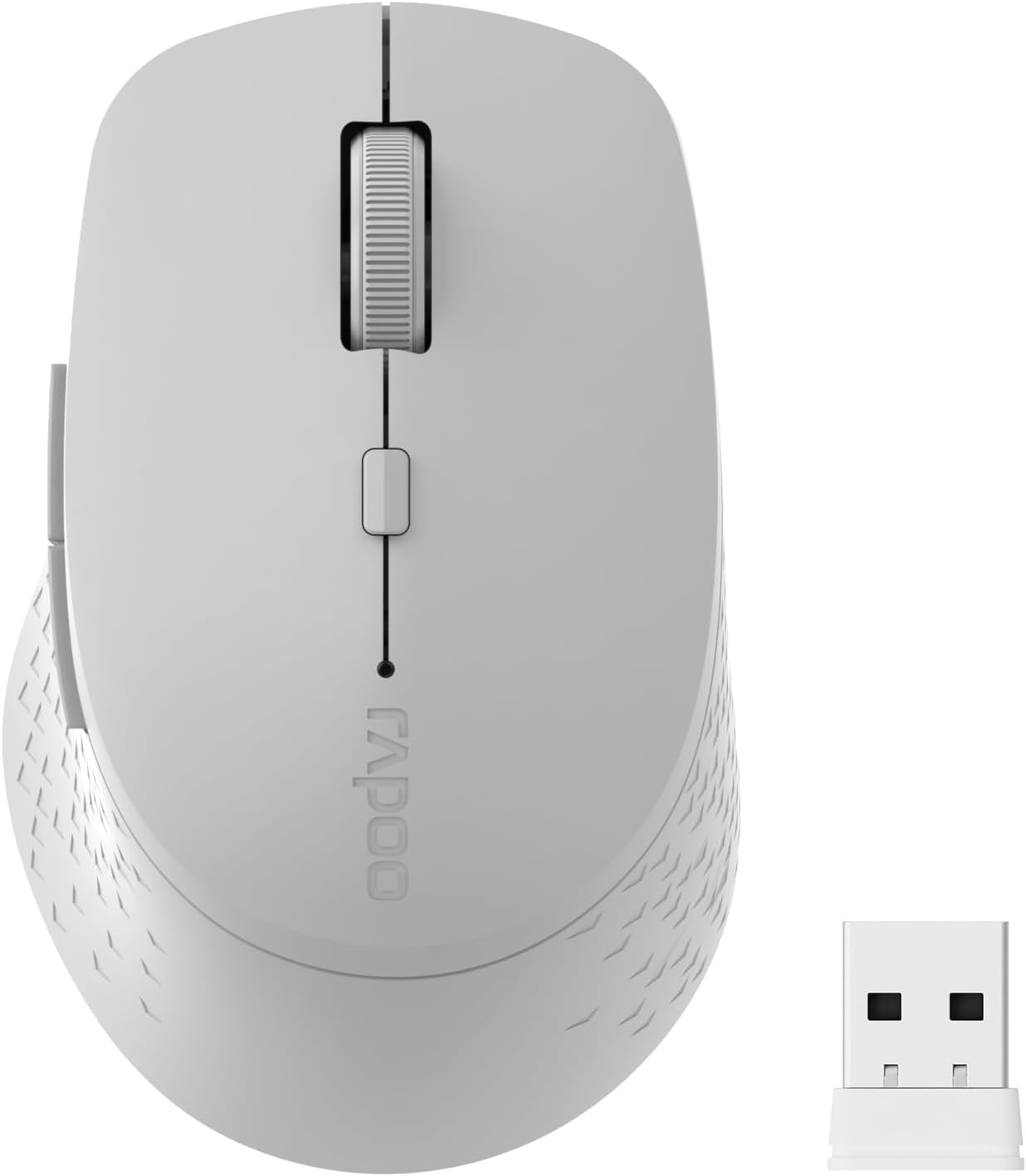
Image: The Rapoo M300G Silent Wireless Mouse in light grey, shown with its accompanying USB receiver.
Ihirangi mokete
Manatokona kei roto katoa nga mea kei roto i te kete:
- Rapoo M300G Wireless Mouse (x1)
- USB Receiver (x1)
- Pūhiko AA (x1)
- Product Manual (x1)
Ka mutu te huaview
Familiarize yourself with the components of your Rapoo M300G mouse.
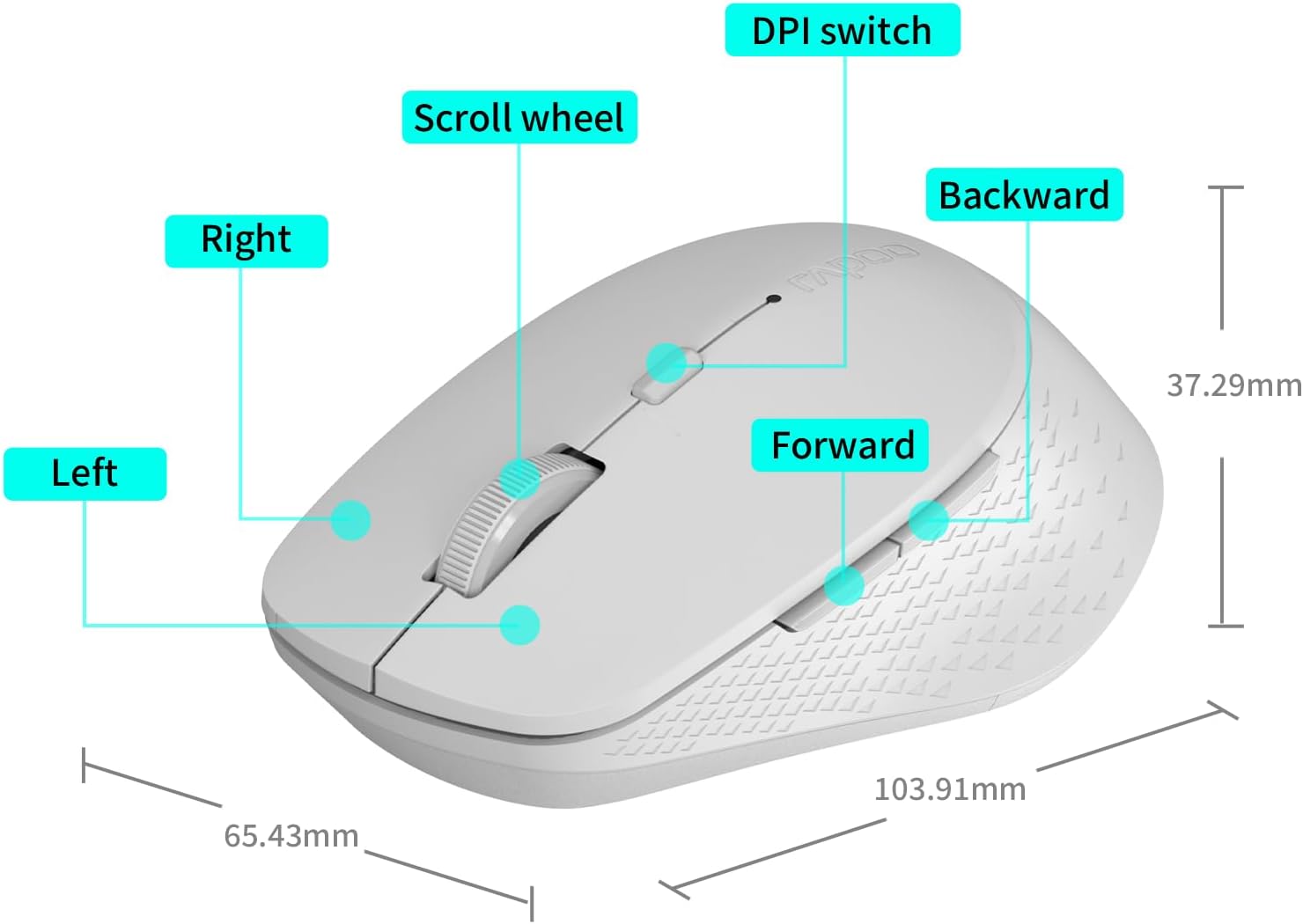
Image: A diagram illustrating the various parts of the Rapoo M300G mouse, including the left and right click buttons, scroll wheel, DPI switch, and forward/backward side buttons.
- Pātene Mauī: Taumahi pawhiri paerewa.
- Pātene Matau: Mahi tahua horopaki.
- Panuku Wira: Mō te panuku poutū me te pāwhiri-waenganui.
- Whakawhiti DPI: Whakaritea te tairongo pehu.
- Pātene Whakamua: Ka whakatere whakamua ki roto web kaitirotiro ranei file kaihōpara.
- Pātene Whakamuri: Ka whakatere whakamuri ki roto web kaitirotiro ranei file kaihōpara.
Tohutohu Tatūnga
The Rapoo M300G mouse supports both 2.4GHz wireless and Bluetooth connectivity. Choose the method that best suits your device.
1. Tāuta Pūhiko
Open the battery compartment on the underside of the mouse. Insert the provided AA battery, ensuring correct polarity. Close the compartment.

Image: Illustration of the mouse's underside, highlighting the battery compartment and the integrated USB receiver storage slot.
2. Connecting via 2.4GHz Wireless Mode
- Locate the USB receiver inside the mouse's battery compartment.
- Tangohia te pūoko USB ka mono ki tētahi tauranga USB e wātea ana i tō rorohiko.
- Whakakāhia te kiore ma te whakamahi i te pana hiko i te taha o raro.
- Me hono aunoa te kiore ki tō rorohiko. Kāore he taraiwa tāpiri e hiahiatia ana i te nuinga o te wā.
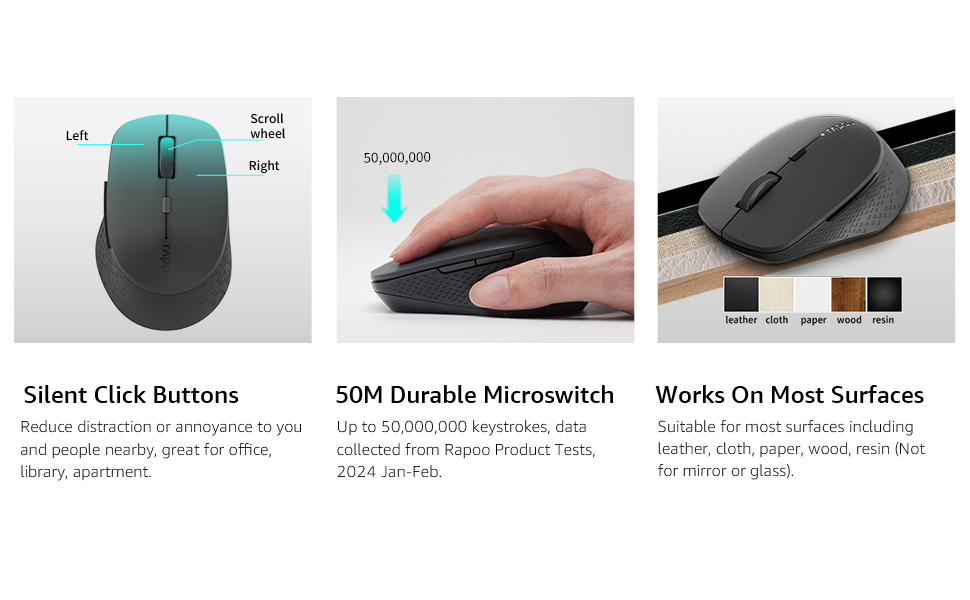
Image: Visual guide for connecting the mouse. The 2.4GHz mode shows the USB receiver being inserted into a computer.
3. Te hono atu mā te Aratau Nihokikorangi
The mouse supports Bluetooth 5.0 and 4.0.
- Whakakāhia te kiore ma te whakamahi i te pana hiko i te taha o raro.
- Press and hold the multifunction button on the underside of the mouse for 3-5 seconds until the indicator light flashes slowly. This indicates pairing mode.
- I runga i to rorohiko, i to taputapu ranei, whakatuwhera i nga tautuhinga Nihokikorangi.
- Rapua new devices and select "Rapoo M300G" (or similar) from the list.
- Whāia ngā tohutohu kei runga i te mata hei whakaoti i te tukanga honohono. Ka mutu te mura o te rama tohu ina honoa.

Image: Diagram detailing the multifunction button on the mouse's underside, explaining its use for DPI adjustment (short press) and Bluetooth pairing (long press).
Image: Visual guide for connecting the mouse. The Bluetooth mode shows the mouse pairing with a laptop.
Nga Tohutohu Whakahaere
1. Switching Between Devices (Multi-Mode)
The Rapoo M300G can connect to two devices simultaneously (one via 2.4GHz, one via Bluetooth). To switch between connected devices, briefly press the multifunction button on the underside of the mouse. The indicator light will change to confirm the active connection mode.

Image: The Rapoo M300G mouse demonstrating its ability to connect to two devices simultaneously, one via 2.4GHz and another via Bluetooth.
2. Te Whakatikatika i te DPI (Te Tairongo)
The mouse offers 5 adjustable DPI levels: 800, 1000, 1200, 1600, and 2400. To change the DPI, press the DPI switch button located on the top of the mouse, below the scroll wheel. Each press cycles through the available DPI settings.

Image: A visual representation of the mouse's adjustable DPI settings, ranging from 800 to 2400, with an arrow pointing to the DPI switch button.
3. Āhuatanga Pāwhiri Mārire
The Rapoo M300G features silent click buttons, reducing operational noise by 90%. This design is intended for quiet environments, minimizing disturbance to others.
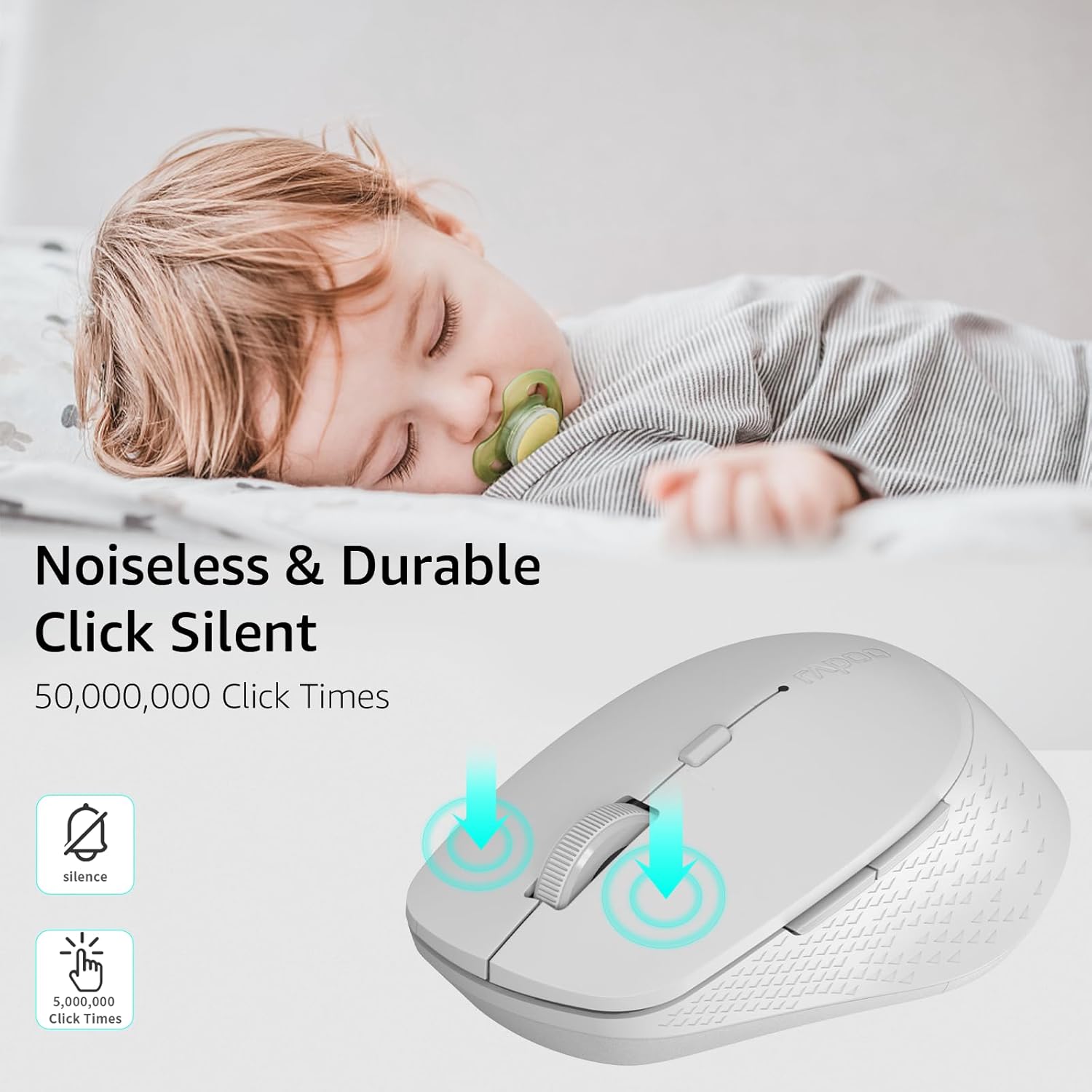
Image: The Rapoo M300G mouse, emphasizing its silent click functionality, suitable for quiet environments.

Whakaahua: Taipitopito view of the mouse's silent click buttons, durable microswitches, and its ability to function on various surfaces.
4. Surface Compatibility
The advanced optical tracking engine allows the mouse to operate effectively on various surfaces, including leather, cloth, paper, wood, and resin, without requiring a mouse pad. Performance may vary on glass or mirrored surfaces.

Image: The Rapoo M300G mouse positioned on different materials, highlighting its capability to track on diverse surfaces.
Te tiaki
1. Whakakapinga Pūhiko
When the mouse performance degrades or the indicator light signals low battery, replace the AA battery. The mouse is designed for low power consumption, offering up to 12 months of battery life under normal conditions.

Image: An illustration emphasizing the Rapoo M300G mouse's extended battery life of up to 12 months.
2. Te horoi
Hei horoi i te kiore, whakamahia he kakahu ngohengohe, maroke. Mō te paru uaua, whakamahia he kakahu pakupaku.amp cloth can be used, ensuring no moisture enters the internal components. Avoid using harsh chemicals or abrasive materials.
Raparongoā
Kaore Te Kiore e Whakautu
- Takina Pūhiko: Me whakarite kia tika te tāutanga o te pākahiko AA, ā, kia rawaka te utu. Whakakapia mēnā e tika ana.
- Whakawhiti Kaha: Manatoko kua ka te kiore.
- USB Receiver (2.4GHz Mode): Me mohio kua honoa te kaiwhiwhi USB ki tetahi tauranga USB mahi. Whakamātauria he tauranga USB rerekē.
- Hononga Nihokikorangi (Aratau Nihokikorangi):
- Me mohio kei te whakahohea te Nihokikorangi ki to taputapu.
- Re-enter pairing mode on the mouse (long press multifunction button) and re-pair with your device.
- Remove the mouse from your device's Bluetooth list and attempt to pair again.
- pokanoa: Nekehia te kiore kia tata atu ki te kaiwhiwhi/pūrere. Kaua e whakamahi i te kiore kia tata ki ētahi atu pūrere ahokore ka pāngia pea e te pokanoa.
He Pohehe te Nekehanga Pehu
- Pūoko Ma: Ensure the optical sensor on the underside of the mouse is clean and free from dust or debris.
- Mata: Try using the mouse on a different surface. While the mouse works on many surfaces, some highly reflective or uneven surfaces may affect tracking.
- Tautuhi DPI: Adjust the DPI setting using the DPI switch button to see if a different sensitivity improves performance.
Whakatakotoranga
| Tauira | M300G |
| Hangarau Hononga | Bluetooth 5.0, Bluetooth 4.0, 2.4GHz Wireless |
| Hangarau Hangarau Nekehanga | Optical |
| DPI ka taea te whakarite | 800 / 1000 / 1200 / 1600 / 2400 |
| Nga waahanga motuhake | Silent Clicks, Multi-Device Switching, Portable, Ergonomic Design |
| Momo Pūhiko | 1 x AA Pūhiko (whakauruhia) |
| Ora Pūhiko | Tae atu ki te 12 marama |
| Hunga Hua | 4.09 x 2.57 x 0.04 inihi (103.91 x 65.43 x 37.29 mm) |
| Taumaha Tūemi | 3.52 hekere (100g) |
| Hototahi | Windows, Mac OS, Linux, iOS, Android, Chrome OS |
Pūtāhui me te Tautoko
Your Rapoo M300G Silent Wireless Mouse comes with a pūtāhui kotahi tau mai i te ra o te hokonga. I tua atu, a 30-day return and refund or replacement policy is offered. For warranty claims, technical support, or product inquiries, please contact your retailer or visit the official Rapoo webpae mo te awhina.
Mo etahi atu korero, ka toro atu koe ki te Rapoo Brand Store on Amazon.


