Kupu Whakataki
This manual provides detailed instructions for the GuliKit KK3 Wireless Controller. It covers essential information regarding product features, setup, operation, maintenance, and specifications. Please read this manual thoroughly before using your controller to ensure optimal performance and longevity.

Image: The GuliKit KK3 Wireless Controller in gray, shown with its charging cable and two sets of joystick caps.
He aha kei roto i te Pouaka
Manatokona kei roto katoa nga mea kei roto i to kete:
- GuliKit KK3 Wireless Controller
- USB-C Uira Whakatau
- Additional Joystick Caps (2 sets)
Nga waahanga matua
- TMR Joystick: Features 1000-level high precision for refined control.
- Hall Effect Analog Triggers: High precision and long-life design.
- Anti-Friction Metal Stick Ring: Enhances control smoothness.
- Second-Generation Tactile Buttons: Provides responsive actuation and improved reliability.
- Continuous Fire Support: Includes Semi-Auto and Full-Auto continuous fire modes.
- Asymmetric Rotor Vibration Motors: Supports 3 adjustable vibration levels.
- Tuaka ono-Tuaka Gyroscope: Enables immersive motion control.
- Hototahi Whānui: Compatible with Switch 2, Switch, Switch OLED, Switch Lite, Steam Deck, Android, iOS, macOS, and Windows.

Whakaahua: He tata view of the GuliKit KK3 controller's TMR joystick, highlighting its precision.

Whakaahua: He taipitopito view of the GuliKit KK3 controller's Hall Effect triggers, emphasizing their high precision.

Image: An illustration showing the anti-friction metal stick ring component of the GuliKit KK3 joystick, designed for smoother control.
Tatūnga me te Hononga
The GuliKit KK3 controller supports both wired and wireless connections across various platforms. Specific pairing instructions may vary slightly depending on your device.
General Wireless Pairing
- Me whakarite kia tika te utu o te kaiwhakahaere.
- Whakakāhia te kaiwhakahaere mā te pēhi i te pātene Kāinga.
- Activate pairing mode on the controller (refer to specific platform instructions below for button combinations).
- On your device (PC, Switch, Android, iOS), navigate to Bluetooth settings and select the GuliKit KK3 controller from the list of available devices.
- Confirm the connection. The controller's indicator lights will show a solid connection.
He hononga Whiriwhiria
Connect the controller to your device using the provided USB-C cable. The controller should be automatically recognized and ready for use.
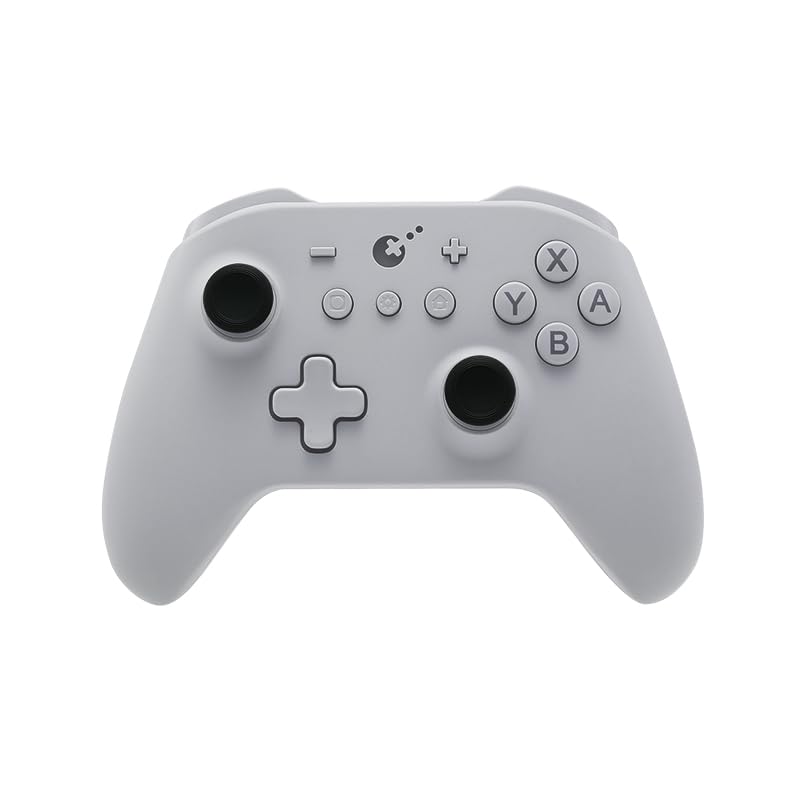
Image: An illustration showing the GuliKit KK3 controller's various modes and compatibility with Switch, PC X-input, iOS, Android, and D-input.
Nga Tohutohu Whakahaere
Joystick and Triggers
- The TMR joysticks offer precise 1000-level control.
- Hall Effect analog triggers provide accurate and durable input.
Continuous Fire Function
The controller supports both semi-auto and full-auto continuous fire. Consult the full product manual or GuliKit's official website for specific button combinations to activate and configure these modes.

Image: The GuliKit KK3 controller shown in use with examples of continuous fire functionality in gaming scenarios.
Urupare Whakaohooho
The asymmetric rotor vibration motors provide tactile feedback. There are 3 adjustable levels of vibration intensity. Refer to the full product manual for instructions on how to change vibration levels.

Image: An illustration of the GuliKit KK3 controller's asymmetric rotor vibration motors and their three adjustable levels.
E ono Tuaka Gyroscope
The integrated six-axis gyroscope allows for immersive motion control in compatible games. This enhances the realism of your gaming experience.

Image: The GuliKit KK3 controller with arrows indicating the six-axis gyroscope's motion control capabilities.
Hototahi
The GuliKit KK3 Wireless Controller offers broad compatibility:
- Papatohu petipeti: Nintendo Switch, Switch OLED, Switch Lite, Switch 2
- Handheld Gaming: Papa Matau
- Pūnaha Whakahaere: Windows, macOS, Android, iOS

Whakaahua: Kua mutuview of the GuliKit KK3 controller's multi-platform compatibility, including Windows, Switch, Android, and iOS platforms, supporting both wired and wireless connections.
Te tiaki
To ensure the longevity and optimal performance of your GuliKit KK3 controller, follow these maintenance guidelines:
- Te horoi: Use a soft, dry cloth to wipe the controller. Avoid abrasive cleaners or solvents.
- Rokiroki: Whakaorangia te pūmana ki te wahi matao, maroke atu i te ra tika me te wera nui.
- Kei te utu: Whakamahia anake te taura USB-C kua whakaratohia, te taura rānei kua whakamanahia mō te utu. Kaua e nui rawa te utu.
- Te whakahaere: A ape i te tuku i te kaiwhakahaere, te tuku ranei ki nga paanga kaha.
Raparongoā
If you encounter issues with your GuliKit KK3 controller, consider the following common solutions:
- Nga Take Hononga: Ensure the controller is charged. Re-attempt pairing with your device. For wireless connections, ensure no strong interference sources are nearby. For wired connections, try a different USB port or cable.
- Unresponsive Buttons/Joysticks: Check for any physical obstructions. Ensure the controller's firmware is up to date (check GuliKit's official webpaetukutuku mō ngā whakahōutanga).
- Wiri Kaore i te Mahi: Verify that vibration is enabled in your game settings and on the controller (if adjustable). Check the vibration level settings.
- Kāore te Kaiwhakahaere e Utu ana: Ensure the USB-C cable is securely connected to both the controller and a power source. Try a different charging cable or power adapter.
If problems persist, please contact GuliKit customer support for further assistance.
Whakatakotoranga
| Āhuahira | Taipitopito |
|---|---|
| Tau tauira | NS37 |
| Taumaha Tūemi | 1.55 hekere |
| Ahu mōkihi | 6.18 x 5.75 x 2.83 inihi |
| Kaihanga | Gulikit |
| Tuatahi Wātea | Akuhata 7, 2022 |
Pūtāhui me te Tautoko
For warranty information and technical support, please refer to the official GuliKit webpaetukutuku, whakapā atu ranei ki ta raatau ratonga kaihoko. Puritia to riiki hoko hei tohu mo te hoko.
GuliKit is dedicated to providing innovative gaming hardware. For the latest updates, firmware, and support resources, visit the official GuliKit webpae.


