1. Nga Korero Haumaru Nui
Please read these safety instructions carefully before operating your TV and retain them for future reference. This manual provides important information regarding the safe installation, use, and maintenance of your Sharp 40FH2EA television.
- Puna Hiko: Connect the TV only to an AC 220-240V, 50Hz power supply.
- Whakahau: Me whakarite kia pai te hau huri noa i te pouaka whakaata. Kaua e araia nga whakatuwheratanga hau.
- Te wai me te makuku: Kaua e tukuna te pouaka whakaata ki te ua me te makuku. Kaua e tuu i nga mea kua whakakiia ki te wai, penei i nga ipu, ki runga i te pouaka whakaata.
- Pūtake wera: Keep the TV away from heat sources like radiators, heat registers, stoves, or other apparatus that produce heat.
- Te horoi: Wewetehia te pouaka whakaata mai i te putanga o te pakitara i mua i te horoi. Whakamahia he kakahu ngohengohe, maroke. Kaua e whakamahia nga kai horoi wai me nga kai horoi aerosol.
- Whakapiki: When wall-mounting, ensure the wall mount is suitable for the TV's weight and installed by qualified personnel.
- Tamariki: Supervise children to ensure they do not play with the TV.
2. Ihirangi mokete
Manatokona kei roto katoa nga taonga kei roto i te kete:
- Sharp 40FH2EA 40-inch Full HD LED Android TV
- Mana Mamao
- TV Stands (2x)
- Tiwiri mo te Tu TV
- Waea Hiko
- Aratohu Timata Tere
- Pepa Korero Haumaru

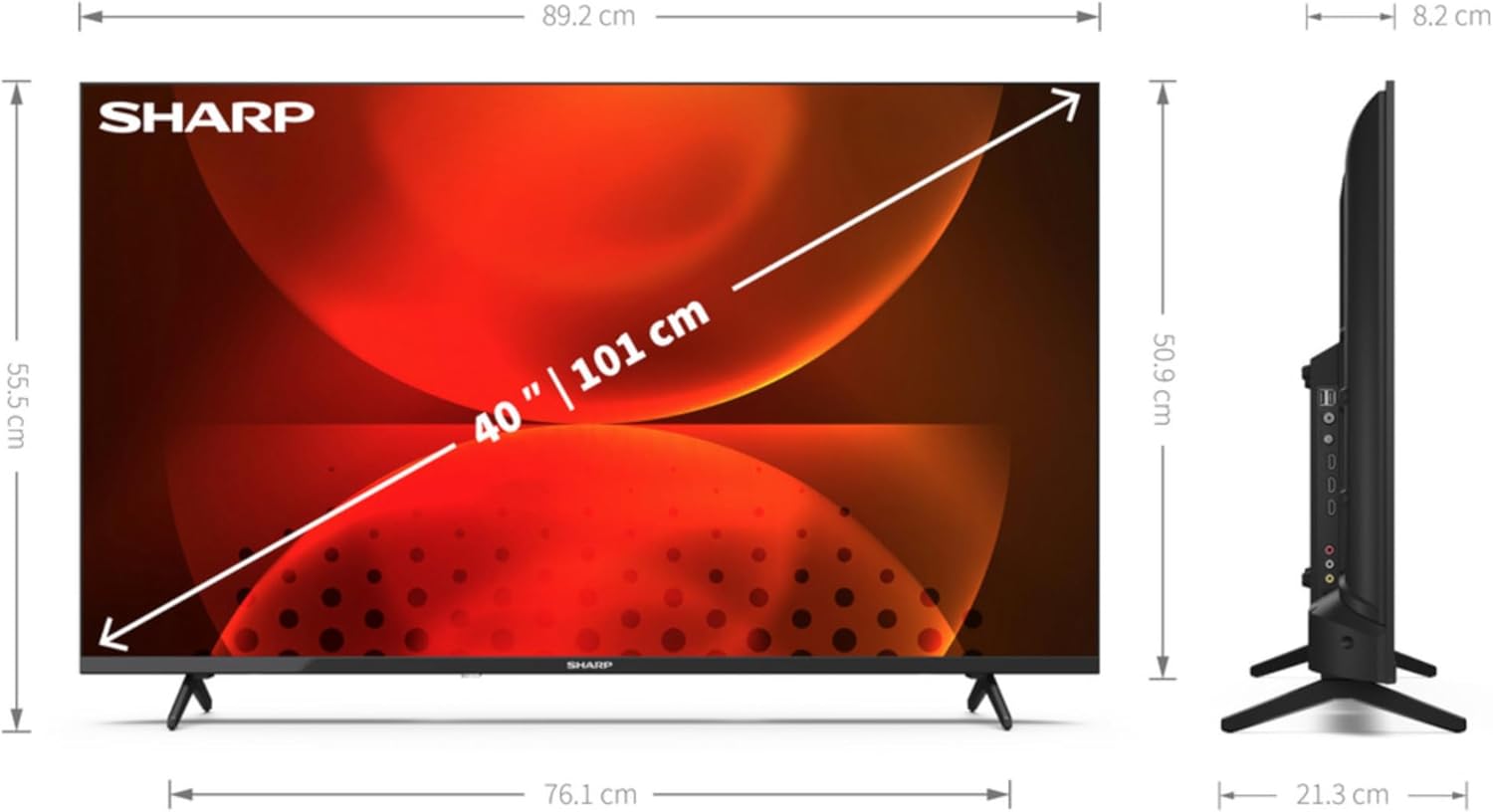
Whakaahua: Mua view of the Sharp 40FH2EA television, showcasing its slim bezel design.
3. Tatūnga
3.1 Te taapiri i nga turanga pouaka whakaata
- Tuhia te pouaka whakaata kia anga whakararo ki runga i te mata ngawari, ma kia kore ai e pakaru te mata.
- Tiaro ia tu ki nga mokamoka e rite ana ki raro o te pouaka whakaata.
- Whakaorangia nga turanga ma te whakamahi i nga wiri kua whakaratohia. Me whakarite kia mau tonu.

Image: The Sharp 40FH2EA television viewed from an angle, showing the two attached stand feet supporting the unit.
3.2 Te hono i nga taputapu o waho
The Sharp 40FH2EA offers various connection options for your external devices.
- HDMI: Connect Blu-ray players, game consoles, or set-top boxes to the HDMI ports. This model features 3 HDMI inputs.
- USB: Insert USB drives for media playback or software updates into the 2 USB ports.
- Antenna/Cable: Connect your antenna or cable TV signal to the RF input.
- Itarangi (LAN): Mo te hononga ipurangi pumau, honoa he taura Ethernet ki te tauranga LAN.
- Ororongo Kei: Use the optical digital audio output for connecting to a soundbar or home theater system.

Whakaahua: taha profile of the Sharp 40FH2EA TV, highlighting the accessible USB and HDMI ports on the left side.
Whakaahua: Rear view of the Sharp 40FH2EA TV, displaying the various input and output ports including HDMI, USB, and antenna connections.
3.3 Te Hiko-Whakaahua Tuatahi me te Tatūnga Wā Tuatahi
- Tūhonohia te taura hiko ki te pouaka whakaata, katahi ki te putanga pakitara.
- Patohia te paatene mana i runga i te mana mamao, i runga ranei i te pouaka whakaata.
- Whaia nga tohutohu i runga-mata hei whiriwhiri i to reo, whenua, me to tautuhinga whatunga (Wi-Fi, Ethernet ranei).
- Perform a channel scan for DVB-T/T2/C/S/S2 signals to find available TV channels.
- Log in with your Google account to access Android TV features and download apps.
4. Te whakahaere i te pouaka whakaata
4.1 Nga Mahi Mana Mamao
The remote control allows you to navigate the TV's features. Familiarize yourself with the main buttons:
- Power (Red button): Ka whakakā, whakaweto rānei i te pouaka whakaata.
- Puna: Selects input sources (HDMI 1, HDMI 2, TV, etc.).
- Patene Tau (0-9): Te whiriwhiri hongere tika.
- Rōrahi (+/-): Whakaritea te taumata oro.
- Hongere (CH +/-): Hurihia nga hongere pouaka whakaata.
- Papa Whakaterenga (Whakarunga/Whakararo/Mauī/Matau/ĀE): Ka whakatere i nga tahua me te whakau i nga whiringa.
- Hoki: Ka hoki ki te mata o mua, ki te tahua ranei.
- Kāinga: Ka uru atu ki te mata kaainga Android TV.
- Netflix, Prime Video, YouTube, Google Play: Patene whakatapua mo te uru tere ki nga ratonga roma.

Image: The remote control for the Sharp 40FH2EA TV, showing its layout with navigation buttons and dedicated streaming service buttons.
4.2 Nga waahanga pouaka whakaata atamai (TV Android)
Your Sharp 40FH2EA TV runs on Android TV, providing access to a wide range of apps and services.
- Mata Kāinga: The central hub for your apps, recommended content, and settings.
- Toa Play Google: Download additional apps, games, and content.
- Mana Reo: Use the built-in Google Assistant (if available on your remote) to search for content, control smart home devices, and more.
- Chromecast Hanga-i roto: Makahia ngā ihirangi mai i tō waea atamai, i tō papa rānei ki te pouaka whakaata.
- Ratonga Rere: Access popular services like Netflix, YouTube, Amazon Prime Video, Hulu, Disney+, and more.

Image: The Android TV home screen displayed on the Sharp 40FH2EA, featuring various streaming app icons and content recommendations.
5. Tiaki
5.1 Te horoi i te pouaka whakaata
- Wewetehia te TV i mua i te horoi.
- Whakamahia he kakahu ngohengohe, maroke, kore-raro hei muru i te mata me te rūnanga.
- Mo nga tohu pakeke i runga i te mata, kia ngawari dampen the cloth with water or a specialized screen cleaner (ensure it's safe for LED screens) and wipe gently.
- Never spray cleaners directly onto the screen or cabinet.
5.2 Whakahōu Pūmanawa
Your Android TV may receive software updates periodically. It is recommended to keep your TV's software updated for optimal performance and security. Updates can usually be found in the TV's settings menu under 'About' or 'System Update'.
6. Te Raru
Mena ka raru koe ki to pouaka whakaata, tirohia nga raru me nga otinga e whai ake nei:
| Raruraru | Te Take Taea / Rongoa |
|---|---|
| Karekau he kaha | Ensure the power cable is securely connected to the TV and the wall outlet. Check if the outlet is working. Try a different outlet. |
| Karekau he pikitia, engari he oro | Tirohia te puna whakauru. Me mohio kei te whakahikohia nga taputapu o waho me te hono tika. Whakamātauria he taura HDMI rerekē. |
| Karekau he oro, engari he pikitia kei reira | Check the volume level. Ensure the TV is not muted. Check audio settings and external audio device connections. |
| Ko te mana mamao kaore e mahi | Whakakapihia nga pākahiko. Me whakarite karekau he arai i waenga i te mamao me te pukoro IR o te pouaka whakaata. |
| Kaore e taea te hono ki Wi-Fi | Ensure your Wi-Fi router is on and working. Re-enter the Wi-Fi password. Try restarting the TV and router. |
| He puhoi, he takataka ranei nga tono | Close unused apps. Clear app cache (in TV settings). Restart the TV. Ensure sufficient internet speed. |
If the problem persists, consult the full user manual available on the Sharp support webpae, whakapā atu ranei ki te tautoko a te kaihoko.
7. Whakatakotoranga
Detailed technical specifications for the Sharp 40FH2EA 40-inch Full HD LED Android TV:
| Āhuahira | Whakatakotoranga |
|---|---|
| Ingoa Tauira | 40FH2EA |
| Internal Model Number | 2T-C40FHx |
| Rahi Mata | 40 inihi (101.6 cm) |
| Whakaatu Whakatau | 1920 x 1080 pika (Katoa HD) |
| Hangarau Whakaatu | LED |
| Hanga Mata | Papatahi |
| Pūhara TV Smart | TV Android |
| Motion Interpolation Technology | AMR (Active Motion Rate) 400 |
| Maori Aspect Ratio | 16:9 |
| Digital Signal Format | DVB, DVB-C, DVB-S, DVB-S2, DVB-T, DVB-T2 |
| Hononga Ahokore | Wi-Fi, Nihokikorangi |
| Hononga Waea | Itarangi LAN |
| Tauranga HDMI | 3 |
| Tauranga USB | 2 |
| Tae | Pango |
| Ratonga Ipurangi Tautoko | Netflix, YouTube, Amazon Prime Video, Hulu, Disney+, etc. |
8. Pūtāhui me te Tautoko
For warranty information, please refer to the warranty card included with your product or visit the official Sharp website for your region. For technical support, product registration, or to download the full user manual, please visit the Sharp support portal or contact their customer service department.
Tautoko Aipurangi: www.sharpconsumer.com


