1. Kupu Whakataki
This user manual provides comprehensive instructions for the CURISEE 2K Pet Camera Indoor Security Camera (Model: CRB110). This device is designed to help you monitor your home, pets, or babies with advanced features and ease of use. Please read this manual thoroughly before operating the camera to ensure proper setup and functionality.
Āhuatanga matua:
- 2K HD Video & Night Vision: Provides clear, detailed live streams and recordings, even in low-light conditions, with a night vision range of up to 60 feet.
- Pane 360° me te 90° Hoa: Offers extensive coverage of your space, controllable remotely via the mobile application.
- AI Motion Detection & Tracking: Intelligently detects and tracks motion, including pets and people, sending real-time alerts to your phone.
- Ororongo Ara-2: Built-in microphone and speaker enable real-time communication with individuals or pets in the camera's vicinity.
- Hononga Wi-Fi Takirua-Roopu: Supports both 2.4GHz and 5G Wi-Fi networks for flexible and stable connection.
- Kōwhiringa Rokiroki Hangarau: Supports cloud storage (free 3-day loop) and local storage via a MicroSD card (up to 128GB, sold separately).
- Tiri Pūrere: Allows multiple family members to access and monitor the camera feed.
- Te Whakakotahitanga Kaiawhina Reo: Compatible with Alexa for hands-free control.

Figure 1: CURISEE 2K Pet Camera and its mobile application interface.
2. Aratohu Tatūnga
Follow these steps to set up your CURISEE 2K Pet Camera:
- Download the VicoHome App: Rapua "VicoHome" in your smartphone's App Store (iOS) or Google Play Store (Android) and download the application.

Figure 2: VicoHome App download options.
- Rēhita he Pūkete: Open the VicoHome app and follow the on-screen prompts to register a new account. You will need to provide an email address and create a password.
- Whakamana i te kamera: Connect the camera to a power source using the provided Type-C cable. The camera will power on and initiate its startup sequence.
- Tāpiri Pūrere ki te Taupānga: In the VicoHome app, tap the "+" icon to add a new device. Select your camera model from the list.
- Tūhono ki Wi-Fi: The app will guide you through connecting the camera to your Wi-Fi network. Ensure your phone is connected to the same 2.4GHz or 5G Wi-Fi network that you intend to connect the camera to. The camera supports both bands.

Figure 3: Wi-Fi configuration steps in the VicoHome app.
- Tāuta ā-tinana: Choose a suitable location for your camera. It can be placed on a desktop, mounted on a wall, or ceiling. The package includes wall mounts if you choose to mount it.

Figure 4: Flexible installation options for the camera.
- Kōkuhu Kāri MicroSD (Kōwhiringa): If you wish to use local storage, gently insert a MicroSD card (up to 128GB, not included) into the designated slot on the camera. Format the card through the VicoHome app settings.
3. Nga Tohutohu Whakahaere
3.1 Ora View me te Mana Pan/Tilt Control
Open the VicoHome app and select your camera to view the live feed. Use the on-screen joystick or swipe gestures to control the camera's 360° pan and 90° tilt movements, allowing you to monitor different areas of your room.
3.2 Ororongo Waa-rua
Hei whakamahi i te waahanga oro-rua, patohia te tohu hopuoro i roto i te ora view interface. You can then speak into your phone, and your voice will be transmitted through the camera's speaker. Similarly, you can hear audio from the camera's environment through your phone's speaker.
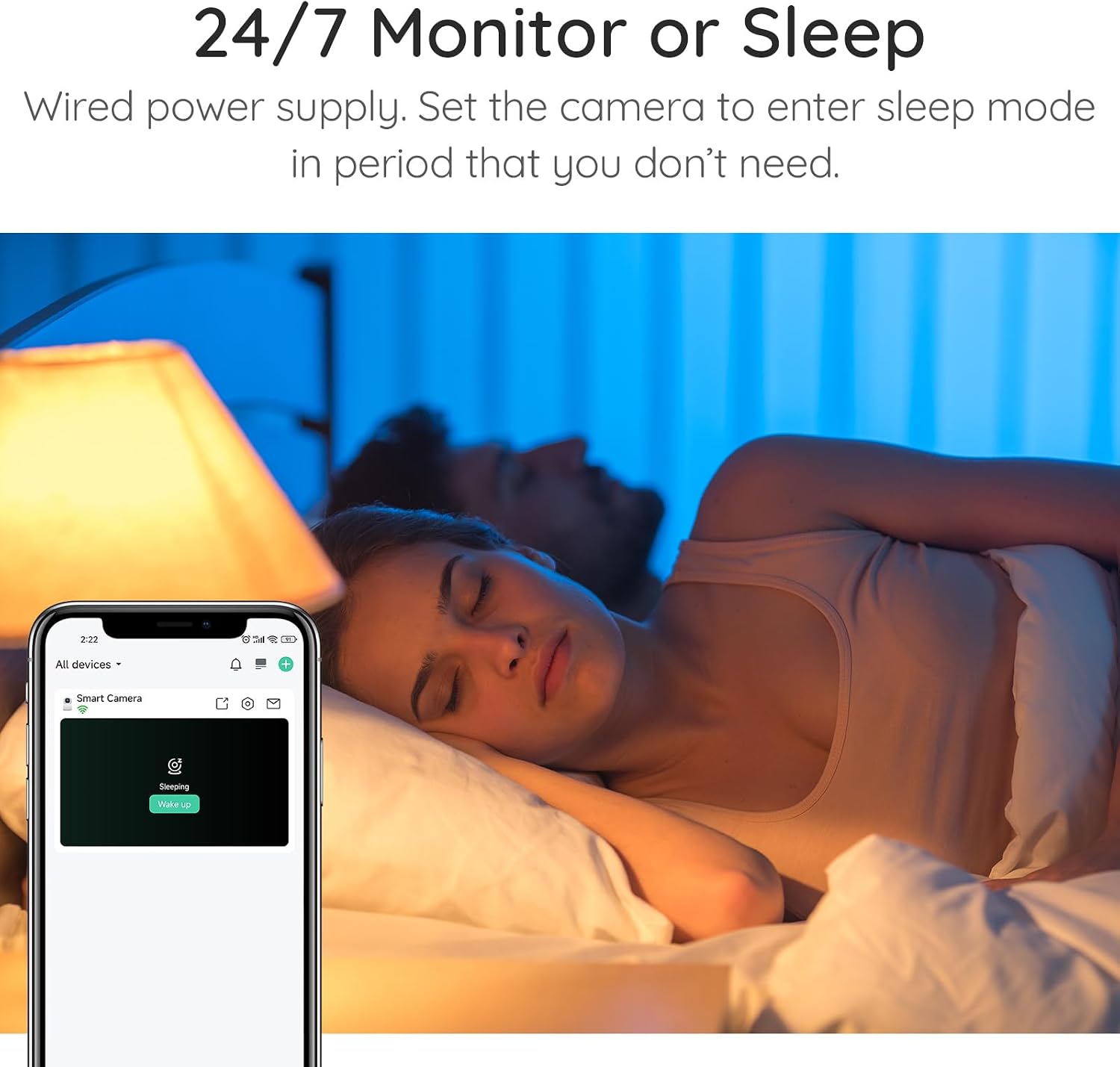
Figure 5: Initiating real-time chat via the VicoHome app.
3.3 Te Kitenga me te Aroturuki i te Nekehanga
The camera features advanced AI motion detection that can identify and track moving objects, including pets and people. When motion is detected, the camera will automatically record a video clip and send a notification to your phone. You can adjust the detection sensitivity in the app settings.

Figure 6: Smart motion detection and tracking capabilities.
3.4 Matakite Po
The camera automatically switches to night vision mode in low-light conditions, providing clear black-and-white video. The PIR sensor enhances night vision capabilities, ensuring visibility up to 60 feet.

Figure 7: Enhanced night vision for clear monitoring in darkness.
3.5 Te tuhi me te rokiroki
The camera supports continuous recording and event-triggered recording. Recordings can be stored in the cloud (free 3-day loop storage) or locally on a MicroSD card (up to 128GB). You can review tuhia footage directly from the VicoHome app.

Figure 8: Cloud and local storage options.
3.6 Device Sharing and Privacy
You can share access to your camera with up to 30 family accounts, with each device allowing up to 4 simultaneous live viewers. For privacy, you can set the camera to enter a "sleep mode" where the lens rotates down, disabling monitoring during specified periods.

Figure 9: Camera sleep mode for enhanced privacy.
3.7 Whakaurunga Kaiāwhina Reo
The CURISEE camera is compatible with Alexa. You can use voice commands to view the camera feed on compatible smart displays (e.g., "Alexa, show me baby room!").
Figure 10: Hands-free control with Alexa.
4. Tiaki
- Te horoi: Use a soft, dry cloth to clean the camera's exterior. Do not use liquid cleaners or aerosol cleaners, as they may damage the camera.
- Tiaki Mata: Gently wipe the camera lens with a microfiber cloth to ensure clear image quality. Avoid touching the lens directly with your fingers.
- Turanga: Ensure the camera is placed in a stable location to prevent accidental falls. Keep it away from direct sunlight, heat sources, and excessive moisture.
- Whakahōu Pūmanawa: Regularly check the VicoHome app for firmware updates to ensure optimal performance and access to new features.
5. Te Raru
| Raruraru | Take pea | Rongoā |
|---|---|---|
| Kāore e taea e te kāmera te hono atu ki te Wi-Fi. | Incorrect Wi-Fi password, camera too far from router, 5Ghz/2.4Ghz band issue, network congestion. |
|
| He kino te kounga ataata, he takamuri ranei. | Weak Wi-Fi signal, network bandwidth issues. |
|
| Kaore e mahi ana te kitenga nekehanga, he tairongo rawa ranei. | Ngā tautuhinga aro he, ngā āhuatanga taiao. |
|
| Kāore te kāri MicroSD e hopu ana. | Card not formatted, card full, faulty card. |
|
For more detailed troubleshooting or specific issues, please refer to the official User Guide PDF or contact CURISEE customer support.
Tikiake Aratohu Kaiwhakamahi (PDF) | Tikiake Manual Tāuta (PDF)
6. Whakatakotoranga
| Āhuahira | Taipitopito |
|---|---|
| Tau tauira | CRB110 |
| Whakataunga Hopu Ataata | 2K |
| Pan me te Honga | 360° Pan, 90° Hunga |
| Kawa Hononga | 2.4 GHz/5G Wi-Fi, Bluetooth |
| Puna Mana | Corded Electric (Type-C) |
| Voltage | 5 Volts |
| Wattage | 3 watts |
| Awhe Tirohanga Po | 60 Puawai |
| Kōwhiringa Rokiroki | Cloud Storage (3-day loop free), MicroSD (up to 128GB) |
| Pūrere Hototahi | iOS/Android |
| Momo Kaiwhakahaere | Vicohome APP |
| Momo Whakaeke | Maunga Pakitara, Papamahi |
| Mahinga o roto/waho | Roo-roto |
| Taumaha Tūemi | 10.8 hekere |
| Ahu mōkihi | 5.87 x 3.86 x 3.74 inihi |
7. Pūtāhui me te Tautoko
CURISEE is committed to providing high-quality products and excellent customer service. For any inquiries, technical support, or warranty claims, please contact us through the following channels:
- Webpae: https://curisee.net/
- Īmēra: service@curisee.net
- Waea: (844) 844-4031 (Telephone service available from 9am to 6pm ET, Monday through Friday)
Please have your product model number (CRB110) and purchase information ready when contacting support.

Figure 11: CURISEE Customer Care contact details.


