Kupu Whakataki
This manual provides comprehensive instructions for the setup, operation, and maintenance of your Xtrfy Cherry K5V2 Compact Mechanical Gaming Keyboard. Designed for optimal gaming performance, this 65% format keyboard features hot-swappable Cherry MX2A RED switches, customizable RGB lighting, and advanced super scan technology for rapid response times.

Figure 1: Xtrfy Cherry K5V2 Compact Mechanical Gaming Keyboard (Black version).
Ihirangi mokete
Me mohio kei roto katoa nga mea kei roto i te kete:
- Xtrfy Cherry K5V2 Compact Mechanical Gaming Keyboard
- Tauira USB
- Paetukutuku Puller
- Kuputuhi taapiri
- Additional Switches (typically 2 replacement switches)
Ngā āhuatanga
- Compact 65% Format: Small gaming keyboard designed for more mouse movement space and portability.
- Hot-Swappable Cherry MX2A RED Switches: Linear switching characteristics for a smooth, direct typing feel without a click. Switches are pre-lubricated and designed for over 100 million actuations.
- Super Scan Technology: All keys are scanned every half millisecond for instant responses.
- Enhanced Acoustics: Features PCB-mounted stabilizers (pre-lubricated) and double-layered, sound-absorbing foam for a pleasant and noise-reduced typing experience.
- Rarama RGB Whakaritea: Impressive per-key RGB illumination with LED strips. All settings are adjusted directly on the keyboard without requiring software.
- Hurihuri Katoa o te N-Key me te Ārai-Wairua: Ensures every keystroke is registered accurately, even during rapid, simultaneous presses.
- Macros & Media Controls: Built-in functionality for advanced customization and convenient media management.
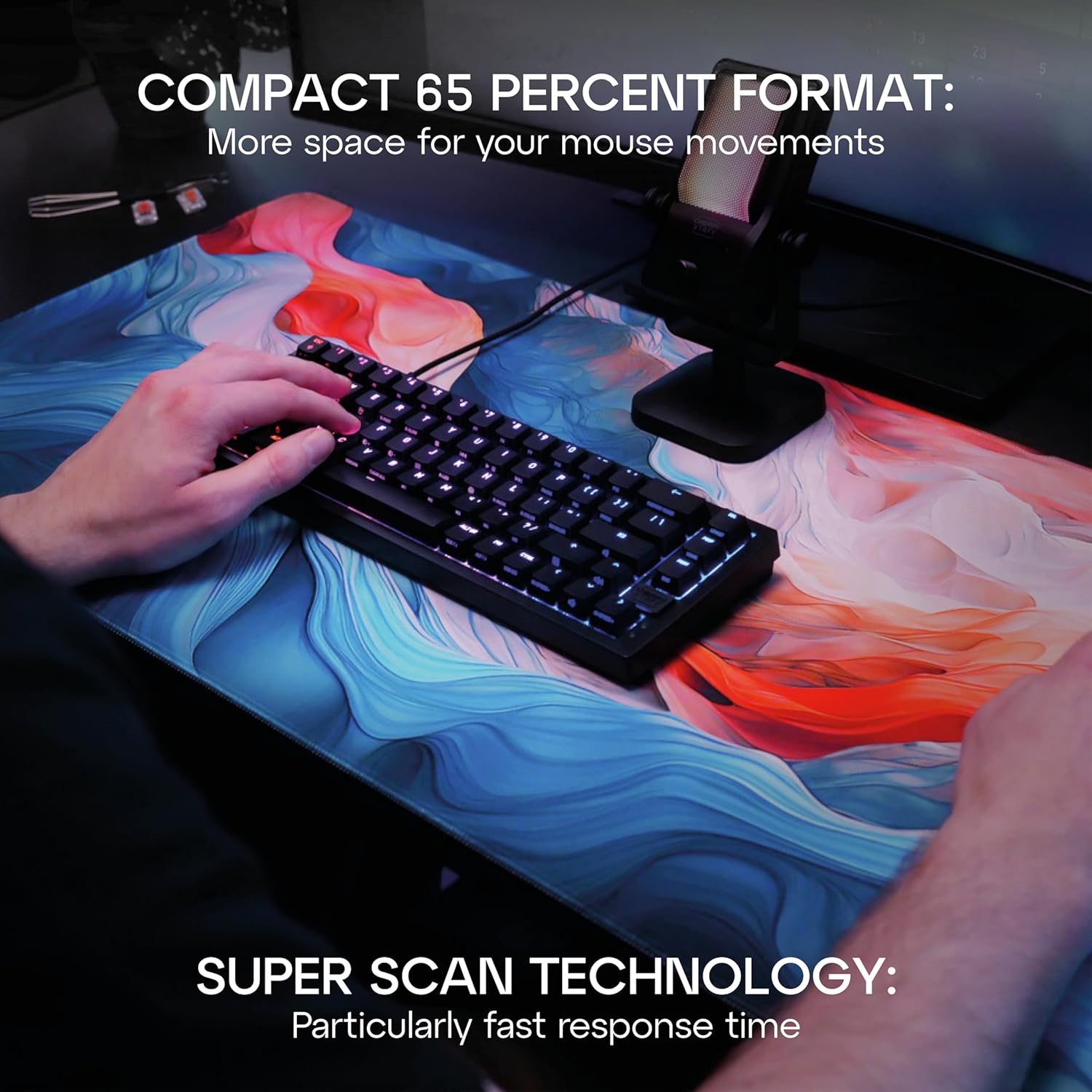
Figure 2: The compact 65% format of the K5V2 keyboard provides ample space for mouse movements, ideal for gaming.

Figure 3: Detail of the hot-swappable Cherry MX2A RED switches, emphasizing their smooth, direct feel and ease of replacement.
Tatūnga
Te hono i te papapātuhi
- Locate the USB-A to USB-C cable included in the package.
- Connect the USB-C end of the cable to the USB-C port on the back of the Xtrfy Cherry K5V2 keyboard.
- Honoa te pito USB-A o te taura ki tetahi tauranga USB-A e waatea ana i runga i to rorohiko.
- The keyboard will automatically be recognized by your operating system. No additional drivers are typically required.
Video 1: Official product video demonstrating the features and setup of the Xtrfy Cherry K5V2 Compact Mechanical Gaming Keyboard.
Nga Tohutohu Whakahaere
Whakamahi Taketake
The Xtrfy Cherry K5V2 functions as a standard keyboard upon connection. All primary keys operate as labeled. The compact 65% layout means some functions are accessed via the Function (Fn) key combinations.
Whakaritea Rarama RGB
The keyboard features extensive onboard RGB customization. No software is needed. Use the Fn key in combination with specific keys to change lighting modes, colors, brightness, and speed.
- Fn + K-MODE: Hurihurihia ngā momo pānga rama.
- Fn + K-COLOR: Change the color of the current lighting effect.
- Fn + Arrow Keys (Up/Down): Whakaritea te kanapa.
- Fn + Arrow Keys (Left/Right): Adjust effect speed.
- Refer to the included quick start guide for a full list of lighting commands.

Figure 4: The keyboard's impressive RGB lighting can be customized directly on the device.
Hot-Swapping Switches
The hot-swappable design allows you to easily change switches without soldering. This is useful for replacing faulty switches or customizing your typing experience.
- Gently remove the keycap using the included keycap puller. Hook the puller onto the keycap and pull straight up.
- Use the switch puller (often integrated with the keycap puller) to grasp the switch firmly. The switch puller has two prongs that fit into the clips on the top and bottom of the switch.
- Apply gentle, even pressure and pull the switch straight up until it detaches from the PCB.
- Whakahāngaihia ngā pine o te pana hou ki ngā kōhao i te PCB. Me whakarite kia tika ngā pine kia kore ai e piko.
- Press the new switch firmly into place until it clicks securely.
- Re-attach the keycap by aligning it with the switch stem and pressing down.

Figure 5: Demonstrating the process of removing a switch from the keyboard for replacement or customization.

Whakaahua 6: He taipitopito view of the Cherry MX2A RED switches, highlighting their design and the integrated RGB lighting.
Te tiaki
Te horoi i te papapātuhi
- Momotuhia te papapātuhi mai i to rorohiko i mua i te horoi.
- Whakamahia he kakahu ngohengohe, karekau he ngongo paku damphoroia ki te wai, ki tētahi wai horoi ngawari rānei hei muru i ngā taupoki matua me te anga. Āraia te makuku nui.
- For deeper cleaning, remove keycaps using the keycap puller and use compressed air to clear debris from underneath.
- Do not use harsh chemicals, abrasive cleaners, or solvents as they may damage the keyboard's finish or components.
Raparongoā
| Raruraru | Take pea | Rongoā |
|---|---|---|
| Karekau te papapātuhi whakautu | Loose USB connection; Faulty USB port; Driver issue. | Me whakarite kia hono pai te taura USB. Whakamātauria tētahi atu tauranga USB. Tīmata anō i tō rorohiko. |
| Kī kāore i te rēhita | Debris under keycap/switch; Faulty switch. | Remove keycap and clear debris. If issue persists, hot-swap the switch with a spare. |
| Kāore e mahi/hē te rama RGB | Incorrect lighting mode; Brightness too low. | Cycle through lighting modes (Fn + K-MODE). Increase brightness (Fn + Up Arrow). |
| Keyboard feels wobbly/unstable | Uneven surface; Rubber feet worn. | Ensure keyboard is on a flat surface. Check rubber feet for wear. |
Whakatakotoranga
| Āhuahira | Taipitopito |
|---|---|
| Tau tauira | CX-K5V2-RGB-CPT-BLACK-R-US |
| Whakaahuatanga Papapātuhi | Papapātuhi Taha Ahumahi |
| Whakahōputu | 65% Kiato |
| Whakawhiti | Cherry MX2A RED (Hot-Swappable) |
| Hononga | USB-A (Waea) |
| Te maha o nga Kī | 68 |
| Hunga Hua | 12.8 x 4.33 x 1.46 inihi (32.5 x 11 x 3.7 cm) |
| Taumaha Tūemi | 2.44 pauna (1.11 kg) |
| Rauemi | Polycarbonate |
| Nga waahanga motuhake | Compact, Cherry MX, RGB Lighting, N-Key Rollover, Anti-Ghosting, Macros, Media Controls |
Pūtāhui me te Tautoko
For warranty information and technical support, please refer to the official Xtrfy webpaetukutuku, whakapā atu ranei ki ta raatau ratonga kaihoko. Puritia to tohu hoko mo nga kereme whakamana.
Official Xtrfy Store: Xtrfy Amazon Store


