1. Kupu Whakataki
This manual provides essential information for the proper installation, operation, and maintenance of your Thermalright TL-C12B-S V3 X3 120mm ARGB Case Fan. Please read this guide thoroughly before proceeding with installation to ensure optimal performance and longevity of your product.
2. Nga Hua o te Hua
- 120mm ARGB Fan: Designed for efficient cooling with customizable Addressable RGB lighting.
- S-FDB Bearing: Features a Fluid Dynamic Bearing with magnetic design for stable, low-friction, and low-noise operation, extending fan lifespan.
- Mana PWM: 4-pin PWM connector allows for precise fan speed control, balancing cooling performance and noise levels.
- ARGB Mirror Light Effect: Provides a unique visual experience with unlimited mirror ARGB aperture lighting effects.
- High Airflow & Static Pressure: Optimized 9-blade design delivers up to 66.17 CFM airflow at 1500 RPM and 1.53mm H2O air pressure.
- Runga Wiri: Equipped with soft-touch rubber pads on corners to reduce noise and vibration.
- Hanga Roa: Fan blades and frame are made from industrial-grade PBT+PC material for strength and stability.
- Taupānga Whānui: Suitable for PC cases, CPU air coolers, and water cooling radiators.
3. Whakatakotoranga
| Tauira | TL-C12B-S V3 X3 |
| Ahu | 120mm x 120mm x 25mm (4.72"L x 4.72"W x 0.98"H) |
| Tere Hurihuri | 1500 RPM |
| Taumata Haruru | 25.6 dBA |
| Te Rerenga Hau | 66.17 CFM |
| Te Peehanga Hau | 1.53 mm H2O |
| Tūhono Hiko | 4-PWM PWM |
| Atanga Rama | 3-Pin ARGB (+5V) |
| Voltage | 12 Volts |
| o nāianei | 0.2 A |
| Wattage | 2.4 Watts |
| Momo Kawe | S-FDB (Peera Hihiri Wai) |
| Rauemi | PBT+PC (Fan Blades & Frame), Copper (Heatsink) |
4. Ihirangi mokete
- Thermalright TL-C12B-S V3 X3 120mm ARGB Case Fan (Quantity as per kit)
- Whakaeke Tiu
- Adhesive Nails
Note: The fan wire is made of flame-retardant compiled mesh-wrapped wire for added safety.
5. Aratohu Whakauru
Follow these steps to properly install your Thermalright TL-C12B-S V3 X3 ARGB Case Fan. For a visual guide, please refer to the embedded video below.
5.1. Aratohu Tāutanga Ataata
Official Thermalright Quick Start Guide for Case Fans. This video demonstrates the connection of PWM and ARGB cables, as well as fan installation.
5.2. Connecting Fan Power (PWM)
- Identify the 4-pin PWM fan power connector on your fan. This connector controls the fan speed.
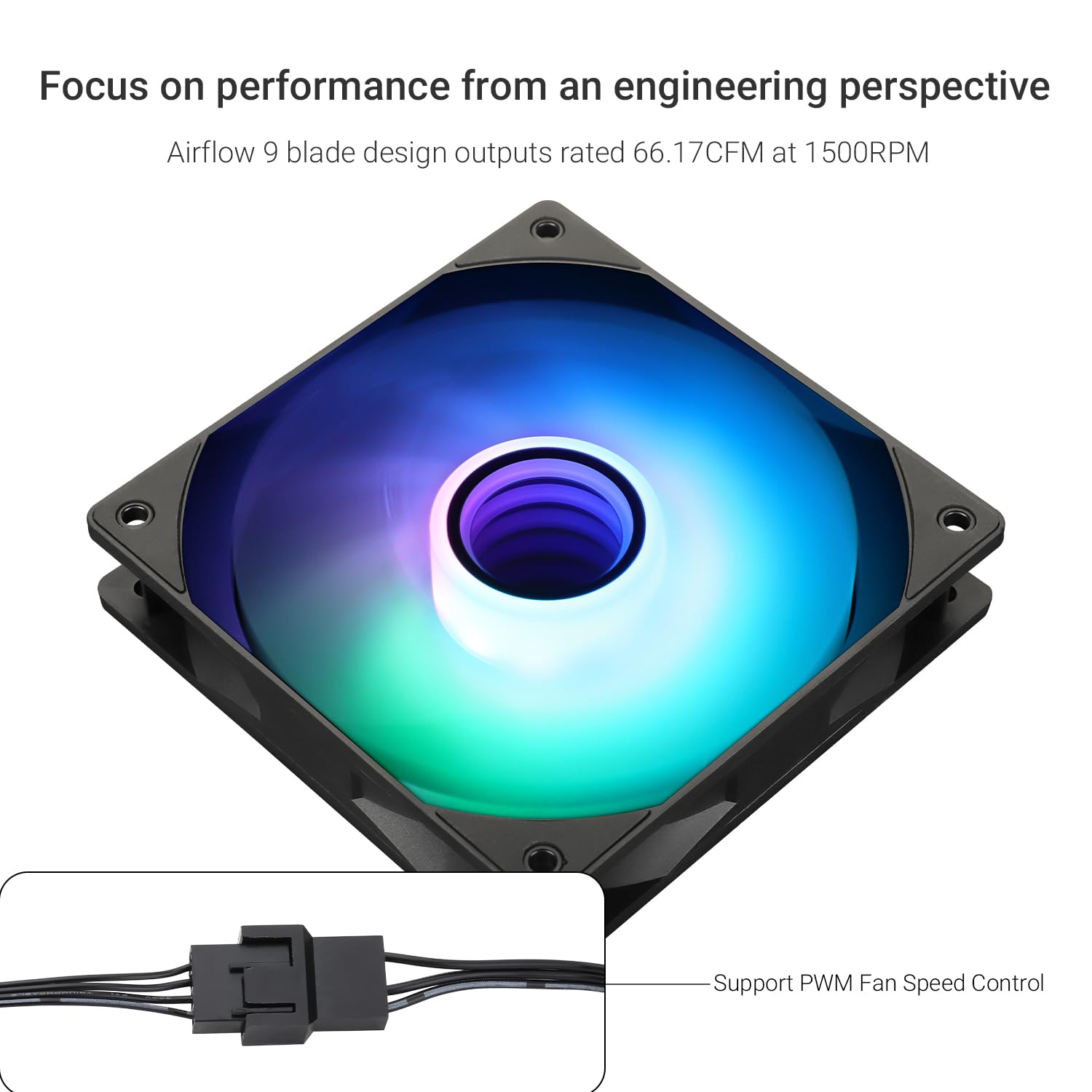
Image: Close-up of the 4-pin PWM fan power connector.
- Connect the 4-pin PWM connector to an available 4-pin fan header on your motherboard. Ensure correct orientation.

Image: A 4-pin PWM fan connector plugged into a motherboard fan header.
- If installing multiple fans and wish to sync their speeds, use the provided PWM sharing connector to daisy-chain additional fans. Connect the additional fan's PWM connector to the sharing header.
5.3. Connecting ARGB Lighting
- Locate the 3-pin +5V Addressable RGB (ARGB) connector on your fan. This connector controls the lighting effects.
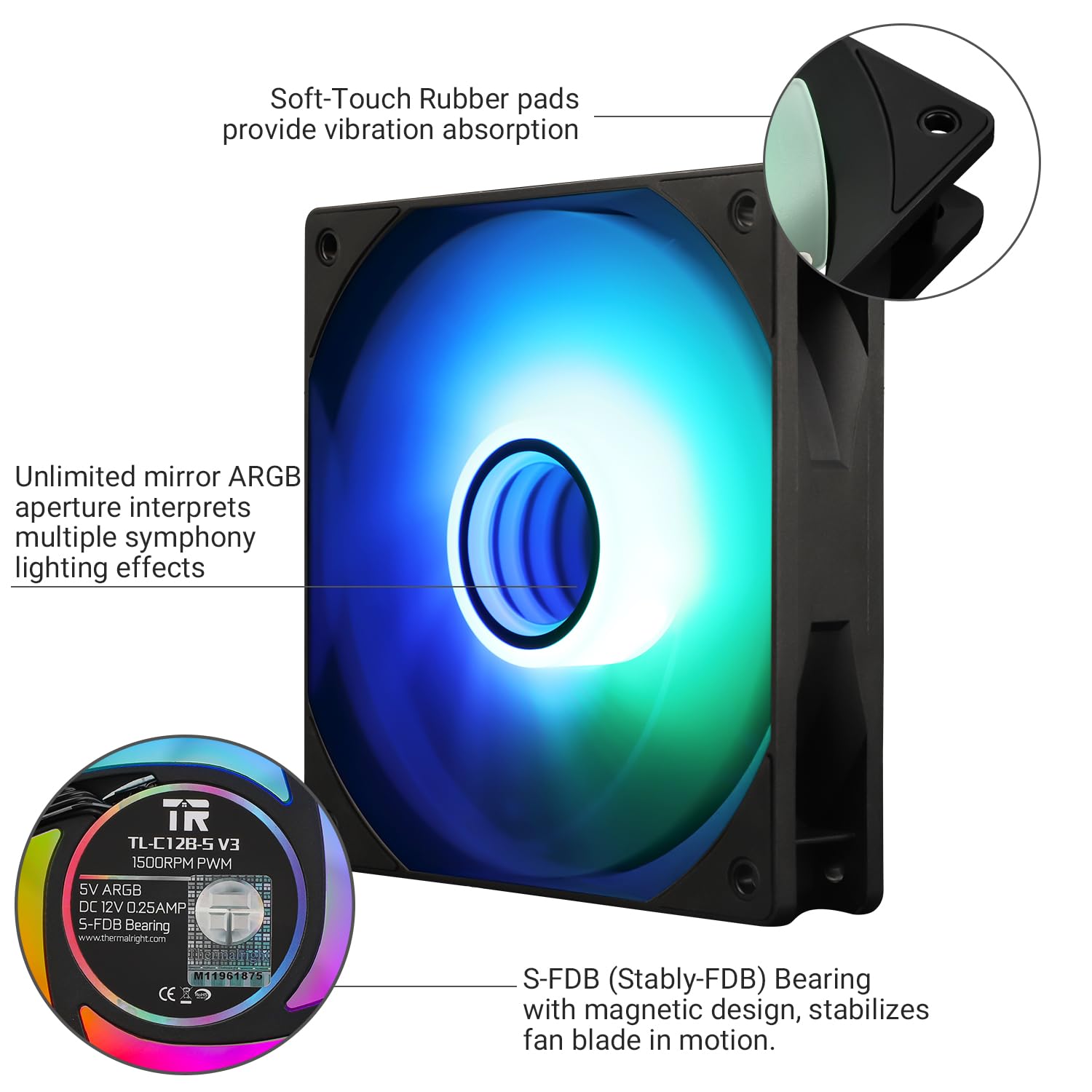
Image: Close-up of the 3-pin ARGB connector and details of the S-FDB bearing and rubber pads.
- Connect the 3-pin ARGB connector to an available +5V ARGB header on your motherboard. Ensure correct pin alignment (do not connect to 12V RGB headers).
- To synchronize ARGB lighting effects across multiple fans, use the provided ARGB sharing connector to daisy-chain additional fans. Connect the additional fan's ARGB connector to the sharing header.
5.4. Tāutanga Tinana
- Determine the desired airflow direction. For normal airflow design fans, the blade side typically indicates intake, and the frame side indicates exhaust. Install fans according to your PC case's airflow requirements.

Image: Illustration of fan placement for optimal case airflow.
- Position the fan in the desired mounting location (e.g., front, top, rear, bottom of the case, or on a CPU cooler/radiator).

Whakaahua: Examples of fan installation for case airflow, air cooling, and water cooling radiators.
- Secure the fan using the included mounting screws or adhesive nails, depending on your case and preference. Ensure the fan is firmly attached to prevent vibration.
- Manage cables neatly to avoid interference with other components and to maintain good airflow within the case.
6. Nga Tohutohu Whakahaere
Once installed, the fan's operation is controlled via your motherboard's BIOS/UEFI settings or dedicated software provided by your motherboard manufacturer.
- Mana Tere Pā (PWM): Access your motherboard's BIOS/UEFI or fan control software to adjust the fan speed curve. This allows you to set fan speeds based on CPU or system temperatures, optimizing for either quiet operation or maximum cooling.
- Mana Rama ARGB: Use your motherboard's ARGB control software (e.g., ASUS Aura Sync, MSI Mystic Light, Gigabyte RGB Fusion, ASRock Polychrome Sync) to customize lighting effects, colors, and synchronization with other ARGB components.

Image: Thermalright TL-C12B-S V3 X3 ARGB fan showcasing its mirror light effect.
7. Tiaki
Ko te tiaki i nga wa katoa ka tino pai te mahi me te whakaroa i te roanga o to kaiwhaiwhai.
- Te horoi: Periodically clean the fan blades and frame to remove dust buildup. Use compressed air or a soft brush. Ensure the PC is powered off and unplugged before cleaning.
- Whanau: The S-FDB bearing is designed for maintenance-free operation. Do not attempt to disassemble the fan for lubrication or repair, as this may void the warranty.
8. Te Raru
| Raruraru | Take pea | Rongoā |
|---|---|---|
| Karekau te paahi e huri | Incorrect PWM connection, insufficient power, faulty fan header. | Check 4-pin PWM connection to motherboard. Ensure fan header is enabled in BIOS. Test with a different fan header if available. |
| ARGB lights not working | Incorrect ARGB connection, connection to 12V RGB header, software issue. | Verify 3-pin ARGB (+5V) connection to motherboard. Ensure it's not connected to a 4-pin 12V RGB header. Check motherboard ARGB software settings. |
| Haruru/wiriwiri nui | Loose mounting, fan blades hitting cables, high fan speed. | Ensure fan is securely mounted. Check for cable interference. Adjust fan speed curve in BIOS/software to a lower RPM. |
| He pai te mahi whakamatao | Incorrect airflow direction, dust buildup, insufficient fan speed. | Verify fan is installed with correct airflow direction. Clean fan blades and surrounding area. Increase fan speed in BIOS/software. |
9. Pūtāhui me te Tautoko
Ka hangaia nga hua Thermalright ki nga paerewa kounga teitei. Mo nga korero whakamana, tautoko hangarau, patai ratonga ranei, tirohia te Thermalright mana webte waahi, whakapā atu ranei ki to kaitoha o to rohe. Puritia to tohu hoko mo nga kereme whakamana.


