Kupu Whakataki
This manual provides detailed instructions for the EasySMX X15 Wireless Controller. It covers setup, operation, maintenance, and troubleshooting to ensure optimal performance and longevity of your device. The EasySMX X15 is designed for a versatile gaming experience across multiple platforms.
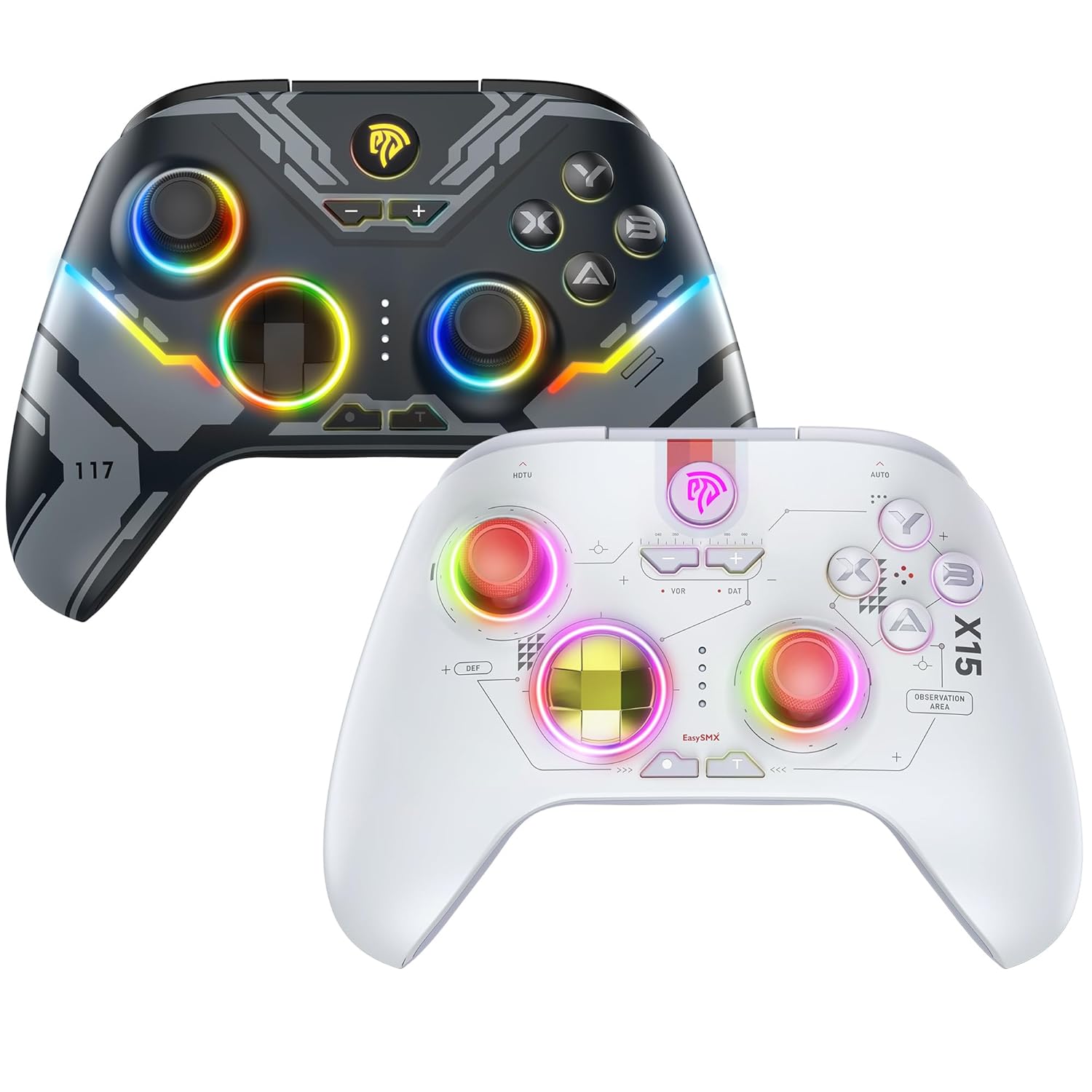
This image displays two EasySMX X15 wireless controllers. The dark gray controller is positioned behind and to the left, while the white controller is in the foreground on the right. Both controllers feature ergonomic designs with illuminated joysticks and face buttons, showcasing their customizable RGB lighting effects. The dark gray controller has a more angular, futuristic design, while the white controller has a cleaner, more minimalist aesthetic with visible circuit-like patterns.
Tatūnga
1. Te Whakataki i te Kaiwhakahaere
Before first use, fully charge the controller. Connect the supplied USB-C cable to the controller's charging port and the other end to a USB power source (e.g., computer, wall adapter). The indicator lights will show charging status and turn off or change color when fully charged.
2. Te hono ki nga Pūrere
The EasySMX X15 controller supports both wireless (Bluetooth) and wired connections. Specific button combinations are required for pairing with different devices.
- Hononga Ahokore (Nihokikorangi): To pair, press and hold the designated pairing button combination for your specific device (e.g., PC, Nintendo Switch, Android). Refer to the quick start guide included with your controller for exact button sequences for each platform. The controller's indicator lights will flash during pairing and become solid upon successful connection.
- Hononga Waea: Connect the controller directly to your device using the USB-C to USB cable. This method is suitable for PCs, PS3, and other compatible systems that support USB input. The controller should be automatically recognized by the system.
Tuhipoka: For optimal performance, ensure your device's Bluetooth is enabled and updated to the latest drivers if connecting wirelessly to a PC.
Te whakahaere i te Kaiwhakahaere
Mana Taketake
The X15 controller features standard gaming inputs:
- Ngā Rākau Analog Takirua: Mō te nekehanga tika me te whakahaere kāmera.
- Papa-D: For directional input, often used in menus or 2D games.
- Ngā Pātene Kanohi (A, B, X, Y): Mō ngā mahi i roto i te kēmu.
- Ngā Pātene Pakihiwi (L1, R1) me ngā Pūwhakaoho (L2, R2): For various actions, often shooting or accelerating.
- Pātene Tīmata/Tahua: Typically opens in-game menus.
- Select/View Pātene: Often used for map or secondary functions.
- Pātene Kāinga: Returns to the system's main menu.
Mana Rama RGB
The X15 controller features customizable RGB lighting. To conserve battery life, you can typically toggle the RGB lights on or off using a dedicated button or a specific button combination. Refer to your controller's quick start guide for the exact method.
Te tiaki
Proper maintenance ensures the longevity and performance of your EasySMX X15 controller.
- Te horoi: Whakamahia he kakahu ngohengohe, maroke hei muru i te kaiwhakahaere. Mo te paru maro, paku dampen the cloth with water or a mild electronic cleaner. Avoid harsh chemicals or abrasive materials.
- Rokiroki: Whakaorangia te pūmana ki te wahi matao, maroke atu i te ra tika me te wera nui.
- Tiaki Pūhiko: Avoid fully discharging the battery frequently. Charge the controller regularly, even if not in use for extended periods, to maintain battery health.
Raparongoā
If you encounter issues with your EasySMX X15 controller, try the following solutions:
- Karekau te Kaiwhakahaere e hono ana:
- Me mohio kei te utuhia te kaiwhakahaere.
- Verify you are using the correct button combination for pairing with your specific device.
- Restart your device and the controller.
- If using Bluetooth, try forgetting the device on your system and re-pairing.
- Try a wired connection to rule out wireless issues.
- Buttons/Joysticks Unresponsive:
- Me mohio kei te hono tika te kaiwhakahaere.
- Check for any physical obstructions or debris around the buttons/joysticks.
- Test the controller on a different game or device to determine if the issue is game-specific.
- He poto te ora o te Pūhiko:
- Me whakarite kua whakakiia te kaiwhakahaere i mua i te whakamahi.
- Turn off RGB lighting to extend battery life.
- Reduce vibration intensity if applicable (check controller settings on your device).
Whakatakotoranga
| Tauira | X15 |
| Kaihanga | EasySMX |
| Hononga | Ahokore (Nihokikorangi), Waea (USB-C) |
| Hototahi | PC, Steam, PS3, Android Mobile, TV BOX, Tesla, Nintendo Switch, Steam Deck |
| ASIN | B0CWP8V3T |
| Tuatahi Wātea | Hakihea 2, 2024 |
Nga korero Whakaputanga
EasySMX products typically come with a manufacturer's warranty. Please refer to the warranty card included in your product packaging or visit the official EasySMX website for detailed warranty terms and conditions specific to the X15 controller.
Tautoko Kiritaki
For further assistance, technical support, or inquiries not covered in this manual, please contact EasySMX customer support through their official website or the contact information provided in your product packaging. When contacting support, please have your product model (X15) and purchase details ready.


