Pukapuka Kaiwhakamahi mō te Pūwhakaata Iti BlitzWolf BW-VT2
Your comprehensive guide to setting up, operating, and maintaining your BlitzWolf BW-VT2 Mini Projector.
1. Hua Neke Atuview
1.1 Ihirangi mokete
Tena koa tirohia kei roto katoa nga taonga kei roto i to kete:
- BlitzWolf BW-VT2 Mini Projector
- Mana Mamao
- Pūurutau Hiko
- Tauera HDMI
- Pukapuka Kaiwhakamahi (tenei tuhinga)
1.2 Tahora Pūrere
Familiarize yourself with the various parts and ports of your projector.
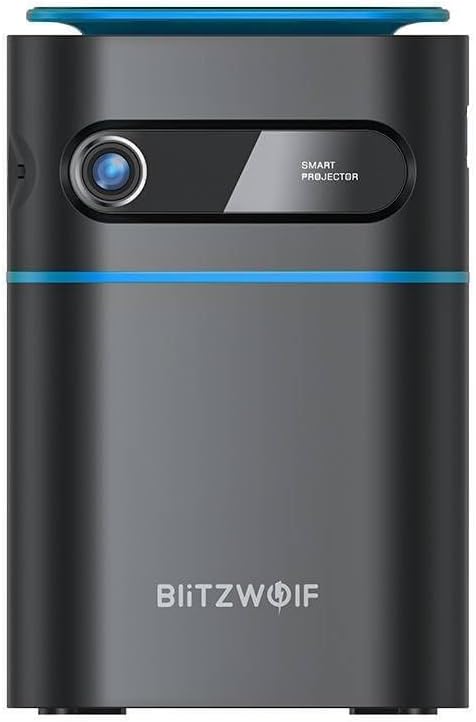
Whakaahua 1.1: Mua View. This image displays the front of the BlitzWolf BW-VT2 Mini Projector, highlighting the projection lens and the 'SMART PROJECTOR' branding.

Figure 1.2: Projector with Remote Control. This image shows the BlitzWolf BW-VT2 Mini Projector alongside its dedicated remote control, illustrating the compact size of both devices.
Whakaahua 1.3: Whakamuri View. The rear of the projector is shown, featuring ventilation grilles and various input/output ports.

Whakaahua 1.4: Taha View. This image highlights the side of the projector where additional connectivity options such as USB and HDMI ports are located.

Whakaahua 1.5: Runga View. The top surface of the projector is visible, featuring the integrated touch control panel for direct interaction.
1.3 Ngā Tauranga me ngā Mana Whakahaere
- Paerewa HDMI: Connect to laptops, game consoles, Blu-ray players, etc.
- Tauranga USB: Tūhono puku kohiko USB mō te purei pāpāho.
- Audio Out (3.5mm) Port: Honoa nga kaikorero o waho, nga taringa ranei.
- DC IN Tauranga: Tūhonohia te pūurutau hiko.
- Pātene Hiko: Ka whakakā/whakaweto i te pūwhiti.
- Wira Arotahi: Whakaritea te marama o te ahua.
- Paewhiri Mana Pa: Navigate menus and control playback directly on the device.
2. Aratohu Tatūnga
2.1 Te Whakakaha
- Honoa te urutau hiko ki te tauranga DC IN i runga i te pūwhakaata.
- Monohia te urutau hiko ki te putanga pakitara.
- Press and hold the Power Button on the projector or the remote control until the device powers on.
2.2 Te Whakanoho Tuatahi
Mo te tino pai viewing experience, consider the following:
- Whakanohoia te pūwhiti ki runga i te mata papatahi.
- Me whakarite he pai te hauhautanga huri noa i te pūwhakaata hei ārai i te wera nui.
- Position the projector perpendicular to the projection surface (wall or screen) for a rectangular image.
- Adjust the distance to achieve your desired screen size.
2.3 Whakatikatika Arotahi
After powering on, adjust the focus to ensure a clear image:
- Hurihia te wira arotahi kei te taha o te arotahi kia mārama, kia koi hoki te ahua o te ahua e whakaaturia ana.
2.4 Tatūnga Mana Mamao
Insert batteries into the remote control before first use:
- Whakatuwherahia te taupoki wehenga puhiko kei muri o te mana mamao.
- Whakauruhia kia rua ngā pākahiko AAA (kāore i te whakaurua), me te whakarite kia tika te polarity (+/-).
- Katia te uhi o te wahanga pākahiko.
3. Nga Tohutohu Whakahaere
3.1 Whakateretere
You can navigate the projector's interface using either the remote control or the touch control panel on top of the device.
- Mana Mamao: Use the directional buttons (up, down, left, right) to move through menus and the 'OK' button to select.
- Paewhiri Mana Pa: Swipe and tap on the touch-sensitive surface to navigate.
3.2 Hononga Pūrere
The BW-VT2 supports various input sources:
- HD Input: Connect your laptop, game console, or other HDMI-enabled devices using an HDMI cable. Select the HDMI input source from the projector's menu.
- Whakauru USB: Insert a USB flash drive into the USB port. The projector's media player will typically detect the drive automatically, allowing you to browse and play supported media files (ataata, whakaahua, puoro).
- Hononga Wi-Fi: Navigate to the 'Settings' menu, then 'Network' or 'Wi-Fi'. Select your Wi-Fi network and enter the password to connect the projector to the internet. This enables access to online streaming apps and updates.
3.3 Android OS Features
As an Android-powered projector, the BW-VT2 offers smart functionalities:
- Taupānga Uru: Download and install various streaming apps (e.g., Netflix, YouTube) directly from the pre-installed app store or by sideloading APKs.
- Tautuhinga: Customize display settings, audio output, network configurations, and system preferences through the Android settings menu.
- Whakaata Mata: Utilize built-in screen mirroring features (e.g., Miracast, AirPlay compatible apps) to project content from your smartphone or tablet wirelessly.
3.4 Putanga Ororongo
The projector has built-in speakers, but you can also connect external audio devices:
- 3.5mm Ororongo Atu: Connect headphones or external speakers via the 3.5mm audio jack for enhanced sound.
4. Tiaki
Ma te tiaki tika ka mau te roa me te pai o te mahi o to kaupapa.
4.1 Te Horoi i te Arotahi
To maintain clear image quality, clean the projector lens regularly:
- Whakamahia he kakahu ngohengohe, kore-raro i hangaia mo nga arotahi whatu.
- Gently wipe the lens in a circular motion.
- Avoid using abrasive cleaners or excessive force, which can scratch the lens.
4.2 Whakauru
Ensure proper airflow to prevent overheating:
- Do not block the ventilation vents on the projector.
- Whakahaerehia te kaupapa i roto i te waahi whai hau pai.
- Periodically clean dust from the vents using a soft brush or compressed air.
4.3 Rokiroki
When not in use, store your projector properly:
- Whakaorangia te pūwhiti ki te wahi matao, maroke, kia matara atu i te ra tika me te wera nui.
- Use the original packaging or a protective case to prevent dust accumulation and physical damage.
5. Te Raru
Tirohia tenei waahanga mo nga take noa me o raatau otinga.
| Raruraru | Take pea | Rongoā |
|---|---|---|
| Projector does not power on. | Kāore he hononga hiko; he hapa te urutau hiko. | Ensure power adapter is securely connected to both projector and outlet. Try a different outlet. |
| Kāore he whakaahua i whakaatahia. | Incorrect input source selected; loose HDMI/USB cable. | Verify the correct input source is selected in the menu. Check cable connections. |
| He rangirua te ahua. | Focus not adjusted; projector too close/far. | Rotate the focus wheel until the image is clear. Adjust projection distance if necessary. |
| Karekau he tangi. | Volume too low; external audio device not connected properly. | Increase volume. Check connections to external speakers/headphones. Ensure audio output is set correctly in settings. |
| Nga take hononga Wi-Fi. | Kupuhipa hē; take pouara; pokanoa tohu. | Re-enter Wi-Fi password. Restart router. Move projector closer to router. |
| Kaore e mahi te mana mamao. | Nga pākahiko mate; aukati; mamao kaore i takirua. | Replace batteries. Ensure no obstruction between remote and projector. |
6. Whakatakotoranga Hangarau
Key specifications of the BlitzWolf BW-VT2 Mini Projector:
| Āhuahira | Whakatakotoranga |
|---|---|
| Waitohu | BlitzWolf |
| Tau tauira | BW-VT2EU |
| Tae | Pango |
| Hangarau Hononga | HDMI, USB, VGA, Ipurangi Ahokore |
| Whakaatu Whakatau | 1920 x 1080 (Katoa HD) |
| Momo Whakaatu | LCD, LED |
| Tauwehe Puka | Kawe |
| Nga waahanga motuhake | Portable, Android OS, Wi-Fi, HDMI, USB, VGA |
| Pūrere Hototahi | Laptops, Smartphones, Game Consoles, Blu-ray Players, Media Players, Wi-Fi enabled devices |
| Nga Whakamahinga Manakohia | Kiriata Kainga |
7. Pūtāhui me te Tautoko
7.1 Pūtāhui a te Kaihanga
The BlitzWolf BW-VT2 Mini Projector comes with a 2 tau te whakamana a te kaiwhakanao. Ka kapi tenei raihana i nga hapa o nga rawa me nga mahi i raro i te whakamahinga noa. Tena koa pupurihia to tohu mo te hoko mo nga kereme whakamana.
7.2 Tautoko Kiritaki
If you encounter issues not covered in the troubleshooting section or require further assistance, please contact BlitzWolf customer support. Refer to the product packaging or the official BlitzWolf webpae mo nga korero whakapā o naianei.


