Kupu Whakataki
This manual provides essential information for the setup, operation, and maintenance of your Arducam USB 3.0 Camera Module B0497C. This high-speed 4K camera features an 8.3MP IMX678 sensor, designed for superior low-light performance and wide-angle capture on Windows and Linux systems.
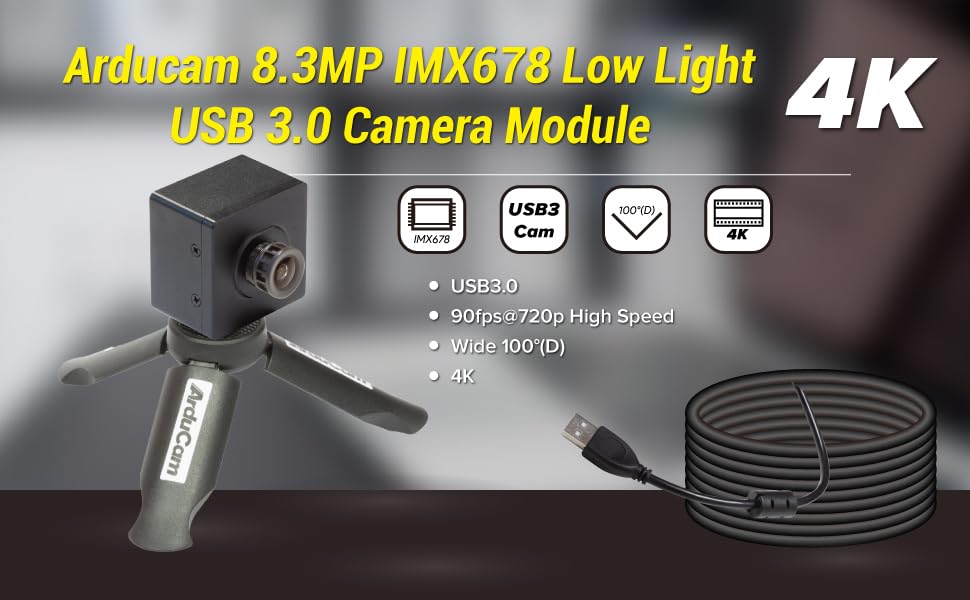
Image: Arducam 8.3MP IMX678 Low Light USB 3.0 Camera Module B0497C highlighting its 4K resolution, USB 3.0 connectivity, 90fps@720p high speed, and 100°(D) wide-angle lens.
He aha kei roto i te Pouaka
Manatokohia kei te noho nga waahanga katoa i te wa e wetewete ana:
- 1 x IMX678 USB3.0 Camera Module with Back Cover and Tripod Adapter
- 1 x 1m USB A ki te Momo-C Taura

Image: Contents of the Arducam USB 3.0 Camera Module package, showing the camera module and the USB Type-C cable.
Tohutohu Tatūnga
- Honoa te Taura USB: Insert the USB Type-C end of the provided 1m cable into the camera module's Type-C port.
- Hono ki Rorohiko: Plug the USB-A end of the cable into an available USB 3.0 port on your Windows or Linux computer. For optimal performance, use a USB 3.0 port.
- Driver Installation (Plug and Play): The camera is designed for plug-and-play operation. No additional drivers are typically required for Windows and Linux operating systems. The system should automatically detect and install the necessary components.
- Whakapiki (Kōwhiringa): The camera module includes a tripod adapter. You can attach it to a standard tripod or mounting bracket for stable positioning.

Image: Detail of the USB Type-C port on the Arducam camera module, indicating USB 3.0 connectivity.

Image: The Arducam camera module attached to a tripod, demonstrating a typical setup configuration. Note: Tripod is not included.
Nga Tohutohu Whakahaere
Pūmanawa Hototahi
The Arducam B0497C is compatible with standard webcam software on both Windows and Linux operating systems. It functions as a UVC (USB Video Class) device.
- Matapihi: Use built-in camera applications, OBS Studio, VLC Media Player, or other third-party software that supports UVC cameras.
- Linux: Utilize applications like Cheese, OBS Studio, VLC Media Player, or custom applications that interface with V4L2 (Video for Linux Two) devices.

Image: Visual representation of the camera module's compatibility with Windows and Linux operating systems.
Mahi Taketake
- Pūmanawa Whakarewa: Open your preferred camera application on your computer.
- Tīpakohia te Kāmera: If you have multiple cameras, select "Arducam USB Camera" or a similar identifier from the device list within your software.
- Whakatika Tautuhinga: Most applications allow you to adjust resolution, frame rate, brightness, contrast, and other image parameters. The camera supports resolutions up to 3840x2160 (4K) and frame rates up to 90fps at 720p.
- Mahinga Maama Iti: The IMX678 sensor provides enhanced low-light capabilities. For optimal results in dim environments, ensure your software settings are configured to utilize these features.

Image: A visual comparison demonstrating the superior low-light performance of the Arducam 4K IMX678 camera compared to a standard camera.

Whakaahua: Examples illustrating the camera's effective performance in low-light conditions, such as indoor and outdoor night scenes.
Te tiaki
- Te horoi i te Arotahi: Use a soft, lint-free cloth specifically designed for optical lenses to gently wipe the camera lens. Avoid abrasive materials or harsh chemicals.
- Cleaning the Module: For the camera body, use a dry, soft cloth to remove dust. Do not use liquid cleaners directly on the module.
- Rokiroki: When not in use, store the camera module in a clean, dry environment, away from extreme temperatures and direct sunlight.
- Te whakahaere: Handle the camera module by its edges to avoid touching the lens or the circuit board components.
Raparongoā
- Camera not detected by computer:
- Me mohio kei te hono pai te taura USB ki te kamera me te rorohiko.
- Try a different USB port on your computer, preferably a USB 3.0 port.
- Whakamatautau ki te taura USB rereke mena ka waatea.
- Tīmataria anō tō rorohiko.
- Check your operating system's device manager (Windows) or
lsusbcommand (Linux) to see if the device is listed.
- Poor image quality or excessive noise:
- Ensure adequate lighting in the environment. While the camera has low-light capabilities, extreme darkness will still affect image quality.
- Adjust camera settings within your software (e.g., exposure, gain, white balance).
- Verify that the lens is clean and free from smudges or dust.
- Check for available firmware updates from Arducam's official website, as updates can improve image processing.
- Low frame rate:
- Ensure the camera is connected to a USB 3.0 port. USB 2.0 ports will limit bandwidth and frame rate.
- Reduce the resolution or disable certain image enhancements in your software to decrease bandwidth requirements.
- Close other applications that might be consuming significant system resources.
Whakatakotoranga
| Āhuahira | Taipitopito |
|---|---|
| Ingoa Tauira | B0497C |
| Pūoko | IMX678 CMOS |
| Whakatau | 8.3MP (3840x2160) |
| Auau anga | 90fps@720p |
| Momo Arotahi | M12 Lens, F1.65 Aperture |
| Marae o View (FoV) | 100 ° (D) |
| Hononga | USB 3.0 (hononga Momo-C i runga i te kāmera) |
| Nga waahanga motuhake | Low Light Performance, Onboard ISP (de-Bayer, gamma, BLC, AE, AWB, CCM, RGB2YUV) |
| Pūnaha Whakahaere | Windows, Linux (Plug and Play) |
| Taumaha Tūemi | 3.53 hekere |
| Ahu mōkihi | 1.34 x 1.34 x 1.34 inihi |
Pūtāhui me te Tautoko
Mō ngā mōhiohio pūtāhui me te tautoko hangarau, tirohia te Arducam mana webpaetukutuku, whakapā atu ranei ki ta raatau ratonga kaihoko. Puritia to rihiti hoko mo nga kereme whakamana.
Arducam Official Webpae: www.arducam.com


