1. Kupu Whakataki
This manual provides detailed instructions for the SVANTTO Android Barcode Scanner, Model IPDA111-2D-US. This handheld device is designed for efficient data collection and inventory management in various professional environments, including warehouses, retail, and logistics. It features an Android 10 operating system, a full-size numeric keyboard, and a high-performance 1D/2D/QR barcode scanning engine.
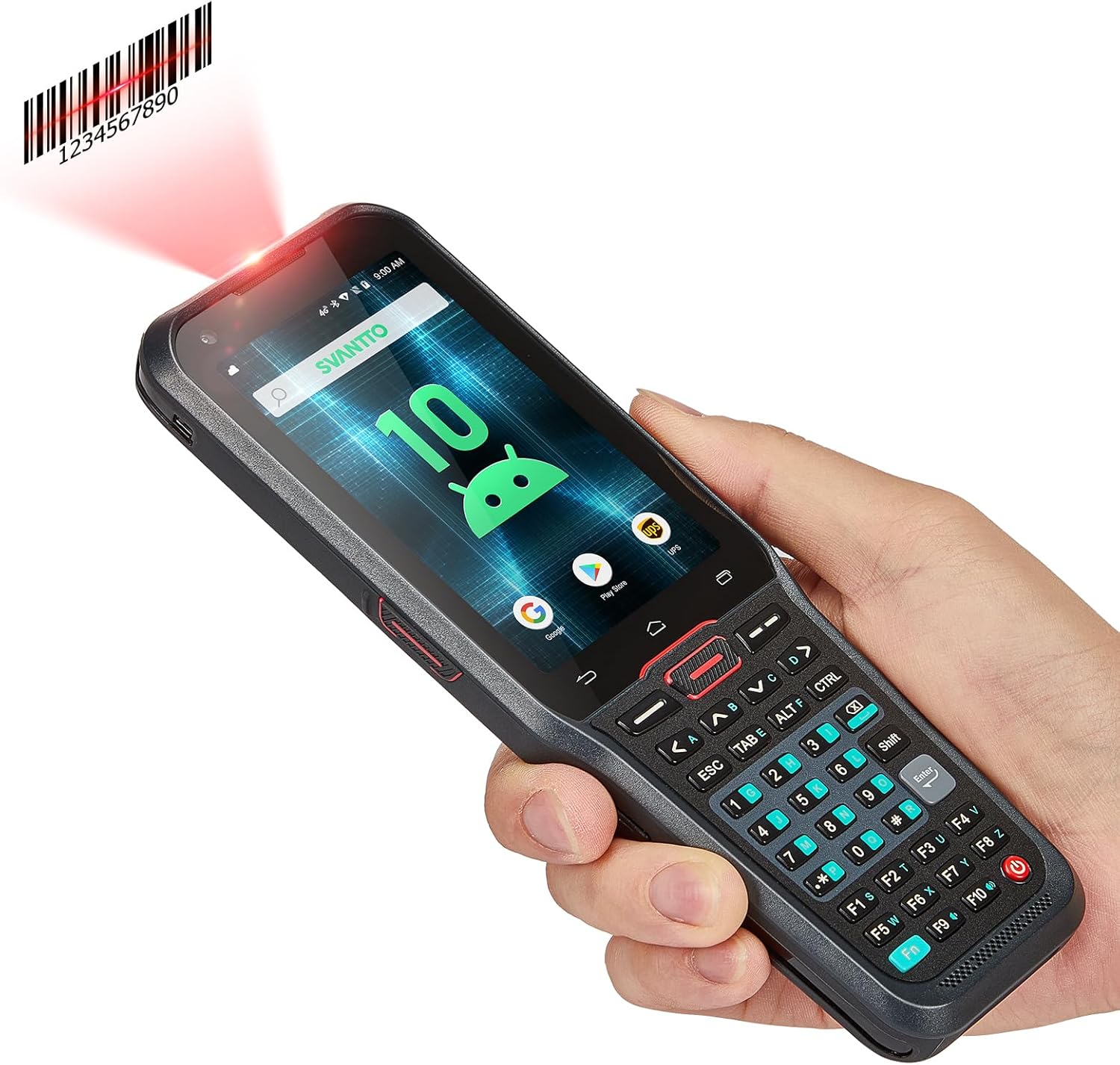
Image: The SVANTTO Android Barcode Scanner, showcasing its ergonomic design, vibrant display, and comprehensive numeric keyboard, held in a user's hand.
2. Hua Neke Atuview
2.1 Nga waahanga matua
- Pūnaha Mahi: Android 10 for enhanced privacy and smooth operation.
- Tukatuka: 12nm Finfet Mt6762 Octa-core 64-bit CPU for efficient multitasking.
- Pūmahara: 4GB RAM and 64GB ROM for ample storage and smooth application performance.
- Scanning Engine: Honeywell N6602, supporting 1D, 2D, and QR barcodes (EAN-13, UPC-A, PDF417, Code128, etc.).
- Papapātuhi: Full-size numeric keyboard (A-Z) with F1-F10 customizable keys for rapid data entry.
- Pūhiko: 5000mAh large-capacity battery, providing up to 13 hours of continuous work or 370 hours of standby time. Supports fast charging (under 3 hours).
- Hononga: 2G/3G/4G, Wi-Fi, and Bluetooth for versatile communication.
- Mauroa: Designed to withstand 1.5-meter drops and operate in temperatures from -20°C to 55°C (-4°F to 131°F).
- Hototahi Pūmanawa: Compatible with Odoo, Zoho Inventory, Ocra Scan, and Finale inventory management software.
2.2 Waehanga
The SVANTTO barcode scanner package typically includes the following items:
- SVANTTO Android Barcode Scanner Unit
- Tauira Whakatau USB
- Pūurutau Hiko
- Easy Setup Guide (Printed Manual)
- Kaitiaki Mata
- Hand Strap (often included for secure handling)
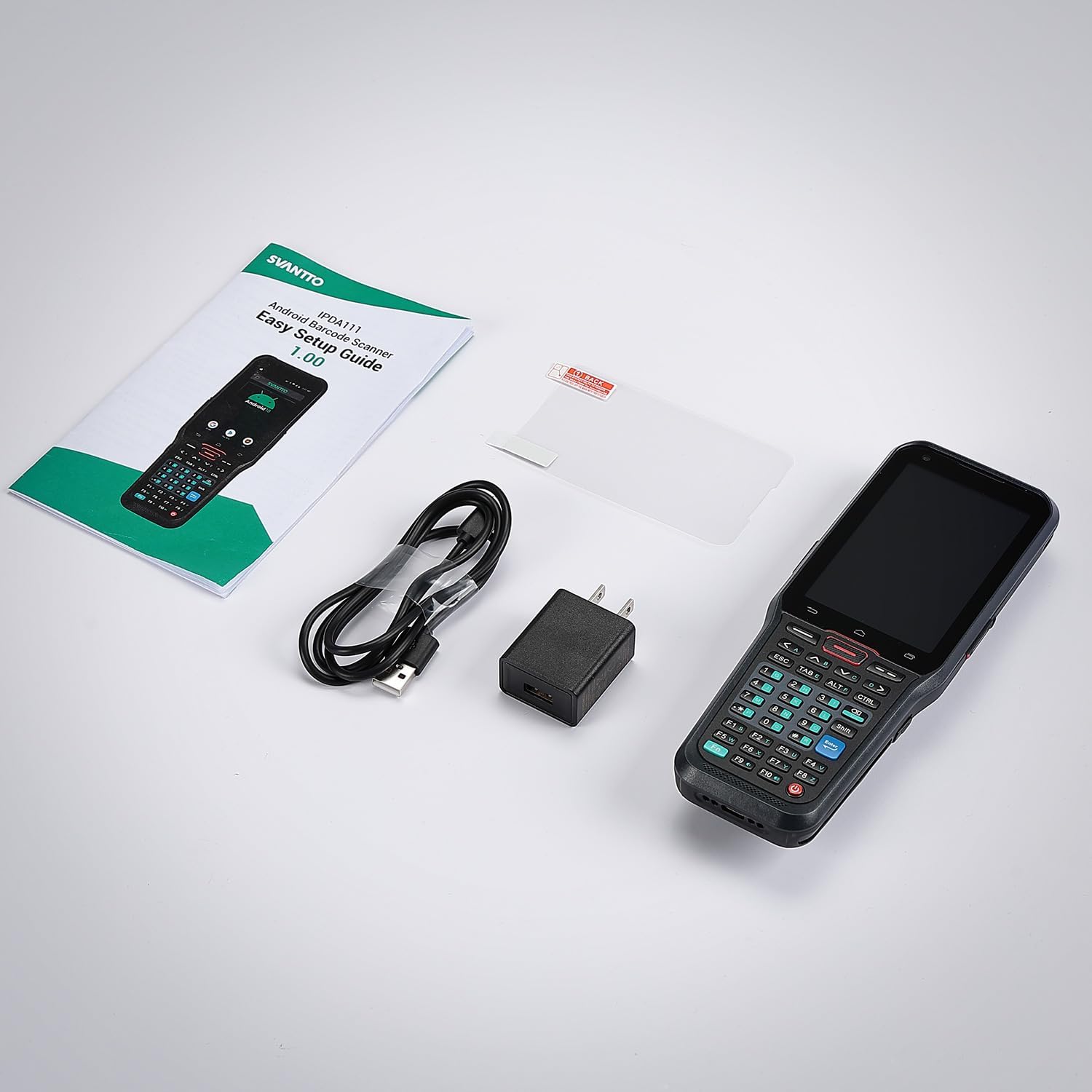
Image: The complete package contents of the SVANTTO barcode scanner, laid out to show the device, its charging accessories, and the user manual.
3. Tatūnga
3.1 Whakataki Tuatahi
Before first use, fully charge the device. Connect the USB charging cable to the scanner's charging port and the power adapter to a wall outlet. The device supports fast charging and can be fully charged in less than 3 hours.

Whakaahua: He taipitopito view of the SVANTTO barcode scanner's removable battery, emphasizing its 5000mAh capacity for extended operation.
3.2 Kei te Hiko / Weto
- Hei Whakahiko: Press and hold the power button (usually on the side) until the SVANTTO logo appears on the screen.
- Hei Whakaweto: Press and hold the power button until a power-off menu appears. Select 'Power off' to shut down the device.
3.3 Installing SIM/SD Card (If Applicable)
Refer to the specific slot locations on your device for SIM card (for 2G/3G/4G connectivity) and microSD card (for expanded storage) installation. Ensure the device is powered off before inserting or removing cards.
4. Nga Tohutohu Whakahaere
4.1 Whakaterenga Taketake
The device runs on Android 10. Navigate using the touchscreen for app selection, settings, and general interaction. The physical keyboard provides additional input options.
4.2 Matawai Paekōti
The integrated Honeywell N6602 scanner engine is designed for fast and accurate scanning of various barcode types.
- Hei Matawai: Point the scanner's head towards the barcode. Press the dedicated scan button (typically on the side or front) to activate the laser/light. Ensure the barcode is within the scanning range and properly aligned.
- Waehere Pae Tautoko: 1D (EAN-13, EAN-8, UPC-A, UPC-E, Code128, Code39, etc.), 2D (PDF417, Micro PDF417, QR Code, Data Matrix, GS1 Composite, etc.).

Image: A close-up of the Honeywell N6602 Scanner Engine, illustrating its capability to accurately read various 1D, 2D, and QR barcode formats.

Image: A user efficiently scanning a package in a warehouse environment, highlighting the practical use of the SVANTTO barcode scanner and the convenience of the included hand strap.
4.3 Te Whakamahinga o te Papapātuhi
The full-size numeric keyboard allows for quick and accurate data input, especially beneficial for numerical data such as inventory counts.
- Tāuru Tau: Use the dedicated numeric keys for number entry.
- Alphabetical Input: The keyboard includes A-Z keys for text input.
- Kī Whakaritea: F1-F10 keys can be customized to perform specific functions based on your application needs. Refer to your software documentation for customization options.

Whakaahua: He taipitopito view of the SVANTTO barcode scanner's full-size numeric keyboard, showcasing its layout and the customizable F1-F10 function keys.
4.4 Hononga
- Wi-Fi: Connect to available Wi-Fi networks via Android settings for internet access and data synchronization.
- Nihokikorangi: Pair with Bluetooth-enabled devices (e.g., printers, headsets) through Android Bluetooth settings.
- Cellular (2G/3G/4G): If a SIM card is installed, the device can utilize cellular data for connectivity in areas without Wi-Fi.
4.5 Kete Whanaketanga Pūmanawa (SDK)
SVANTTO provides an SDK for developers to integrate the scanner's functionalities into custom applications. This includes tools, libraries, documentation, and code samples.

Image: An illustration explaining the comprehensive Software Development Kit (SDK) offered by SVANTTO, detailing its components for platform-specific development, code libraries, and development tools.
5. Tiaki
5.1 Te horoi
- Whakamahia he kakahu ngohengohe, karekau he ngongo paku damphoroia ki te wai, ki tētahi kaihoroi mata ngawari rānei hei horoi i te whakaaturanga.
- For the scanner window and device body, use a dry or slightly damp kakahu. Āta karohia ngā rauemi whakakoi, ngā matū kino rānei.
- Me whakarite kia kore he wai e uru ki roto ki nga tauranga, ki nga tuwhera ranei.
5.2 Tiaki Pūhiko
- Hei whakaroa i te ora o te pākahiko, karohia te tuku katoa i te pākahiko.
- Whakaorangia te taputapu ki te waahi makariri, maroke ki te kore e whakamahia mo te wa roa.
- Whakamahia anake nga taputapu utu tika, whaimana ranei.
5.3 Nga Whakaaro Taiao
The device is designed for rugged use but should be protected from extreme conditions beyond its specified operating temperature range (-20°C to 55°C / -4°F to 131°F). Avoid prolonged exposure to direct sunlight or excessive moisture.
6. Te Raru
6.1 Nga take me nga otinga noa
| Putanga | Take pea | Rongoā |
|---|---|---|
| Kaore te taputapu i te hiko | Pūhiko iti; Tukinga pūnaha | Charge the device; Perform a forced restart (hold power button for 10-15 seconds). |
| Cannot scan barcodes | Scanner not activated; Barcode damaged/unreadable; Incorrect symbology settings; Camera and scan engine running simultaneously. | Ensure scan button is pressed; Clean scanner window; Check barcode quality; Verify symbology settings in software; Note: The camera and scan engine cannot run at the same time. Close camera app if open. |
| Ngā raruraru hononga Wi-Fi/Nihokikorangi | Out of range; Incorrect password; Device settings | Move closer to access point; Re-enter password; Toggle Wi-Fi/Bluetooth off and on; Restart device. |
| Device is slow/unresponsive | He nui rawa ngā taupānga e rere ana; He iti te rokiroki | Close unnecessary apps; Clear cache; Free up storage space. |
7. Whakatakotoranga
| Āhuahira | Taipitopito |
|---|---|
| Tau tauira | IPDA111-2D-US |
| Pūnaha Mahi | Android 10 |
| Tukatuka | 12nm Finfet Mt6762 Octa-core 64-bit CPU |
| RAM | 4GB |
| ROM | 64GB |
| Scanner Engine | Honeywell N6602 (1D/2D/QR) |
| Pūhiko Raukaha | 5000mAh Lithium Ion |
| Hononga | Wi-Fi, Bluetooth, 2G/3G/4G |
| Whakataka Parenga | 1.5 mita |
| Te Waahi Mahi | -20°C ki te 55°C (-4°F ki te 131°F) |
| Taumaha Tūemi | 1.3 pauna |
| Ahu mōkihi | 10.51 x 4.72 x 3.15 inihi |
8. Pūtāhui me te Tautoko
SVANTTO is committed to providing excellent customer service and product support.
- Ratonga Whakahoki: 30-day no-questions-asked return service.
- Pūtāhui: 2-year warranty service from the date of purchase.
- Tautoko Hangarau: Lifetime online technical support is available.
For any questions or assistance, please contact SVANTTO customer support. They aim to reply promptly.

Whakaahua: Kua mutuview of SVANTTO's customer support offerings, including a 30-day return policy, a 2-year warranty, and lifetime online technical support.


