Kupu Whakataki
This manual provides detailed instructions for the TECPHILE iPad Keyboard Case, Model T5509D. It covers setup, operation, maintenance, and troubleshooting to ensure optimal use of your device. Please read this manual thoroughly before using the product.
Hototahi
The TECPHILE iPad Keyboard Case (Model T5509D) is specifically designed for the following iPad Pro 12.9-inch models:
- iPad Pro 12.9-inch (6th Generation, 2022): Ngā Tauira A2436, A2764, A2437, A2766
- iPad Pro 12.9-inch (5th Generation, 2021): Ngā Tauira A2378, A2379, A2461, A2462
- iPad Pro 12.9-inch (4th Generation, 2020): Ngā Tauira A2233, A2229, A2069, A2232
- iPad Pro 12.9-inch (3rd Generation, 2018): Ngā Tauira A1876, A2014, A1895, A1983
This case is not compatible with any other iPad models.

Image: Compatibility chart for TECPHILE iPad Keyboard Case. Please verify your iPad model number on the back of your device to ensure compatibility.
Ihirangi mokete
Ina whakatuwheratia te kete, kia tino mohio kei roto katoa ngā taonga:
- TECPHILE iPad Keyboard Case (with integrated kickstand and pencil holder)
- Detachable Wireless Backlit Keyboard
- USB-C Uira Whakatau
- Pukapuka Kaiwhakamahi (tenei tuhinga)
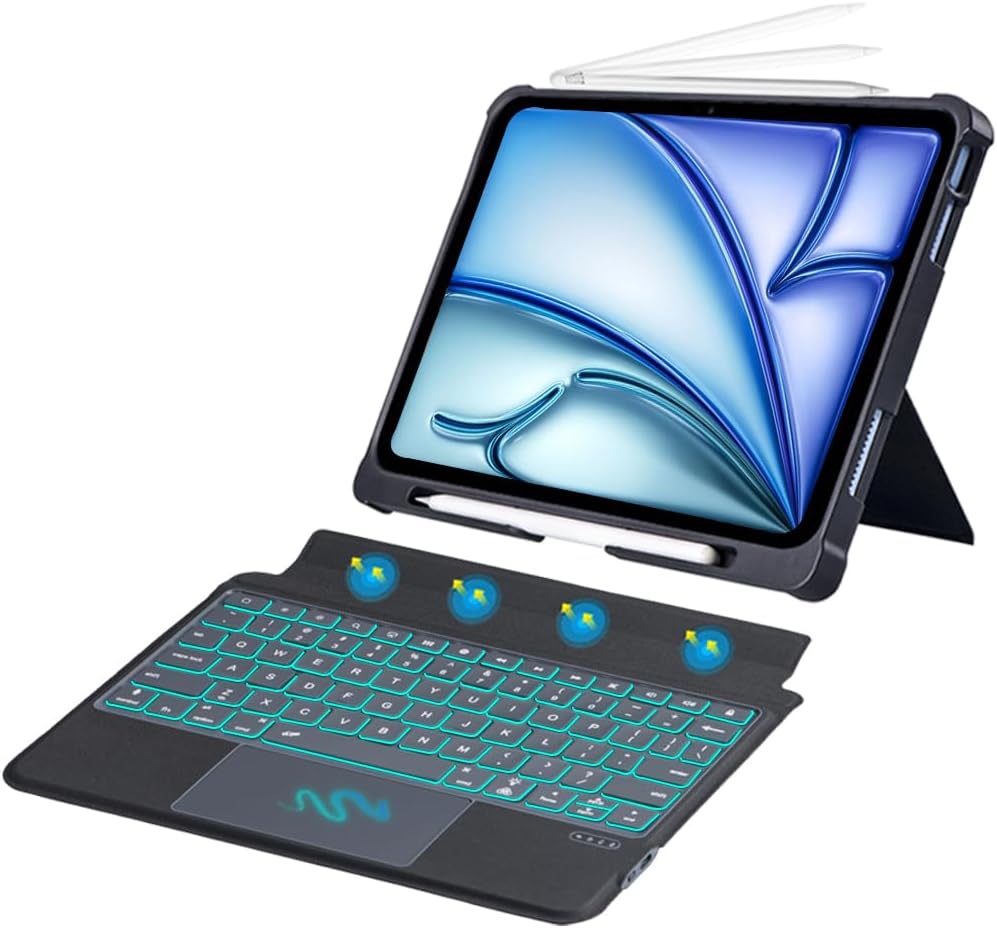
Whakaahua: Ka mutuview of the TECPHILE iPad Keyboard Case components, including the case with an iPad and the detached wireless keyboard.
Aratohu Tatūnga
1. Te Tāpiri i tō iPad ki te Pouaka
- Gently align your iPad Pro 12.9-inch with the case.
- Insert the iPad into the protective shell, ensuring all corners are securely fitted. The case provides full protection and features honeycomb heat release design.
- The case includes a dedicated pencil holder and supports wireless charging for your Apple Pencil.
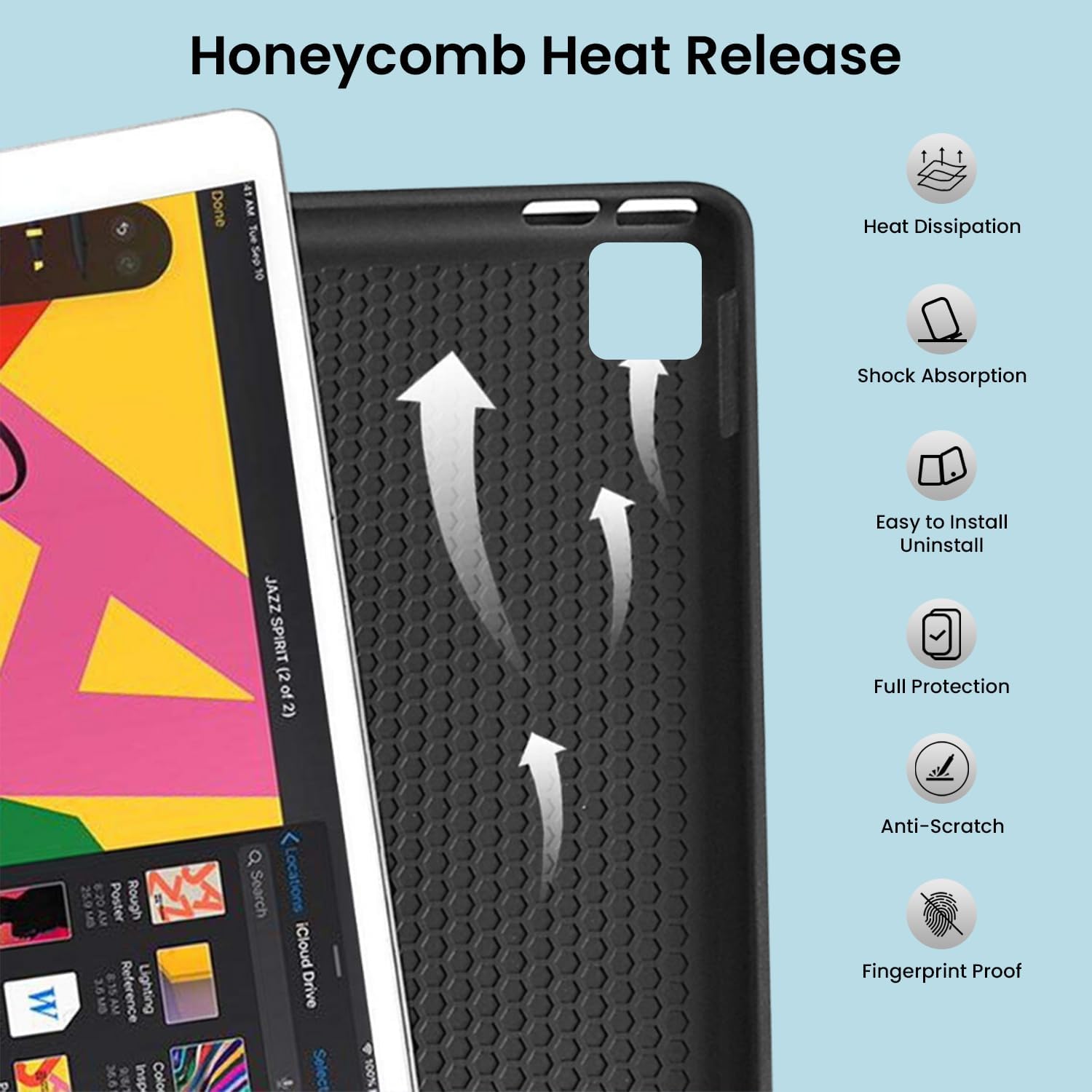
Image: Detail of the case's honeycomb structure for heat dissipation and protective features.

Image: Illustrates the wireless charging capability for the Apple Pencil and the integrated pencil holder.
2. Te Whakataki i te Papapātuhi
Before initial use, fully charge the keyboard. The keyboard has a 500mAh battery capacity.
- Kimihia te tauranga utu USB-C ki te taha o te papapātuhi.
- Connect the provided USB-C cable to the keyboard and a power source (e.g., USB wall adapter, computer USB port).
- The charging indicator light will illuminate. Once fully charged, the light may change or turn off.
A full charge provides approximately 80 hours of use without backlight or 5 hours with backlight enabled.

Image: Keyboard charging port and battery performance details.
3. Connecting the Keyboard via Bluetooth
The keyboard connects wirelessly to your iPad via Bluetooth.
- Me whakarite kua utua te papapātuhi, ā, kua whakakāhia hoki.
- I te papapātuhi, pēhia te Fn+Z keys simultaneously. The Bluetooth indicator light will start blinking, indicating it's in pairing mode.
- I to iPad, haere ki Tautuhinga > Nihokikorangi.
- Whakakāhia te Nihokikorangi. Ka rapu tō iPad i ngā pūrere e wātea ana.
- Locate and tap "Bluetooth Keyboard" (or similar name) in the list of devices to connect.
- Once connected, the Bluetooth indicator light on the keyboard will stop blinking.

Image: Visual guide for Bluetooth pairing process.
Nga Tohutohu Whakahaere
Nga Mahi Papapātuhi
The detachable keyboard features a QWERTY layout with additional function keys for iPad control.
- Mana Whakamuri: Perehi Fn + 💡 (light bulb icon) to turn on/off the backlight and cycle through 7 different colors. Press Fn + ☀️ (sun icon) to adjust the 3 levels of brightness.
- Full Shortcut Row: Access common iPad functions directly from the top row of keys.
- Intelligent Voice Input Function: Utilize the dedicated key for voice input.

Whakaahua: Taipitopito view of the keyboard's backlit keys and function controls.
Smart Multi-Gesture Trackpad
The integrated large trackpad supports multi-touch gestures for enhanced navigation.
- Whakaterenga Taketake: Nukuhia te pehu ma te paheke i to maihao ki te taha o te papa arataki.
- Click Functions: Supports right and left click functions.
- Multi-Finger Gestures: Utilize native iPad multi-finger gestures for scrolling, swiping, and other actions. Refer to your iPad's settings for a full list of supported gestures.
- Turn On/Off Trackpad: Perehi Fn + 🖱️ (trackpad icon) to enable or disable the trackpad.
Adjustable Kickstand and Usage Modes
The case features an adjustable kickstand that allows for multiple viewing angles and usage modes.
- Aratau Momo: Position the iPad upright with the keyboard attached for a laptop-like experience.
- View Aratau: Adjust the kickstand to a comfortable angle for watching videos or presentations without the keyboard.
- Aratau Panui: Fold the keyboard behind the iPad for a tablet-like reading experience.
- Aratau Tuhituhi: Lower the angle for drawing or writing with the Apple Pencil.
The kickstand offers a seamless range of angles, smoothly reclining from 30° to 160° while maintaining stability.

Image: Various usage modes enabled by the adjustable kickstand and detachable keyboard.
Auto Wake/Sleep Function
The keyboard case includes an auto wake/sleep function to conserve battery life. Closing the case will put your iPad to sleep, and opening it will wake it up.
Te tiaki
- Te horoi: Whakamahia he ngohengohe, damp he kakahu hei muru i te taha o waho o te pouaka me te papapātuhi. Āta karohia ngā matū kino, ngā rauemi whakakoi rānei.
- Rokiroki: When not in use for extended periods, store the keyboard case in a cool, dry place. Ensure the keyboard is turned off to preserve battery life.
- Tiaki Pūhiko: Hei whakaroa i te ora o te pākahiko, kaua e tukua kia pau katoa te pākahiko i ngā wā katoa. Utuhia i ia wā.
Raparongoā
Kaore i te hono te papapātuhi
- Taki Hiko: Me whakarite kua whakakā te papapātuhi me te nui o te utu pākahiko.
- Tauhoahia te Nihokikorangi:
- I to iPad, haere ki Tautuhinga > Nihokikorangi.
- Forget or unpair the "Bluetooth Keyboard" if it appears in "My Devices".
- Me whakaara ano to iPad.
- Put the keyboard into pairing mode (press Fn+Z).
- Rapua and connect to the keyboard again on your iPad.
- pokanoa: Neke atu i etahi atu taputapu ahokore ka raru pea.
Nga Kī Kaore i te Whakautu
- Taumata Pūhiko: Whakakīia katoatia te papapātuhi.
- Hononga Nihokikorangi: Me mohio kei te hono tika te papapātuhi ma te Nihokikorangi.
- Tīmata anō: Turn the keyboard off and on again.
Trackpad Kaore i te Mahi
- Enable Trackpad: Ensure the trackpad is enabled by pressing Fn + 🖱️ (trackpad icon).
- Ngā Tautuhinga iPad: Check iPad accessibility settings for pointer control.
- Papa Ara Horoi: Me whakarite kia ma te mata o te papa ara, ā, kia kore he paru.
Whakatakotoranga
| Ingoa Tauira | T5509D |
| Hototahi | iPad Pro 12.9" (6th, 5th, 4th, 3rd Gen) |
| Hononga | Nihokikorangi |
| Tahora Papapātuhi | QWERTY |
| Whakamuri | 7 Tae, 3 Taumata Kanapa |
| Trackpad | Large Multi-Gesture Trackpad |
| Pūhiko Raukaha | 500mAh (Lithium Ion) |
| Battery Life (Non-backlight) | Tae atu ki te 80 haora |
| Battery Life (Backlight) | Tae atu ki te 5 haora |
| Tauranga Whakatau | USB-C |
| Hunga Hua | 29 x 24 x 2 cm |
| Taumaha Tūemi | 735 g |
| Rauemi | Leatherite and ABS Plastic |
| Nga waahanga motuhake | Adjustable Kickstand (30°-160°), Detachable Keyboard, Pencil Holder, Wireless Pencil Charging Support, Auto Wake/Sleep, Honeycomb Heat Release |
Pūtāhui me te Tautoko
For warranty information or technical support, please refer to the documentation included with your purchase or contact TECPHILE customer service through the retailer where the product was purchased. Please have your model number (T5509D) and purchase details ready when contacting support.
