Kupu Whakataki
The Plaud AI Voice Recorder (Model PLAUD-M001) is a compact, intelligent recording device designed to capture audio and convert it into actionable insights using advanced AI technology. This manual provides essential information for setting up, operating, and maintaining your device, ensuring you can effectively utilize its features for transcription and summarization.
Ihirangi mokete
Manatokohia kei roto i to kete nga mea katoa kua whakarārangihia i raro nei:
- Plaud Note AI Voice Recorder x 1
- Magnetic Case x 1 (Black, pre-installed)
- Additional Magnetic Case x 1 (Blue)
- Taura Whakatau x 1
- Magnetic Ring x 1

The image above illustrates the standard contents included with your Plaud AI Voice Recorder.
Pūrere Neke Atuview
The Plaud AI Voice Recorder is designed for portability and ease of use. It features a slim profile me ngā mana whakahaere māmā.
Nga ahuatanga o te tinana
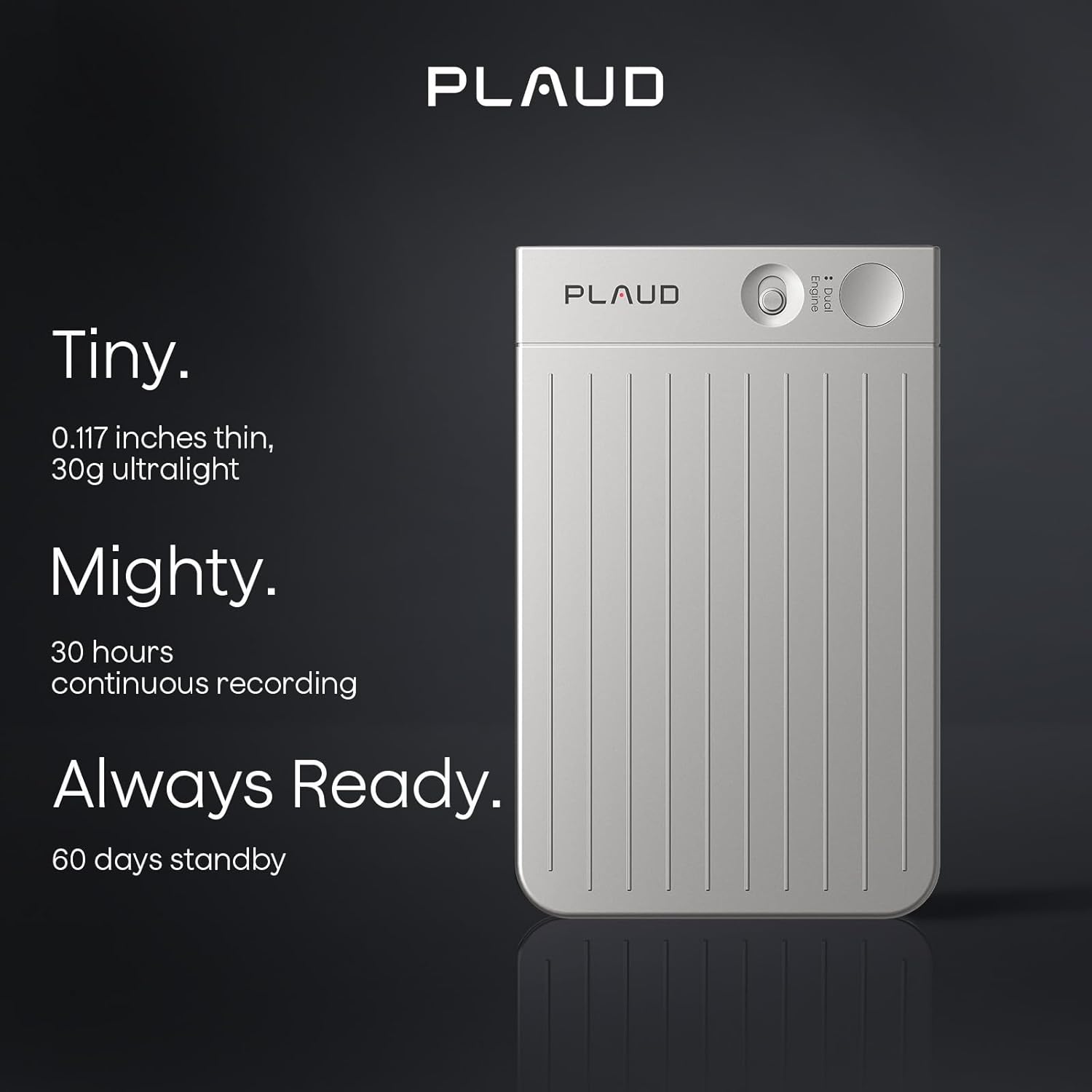
- Ahu: Approximately 0.117 inches thin.
- Taumaha: Approximately 30g (ultralight).
- Mana: Features a slide switch for mode selection and a single press button for recording.

This image demonstrates the compact design and key features of the Plaud AI Voice Recorder, emphasizing its portability and readiness for use.
Aratohu Tatūnga
1. Ka tohatohahia te Pūrere
Before initial use, fully charge your Plaud AI Voice Recorder using the provided USB charging cable. Connect the cable to the device and a standard USB power adapter or computer USB port. The device's indicator light will show charging status.
2. Downloading the Plaud App
The Plaud AI Voice Recorder requires the Plaud App for full functionality, including transcription and summarization. Download the official Plaud App from your smartphone's app store (iOS App Store or Google Play Store).
3. Tauhoa ki te Taupānga
- Ensure your Plaud AI Voice Recorder is charged and powered on.
- Open the Plaud App on your smartphone.
- Follow the on-screen instructions within the app to pair your device. This typically involves enabling Bluetooth on your phone and selecting the Plaud device from the list of available devices.
4. Initial Privacy Settings
Upon first use, the Plaud App will guide you through privacy settings. Plaud prioritizes user privacy with local data encryption and cloud files accessible exclusively by you. Data processing occurs only upon your explicit authorization. Review and configure these settings according to your preferences.

This image illustrates the Plaud AI Voice Recorder's integration with its companion mobile application, showcasing the 'Ask Plaud' AI feature.
Nga Tohutohu Whakahaere
Ngā Whakakotahitanga Whakamuri
The Plaud AI Voice Recorder offers two primary recording modes:
- Phone Call Recording: Designed to capture conversations during phone calls.
- Note Recording: For capturing general notes, meetings, lectures, or other audio in your environment.
To switch between modes, use the slide switch on the device. To start recording, press the designated record button. A single press initiates recording, allowing for instant capture of audio.

This image visually explains the two distinct recording modes available on the Plaud AI Voice Recorder.
Using the Plaud App for AI Features
Once audio is recorded, transfer it to the Plaud App for advanced AI processing:
- Te Whakamāoritanga: The app provides swift and accurate transcription in 112 languages, powered by models like Whisper Large V3.
- Whakarāpopototanga: Utilize advanced AI models such as GPT-4o, Claude 3.5 Sonnet, Gemini 2.5 Pro, GPT-5, o3-mini, and Claude 4.0 to generate summaries, meeting minutes, and to-do lists from your recordings.
- Ask AI: Engage with the 'Ask AI' feature to extract specific insights or information from your transcribed content.
- Professional Templates: Access over 3000 professional templates for various scenarios, including general notes, meetings, medical consultations, interviews, and calls.
This image highlights the advanced AI transcription and summarization features within the Plaud App, showcasing the integration of multiple AI models.
File Whakahaerenga
The Plaud App offers comprehensive tools for managing your audio files and transcripts:
- Speaker Labels: Automatically match and customize speaker labels across recordings for clear identification.
- Smart Trim & Merge: Effortlessly trim silences and merge multiple audio files into one cohesive recording.
- Audio Import: Support for importing a wide range of audio and video formats for processing.
- Rokiroki Kapua: Benefit from 10,000 minutes of cloud storage via the Plaud App and Web tomokanga.

This image details the file management capabilities within the Plaud App, including speaker identification, audio editing, and import options.
Te tiaki
Tiaki Pūhiko
The Plaud AI Voice Recorder provides up to 30 hours of continuous recording and 60 days of standby time. To maintain battery health:
- Whakautua te pūrere i ia wā, kia kore ai e mimiti katoa.
- Whakamahia te taura utu me te puna hiko hototahi.
- Whakaorangia te taputapu ki te waahi makariri, maroke ki te kore e whakamahia mo te wa roa.
Te horoi
To clean your device, gently wipe it with a soft, dry, lint-free cloth. Avoid using harsh chemicals, solvents, or abrasive materials, as these can damage the device's finish or internal components.
Whakahaere Raraunga
Regularly sync your recordings with the Plaud App to utilize cloud storage and backup your data. The app provides 10,000 minutes of cloud storage for your convenience.
Raparongoā
If you encounter issues with your Plaud AI Voice Recorder, refer to the following common solutions:
- Kaore te taputapu e huri ana: Me whakarite kia tino utua te pūrere. Honoa ki tētahi pūtake hiko, ā, tatari mō ētahi meneti i mua i te ngana ki te whakakā anō.
- Kāore e taea te hono atu ki te taupānga: Check that Bluetooth is enabled on your smartphone and the Plaud device is in pairing mode. Restart both the device and the app, then try pairing again.
- Nga take tuhi: Verify that the device has sufficient storage (64GB internal memory) and that the correct recording mode is selected. Ensure the microphone is not obstructed.
- Transcription errors: Ensure a clear audio recording. Background noise or unclear speech can affect transcription accuracy. Check your internet connection for app-based processing.
- Kāore te taupānga i te whakautu: Close and reopen the Plaud App. If the issue persists, try reinstalling the app.
Mo etahi atu awhina, tena waea atu ki te tautoko a nga kaihoko.
Whakatakotoranga
| Āhuahira | Taipitopito |
|---|---|
| Tau tauira | PLAUD-M001 |
| Te Rokiroki Mahara | 64 GB |
| Te Wa Tuhipoka Tonu | Tae atu ki te 30 haora |
| Wā tūtatari | Tae atu ki te 60 ra |
| Atanga Pūmārō | USB |
| Waea Puka Whakaoho | Hanga-roto |
| Hōputu Ororongo | Ororongo MP3 |
| Pooro Jack | Kao |
| Aratau Mahi Waorooro | Speech recognition mode |
| Ngā Reo Whakawhiti | 112+ languages supported |
| Kapua Rokiroki | meneti 10,000 |
Pūtāhui me te Tautoko
Tautoko Kiritaki
Plaud offers lifetime customer support for your device. For any inquiries or assistance, please contact our support team. We aim to provide reliable support within 24 hours.
Privacy and Compliance
Your privacy is a priority. The Plaud AI Voice Recorder and its associated app adhere to industry-leading compliance standards, including GDPR, SOC 2 Type II, and HIPAA. This ensures that your data is handled securely and in line with global privacy regulations.

This image emphasizes Plaud's commitment to user privacy through encryption and controlled data access.

This image highlights the Plaud AI Voice Recorder's adherence to strict data privacy and security standards, including HIPAA, SOC 2, and GDPR compliance.