Kupu Whakataki
The THOKWOK TK-X2 is a versatile Bluetooth headset designed for motorcycle riders, ATV users, and skiers. It offers communication for up to 3 riders with a 1000m intercom distance, noise cancellation, FM radio, and stereo music playback. This manual provides detailed instructions for installation, operation, and maintenance to ensure optimal performance and user experience.
He aha kei roto i te Pouaka
Manatokohia kei te noho nga waahanga katoa i mua i te whakaurunga.
- 2 x TK-X2 Main Unit
- 2 x Taura Paneoro
- 2 x Boom Microphone
- 2 x Button Microphone
- 2 x Taura Whakatau
- 2 x Clamp me nga Kaha
- 2 x Velcro Clip
- 4 x Speaker Pad
- 2 x Allen Wrench
- 2 x Pukapuka Kaiwhakamahi

Image: Contents of the THOKWOK TK-X2 package, showing two main units, headphone cables, boom mics, button mics, charging cables, clamps with screws, Velcro clips, speaker pads, an Allen wrench, and user manuals.
Tatūnga me te Tāuta
Kōwhiringa hopuoro
The TK-X2 helmet intercom includes two interchangeable microphones to suit different helmet types:
- Pūorooro Boom: Recommended for open-face or flip-face (convertible) helmets.
- Hopuoro Pātene: E taunakitia ana mō ngā potae kanohi-katoa.
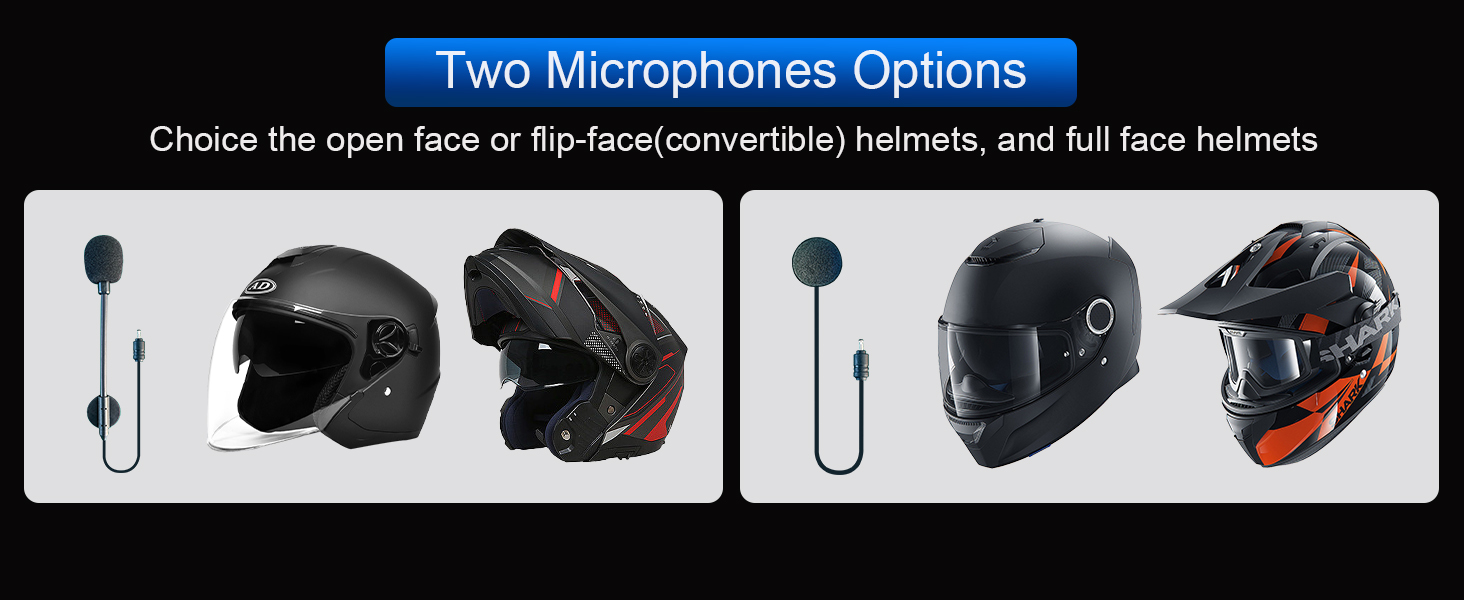
Image: Illustration of the two microphone options provided with the TK-X2 headset, demonstrating their suitability for different helmet styles.
Nga Tohutohu Whakahaere
Whakahoahoa me te Waea
To connect your TK-X2 headset to your smartphone:
- Ensure the TK-X2 headset is powered off.
- Long press the power button for 4 seconds until the red and blue lights flash alternately. This indicates pairing mode.
- On your phone, go to Bluetooth settings and turn on Bluetooth.
- Rapua "TK-X2" in the list of available devices and select it to connect.
- Once connected, the blue light on the headset will flash slowly, and you will hear "Bluetooth connected".
After successful pairing, you can play music, make calls, and use voice assistant features.
Video: This video demonstrates how to pair the THOKWOK TK-X2 headset with a mobile phone, including activating pairing mode, connecting via Bluetooth settings, and confirming successful connection. It also shows basic music playback controls and voice assistant activation.
Purei Waiata
- Purei/Tatari: Click the phone button once.
- Waiata Panuku: Press and hold the forward button.
- Waiata o mua: Press and hold the backward button.
- Runga Runga: Press and hold the volume up button. A "Di" sound indicates maximum volume.
- Raro Raro: Patohia me te pupuri i te paatene oro ki raro.
Voice Assistant (Siri/S-Voice)
To activate your phone's voice assistant:
- Long press the phone button for 2 seconds. You will hear "Voice Dial" and your phone's voice assistant will activate.
Irirangi FM
Hei whakamahi i te mahi reo irirangi FM:
- Double-click the phone button to start FM radio. You will hear "Turn on radio".
- Double-click the phone button again to end FM radio.
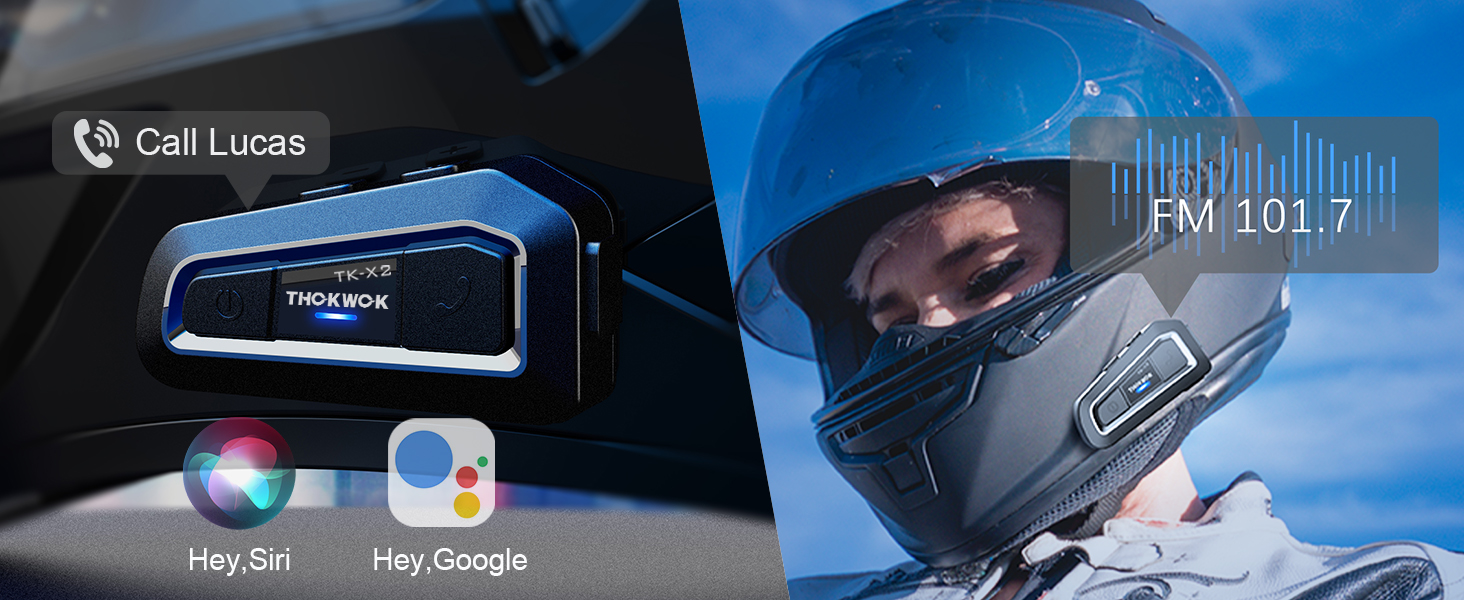
Image: Visual representation of activating voice assistant and FM radio functions on the TK-X2 headset.
Intercom Pairing (Two TK-X2 Units)
To pair two TK-X2 units for intercom communication:
- Clear Previous Pairings: If the headsets have been paired with other Bluetooth devices before, clear their pairing records first. Turn on both headsets. Then, long press the power button on both units simultaneously for 8 seconds until the pink lights flash twice. This indicates that previous pairing records have been cleared.
- Tīmatahia te Takirua: With both units powered on and in pairing mode (red and blue lights flashing alternately), click the power button on one of the units.
- Whakaū Hononga: Pairing is successful when the blue lights on both units flash slowly, and you hear "Intercom connected".
- Hang Up Intercom: Click the power button once to hang up the intercom. You will hear "Intercom disconnected".
- Tīmata Intercom: Click the power button again to start the intercom. You will hear "Intercom connected".
Connecting Two TK-X2 Units to Your Phone Simultaneously
To use two TK-X2 units with your phone (e.g., for rider and passenger, while maintaining intercom functionality):
- First, ensure the intercom between the two TK-X2 units is disconnected. Click the power button on one unit to hang up the intercom if it's active.
- Long press the power button and the phone button on one of the TK-X2 units simultaneously for 2 seconds until red and blue lights flash alternately.
- On your phone, go to Bluetooth settings and connect to the TK-X2 unit. The blue light will flash slowly, and you will hear "Bluetooth connected".
- You can now listen to music through this connected headset.
- To pause music, click the phone button. (Note: The intercom call must be hung up to pause music).
- To play music again, click the phone button.
- To start the intercom, click the power button. Music will automatically pause.
- To hang up the intercom and return to music mode, click the power button again.
Video: This video demonstrates the process of clearing Bluetooth pairing records, pairing two TK-X2 units for intercom, and then connecting one of the paired units to a phone for music playback while maintaining intercom functionality.
Āwhina Neke Atuview
- Tawhiti Waeawhiti: Up to 1000 meters (without obstacles) for 3 riders, with 2 riders able to communicate simultaneously.
- Te Hononga Ao Whānui: Compatible with most Bluetooth intercoms on the market.
- Whakaiti Haruru: Features DSP and CVC advanced noise reduction technology for clear audio.
- Hi-Fi Stereo Speakers: Upgraded 40mm speakers provide high-quality sound with deep bass.
- Nihokikorangi 5.0: HFP profile for hands-free calls, music, FM radio, and GPS voice guidance.
- Roa te Ora o te Pūhiko: Built-in 650mAh battery offers up to 24 hours of music/intercom time and 280 hours of standby time.
- Hoahoa parewai: Integral casting process reduces seams, providing good waterproof function (IP67 rated). Suitable for various weather conditions.
- Whakaoho Pūhiko Iti: Announces "Battery full", "Battery medium", or "Battery low" upon power-on.
- Mana ngawari: Large buttons designed for easy operation even with gloves.

Image: The TK-X2 headset highlighting its 1000-meter intercom range for up to three riders.

Image: Visual explanation of DSP and CVC noise reduction technology in the TK-X2, ensuring clear audio during high-speed activities.

Image: Depiction of the TK-X2's extended battery life, showing up to 24 hours of operation and 280 hours of standby time, along with battery level indicators.

Image: The TK-X2 headset demonstrating its universal pairing capability with various Bluetooth headsets.

Image: Close-up of the TK-X2 headset's large buttons, designed for easy control while wearing gloves.

Image: The TK-X2 headset depicted in diverse environments (snowy, rainy, dusty, racing), emphasizing its robust and waterproof design suitable for all weather conditions.
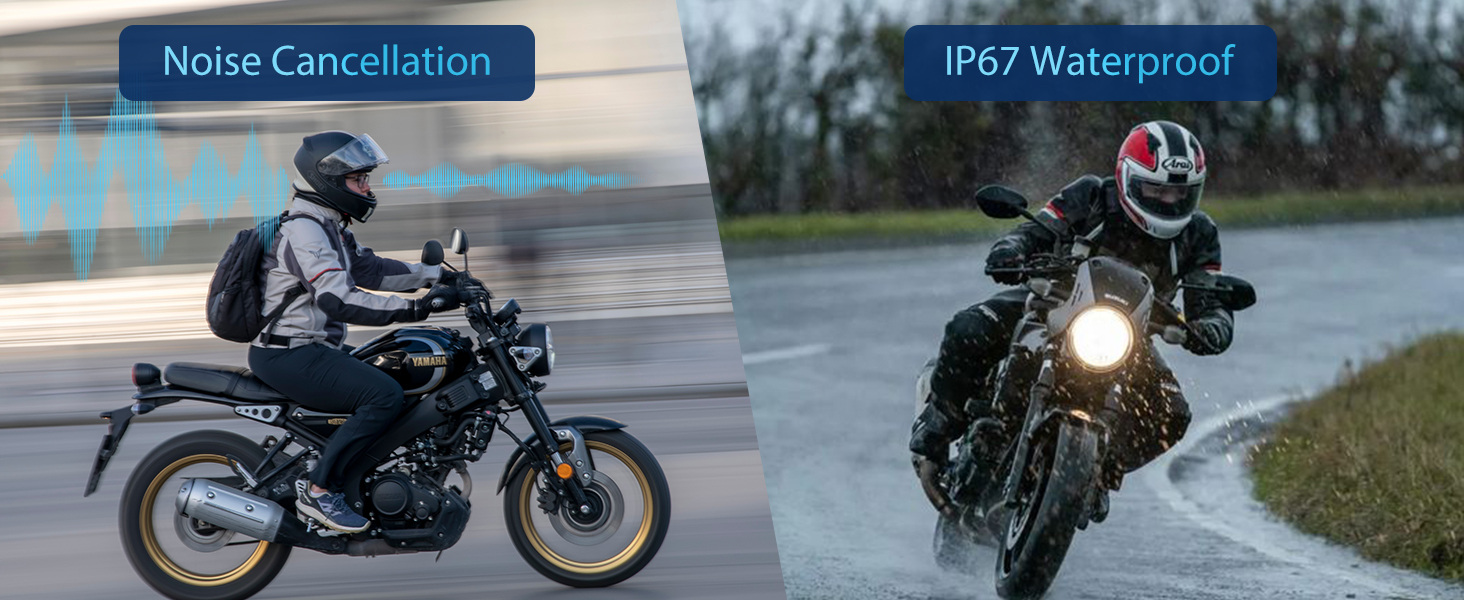
Image: Visual representation of the TK-X2's noise cancellation capabilities and its IP67 waterproof rating.

Image: Illustration detailing the Qualcomm Bluetooth 5.0 technology for lower power consumption and strong compatibility, alongside the 40mm speakers for crystal-clear sound quality.
Whakatakotoranga
| Ingoa Tauira | TK-X2 Double |
| Waitohu | THOKWOK |
| Hangarau Hononga | Nihokikorangi |
| Hangarau Whakawhitiwhiti Ahokore | Nihokikorangi |
| Putanga Nihokikorangi | 5.0 (HFP profile) |
| Mana Haruru | Active Noise Cancellation (DSP & CVC) |
| Pooro Jack | Momo-C |
| Taumata Atete Wai | Parewai (IP67) |
| Ora Pūhiko | Up to 24 Hours (Music/Intercom) |
| Wā tūtatari | Tae atu ki te 280 haora |
| Waa Whakatau | 2.5 haora |
| Rauemi | Acrylonitrile Butadiene Styrene (ABS) |
| Taumaha Tūemi | 1.01 pauna |
| Hunga Hua | 3 x 1.6 x 0.83 inihi |
Raparongoā
- Kore Mana: Ensure the device is fully charged. Connect to a power source and check the charging indicator.
- Kaore e taea te hono ki te Waea: Ensure the headset is in pairing mode (red and blue lights flashing alternately). Clear previous Bluetooth pairings on both the headset and phone, then attempt to pair again.
- Kāore te Waea Whakawhiti e Hono Ana: Ensure both TK-X2 units have cleared previous intercom pairings. Initiate intercom pairing as described in the 'Operating Instructions' section. Ensure units are within range.
- Rōrahi Iti: Adjust the volume using the headset's volume buttons. Check the volume settings on your connected phone. Ensure speakers are correctly positioned within the helmet.
- Sound Distortion/Noise: Ensure the microphone is correctly positioned and not obstructed. Check for interference from other electronic devices.
- Te Reo Irirangi FM Kaore e Mahi: Ensure you are in an area with good FM signal reception. Double-check that the FM function is activated correctly.
Nga korero haumaru
- Always prioritize safety while riding. Do not operate the device in a way that distracts you from the road.
- Maintain appropriate volume levels to remain aware of your surroundings.
- Kaua e ngana ki te wetewete, ki te whakarerekē rānei i te pūrere, nā te mea ka whakakorea pea te pūtāhui, ka pakaru rānei.
- Puritia te taputapu kia matara atu i ngā pāmahana tino kino, i te rā tika, me ngā rauemi waikura.
- Me whakarite kia maroke te tauranga utu i mua i te honotanga o te taura utu.
Pūtāhui me te Tautoko
The THOKWOK TK-X2 headset comes with a standard manufacturer's warranty. For specific warranty details, please refer to the warranty card included in your package or contact THOKWOK customer support.
For technical assistance, troubleshooting, or any questions regarding your product, please contact THOKWOK customer service through the contact information provided on the official THOKWOK webpae tukutuku, tō pūhara hoko rānei.