1. Kupu Whakataki
Welcome to the Blackstar ID:Core V4 Stereo 10 Digital Combo Amplifier user manual. This document provides essential information for the safe and effective operation of your new amplifier. The ID:Core V4 Stereo 10 is a versatile 10-watt, 2x3 inch digital combo amplifier featuring Bluetooth connectivity and a 4-channel USB-C output, designed for guitarists seeking a compact yet powerful practice and recording solution.
Please read this manual thoroughly before using the amplifier to ensure proper setup, operation, and to maximize your experience with its advanced features.
2. Nga Tohutohu Haumaru
- Tuku Hiko: Only use the power adapter supplied with your ID:Core V4 Stereo 10 amplifier. Ensure the voltage ōrite ana ki to tuku hiko rohe.
- Whakahau: Do not block any ventilation openings. Ensure adequate airflow around the amphe whakamahana hei aukati i te werawera.
- makuku: Kaua e hurahia te amplifier to rain, moisture, or any liquids. Avoid placing objects filled with liquids on or near the ampkaikawe
- Pūtake wera: Puritia te amplifier away from heat sources such as radiators, heat registers, stoves, or other apparatus that produce heat.
- Kata: Tiakihia te taura hiko kia kaua e hikoi, ka kowhakina mai ranei, ina koa ki nga moko, nga waahi waatea, me te waahi ka puta mai i te taputapu.
- Ratonga: Kaua e tarai ki te mahi i tenei hua maau ake. Tirohia nga ratonga katoa ki nga kaimahi tohu tohu.
- Te horoi: Wewetehia te amplifier from the power outlet before cleaning. Use a dry cloth for cleaning.
3. Hua Neke Atuview
Nga Mana Paewhiri o Mua me nga Hononga
The front panel of the ID:Core V4 Stereo 10 provides access to all primary controls and input/output connections.
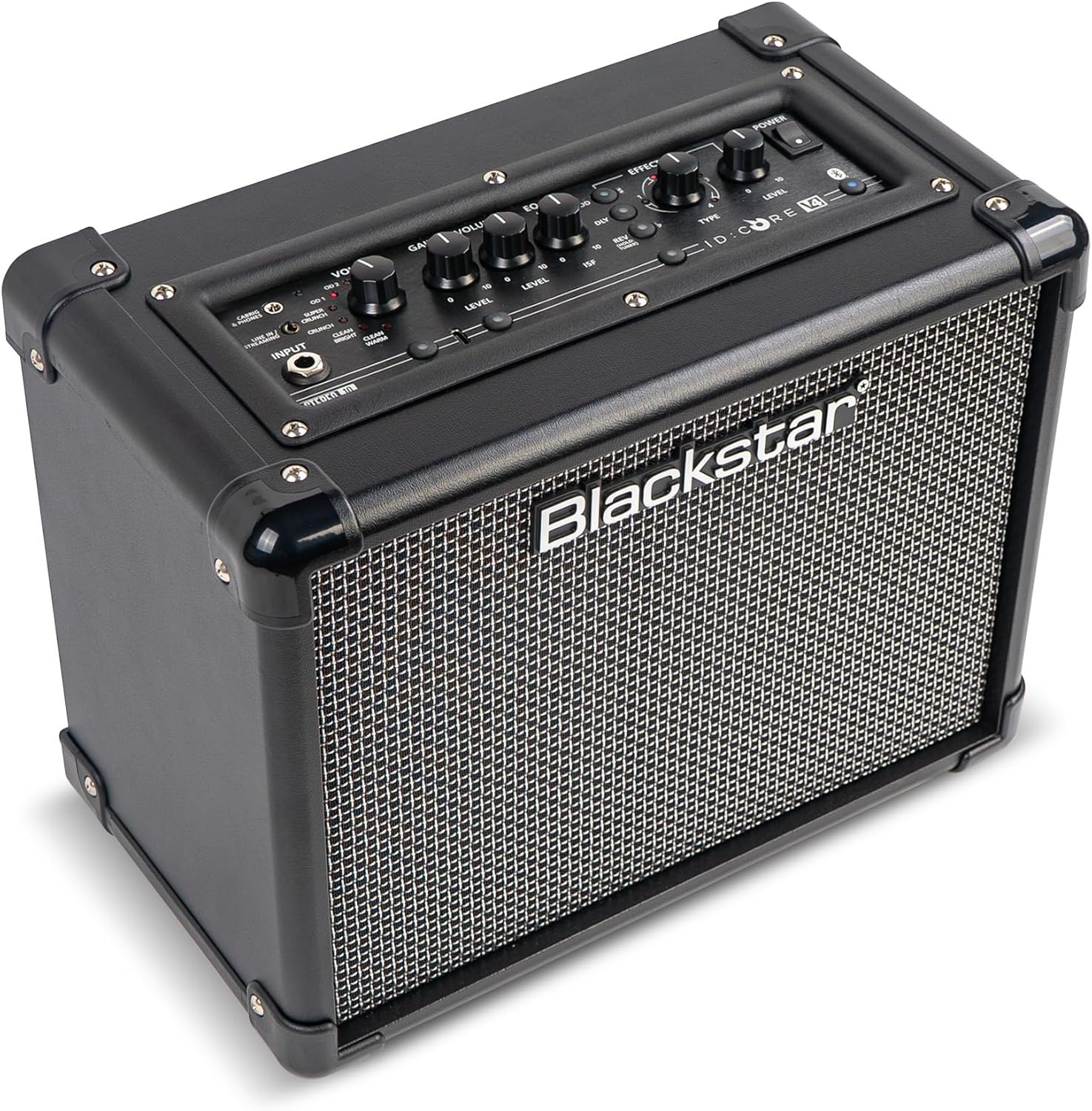
Whakaahua: Mua view of the Blackstar ID:Core V4 Stereo 10 amplifier, highlighting the control layout and speaker grille.
- Jack Whakauru: Whakauruhia to puoro ki konei.
- Voice Selector: Rotary switch to select between six distinct amp voices: Clean Warm, Clean Bright, Crunch, Super Crunch, OD1, and OD2.
- Mana Whiwhi: Ka whakarerekē i te nui o te overdrive, te distortion rānei.
- Mana Rōrahi: Whakaritea te rōrahi putanga whānui.
- EQ (ISF) Control: Blackstar's patented Infinite Shape Feature (ISF) control allows you to sweep between a 'British' and 'American' ampte reo whakapūmau.
- Wāhanga Pānga: Includes controls for Modulation (Type, Level), Delay (Type, Level), and Reverb (Type, Level).
- Tap Button: Used to set the tempo for delay and modulation effects.
- Whakawhiti Kaha: Ka huri te amplifier runga ranei atu.
- Pātene Nihokikorangi: Ka whakahohe i te aratau takirua Nihokikorangi.
- Line In / Streaming Input: 3.5mm jack for connecting external audio devices or streaming.
- CabRig & Phones Output: 3.5mm jack for headphones or direct recording with CabRig Lite emulation.
- Tauranga USB-C: For direct recording to a computer and connection to Blackstar Architect software.
- Pihi A-ringa: Saves current settings or recalls manual mode.
- 1W/10W Power Reduction: Button to switch between 1-watt and 10-watt output for practice at different volume levels.
Hononga Paewhiri Whakamuri
The rear panel houses the power input and product information.

Whakaahua: Rear view of the Blackstar ID:Core V4 Stereo 10 amplifier, displaying the DC power input and regulatory labels.
- Whakauru DC: Connect the supplied 16V DC power adapter here.
4. Tatūnga
- Wewete ana: Tango tupato te ampte kaitātari mai i tana takai. Puritia te takai mō te kawe, te rokiroki rānei a meake nei.
- Hononga Hiko: Connect the supplied 16V DC power adapter to the DC Input on the rear panel of the amplifier. Plug the other end into a suitable power outlet.
- Hononga Kita: Plug your guitar into the Input Jack on the front panel using a standard 1/4-inch instrument cable.
- Hiko Tuatahi: Ensure all volume controls are set to a low level. Press the Power Switch to turn on the amplifier. The power indicator LED will illuminate.
5. Nga Tohutohu Whakahaere
5.1 Mahi Taketake
- Te Kōwhiri i tētahi Reo: Rotate the Voice selector knob to choose from the six available amp voices. Experiment with each to find the desired tone.
- Adjusting Gain and Volume: Use the Gain control to adjust the amount of drive, and the Volume control for the overall output level.
- Using the ISF Control: Turn the ISF knob clockwise for a more 'American' sound with a tight bottom end and aggressive mids, or counter-clockwise for a 'British' sound with a woody, less aggressive response.
- Te Whakamahi i nga Paanga: Select the desired effect type (Modulation, Delay, Reverb) and adjust its Level. Use the Tap button to set the tempo for time-based effects.
- Whakaiti Hiko: Press the 1W/10W button to switch between full 10-watt output for louder playing or 1-watt output for quiet practice sessions.
5.2 Hononga Nihokikorangi
The ID:Core V4 Stereo 10 features Bluetooth for wireless audio streaming.
- Me whakarite te ampKei te whakakahangia te kaiwhakarewa.
- Press and hold the Bluetooth button on the front panel until the Bluetooth indicator LED begins to flash. This indicates pairing mode.
- On your audio device (smartphone, tablet, computer), navigate to Bluetooth settings and select 'Blackstar ID:Core V4' from the list of available devices.
- Once paired, the Bluetooth indicator LED on the amplifier will glow solid. You can now stream audio wirelessly to the ampkaikawe
5.3 USB-C Recording
The USB-C port allows for direct, high-quality recording to your computer.

Whakaahua: Taipitopito view o nga amplifier's control panel, highlighting the USB-C port for recording and software connectivity.
- Connect a USB-C cable from the amplifier's USB-C port to your computer.
- Ko te amplifier will be recognized as an audio interface.
- Utilize your preferred Digital Audio Workstation (DAW) to record the 4-channel output, which typically includes stereo emulated output and dry guitar signal.
5.4 Blackstar Architect Software
The Blackstar Architect software provides advanced control over your ampngā tautuhinga a te kaiwhakaora.
- Download and install the Blackstar Architect software from the official Blackstar webpae.
- Honoa to amplifier to your computer via the USB-C port.
- The software allows for deep patch editing, creating custom presets, and sharing your tones with other users.
5.5 CabRig Lite Emulated Output
The CabRig Lite feature provides realistic cabinet and microphone emulation for direct recording or headphone use.
- Connect headphones or a recording device to the CabRig & Phones output.
- Use the Blackstar Architect software to customize cabinet types, microphone models, and microphone placement for a tailored emulated sound.
6. Tiaki
- Te horoi: Whakamahia he kakahu ngohengohe, maroke hei horoi i waho o te ampwhakakaha. Kaua e whakamahi i ngā kaihoroi whakakoi, i ngā whakarewa rānei.
- Rokiroki: Ki te kore e whakamahia mo te wa roa, penapenahia te amppenapena ki te wāhi maroke, hauhautanga, kia matara atu i te rā tika me te pāmahana tino kino.
- Te waka: I te wa e kawe ana i nga amplifier, ensure it is securely packed to prevent damage.
7. Te Raru
| Raruraru | Take pea | Rongoā |
|---|---|---|
| Karekau he tangi mai ampkaikawe |
|
|
| Ko te Nihokikorangi kaore i te takirua |
|
|
| USB-C recording issues |
|
|
8. Whakatakotoranga
| Āhuahira | Taipitopito |
|---|---|
| Tauira | IDCORE10V4BT |
| Wat Putangatage | 10 Watts (switchable to 1 Watt) |
| Kaikōrero | 2 x 3 inihi |
| Taumaha Tūemi | 8.15 pauna (3.7 kg) |
| Hunga Hua | 7.24" D x 10.51" W x 13.19" H (18.4 x 26.7 x 33.5 cm) |
| Pūrere Hototahi | Kitara |
| Momo Tuhono | 3.5mm Jack (Line In/Streaming, CabRig & Phones), USB-C |
| Puna Mana | Waea Hiko (16V DC) |
| Ngā āhuatanga | 6 Amp Voices, ISF Control, Built-in Effects, Bluetooth, 4-channel USB-C Output, CabRig Lite, Architect Software Compatibility |
9. Pūtāhui me te Tautoko
Blackstar products are manufactured to high standards and are covered by a limited warranty. For detailed warranty information, registration, and technical support, please visit the official Blackstar Ampwhakarangatira website. You can also find FAQs, software downloads, and contact information for customer service.
Rauemi ipurangi: For the latest software updates, additional guides, and community forums, please refer to the Whero Pango Ampwhakarangatira webpae.


