Kupu Whakataki
The Mytrix Tac Master Wireless Gaming Headset is designed to provide a high-quality audio experience for gaming across multiple platforms. Featuring 2.4GHz lossless wireless technology, Bluetooth 5.3, and a 3.5mm wired connection, this headset offers versatile connectivity, low latency, and immersive surround sound. The detachable noise-canceling microphone ensures clear communication, while the ergonomic design and long battery life provide comfort for extended use.
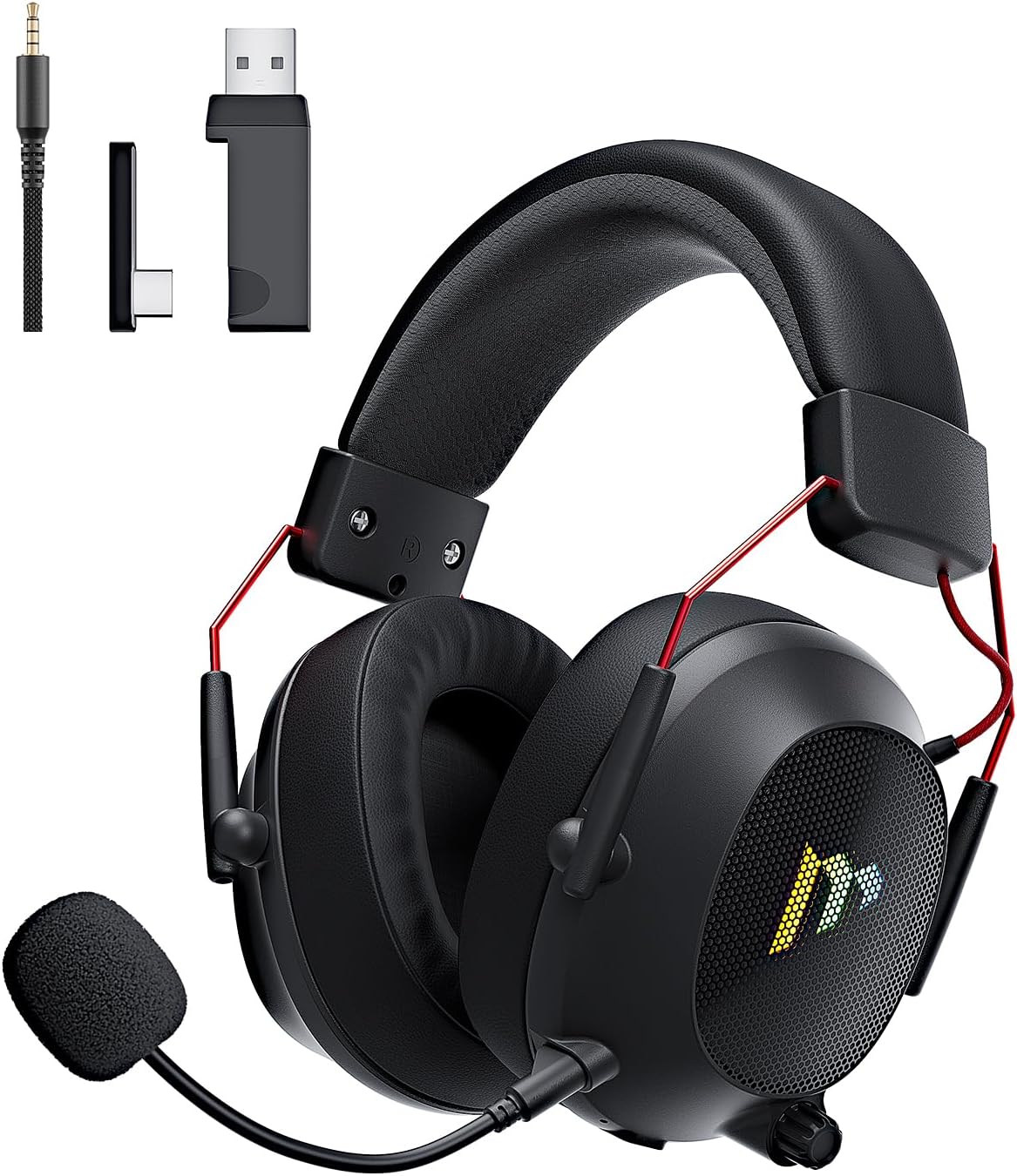
Image: The Mytrix Tac Master Wireless Gaming Headset, showcasing its sleek black design with red accents, detachable microphone, and included USB dongle and Type-C adapter.
Ihirangi mokete
Tirohia koa ko nga mea katoa kei raro nei kei roto i to kete:
- Mytrix Tac Master Wireless Gaming Headset
- Detachable Noise-Canceling Microphone
- Dongle Ahokore USB-A 2.4GHz
- USB Type-C Transmitter
- 3.5mm Waea Ororongo
- Taura Whakamaata USB (USB-A ki USB-C)
- Pukapuka Kaiwhakamahi (tenei tuhinga)
Headset Controls and Components
Familiarize yourself with the various controls and components of your Mytrix Tac Master headset:

Image: Diagram illustrating the location and function of controls on the Mytrix Tac Master headset, including power button, volume wheel, microphone mute button, and mode switch.
- Pātene Hiko: Press and hold for 3 seconds to turn on/off. Single press to pause/play audio.
- Pātene Aratau (M): Single press to toggle microphone on/off. Double press to switch between Bluetooth and 2.4G wireless modes. Press and hold for 3 seconds to turn RGB lights on/off.
- Wīra Rōrahi: Rotate up to increase volume, rotate down to decrease volume.
- Tauranga hopuoro: Mō te tāpiri i te hopuoro wetewete.
- 3.5mm Jack Ororongo: Mo te hononga waea.
- Tauranga Whakatau USB-C: Mo te utu i te pane.
- Rarama RGB: Located on the earcups.
Tatūnga
1. Te Whakataki i te Paneoro
Before first use, fully charge the headset. Connect the USB charging cable to the headset's USB-C port and the other end to a USB power source (e.g., computer USB port, USB wall adapter). The LED indicator will show charging status and turn off when fully charged. A full charge takes approximately 3 hours and provides up to 48 hours of battery life.

Image: Visual representation of the headset's long-lasting battery life, indicating approximately 50 hours of use and a 3-hour charging time.
2. Te Whakapiri i te Hopuoro
Insert the detachable microphone into the microphone port on the left earcup. Ensure it is securely seated. The microphone is flexible and omni-directional, allowing for angle adjustment.
3. Kōwhiringa Hononga
The Mytrix Tac Master headset offers multiple connection methods for broad compatibility:

Image: Diagram illustrating the four connection modes: 2.4GHz Dongle (USB-A and USB-C), Bluetooth 5.3, and 3.5mm Wired, along with compatible devices for each mode.
3.1. 2.4GHz Wireless Connection (Recommended for PC, PS4, PS5, Switch Docked Mode)
- Identify the appropriate dongle for your device:
- For devices with a USB-A port (PC, PS4, PS5, Switch Docked): Use the 2.4GHz USB-A dongle.
- For devices with a USB-C port (Switch Handheld, Laptops, Tablets): Use the USB Type-C transmitter.
- Plug the selected 2.4GHz dongle/transmitter into an available USB port on your device.
- Whakakāhia te pane whakarongo mā te pēhi me te pupuri i te pātene Mana mō te 3 hēkona.
- Ensure the headset is in 2.4GHz mode. If not, double-press the 'M' button to switch modes until the headset connects to the dongle. The headset will automatically pair with the dongle.
- On your device, select the headset as the audio output and input device.
3.2. Bluetooth 5.3 Connection (Recommended for Mobile Phones, Tablets, Laptops)
- Whakakāhia te pane whakarongo mā te pēhi me te pupuri i te pātene Mana mō te 3 hēkona.
- Double-press the 'M' button to switch the headset to Bluetooth pairing mode. The LED indicator will flash, indicating it's ready to pair.
- On your device, enable Bluetooth and search for "Mytrix Tac Master" in the list of available devices.
- Select "Mytrix Tac Master" to connect. Once connected, the LED indicator will stop flashing.
3.3. 3.5mm Wired Connection (Recommended for Xbox, Game Console Controllers, Devices without USB/Bluetooth)
- Honoa tetahi pito o te taura oro 3.5mm ki te hononga 3.5mm o te pane whakarongo.
- Connect the other end of the 3.5mm audio cable to the audio jack on your device (e.g., Xbox controller, phone).
- In wired mode, the headset's microphone and RGB lighting functions are not active.
Nga Tohutohu Whakahaere
Te Hiko / Whakaweto
- Hei Whakahiko: Press and hold the Power button for approximately 3 seconds until the headset powers on.
- Hei Whakaweto: Press and hold the Power button for approximately 3 seconds until the headset powers off.
Mana Rōrahi
- Whakanuia te Volume: Rotate the Volume wheel upwards.
- Whakaheke Rahi: Rotate the Volume wheel downwards.
Mana hopuoro
- Wahangu/Whanguorooro: Single press the 'M' button.
- The detachable microphone features noise cancellation for clear voice chat.
Mana Rama RGB
- Turn RGB Lights On/Off: Press and hold the 'M' button for approximately 3 seconds.
Mana Whakahoki Ororongo
- Purei/Tatari Ororongo: Single press the Power button.
Te Oro Karapoti
The headset features 7.1 stereo surround sound for an immersive audio experience, allowing for precise positioning of sound details in games.

Whakaahua: He pahū view of the headset's 50mm drivers, illustrating the components that contribute to its 7.1 stereo surround sound capability.
Te tiaki
- Te horoi: Use a soft, dry cloth to clean the headset. Do not use abrasive cleaners or solvents. For earcups, gently wipe with a damp kakahu ka tuku kia maroke katoa te hau i mua i te whakamahi.
- Rokiroki: Store the headset in a cool, dry place away from direct sunlight and extreme temperatures. If storing for an extended period, ensure the battery is partially charged (around 50%) to preserve battery health.
- Tiaki Pūhiko: Avoid fully discharging the battery frequently. Charge the headset regularly, even if not in constant use, to maintain battery longevity.
- Tiaki hopuoro: Handle the detachable microphone gently. Avoid excessive bending or twisting.
Raparongoā
| Raruraru | Take pea | Rongoā |
|---|---|---|
| Kaore he tangi mai i te pane. | Headset not powered on, low battery, incorrect audio output selected, connection issue. | Ensure headset is powered on and charged. Check device's audio settings to confirm "Mytrix Tac Master" is selected as output. Re-establish 2.4GHz or Bluetooth connection. For wired mode, ensure cable is fully inserted. |
| Kaore e mahi ana te hopuoro. | Microphone muted, not properly attached, incorrect audio input selected, wired mode limitation. | Single press the 'M' button to unmute. Ensure microphone is securely attached. Check device's audio settings to confirm "Mytrix Tac Master" is selected as input. Note: Microphone does not function in 3.5mm wired mode. |
| Cannot connect via 2.4GHz wireless. | Dongle not recognized, headset not in 2.4GHz mode, interference. | Ensure dongle is fully inserted into a working USB port. Double-press 'M' button to switch headset to 2.4GHz mode. Try a different USB port. Move closer to the dongle to reduce interference. |
| Kaore e taea te hono ma te Nihokikorangi. | Headset not in pairing mode, Bluetooth disabled on device, already connected to another device. | Double-press 'M' button to enter Bluetooth pairing mode (LED flashes). Ensure Bluetooth is enabled on your device. Disconnect from other Bluetooth devices if necessary. |
| Ko nga rama RGB kaore e mahi. | Lights turned off, low battery, wired mode limitation. | Press and hold the 'M' button for 3 seconds to toggle RGB lights. Ensure headset has sufficient battery. Note: RGB lights do not function in 3.5mm wired mode. |
Whakatakotoranga
| Āhuahira | Taipitopito |
|---|---|
| Ingoa Tauira | Gaming Headset (G901) |
| Hangarau Hononga | Ahokore 2.4GHz, Nihokikorangi 5.3, Waea 3.5mm |
| Pooro Jack | 3.5 mm Jack |
| Mokowoko Korekore | Up to 50 feet (in open spaces) |
| Roopuu | ≤20ms (2.4GHz) |
| Momo Atekōkiri Ororongo | 50mm Atekōkiri Hihiko |
| Āhuatanga oro | 7.1 Stereo Surround Sound |
| hopuoro | Detachable, Omni-directional, Noise-Canceling |
| Ora Pūhiko | Tae atu ki te 48 haora |
| Waa Whakatau | Approx. 3 haora |
| Momo Pūhiko | 1 pākahiko Lithium Ion (kei roto) |
| Hanga Whakatangitangi | Ki runga Taringa |
| Nga waahanga motuhake | Ergonomic Design, RGB Lighting, Foldable & Portable |
| Hunga Hua | 5.91 x 3.94 x 5.91 inihi |
| Taumaha Tūemi | 13.4 hekere |
| Kaihanga | Mytrix |
Pūtāhui me te Tautoko
Mytrix products are manufactured to high quality standards. For information regarding warranty coverage, technical support, or service inquiries, please refer to the warranty card included with your product or visit the official Mytrix website. You may also contact Mytrix customer support directly for assistance with your Tac Master Gaming Headset.
Mo etahi atu awhina, tirohia te Mytrix Store on Amazon.
Nga Korero Haumaru Nui
- Kaua e whakaatuhia te pane whakarongo ki ngā pāmahana tino kino, ki te haumākū, ki ngā wai rānei.
- A ape i te tuku, te tuku ranei i te pane ki nga paanga kaha.
- Do not attempt to disassemble or repair the headset yourself. This will void the warranty.
- Whakarongo ki nga taumata reo iti kia kore ai e pakaru te rongo. Ko te roa o te rongo ki nga oro nui ka paheke te rongo.
- Kaua e taea e nga tamariki.


