1. Kupu Whakataki
Thank you for choosing the SUNOL GS08 Smart Glasses. These open-ear audio glasses combine stylish eyewear with advanced audio technology, allowing you to enjoy music, make calls, and access navigation while remaining aware of your surroundings. This manual provides detailed instructions for the proper use and maintenance of your device.
Ko nga ahuatanga matua ko:
- Ororongo Tuwhera-taringa: Enjoy sound without blocking your ears, maintaining situational awareness.
- Nihokikorangi 5.3 Hononga: Stable and efficient wireless connection to your smart devices.
- Pukuoro Whakauru: For clear hands-free calls and voice assistant interaction.
- Arotahi Polarized: 100% UV protection to shield your eyes from harmful rays and reduce glare.
- IPX4 Ātete Wai: Designed to resist sweat and light rain, suitable for various activities.
- Mana Reo AI: Access navigation, phone calls, and music without needing to pull out your phone.
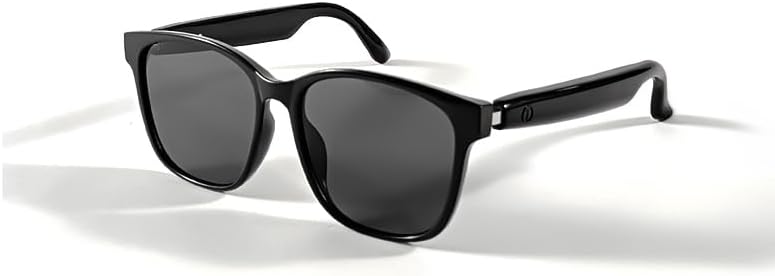
Image 1.1: The SUNOL GS08 Smart Glasses in gray, showcasing ratou hoahoa kiko.
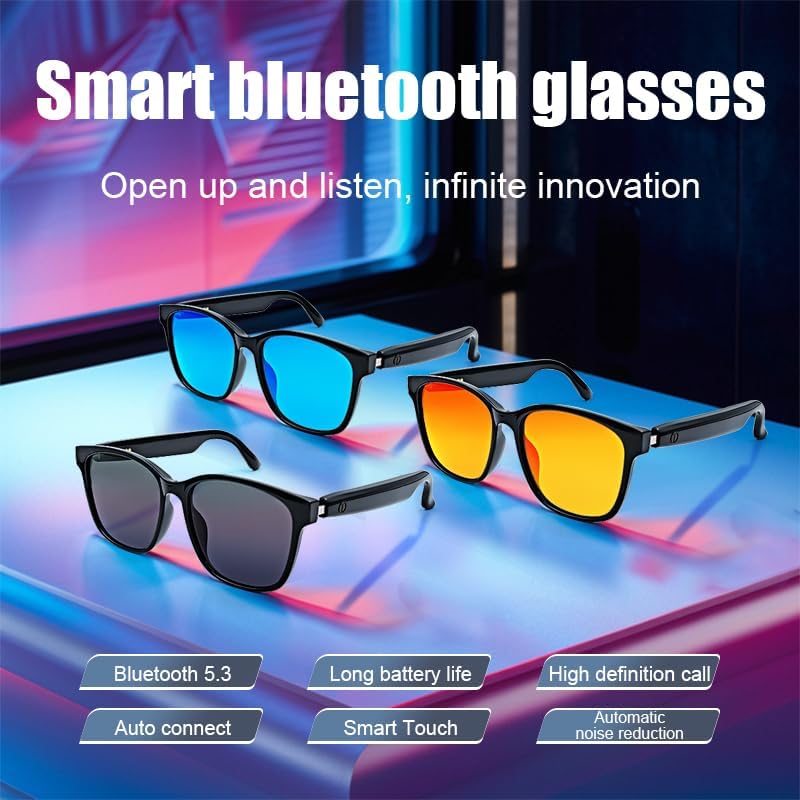
Image 1.2: Multiple color variants of the smart glasses highlighting features like Bluetooth 5.3, long battery life, high-definition calls, auto-connect, smart touch, and automatic noise reduction.
2. Tatūnga
2.1. Ihirangi mokete
I mua i te haere tonu, me whakarite kei roto i te kete ngā taonga katoa:
- SUNOL GS08 Smart Glasses
- Uera Whakatau
- Pukapuka Kaiwhakamahi
- Kakahu Horoi (tērā pea ka rerekē i runga i te kete)
2.2. Te Whakautu i ngā Mōhiti
For optimal performance, fully charge your smart glasses before first use.
- Connect the charging cable to the charging port on the glasses.
- Monohia tetahi pito o te taura utu ki roto i tētahi urutau hiko USB (kāore i roto) ki te tauranga USB rānei o te rorohiko.
- The indicator light on the glasses will illuminate during charging and turn off or change color when fully charged.
- Ko te tikanga ka roa te utunga katoa i roto i te 1.5 ki te 2 hāora.
2.3. Takirua Nihokikorangi
Follow these steps to pair your SUNOL GS08 Smart Glasses with your smartphone or other Bluetooth-enabled device:
- Me whakarite kua utua ngā mōhiti, ā, kua whakawetohia hoki te hiko.
- Press and hold the power button on the glasses until the indicator light flashes rapidly (usually blue and red), indicating pairing mode.
- On your smart device, go to Bluetooth settings and turn Bluetooth on.
- Rapua available devices. You should see "GS08" or "SUNOL GS08" in the list.
- Select "GS08" to connect. Once connected, the indicator light on the glasses will typically stop flashing and remain solid blue or turn off.
- The glasses will automatically connect to the last paired device when powered on, if the device's Bluetooth is active and within range.
3. Nga Tohutohu Whakahaere
3.1. Te Hiko / Whakaweto
- Whakahiko: Press and hold the power button for approximately 3 seconds until you hear a power-on prompt or see the indicator light.
- Weto Whakakore: Press and hold the power button for approximately 5 seconds until you hear a power-off prompt or the indicator light turns off.
3.2. Purei Waiata
Control your music directly from the smart glasses:
- Purei/Tatari: Single press the multi-function button (often the power button or a dedicated button).
- Riu Panuku: Pēhia rua te pātene maha-mahi.
- Riu o mua: Pēhia kia toru ngā pēhitanga o te pātene maha-mahi.
3.3. Whakahaere Waea
Whakahaerehia ngā waeatanga kore-ringa:
- Whakautu Waea: Single press the multi-function button when a call comes in.
- Whakamutu Waea: Single press the multi-function button during a call.
- Whakakore Waea: Pēhia me te pupuri i te pātene maha-mahi mō te 2 hēkona ina tae mai he waea.
3.4. Voice Assistant (AI Voice Control)
Activate your device's voice assistant for navigation, information, and more:
- Whakahohe: Press and hold the multi-function button for 2 seconds (when not on a call) to activate your smartphone's voice assistant (e.g., Siri, Google Assistant).
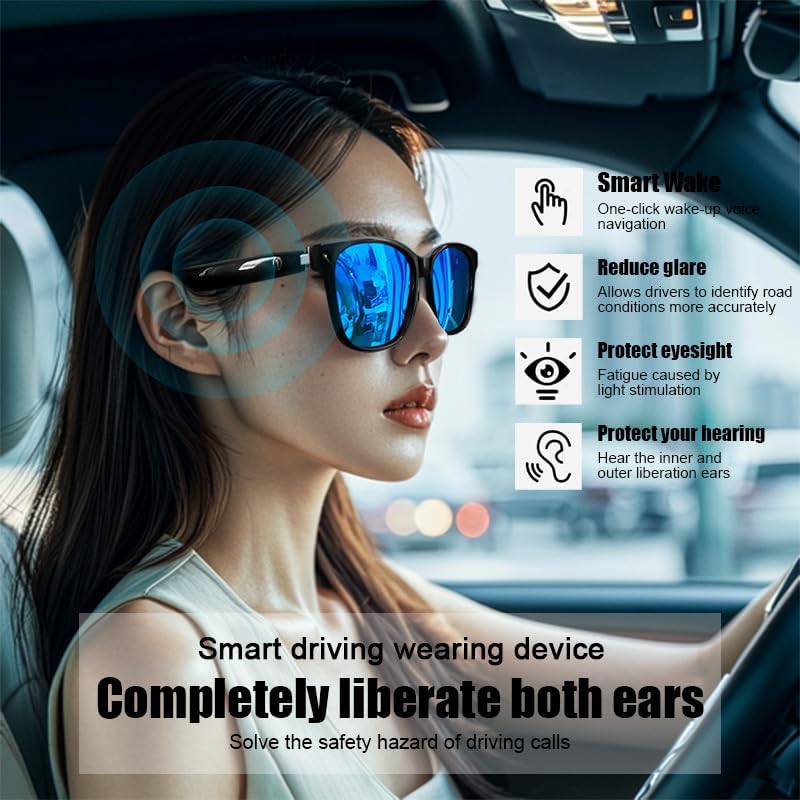
Image 3.1: The smart glasses in use while driving, demonstrating features such as Smart Wake for voice navigation, reduced glare, eye protection, and open-ear audio for hearing protection.
3.5. Mana Rōrahi
Adjust the audio volume using the dedicated volume buttons on the glasses (if available) or directly from your connected smart device.

Whakaahua 3.2: Examples of the smart glasses being used in various activities such as cycling, hiking, driving, and fishing, highlighting their versatility.
4. Tiaki
4.1. Cleaning the Glasses
To maintain clarity and hygiene:
- Use the provided cleaning cloth or a soft, lint-free cloth to gently wipe the lenses and frame.
- Mo nga kohukohu pakeke, kia ngawari dampen the cloth with water or a lens cleaning solution specifically designed for eyewear.
- Avoid using harsh chemicals, abrasive materials, or paper towels, as these can scratch the lenses or damage the frame.
4.2. Rokiroki
When not in use, store your smart glasses in their protective case to prevent scratches and damage. Avoid exposing them to extreme temperatures, direct sunlight for prolonged periods, or high humidity.
4.3. Ātete Wai (IPX4)
The SUNOL GS08 Smart Glasses are rated IPX4, meaning they are resistant to splashing water from any direction. This makes them suitable for use during workouts or in light rain. However, they are not designed for submersion in water. Do not wear them while swimming, showering, or in heavy rain.
5. Te Raru
If you encounter issues with your smart glasses, please refer to the following common solutions:
| Raruraru | Take pea | Rongoā |
|---|---|---|
| Kāore ngā mōhiti e kā. | He iti te pākahiko. | Whakakīia katoatia ngā mōhiti. |
| Kaore e taea te hono ki te taputapu. | Bluetooth off on device; glasses not in pairing mode; too far from device. | Ensure Bluetooth is on. Put glasses in pairing mode (see Section 2.3). Move glasses closer to the device. Try unpairing and re-pairing. |
| Karekau he oro, he iti te reo. | Volume too low on glasses or device; glasses not connected; audio source paused. | Increase volume on both glasses and connected device. Verify Bluetooth connection. Check if audio is playing on the source device. |
| Hononga mokowhiti. | Te pokanoa; tawhiti rawa te taputapu; iti pūhiko. | Move closer to the connected device. Avoid areas with strong Wi-Fi or other Bluetooth interference. Ensure glasses are charged. |
Mena ka mau tonu te raru i muri i te whakamatau i enei otinga, tena koa whakapā atu ki te tautoko a te kaihoko.
6. Whakatakotoranga
| Āhuahira | Taipitopito |
|---|---|
| Tau tauira | F06 |
| Putanga Nihokikorangi | 5.3 |
| Momo Pūhiko | 1 pākahiko Lithium Polymer (kei roto) |
| Ātete wai | IPX4 (ātete pakaru) |
| Momo Arotahi | Polarized, 100% UV Protection |
| Wā Whakatangi Ororongo | Approximately 3 hours (on a full charge) |
| Tari | Unisex-pakeke |
| Te Ra Tuatahi Wātea | Pipiri 24, 2024 |
| Taketake | Kawemai |
7. Nga Korero Whakaputanga
SUNOL products are manufactured to the highest quality standards. This product is covered by a limited warranty against defects in materials and workmanship from the date of original purchase. Please retain your proof of purchase for warranty claims.
The warranty does not cover damage caused by misuse, accident, unauthorized modification, or normal wear and tear. For specific warranty terms and conditions, please refer to the warranty card included with your product or contact customer support.
8. Tautoko Kiritaki
Mena he pātai āu, he hiahia āwhina hangarau, he hiahia rānei ki te tuku kereme mō te pūtāhui, whakapā atu ki tā mātou tīma tautoko kiritaki:
- Īmēra: support@sunol.com
- Webpae: www.sunol.com/support
Please have your product model number (F06) and purchase date ready when contacting support.


