1. Kupu Whakataki
This manual provides detailed instructions for the setup, operation, maintenance, and troubleshooting of your NIIMBOT B1 Portable Thermal Label Printer. Please read this manual thoroughly before using the device to ensure proper function and longevity.

Image 1.1: The NIIMBOT B1 Label Maker shown with examples of printed labels for various applications.
2. Hua Neke Atuview
2.1 Ihirangi mokete
Manatokona kei roto katoa nga mea kei roto i to kete:
- NIIMBOT B1 Label Maker x1
- Momo-C Taura x1
- Pukapuka Kaiwhakamahi x1
- Roll label tape (50x30mm) x1 (pre-installed in some models)

Image 2.1: The NIIMBOT B1 Label Maker and its included accessories.
2.2 Nga waahanga matua
- 2-Inch Label Printing: Supports label widths from 20mm to 50mm (1-2 inches).
- Te Taa Ngawha: No ink or toner required, reducing operational costs.
- Automatic Label Identification: For faster and easier printing.
- Hononga: Compatible with iOS & Android smartphones via Bluetooth, and PC via USB.
- NIIMBOT App: Offers 10+ fonts/languages, 100+ borders, 1500+ symbols, barcodes, QR codes, icons, time stamps, pictures, photos, and OCR print functions.
- Hoahoa Kawe: Kiato me te mama mo te kawe ngawari me te whakamahi.
- Whakaweto Aunoa: Customizable auto-off settings (15min, 30min, 60min, never) to conserve battery.
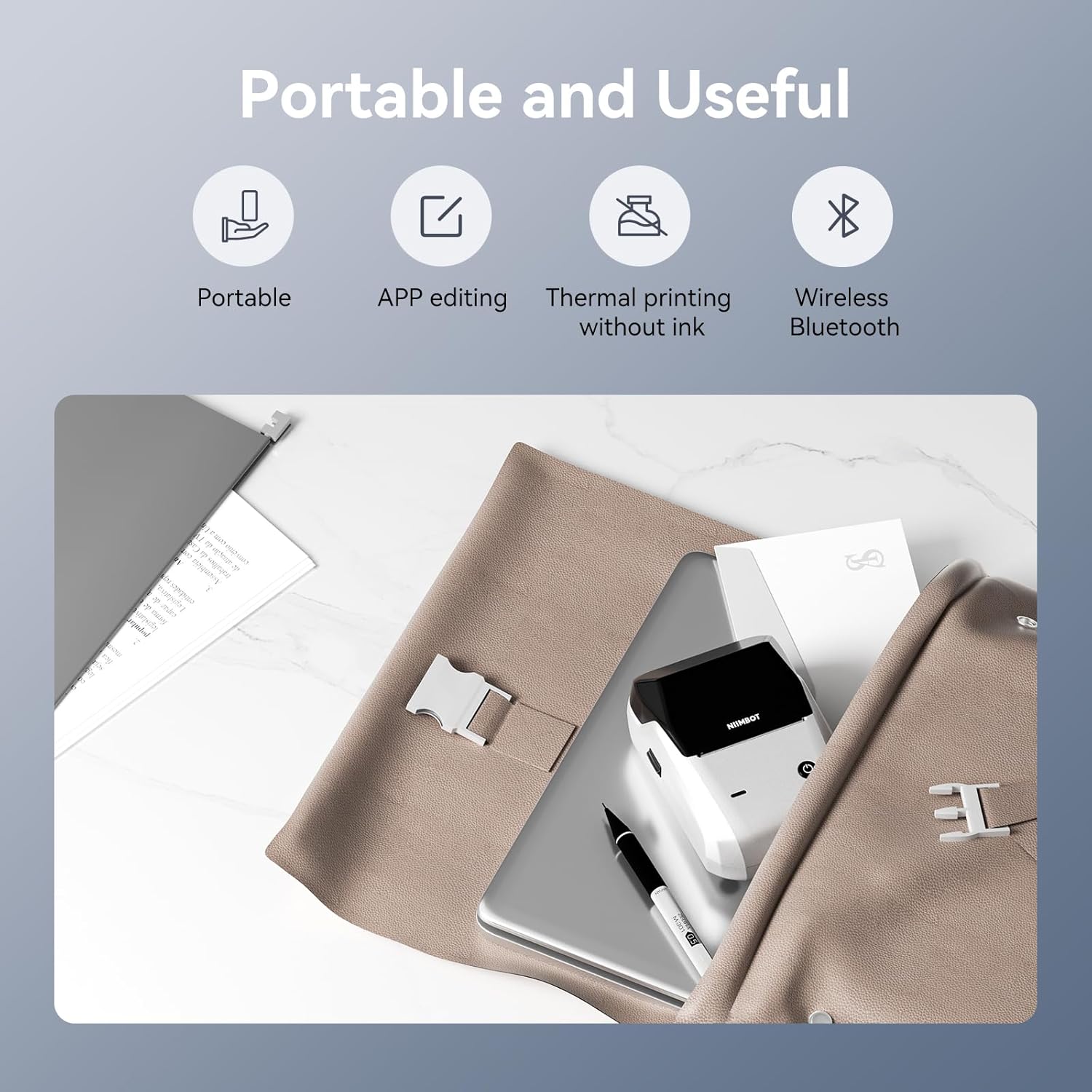
Whakaahua 2.2: Ka mutuview of the NIIMBOT B1's portable and useful features.
3. Tatūnga
3.1 Loading Label Tape
- Rotate the side latch to open the tape slot.
- Load the label tape into the slot, ensuring the label side faces upwards.
- Adjust the guide plate to fit the label roll snugly.
- Close the tape slot, leaving a small portion of the label tape extending for smooth feeding.

Image 3.1: Proper installation of label tape in the NIIMBOT B1.
3.2 Taupānga Tāuta me te Hononga
The NIIMBOT B1 requires the NIIMBOT app for smartphone operation.
- Download the NIIMBOT app from the App Store (iOS) or Google Play Store (Android). Rapua "NIIMBOT".
- Me mohio kei te whakahohea te Nihokikorangi o to waea.
- Open the NIIMBOT app and click "Connect" to search for nearby devices.
- Select your B1 printer from the list (e.g., B1-XXXXXX) to pair. If prompted for a pairing code, enter 0000 or 1234.
- Once connected, the app will automatically identify the label tape in the printer.

Image 3.2: NIIMBOT App download and connection process.
3.3 PC Connection (Windows)
For PC connectivity, you will need to download the driver from the official NIIMBOT webpae.
- Tirohia te NIIMBOT mana website and download the B1 printer driver for Windows 7/10.
- Install the driver on your PC.
- Connect the NIIMBOT B1 printer to your PC using the provided USB Type-C cable.
- Open the NIIMBOT desktop software to begin printing.

Image 3.3: Connecting the NIIMBOT B1 to a PC via USB.
3.4 Quick Start Video Guide
Watch this video for a quick visual guide on setting up and using your B1 Label Maker.
Video 3.4: A quick start guide demonstrating the initial setup and basic operation of the NIIMBOT B1 Label Maker.
4. Nga Tohutohu Whakahaere
4.1 Creating and Editing Labels
- In the NIIMBOT app, select a template or create a new label.
- Use the various editing tools to add text, images, icons, barcodes, QR codes, and other elements.
- Customize font styles, sizes, alignment, and other layout options.
- The app supports features like OCR (Optical Character Recognition) for converting images to text.

Image 4.1: The NIIMBOT App interface for creating and editing labels.
4.2 Tapanga Tapanga
- After designing your label, click the "Print" button in the app.
- Adjust the number of copies and print density as needed.
- Confirm the print settings and initiate printing.
- The printer will automatically feed and print the labels. Gently tear off the printed labels.

Image 4.2: Smartphone printing process with the NIIMBOT B1.
4.3 Nga Tikanga Maama Tohu
Understand the status of your printer through its indicator light:
- Kikorangi kikorangi: Kei te haere tonu te whakahou firmware.
- Kahurangi Puru: Printer is in standby mode.
- Kōhiko Kākāriki: Printer is actively printing.
- Kakariki Tonu: Bluetooth is successfully connected.
- Kohiko Whero: Printer is charging.
- Whero Tonu: Cover is open, out of paper, or low battery.

Image 4.3: Guide to the NIIMBOT B1 indicator light statuses.
4.4 Whakamahi Examples
The NIIMBOT B1 is versatile for various labeling needs:
- Whakamahi Kainga: Kitchen labels, gift labels, kids' item labels, trip item labels.
- Te Whakamahinga Pakihi: Beauty & personal care, DIY item labels, mail labels, perfume labels, bakery food labels.

Whakaahua 4.4: Examples of NIIMBOT B1 usage for home organization.

Whakaahua 4.5: Examples of NIIMBOT B1 usage for small businesses.

Whakaahua 4.6: Examples of labels for bakery and food products.
Video 4.7: Demonstration of the NIIMBOT B1 Label Maker's ease of use for various labeling tasks.
Ataata 4.8: Whakaaturangaasing the multipurpose capabilities of the NIIMBOT B1 Label Maker for different applications.
5. Tiaki
5.1 Te horoi i te Upoko Ta
Mā te horoi i te pane tā i ia wā ka tino pai te kounga o te tā.
- Whakawetohia te pūreretā, ka momotu i te taura hiko.
- Whakatuwheratia te wahanga tapanga.
- Mā te ata horoia te pane tā ki te miro miroampka whakakiia ki te waipiro isopropyl.
- Allow the print head to dry completely before closing the compartment and turning on the printer.
5.2 Tiaki Pūhiko
- Whakautua te pūreretā i ia wā, ahakoa kāore e whakamahia pinepinetia, kia mau tonu ai te hauora o te pākahiko.
- Kaua e tukua te pūreretā kia tino wera rawa.
- Whakamahia anake te taura Momo-C kua whakaratohia mō te utu.
6. Te Raru
6.1 Nga take me nga otinga noa
| Putanga | Take pea | Rongoā |
|---|---|---|
| Kāore te pūreretā e kā ana | Pūhiko iti; Kaore i roa te pehi i te paatene hiko | Charge the printer; Press and hold the power button for 3 seconds. |
| Kaore e taea te hono ma te Nihokikorangi | Bluetooth off on phone; Printer not in pairing mode; App permissions | Ensure Bluetooth is on; Restart printer; Check app permissions for nearby devices. |
| He iti te kounga o te tuhi | Dirty print head; Incorrect print density; Low battery | Clean the print head (see 5.1); Adjust print density in the app; Charge the printer. |
| Kāore ngā tapanga e whāngai tika ana | Incorrect label installation; Guide plate not adjusted | Reinstall label tape correctly (see 3.1); Adjust the guide plate to fit the label roll. |
| Kāore te rorohiko e mōhiotia ana e te pūreretā | Driver not installed; Faulty USB cable | Install the correct PC driver (see 3.3); Try a different USB cable. |
7. Whakatakotoranga
| Āhuahira | Taipitopito |
|---|---|
| Ingoa Tauira | B1 |
| Hangarau Tā | Ngawha |
| Hononga | Nihokikorangi, USB |
| Whakataunga Tā Max | 203 dpi |
| Tere Tā Max (Monochrome) | 15 mm/s |
| Morahi Rahi Media | 2 Inihi (50mm) |
| Pūrere Hototahi | Smartphone (Android & iOS), PC (Windows 7/10) |
| Taumaha Tūemi | 1.1 pauna (499 karamu) |
| Hunga Hua | 5.5"D x 3.5"W x 2.5"H |
| Pūhiko | 1 He pākahiko e hiahiatia ana (kei roto) |
| Whakamahinga Tauwhāiti | Labeling for Small Business Product Price/Address, School and Office Files Classification, Home Supplies Organization, Personal Item Identification, Name Tags and Warehouse |
8. Pūtāhui me te Tautoko
8.1 Nga Korero Whakaputanga
The NIIMBOT B1 Label Printer comes with a 1-year warranty coverage. Please retain your proof of purchase for warranty claims.
8.2 Tautoko Kiritaki
For further assistance, technical support, or warranty inquiries, please contact NIIMBOT customer service through their official webte pae, te korero whakapā ranei e whakaratohia ana me to putunga hua.


