Kupu Whakataki
This manual provides detailed instructions for the setup, operation, maintenance, and troubleshooting of your Docooler Wireless Mechanical Keyboard, Fun Cake House edition. Please read this manual thoroughly before using the product to ensure optimal performance and longevity.
The Docooler Wireless Mechanical Keyboard features red switches, PBT keycaps, a high-clear display, and a volume control knob. It supports multiple connectivity options including 2.4G wireless, Bluetooth, and wired connections, and is compatible with Windows, Mac, iOS, and Android systems.
Ihirangi mokete
Manatokona kei roto katoa nga mea kei roto i te kete:
- 1x Docooler Wireless Mechanical Keyboard (Fun Cake House)
- 1x USB Cable (for wired connection and charging)
- 1x 2.4G USB Kaiwhiwhi
- 1x Manual Kaiwhakamahi (tenei tuhinga)
Tatūnga
1. Te Whakataki i te Papapātuhi
Before initial use, fully charge the keyboard. Connect the provided USB cable to the keyboard's USB-C port and the other end to a USB power source (e.g., computer USB port, wall adapter). The display will indicate charging status. A full charge typically takes 2-3 hours.
The keyboard is equipped with an 1850mAh rechargeable lithium battery.
2. Kōwhiringa Hononga
Your keyboard supports three connection modes: 2.4G Wireless, Bluetooth (BT), and Wired USB.
2.1. 2.4G Hononga Ahokore
- Locate the 2.4G USB receiver, usually stored in a compartment on the keyboard.
- Monohia te kaiwhiwhi USB 2.4G ki tētahi tauranga USB e wātea ana i tō rorohiko.
- Switch the keyboard's connection mode to 2.4G (refer to the Aratau Mahi section for details on switching modes).
- The keyboard should automatically connect. The display will show the 2.4G connection icon.
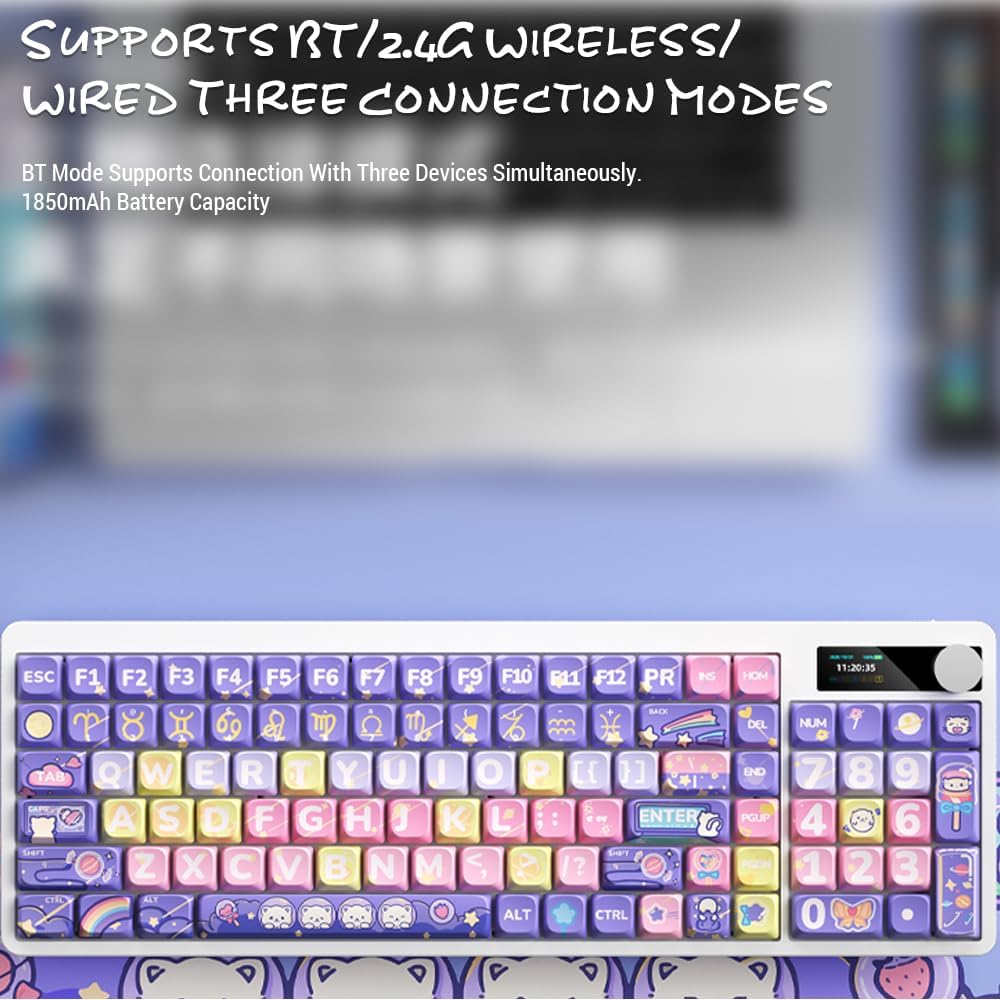
Image: Keyboard display showing 2.4G wireless connection status.
2.2. Bluetooth (BT) Connection
The keyboard can connect to up to three Bluetooth devices simultaneously.
- Switch the keyboard's connection mode to Bluetooth (BT1, BT2, or BT3).
- I runga i to taputapu (rorohiko, papa, atamai), whakaahei i te Nihokikorangi me te rapu taputapu hou.
- Select "Docooler Keyboard" (or similar name) from the list of available devices.
- Mena ka tonoa, tāuruhia te waehere takirua e whakaaturia ana i tō mata.
- Once paired, the display will show the Bluetooth connection icon for the selected channel.
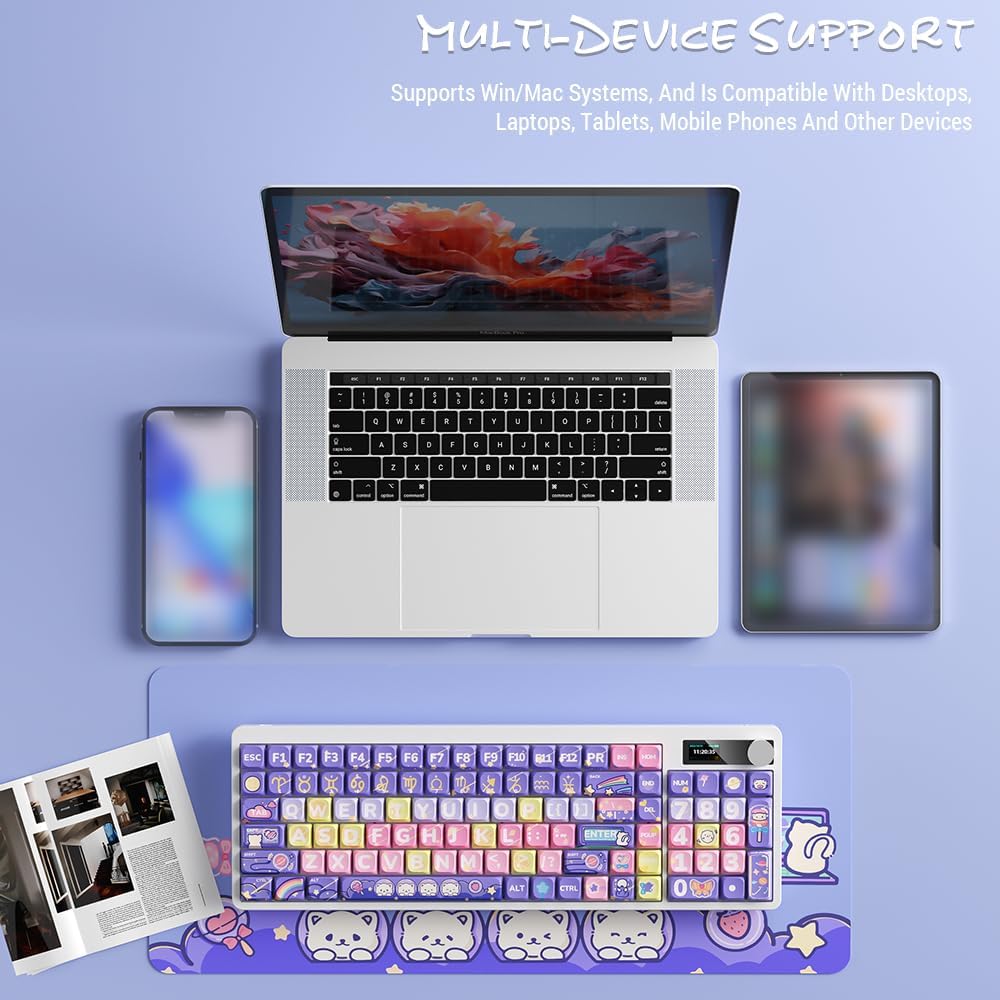
Image: Docooler keyboard demonstrating multi-device support, connected to a laptop, tablet, and smartphone via Bluetooth.
2.3. Hononga USB Waea
- Connect the provided USB cable directly from the keyboard to your computer's USB port.
- Switch the keyboard's connection mode to Wired (refer to the Aratau Mahi wahanga).
- The keyboard will be recognized as a standard USB keyboard.
Nga Tohutohu Whakahaere
1. Whakawhiti Aratau Hononga
Use the dedicated mode switch or key combination (refer to the keyboard's specific function keys, often marked with icons for 2.4G, BT, and USB) to cycle through the connection modes. The display screen will clearly indicate the active mode.

Image: Close-up of the keyboard display showing indicators for Bluetooth, 2.4G, and wired connection modes, along with battery status and time.
2. High Clear Display Functions
The integrated display provides real-time information and customization options. It can show:
- Te Rā me te Wā
- Taumata Pūhiko
- Connection Mode (2.4G, BT1/2/3, Wired)
- Tautuhinga Maama Whakamuri
- Taumata Rōrahi
- Custom Images or Dynamic GIFs (customization via software, if available)

Whakaahua: Taipitopito view of the keyboard's high-clear display, illustrating various functions such as date, time, power, connection mode, and backlight settings.
3. Puku Whakahaa Volume
The metal knob located on the top right of the keyboard allows for quick adjustment of system volume. Rotate clockwise to increase volume, counter-clockwise to decrease. Pressing the knob typically mutes/unmutes audio.

Image: Close-up of the unique metal round knob, highlighting its function for adjusting brightness and volume.
4. Whakatikatika Whakamuri
The keyboard features a colorful backlight. Use the dedicated function keys (often Fn + specific keys) or the display menu to cycle through different lighting effects, adjust brightness, and change colors. Refer to the display for visual feedback on backlight settings.
5. Function Keys (Fn Combinations)
He maha ngā kī ka taea te uru atu ki ngā mahi tuarua mā te pēhi tonu i te pātene Fn key and pressing the desired key. Common Fn combinations include:
- Fn+F1-F12: Multimedia controls (play/pause, volume, track skip), application shortcuts.
- Fn + Ngā Pātene Pere: Backlight brightness/speed adjustment.
- Fn+Wiki: Lock/unlock Windows key.
- Fn + Mode Key: Switch between 2.4G, BT, and Wired modes.
Consult the keycap legends for specific Fn functions on your "Fun Cake House" keyboard.
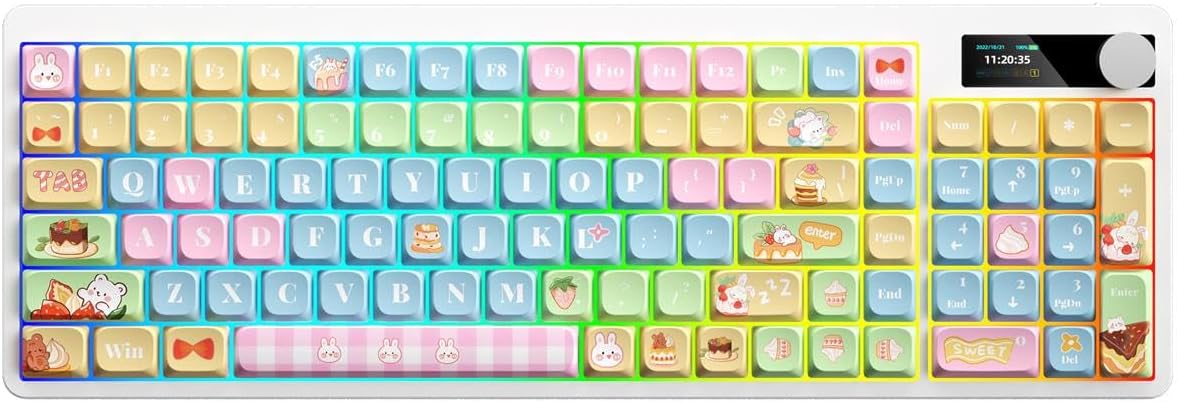
Image: Full layout of the Docooler Wireless Mechanical Keyboard in the Fun Cake House design, showing all 101 keys, the display, and the volume knob.
Te tiaki
1. Te horoi
- Momotuhia te papapātuhi mai i nga puna hiko me nga taputapu katoa i mua i te horoi.
- Whakamahia he kakahu ngohengohe, karekau he ngongo paku damphoroia ki te wai, ki tētahi wai horoi ngawari rānei hei muru i ngā taupoki kī me te mata o te papapātuhi.
- Mo te puehu me te para i waenga i nga kapene matua, whakamahia te hau kapi, te paraihe iti ranei.
- Avoid using harsh chemicals, abrasives, or solvents, as these can damage the keyboard's finish and keycap legends.
2. Keycap Removal (Optional)
The PBT keycaps can be removed for deeper cleaning or replacement. Use a keycap puller to gently lift keycaps straight up. Avoid excessive force to prevent damage to the switch stems.
3. Rokiroki
When not in use for extended periods, store the keyboard in a cool, dry place away from direct sunlight and extreme temperatures. Ensure the battery is partially charged (around 50%) before long-term storage to preserve battery health.
Raparongoā
Papapātuhi Kaore i te Whakautu
- Takina Pūhiko: Ensure the keyboard is charged. Connect it via USB cable to charge.
- Tirohia te Aratau Hononga: Verify the keyboard is in the correct mode (2.4G, BT, or Wired) for your device.
- 2.4G Issues: Ensure the USB receiver is securely plugged in. Try a different USB port.
- Nga Take Nihokikorangi: Re-pair the keyboard with your device. Ensure Bluetooth is enabled on your device. Try forgetting the device and re-pairing.
- Wired Issues: Ensure the USB cable is securely connected to both the keyboard and the computer. Try a different USB cable or port.
- Tīmata anō: Tīmata anō i tō rorohiko/pūrere me te papapātuhi.
Keys Not Registering / Double Typing
- Pūmatua Whakapaipai: Remove keycaps and clean any debris around the switch.
- Whakahoutanga Firmware: Check the Docooler official webpaetukutuku mō ngā whakahōu pūmanawa e wātea ana mō tō tauira.
Rarama Whakamuri Kaore i te Mahi
- Tautuhinga Tirohanga: Ensure the backlight brightness is not set to minimum or off. Adjust using Fn combinations or the display menu.
- Tiaki Hiko: The backlight may turn off after a period of inactivity to save battery. Press any key to reactivate.
Ngā Take o te Mata Whakaatu
- Hurihanga Hiko: Turn the keyboard off and on again.
- Tirohanga: Ensure the display brightness is not set too low.
Whakatakotoranga
| Tauira | Docooler Wireless Mechanical Keyboard (Fun Cake House) |
| Momo Whakawhiti | Ngā Pātene Whero |
| Hipanga papanga | PBT |
| Hononga | 2.4G Wireless, Bluetooth (BT), Wired USB |
| Whakamuri | Papamuri Tae |
| Hurihuri Kī | Hurihuri Kī Katoa |
| Whakaatu | High Clear Display |
| Kōpaki | Metal Volume Control Knob |
| Pūhiko | 1850mAh 3.7V Rechargeable Lithium Battery |
| Tahora Matua | 101 Keys (with display screen + knob) |
| Pūnaha Tautoko | Windows, Mac, iOS, Android |
| Ahu | 39.7 x 13.4 x 1.7 cm (15.6 x 5.3 x 0.7 i roto) |
| Taumaha | 621g (1.37 lbs) |

Image: Diagram illustrating the dimensions of the Docooler Wireless Mechanical Keyboard: 39.7cm (15.6in) length and 13.4cm (5.3in) width.
Nga korero Whakaputanga
Docooler products are covered by a limited warranty from the date of purchase. This warranty covers manufacturing defects in materials and workmanship. It does not cover damage caused by accident, misuse, abuse, modification, improper installation, or normal wear and tear.
For specific warranty terms and conditions, please refer to the warranty card included with your product or visit the official Docooler webpae.
Tautoko Kiritaki
If you encounter any issues or have questions regarding your Docooler Wireless Mechanical Keyboard that are not addressed in this manual, please contact our customer support team.
- Īmēra: support@docooler.com
- Webpae: Visit the official Docooler website for FAQs, drivers, and additional support resources: www.docooler.com
When contacting support, please have your product model (B0DB7YPHFK) and purchase information ready.


