1. Kupu Whakataki
The Phomemo LT12 Label Maker Machine is a portable, rechargeable label printer designed for various organizational needs in home, office, and school environments. It features a QWERTY keyboard for direct input and Bluetooth connectivity for enhanced customization via the Printmaster application. This manual provides comprehensive instructions for setting up, operating, and maintaining your LT12 label maker.
2. Ihirangi mokete
Tirohia koa ko nga mea katoa kei raro nei kei roto i to kete:
- 1 x LT12 Label Maker
- 1 x Momo-C Uira Kaiha
- 1 x 12mm x 4m Black on White Label Tape
- 1 x Pukapuka Kaiwhakamahi

Image: The Phomemo LT12 label maker, a Type-C charging cable, a roll of 12mm x 4m black on white label tape, and the user manual, laid out as included in the package.
3. Hua Neke Atuview me nga ahuatanga
The Phomemo LT12 is designed for ease of use and versatility. Key features include:
- Pūhiko Rechargeable: Equipped with a 1200mAh lithium battery, providing 2-3 hours of continuous printing on a full charge. Charges via a Type-C cable. Features an automatic shut-off after 5 minutes of inactivity to conserve battery life.
- Tikanga Tāuru Tārua: Features a familiar QWERTY keyboard for direct, one-touch printing and Bluetooth connectivity for advanced editing via the Printmaster APP.
- Printmaster APP: Offers extensive customization with over 1600 icon symbols, 163 fonts, 30+ languages, and 287+ border styles. Supports saving templates and viewing print history.
- Te Tapanga Whai Hua: Supports label widths from 9mm to 12mm, allowing for multiple lines of text. Includes a built-in cutter and supports horizontal or vertical printing.
- Tapanga Roa: Labels are waterproof, BPA-free, heat resistant, and designed to tear off without residue. They are fade-resistant, maintaining clarity even in humid or harsh conditions.
- LCD Backlit Screen: A backlit LCD display ensures optimal visibility and readability of labels, even in low-light environments.
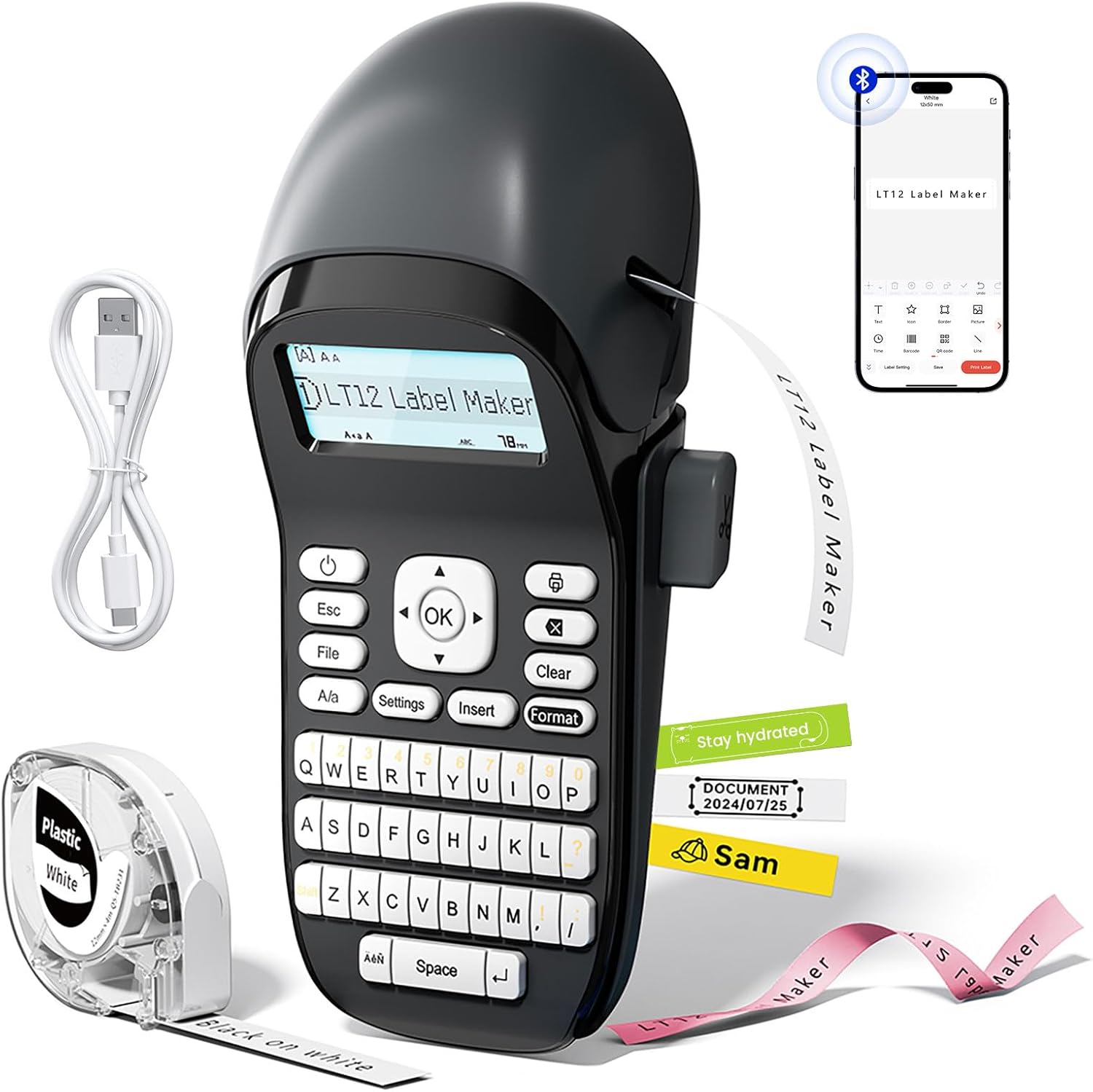
Image: The Phomemo LT12 Label Maker, showcasing its QWERTY keyboard, LCD screen, and a smartphone connected via Bluetooth, alongside label tape and a charging cable.

Image: A visual comparison highlighting the LT12's integrated 1200mAh rechargeable battery against other label makers that require 6 AA batteries.

Image: The Phomemo LT12 label maker with its LCD backlit screen illuminated, demonstrating clear visibility in a dimly lit setting.
4. Tatūnga
4.1 Te Whakataki i te Pūrere
Before first use, fully charge the LT12 label maker. Connect the provided Type-C charging cable to the device and a compatible USB power source. The charging indicator will show the charging status.
4.2 Loading Label Tape
- Open the tape compartment cover on the side of the label maker.
- Insert the label tape cassette with the tape end facing the print head. Ensure the tape is properly aligned.
- Katia te taupoki o te wāhanga rīpene kia mau.
4.3 Tāutanga Taupānga me te Hononga Nihokikorangi
To utilize advanced features and customization, connect your LT12 label maker to the Printmaster app:
- Tikiake te Printmaster taupānga mai i te toa taupānga o to waea atamai (e waatea ana mo te Android me te iOS).
- Turn on Bluetooth on your smartphone and power on the LT12 label maker.
- Open the Printmaster app and search for available Bluetooth devices.
- Select "LT12 Label Maker" from the list to establish a connection.

Image: A visual guide showing four steps to connect the Phomemo LT12 label maker to a smartphone via the Printmaster app: download app, enable Bluetooth, search for device, and select LT12.
5. Nga Tohutohu Whakahaere
5.1 Basic Label Creation (Using Keyboard)
- Power on the label maker.
- Use the QWERTY keyboard to type your desired text. The text will appear on the LCD screen.
- Utilize the function keys for basic editing:
- Esc: Exit current menu or cancel action.
- File: Access saved labels or save current label (supports up to 9 files).
- Ki/ki: Toggle between uppercase and lowercase letters.
- Tautuhinga: Adjust device settings (e.g., language, print density).
- Kōkuhu: Add symbols, dates, or other special characters.
- Hōputu: Change font styles, sizes, or add borders.
- Mārama: Delete characters or clear the entire text.
- OK: Confirm selections or initiate printing.
- Pehia te OK button to print the label.

Whakaahua: He taipitopito view of the Phomemo LT12 label maker's QWERTY keyboard and its LCD screen, showing text input.
5.2 Advanced Label Creation (Using Printmaster App)
- Ensure your LT12 label maker is connected to the Printmaster app via Bluetooth.
- I roto i te taupānga, ka taea e koe:
- Type text and adjust font, size, and style.
- Access a library of over 1600 icons and symbols.
- Choose from 163 fonts and 287 border styles.
- Create and save custom templates for frequent use.
- Review your print history.
- Once your label design is complete in the app, tap the print icon to send it to the label maker.

Image: A series of smartphone screenshots illustrating the Printmaster app's interface for text editing, symbol insertion, and label customization.
6. Tiaki
6.1 Te horoi
Regular cleaning ensures optimal performance:
- Whakawetohia te taputapu i mua i te horoi.
- Use a soft, dry cloth to wipe the exterior of the label maker.
- Gently clean the print head with a cotton swab moistened with rubbing alcohol if print quality degrades. Allow to dry completely before use.
6.2 Tiaki Pūhiko
- Hei whakaroa i te ora o te pākahiko, kaua e whakawetohia te pākahiko i ngā wā katoa.
- Whakautuhia te taputapu i ia wā, ahakoa kāore e whakamahia pinepinetia.
- If storing for an extended period, charge the battery to approximately 50% and recharge every 3-6 months.
6.3 Rokiroki
Store the label maker in a cool, dry place away from direct sunlight and extreme temperatures. Remove the label tape cassette if storing for a very long period.
7. Te Raru
| Raruraru | Take pea | Rongoā |
|---|---|---|
| Device does not power on or charge. | Low battery; faulty charging cable or adapter; device malfunction. | Ensure the device is charged using the provided Type-C cable and a working power adapter. Try a different cable or adapter. If the issue persists, contact support. |
| Kaore he ta, he ngoikore ranei. | Label tape incorrectly installed; print head dirty; low battery. | Reinstall the label tape correctly. Clean the print head as described in Section 6.1. Charge the device fully. |
| Ka rahua te hononga Nihokikorangi. | Bluetooth not enabled; app issue; device not discoverable. | Ensure Bluetooth is enabled on both the label maker and your smartphone. Restart the app and the label maker. Try pairing again. |
| Labels are not cutting properly. | Cutter blade dull or obstructed. | Ensure no tape residue is obstructing the cutter. If the issue persists, contact support. |
| Labels peel off easily. | Surface not clean; label type unsuitable for surface. | Ensure the surface is clean, dry, and smooth before applying the label. Use appropriate label types for specific environments (e.g., waterproof for humid areas). |
8. Whakatakotoranga
| Āhuahira | Taipitopito |
|---|---|
| Ingoa Tauira | LT12 |
| Waitohu | Phomemo |
| Hangarau Hononga | Nihokikorangi |
| Hangarau Tā | Ngawha |
| Morahi Rahi Media | 12mm x 4m |
| Te Whakataunga Ta Pango me te Ma | 203 dpi |
| Tere Tā Max (Monochrome) | 30 ppm |
| Pūhiko | 1200mAh Lithium Ion (kei roto) |
| Atanga Whakatau | USB Momo-C |
| Hunga Hua | 8.85"D x 4.29"W x 3.07"H |
| Taumaha Tūemi | 10.3 hekere (291 Karamu) |
| Pūrere Hototahi | Waea atamai, Papa (Android, iOS) |
| Momo Waituhi Pūreretā | No Ink (Thermal Printing) |
9. Nga Korero Whakaputanga
The Phomemo LT12 Label Maker Machine comes with a Limited Warranty. For specific details regarding warranty coverage, duration, and terms, please refer to the warranty card included in your product packaging or visit the official Phomemo webpae mo nga korero o tenei wa.
10. Tautoko
For further assistance, technical support, or inquiries about your Phomemo LT12 Label Maker Machine, please contact Phomemo customer service through their official webpae, nga korero whakapā ranei e whakaratohia ana i roto i to tuhinga hua.
You can also find additional resources, FAQs, and product updates on the official Phomemo webpae: Toa Phomemo


