Kupu Whakataki
This manual provides instructions for the installation, operation, and maintenance of your Xtreme Smart Wi-Fi Window & Door Sensor. This device is designed to enhance home security by detecting the opening and closing of windows and doors, sending instant notifications to your smartphone.
Nga korero haumaru
- Kaua e whakaatuhia te taputapu ki ngā pāmahana tino kino, ki te rā tika, ki te makuku rānei.
- Kaua e ngana ki te wetewete, ki te whakatika ranei i te taputapu. Ma tenei ka whakakore i te whakamana.
- Puritia nga pākahiko kei taea e nga tamariki. Mena ka horomia, me toro atu ki te rongoa.
- Dispose of batteries according to local regulations. Do not mix old and new batteries.
- Ensure the installation surface is clean and dry for proper adhesive attachment.
Ihirangi mokete
Manatokona kei roto katoa nga mea kei roto i to kete:
- Xtreme Smart Wi-Fi Window & Door Sensor (Main Unit)
- Xtreme Smart Wi-Fi Window & Door Sensor (Magnetic Contact)
- Pukapuka Kaiwhakamahi (tenei tuhinga)

Image: The main sensor unit and the smaller magnetic contact unit.
Aratohu Tatūnga
1. Tāuta Pūhiko
- Gently slide open the battery cover on the main sensor unit.
- Whakauruhia nga pākahiko AAA e rua (kaore i whakauruhia) ki roto i te waahanga, kia tika te polarity (+/-).
- Katia kia mau te taupoki pākahiko.
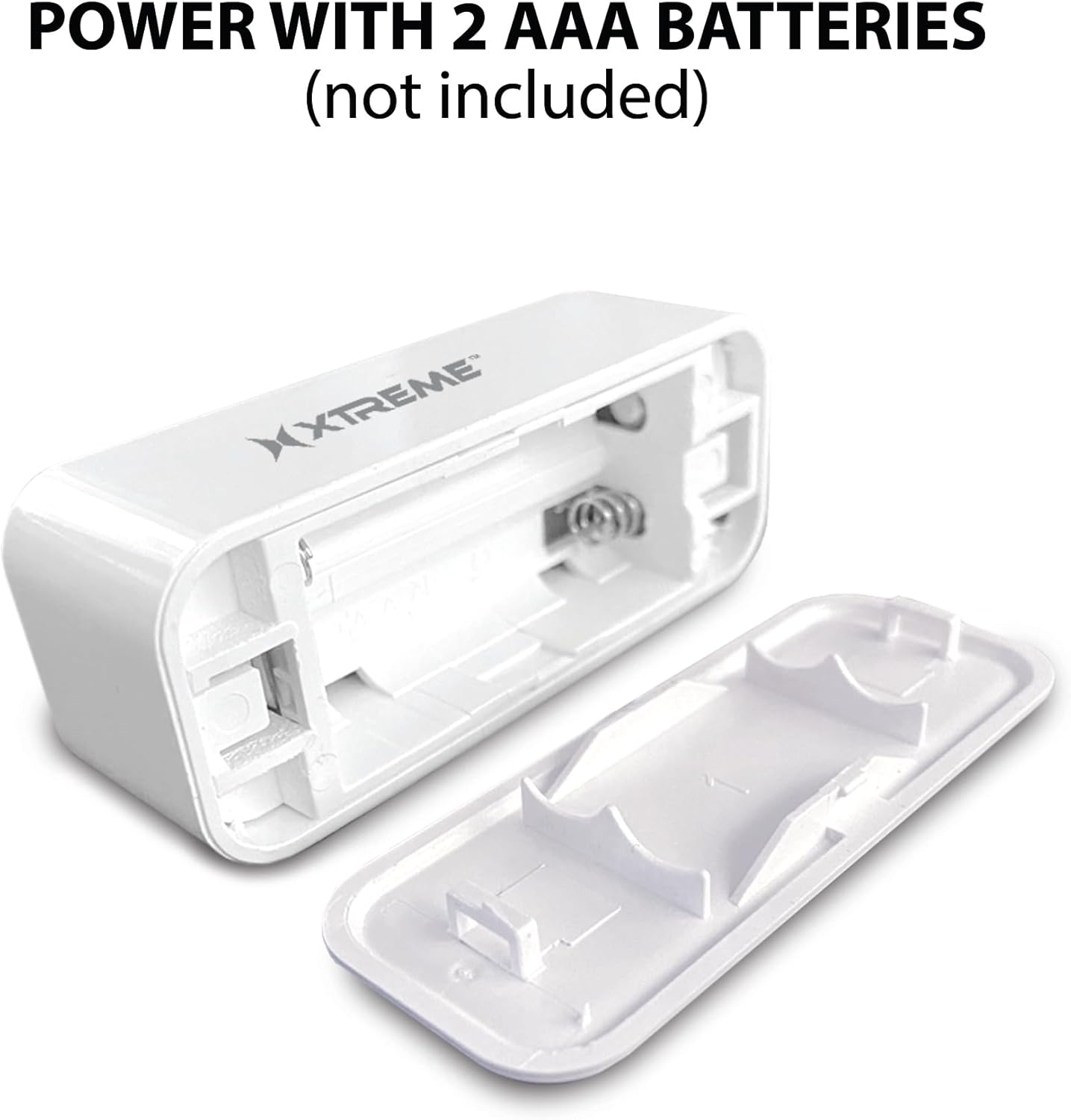
Image: The main sensor unit with its battery compartment open, showing where to insert two AAA batteries.
2. Tikiake Taupānga me te Waihanga Pūkete
- Tikiake te Xtreme Connect Home App from the Apple App Store (for iOS 11 or higher) or Google Play Store (for Android 7.0 or higher).
- Whakatuwheratia te taupānga ka whai i nga tohutohu i runga-mata hei hanga i tetahi kaute hou, takiuru ranei mena kei a koe tetahi.

Image: The product box illustrating the Xtreme Connect Home App download options for both iOS and Android devices.
3. Pairing Pairing
- Ensure your smartphone is connected to a 2.4GHz Wi-Fi network. The sensor does not support 5GHz networks.
- In the Xtreme Connect Home App, tap the "+" icon to add a new device.
- Select "Sensor" or "Door/Window Sensor" from the device list.
- Follow the app's instructions to put the sensor into pairing mode (usually involves pressing and holding a button on the sensor until an indicator light flashes).
- Confirm the Wi-Fi network and enter the password in the app. The sensor will then connect to your home network.
- Once successfully paired, you can name your sensor within the app (e.g., "Front Door," "Bedroom Window").
4. Tāutanga Tinana
The sensor consists of two parts: a main unit and a smaller magnetic contact. These two parts must be installed close to each other (within 1 cm) on a door or window frame.
- Choose a clean, dry, and flat surface on your door or window frame.
- Peel off the protective backing from the adhesive on both the main unit and the magnetic contact.
- Attach the main unit to the fixed part of the door/window frame.
- Attach the magnetic contact to the moving part of the door/window (the door or window itself), aligning it with the main unit so they are no more than 1 cm apart when the door/window is closed.
- Test the installation by opening and closing the door/window. The app should register the change in status.


Image: Left: The sensor installed on a window sill with the window closed. Right: The sensor detecting an open window, with the magnetic contact separated from the main unit.
Mahi
Monitoring Door/Window Status
Once installed and paired, the Xtreme Smart Wi-Fi Window & Door Sensor will continuously monitor the open/closed status of your designated entry point. When the magnetic contact separates from the main unit (door/window opens), the sensor will detect this change.
Whakamōhiotanga Inamata
Upon detecting an open or close event, the sensor will send an instant notification to your smartphone via the Xtreme Connect Home App. Ensure app notifications are enabled in your phone's settings to receive these alerts.
Uru Mamao
Ka taea e koe view the current status of your sensor (open or closed) and review event history from anywhere using the Xtreme Connect Home App, provided your smartphone has an internet connection.
Smart Scenes Integration
The Xtreme Connect Home App allows you to create "Smart Scenes" to automate actions based on sensor activity. For example:
- "If door opens, then turn on living room lights."
- "If window opens after 10 PM, then send an alert to family members."
Explore the "Smart Scenes" section within the app to customize your home automation.
Te tiaki
Whakakapinga Pūhiko
The sensor is powered by two AAA batteries. When the battery level is low, you may receive a notification via the Xtreme Connect Home App. To replace batteries:
- Gently slide open the battery cover on the main sensor unit.
- Tangohia nga pākahiko tawhito.
- Whakauruhia kia rua nga pākahiko kawakore AAA hou, kia tika te polarity (+/-).
- Katia kia mau te taupoki pākahiko.
Note: The sensor is designed for up to four months of battery life under normal usage conditions.
Te horoi
Horoia te pūoko ki te kakahu ngohengohe, maroke. Kaua e whakamahi i ngā wai horoi, i ngā rauemi whakakoi rānei, nā te mea ka kino pea te taputapu.
Raparongoā
| Raruraru | Take pea | Rongoā |
|---|---|---|
| Sensor not connecting to Wi-Fi. | Incorrect Wi-Fi password; 5GHz network used; sensor too far from router. | Ensure correct 2.4GHz Wi-Fi network and password. Move sensor closer to the router. Re-attempt pairing. |
| Kāore he whakamōhiotanga i tae mai. | App notifications disabled; sensor offline; app not running in background. | Check phone's notification settings for the Xtreme Connect Home App. Verify sensor status in the app. Ensure app is allowed to run in the background. |
| Sensor not detecting open/close. | Sensor parts misaligned; dead batteries. | Ensure the main unit and magnetic contact are within 1 cm when closed. Replace batteries if low. |
| He poto te ora o te pākahiko. | Frequent activations; poor quality batteries. | Use high-quality alkaline batteries. Reduce unnecessary activations if possible. |
Whakatakotoranga
| Āhuahira | Taipitopito |
|---|---|
| Tau tauira | XHS7-2001-WHT |
| Puna Mana | 2 x AAA Battery (kaore i uru) |
| Momo Pūhiko | Kawakawa |
| Voltage | 1.5 Volts (DC) |
| Hononga | 2.4GHz 802.11n Wi-Fi, Bluetooth 4.0 (optional) |
| Tikanga Mana | App (Xtreme Connect Home) |
| OS hototahi | Android 7.0+, iOS 11+ |
| Momo Whakaeke | Adhesive / Wall Mount |
| Hunga Hua | 2.7 x 2.4 x 4.6 inihi |
| Taumaha Tūemi | 2.39 hekere |
| Tae | Mā |
| UPC | 805106232399 |
Pūtāhui me te Tautoko
For warranty information and technical support, please refer to the documentation included with your purchase or visit the official Xtreme Digital Lifestyle Accessories website. Do not attempt to return the product to the retailer without first contacting customer support, as per manufacturer guidelines.
Kaihanga: Xtreme
Waitohu: NGĀ TAPUTAPU ORA MAMATI XTREME


