1. Kupu Whakataki
This manual provides comprehensive instructions for the cenmate 3 Bay Hard Drive Enclosure. This device is designed to expand your storage capacity by accommodating up to three 2.5-inch or 3.5-inch SATA HDDs/SSDs, offering high-speed data transfer and flexible expansion options. Please read this manual thoroughly before use to ensure proper installation and operation.

Whakaahua 1.1: Mua view of the cenmate 3 Bay Hard Drive Enclosure.
2. Ihirangi mokete
Manatokona kei roto katoa nga mea kei roto i to kete:
- 1 x cenmate 3 Bay Hard Drive Enclosure (NO RAID functionality)
- 1 x Taura USB A/C 3.0
- 1 x Pūurutau Hiko
- 1 x Manual Kaiwhakamahi (tenei tuhinga)

Image 2.1: The included 2-in-1 USB A/C 3.0 cable for versatile connectivity.
3. Hua Neke Atuview
The cenmate 3 Bay Hard Drive Enclosure is constructed from durable aluminum alloy and features a built-in cooling fan to maintain optimal operating temperatures for your drives. It supports a total storage capacity of up to 60TB (20TB per drive).
3.1 Nga waahanga matua
- Raukaha Teitei: Supports up to three 2.5-inch or 3.5-inch SATA HDDs/SSDs, with a maximum capacity of 20TB per drive, totaling 60TB.
- Te whakamahana pai: Integrated 2.7-inch cooling fan and aluminum alloy construction ensure effective heat dissipation.
- Whakawhiti Raraunga Tere: Equipped with USB 3.0 interface, providing data transfer speeds up to 5Gbps.
- Ka taea te whakawhiti wera: Allows for drive replacement without powering down the enclosure.
- Utauta-Kore he Tāuta: Simplifies drive installation and removal.
- Daisy Chain Expansion: Expand storage by connecting up to three enclosures, supporting a total of 180TB.
- Hototahi Whānui: Compatible with Windows 7 and above, Mac OS 9.1 and above, and Linux operating systems.
3.2 Tautuhinga Wae
Refer to the images below for a visual guide to the enclosure's components and features.

Image 3.1: Rear panel with USB ports, power input, and cooling fan.
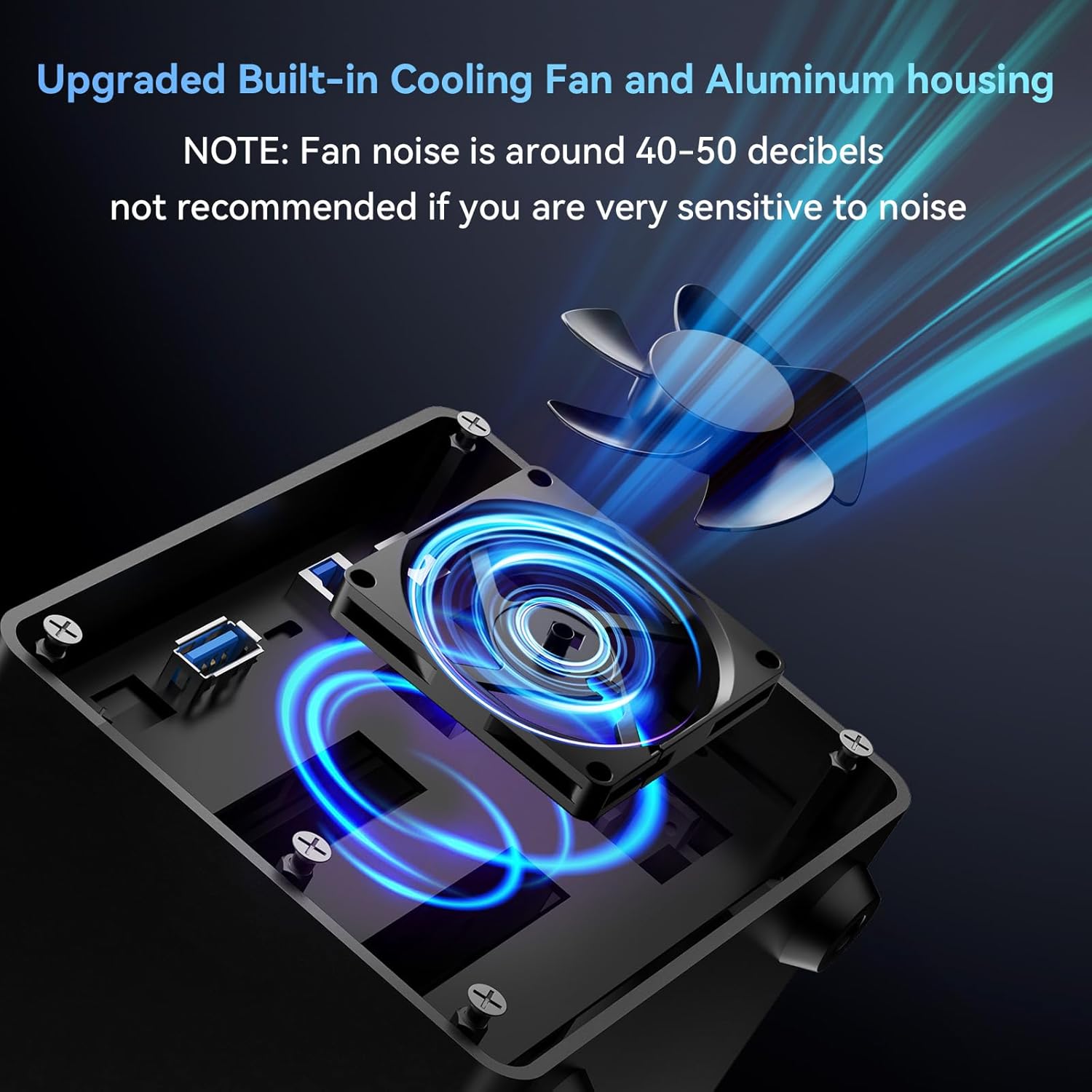
Image 3.2: Illustration of the internal cooling fan for heat management.

Image 3.3: LED indicators for drive status. Blue indicates standby, red flashing indicates read/write activity.
4. Tohutohu Tatūnga
4.1 Tāuta Puku Mārō
- Me whakarite kua whakawetohia te hiko o te pouaka, ā, kua momotu hoki mai i tō rorohiko.
- Gently press the release button on the front of an empty drive bay and pull out the drive tray.
- For 3.5-inch drives: Align the drive with the tray and slide it in until it clicks into place. The tool-free design secures the drive.
- For 2.5-inch drives/SSDs: Place the 2.5-inch drive onto the tray and secure it using the provided screws through the bottom of the tray.
- Slide the loaded drive tray back into the enclosure until it locks securely.
- Repeat for additional drives.
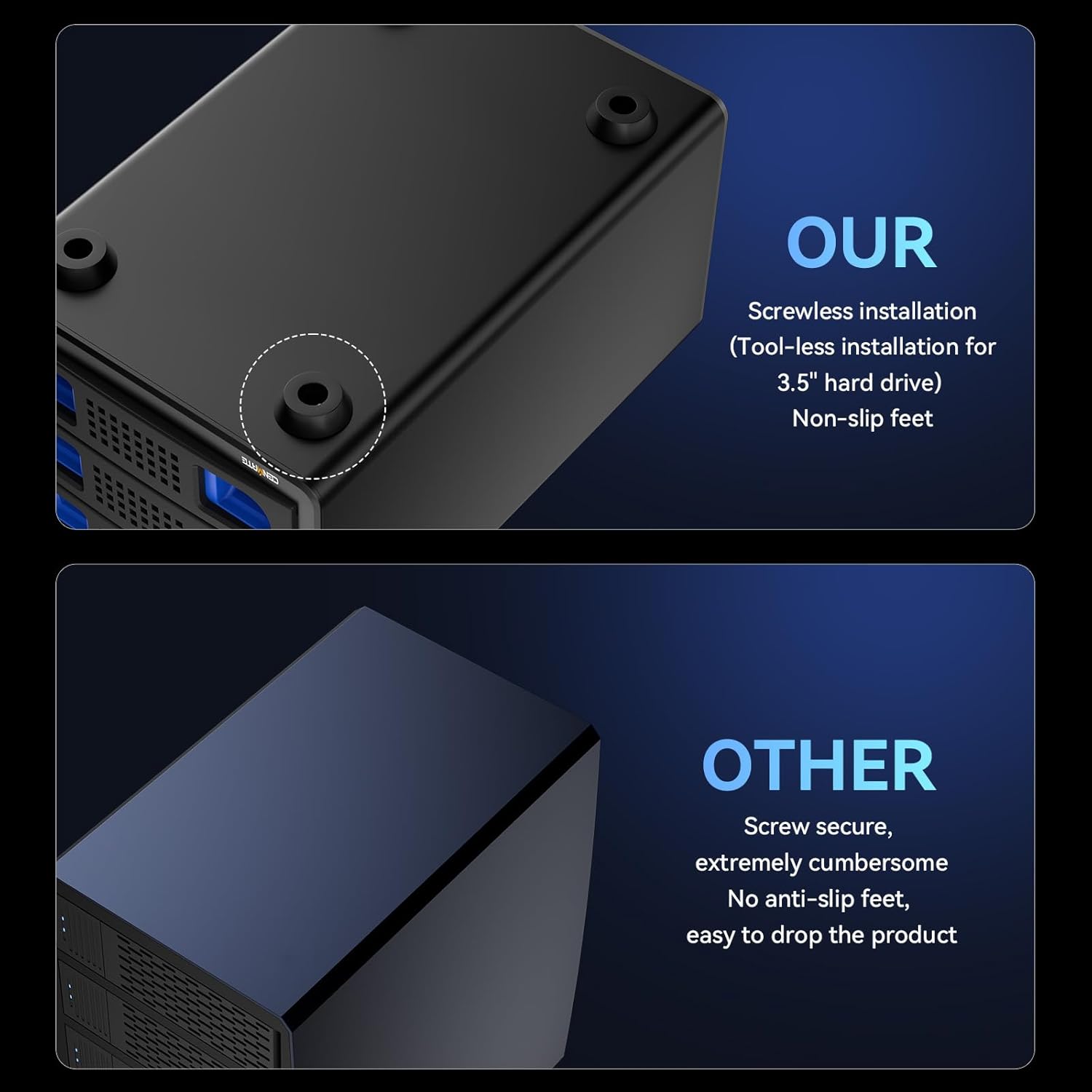
Image 4.1: Tool-free installation of a 3.5-inch hard drive into a tray.
4.2 Te hono ki to Rorohiko
- Connect one end of the provided USB A/C 3.0 cable to the USB 3.0 port on the rear of the enclosure.
- Connect the other end of the USB cable to an available USB-A or USB-C port on your computer.
- Connect the power adapter to the DC 12V input port on the rear of the enclosure, then plug the adapter into a power outlet.
- Turn on the power switch located on the rear of the enclosure.
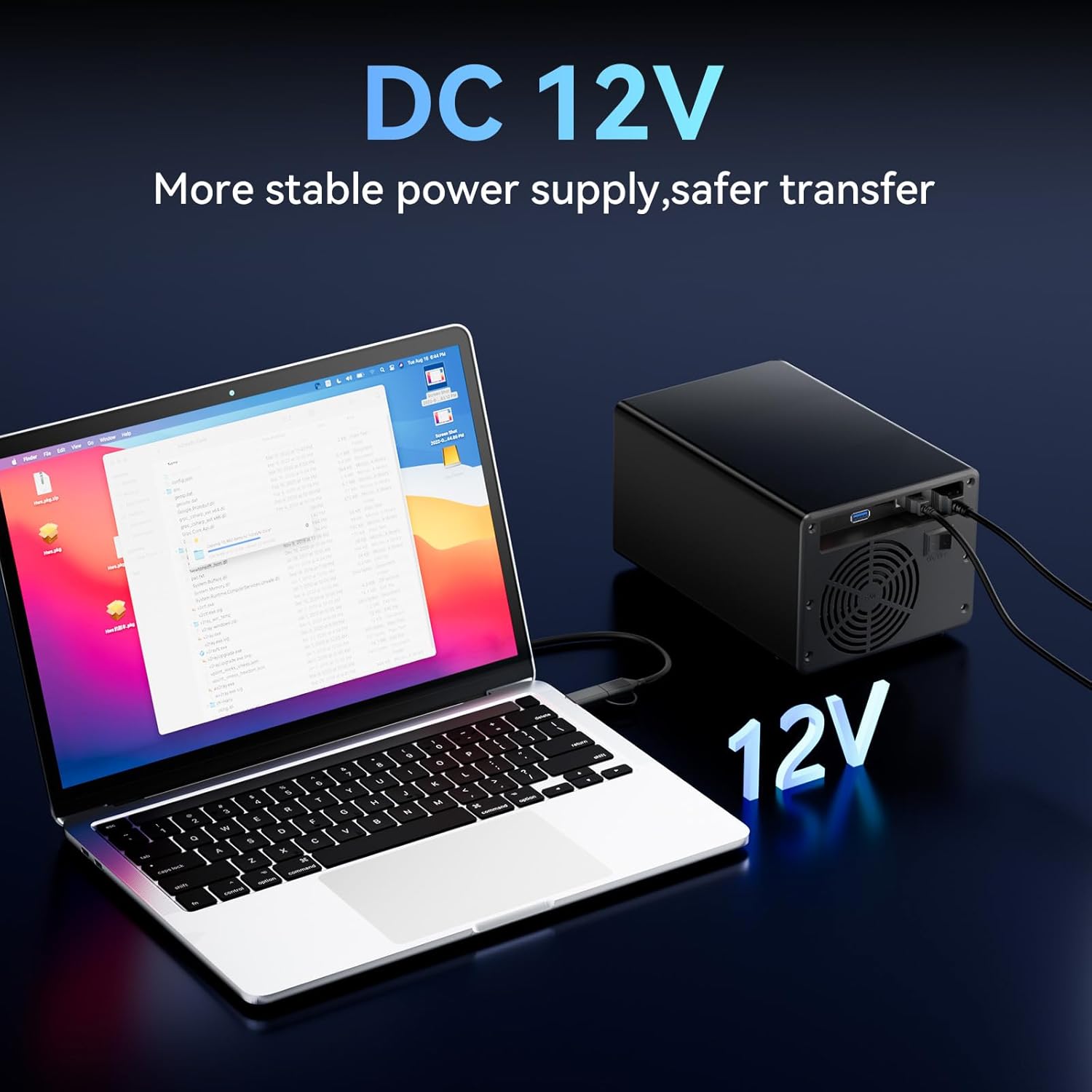
Image 4.2: Enclosure connected to a laptop, illustrating the DC 12V power supply connection.
4.3 Initial Drive Recognition
Once powered on and connected, your operating system (Windows, Mac, or Linux) should automatically detect the new drives. For new drives, you may need to initialize and format them through your operating system's disk management utility before they can be used.
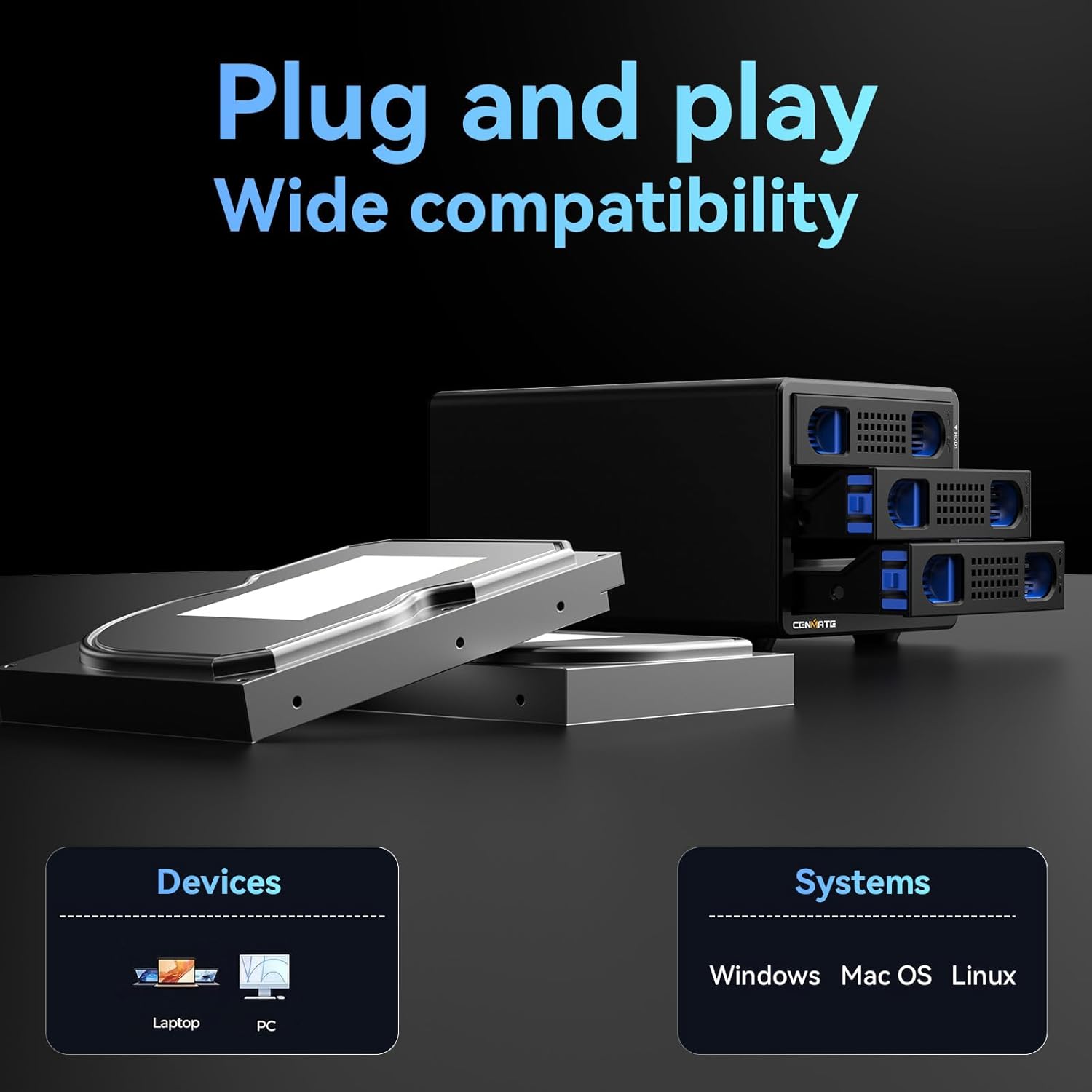
Image 4.3: The enclosure is compatible with laptops and PCs running Windows, Mac OS, and Linux.
5. Nga Tohutohu Whakahaere
5.1 Hot Swapping Drives
The enclosure supports hot-swapping. This means you can remove and insert drives while the enclosure is powered on and connected to your computer, without needing to shut down the system. Ensure that no data transfer is actively occurring to or from the drive you intend to remove to prevent data loss.
5.2 Daisy Chain Expansion
To expand your storage beyond three drives, you can daisy chain multiple cenmate enclosures. Connect the USB HOST port of one enclosure to the USB 3.0 input of another. Up to three enclosures can be daisy-chained, providing a total storage capacity of 180TB. Each enclosure in the daisy chain requires its own power connection.
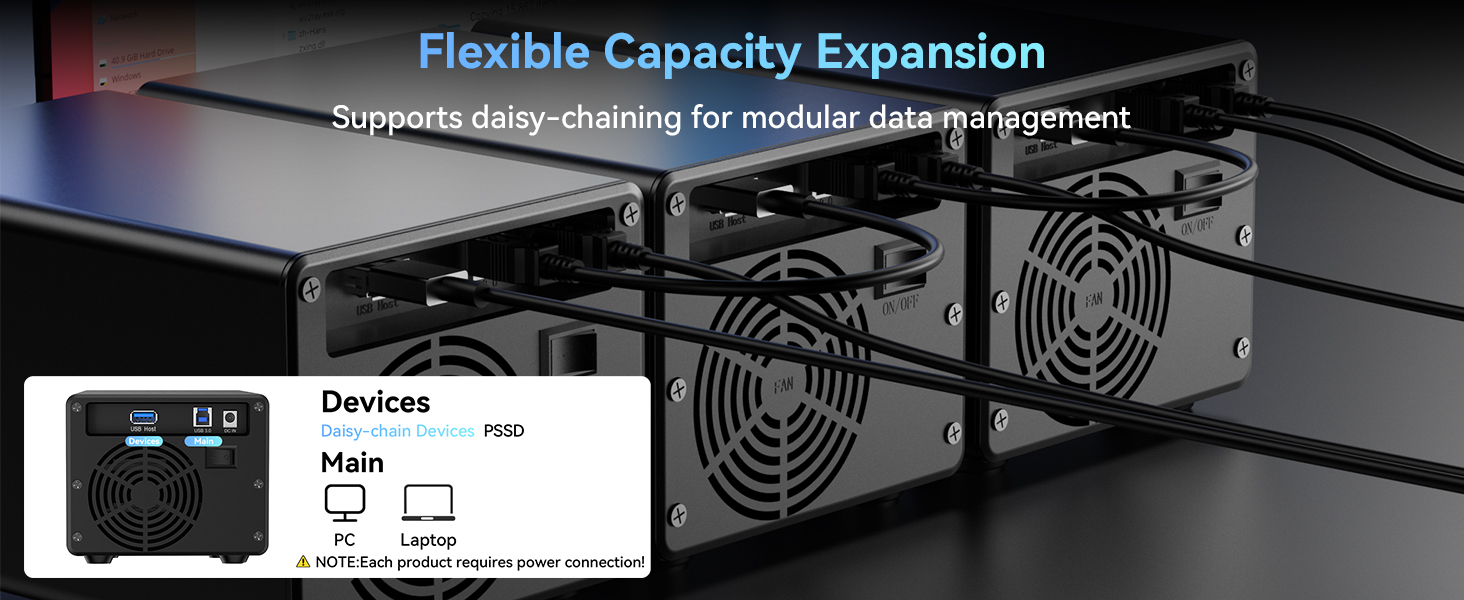
Image 5.1: Daisy chain setup for flexible capacity expansion.
6. Tiaki
6.1 Te horoi
To ensure optimal performance and longevity, periodically clean the exterior of the enclosure with a soft, dry cloth. Ensure the cooling fan vents are free from dust accumulation. Do not use liquid cleaners or abrasive materials.
6.2 Fan Noise
The built-in cooling fan operates to maintain safe temperatures for your hard drives. The fan noise level is typically around 40-50 decibels. If you are particularly sensitive to noise, please consider this operational characteristic.
7. Te Raru
7.1 Kaore i te Mohiotia te Puku
- Ensure the drive is properly seated in its tray and the tray is fully inserted into the enclosure.
- Verify that the enclosure is powered on and the power adapter is securely connected.
- Check the USB cable connection between the enclosure and your computer. Try a different USB port or cable.
- For new drives, ensure they are initialized and formatted through your operating system's disk management utility.
- Test the drive in another enclosure or directly connected to a computer (if possible) to rule out drive failure.
7.2 Ngā Tere Whakawhiti Raraunga Pōturi
- Kia tino mohio kei te whakamahi koe i te tauranga USB 3.0 i runga i tō rorohiko. Mā te hono atu ki te tauranga USB 2.0 ka puhoi ake te tere.
- Verify the USB cable is rated for USB 3.0 speeds.
- Check for other devices connected to the same USB controller that might be consuming bandwidth.
- The performance of the hard drive itself can affect transfer speeds.
7.3 Enclosure Overheating
- Kia tino mohio kei aukatia ngā putanga hau whakamatao.
- Operate the enclosure in a well-ventilated area.
- If using multiple drives, ensure they are not consistently under heavy load for extended periods without adequate airflow.
8. Whakatakotoranga
| Āhuahira | Whakatakotoranga |
|---|---|
| Waitohu | hoa |
| Tau tauira | 3 Pei |
| Rauemi | Konumohe |
| Tae | Pango |
| Puku Hototahi | Pūrere Puku Matapihi/SSD SATA 2.5-inihi / 3.5-inihi |
| Max Capacity per Drive | 20 TB |
| Total Memory Storage Capacity | 60 TB |
| Atanga Pūmārō | USB 3.0 |
| Rere Whakawhiti Raraunga | Tae atu ki te 5 Gigabits ia Hekona |
| Pūrere Hototahi | Papamahi, Pona |
| Pūmārō Pūmārō | Windows, Mac, Linux |
| Max Number of Supported Devices (Daisy Chain) | 3 (for daisy chain expansion) |
| Hunga Hua | 7.95 x 5.2 x 4.41 inihi |
| Taumaha Tūemi | 2.33 pauna (1.06 Kirokaramu) |
9. Pūtāhui me te Tautoko
cenmate is committed to providing high-quality products and excellent customer service.
9.1 Tautoko Hangarau
Should you encounter any issues or have questions regarding your cenmate 3 Bay Hard Drive Enclosure, please do not hesitate to contact our technical support team. We aim to reply and resolve your problem within 24 hours.
Contact information for support can typically be found on the cenmate official webpae, na roto ranei i to turanga hoko.
9.2 Nga Korero Whakaputanga
Specific warranty details may vary by region and retailer. Please refer to the warranty card included with your product or contact cenmate customer service for detailed warranty terms and conditions.


