Kupu Whakataki
This manual provides instructions for the setup, operation, and maintenance of your RadioShack Wireless Gaming Mouse. Please read this manual thoroughly before using the product to ensure proper function and longevity.
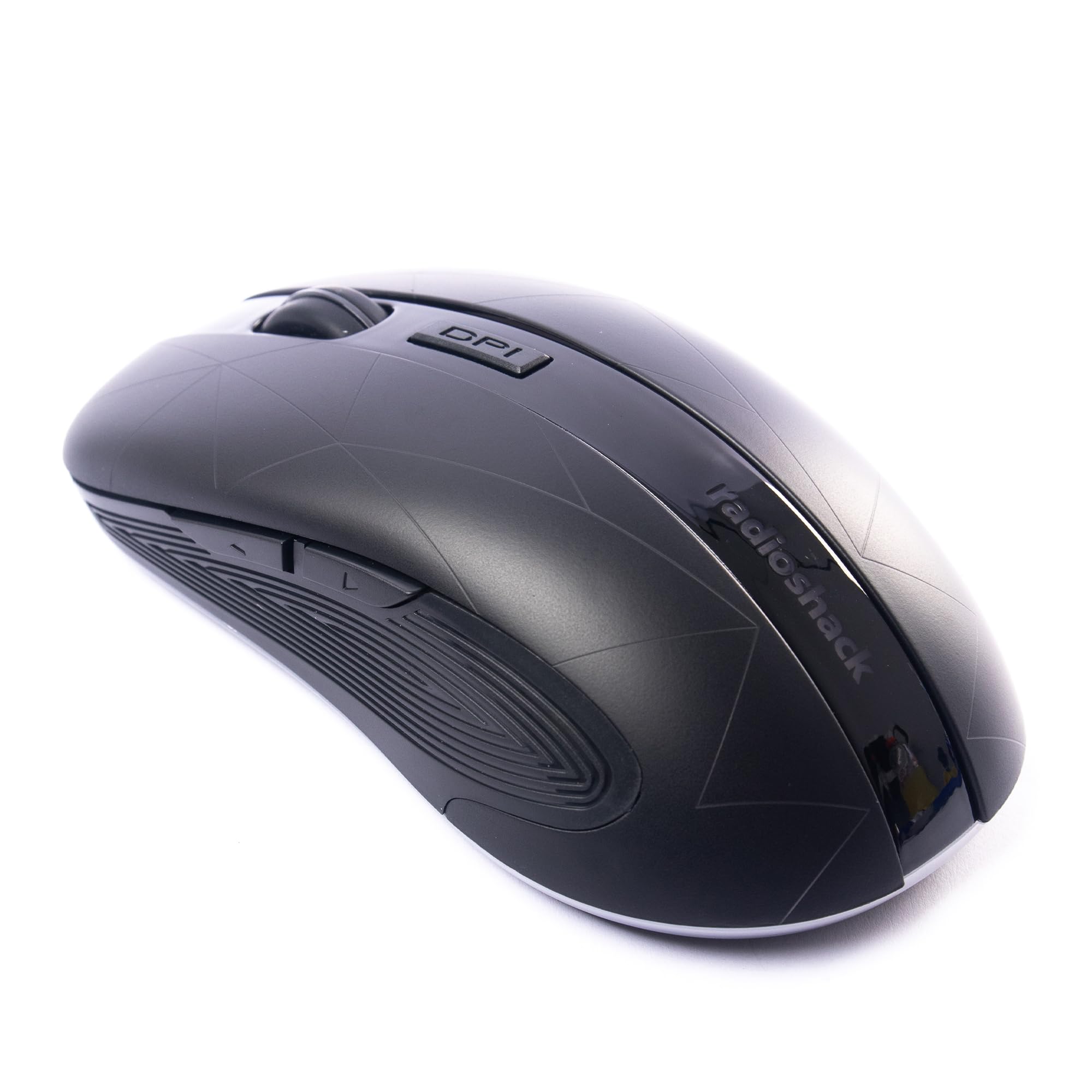
Image: The RadioShack Wireless Gaming Mouse, showcasing tona hoahoa ergonomic me te whakatakotoranga paatene.
Ihirangi mokete
Manatokona kei roto katoa nga mea kei roto i te kete:
- 1 x RadioShack Wireless Gaming Mouse
- 1 x USB Nano Kaiwhiwhi
- 1 x Taura Whakatau

Image: An infographic detailing the contents of the product package, including the wireless gaming mouse.
Tatūnga
- Whakatakina te Kiore: Before first use, connect the mouse to a USB power source using the provided charging cable. The LED indicator will show charging status.
- Locate the USB Nano Receiver: The USB nano receiver is typically stored in a compartment on the underside of the mouse for convenience.
- Honoa te Kaiwhiwhi: Insert the USB nano receiver into an available USB port on your computer (laptop or desktop).
- Mana i runga i te Kiore: Locate the power switch on the underside of the mouse and slide it to the "ON" position.
- Tāuta Atekōkiri: The mouse is plug-and-play. Your operating system (Windows, Mac, Linux, Chrome OS) should automatically detect and install the necessary drivers.

Image: The wireless gaming mouse shown alongside its compact USB nano receiver, ready for connection.
Nga Tohutohu Whakahaere
Taumahinga Taketake
The mouse operates like a standard wireless mouse. Move the mouse to control the cursor on your screen. Use the left and right click buttons for primary and secondary actions, respectively. The scroll wheel allows for vertical scrolling.
Te Whakatikatika i te DPI (Te Tairongo)
The mouse features an adjustable DPI setting, allowing you to change cursor sensitivity. Press the Pātene DPI located behind the scroll wheel to cycle through available DPI settings (800, 1200, 1600, 2400). Each press will change the sensitivity, indicated by a brief LED flash.

Whakaahua: He taha view of the mouse, illustrating the location of the DPI button for sensitivity adjustments.
Pātene Whakahōtaka
This mouse is equipped with 6 programmable buttons, including customizable side buttons. For advanced customization and macro assignments, you may need to download specific software from the RadioShack support website (if available). Refer to the software's instructions for detailed programming steps.

Image: The wireless gaming mouse from an angle, clearly showing the side buttons which can be programmed for various functions.
Te Whakataki i te Kiore
The mouse uses a built-in rechargeable Lithium Ion battery. When the battery is low, the LED indicator may flash or change color. Connect the provided charging cable to the mouse's charging port and to a USB power source (e.g., computer USB port, USB wall adapter). The LED will indicate charging status and turn off or change color when fully charged.
A full charge typically provides several hours of use, depending on usage patterns.
Te tiaki
- Te horoi: Whakamahia he kakahu ngohengohe, maroke hei horoi i te kiore. Mo te paru maro, he paku damp ka taea te whakamahi i te kakahu, kia kore ai te makuku e uru ki roto i te taputapu.
- Rokiroki: When not in use for extended periods, turn off the mouse to conserve battery life. Store the USB nano receiver inside the mouse's compartment to prevent loss.
- Aukati i nga Tikanga Tino: Do not expose the mouse to extreme temperatures, direct sunlight, or high humidity.
Raparongoā
| Raruraru | Rongoā |
|---|---|
| Kaore te kiore e whakautu |
|
| He hononga takamuri, he hononga mokowhiti ranei |
|
| He pohehe, he pohehe ranei te neke o te pehu |
|
Whakatakotoranga
- Tau tauira: 2604789
- Hononga: 2.4 GHz Ahokore
- Pātene: 6 (Ka taea te whakarite)
- Tautuhinga DPI: 800, 1200, 1600, 2400 (Ka taea te whakarite)
- Rapunga Nekehanga: Optical
- Pūhiko: 1 Lithium Ion (Rechargeable, included)
- Awhe Mahi: Tae atu ki te 10 mita
- Hototahi: Matapihi, Mac, Linux, Chrome OS
- Ahu: 4.9" x 2.6" x 1.5"
- Taumaha: 6.2 hekere
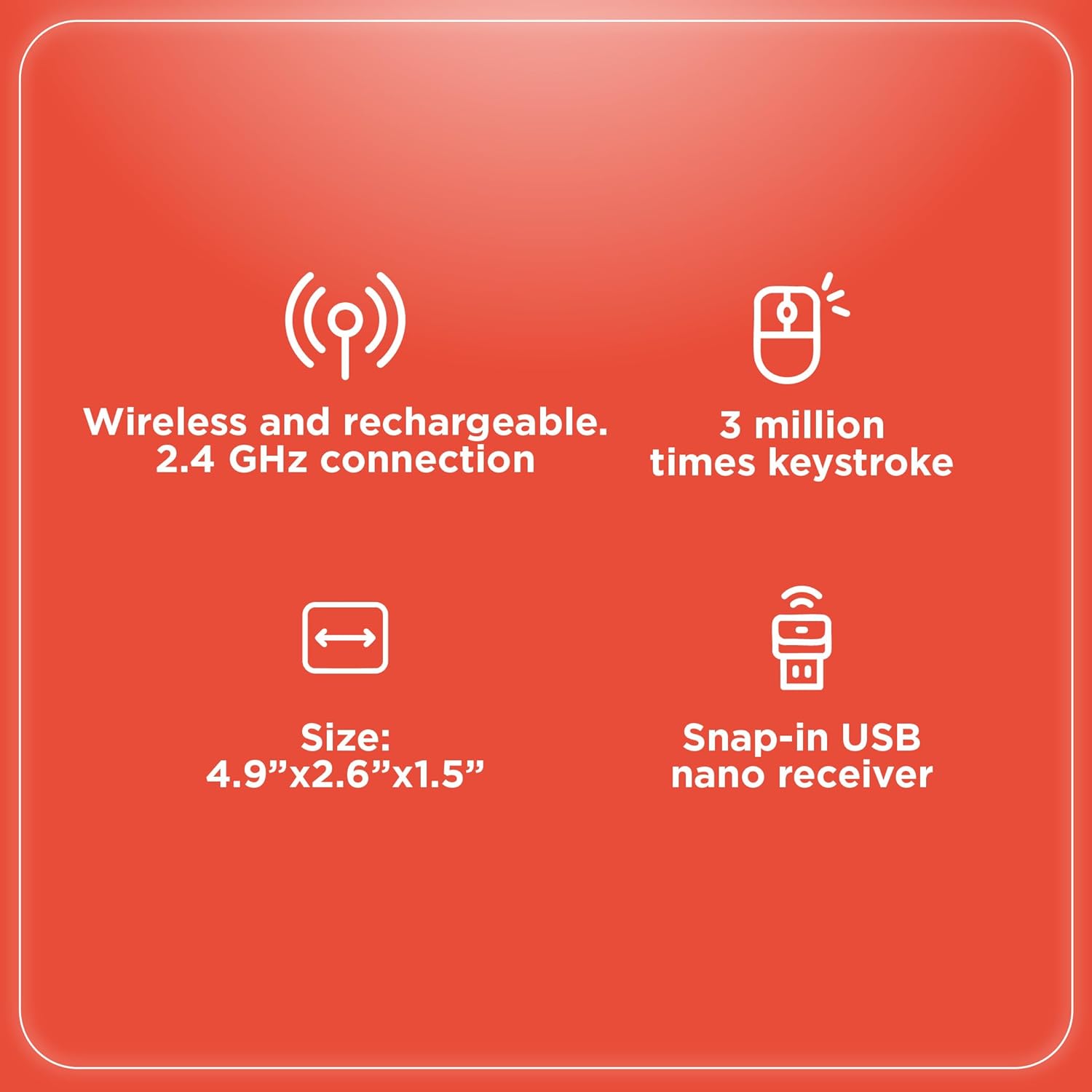
Image: An infographic summarizing key specifications of the wireless gaming mouse, including connectivity, battery, and dimensions.
Pūtāhui me te Tautoko
For warranty information and technical support, please refer to the official RadioShack webpaetukutuku, whakapā atu ranei ki ta raatau ratonga kaihoko. Puritia to riirii hoko hei tohu mo te hoko mo nga kereme whakamana.
Kaihanga: RadioShack
Te Ra Tuatahi Wātea: Akuhata 28, 2024


